
PDMPublisher for SOLIDWORKS
A SOLIDWORKS add-in that turns the document you have open into release-ready PDF, DWG, DXF, STEP and eDrawings files, and handles the chores around it: controlled Save As New copies, assembly-wide property edits, whole-tree cloning, BOMs and ERP sync. No PDM installation required.
✓ Free Community Edition, no key needed
✓ Signed .msi installer, Partner Solution Add-In
✓ Works with or without a PDM vault view
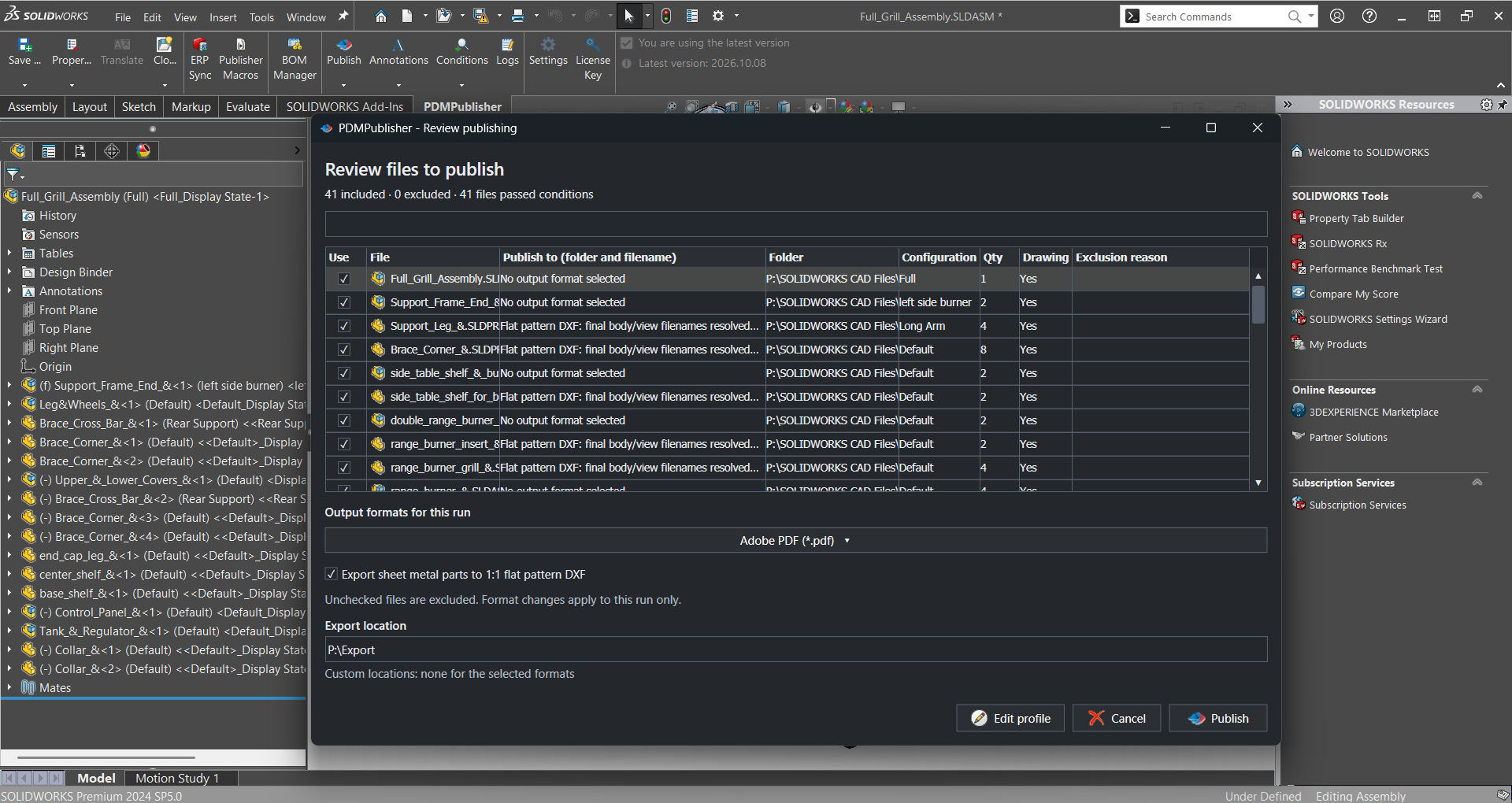
The PDMPublisher tab in the SOLIDWORKS CommandManager, with a publish review for a 41-file assembly.
Where it lives
PDMPublisher adds its own tab to the SOLIDWORKS CommandManager and a menu under Tools. Each command works on the active part, assembly or drawing, and the arrow under Save As New, Property Doctor, Clone Tree and Publish picks a saved profile.

Save As New, Property Doctor and Clone Tree create copies, manage properties and package document sets.
BOM Manager configures columns, structure, grouping and component exclusions for BOM workflows.
ERP Sync pushes items and BOMs to ERP. Publisher Macros edits and runs VBA automation examples.
Publish, Annotations, Conditions and Logs configure and run exports, control what gets marked and included, and review results.
The commands
Publishing
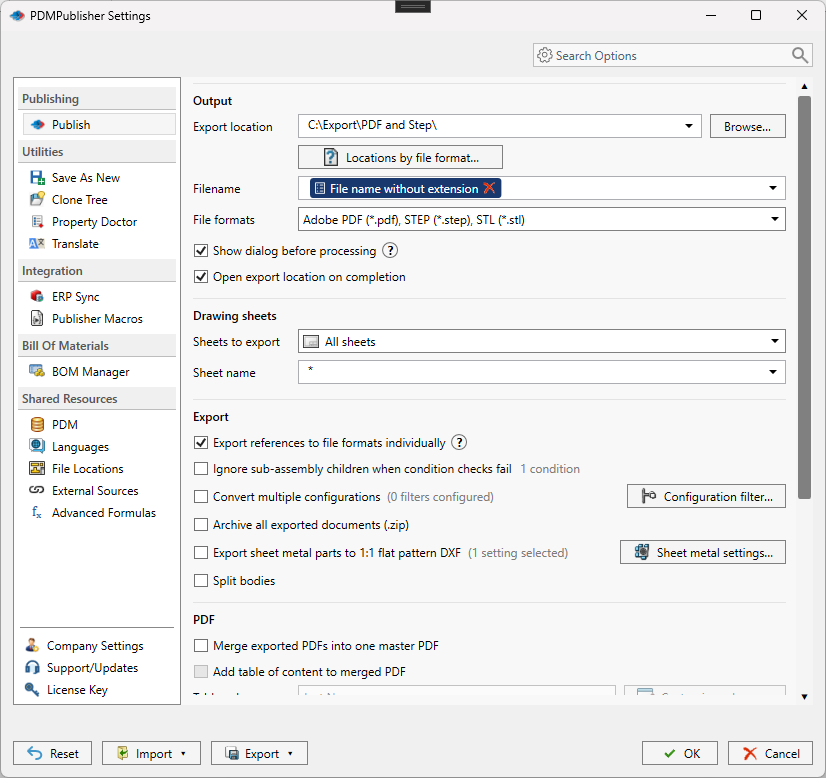
Open a Publish profile and the active document becomes the package you defined: formats, filenames, output folders, sheet selection, references and merged PDFs, with a review of every file before anything is written.
✓ PDF, DWG, DXF, STEP, eDrawings, IGES, Parasolid, STL, 3D PDF and more, plus SOLIDWORKS drawings created from your template
✓ Output paths and filenames built from placeholders, properties and PDM values
✓ Process references individually, convert and filter configurations
✓ Select sheets, merge PDFs, add a table of contents and bookmarks
✓ Sheet-metal flat patterns and split bodies to DXF
Document tools
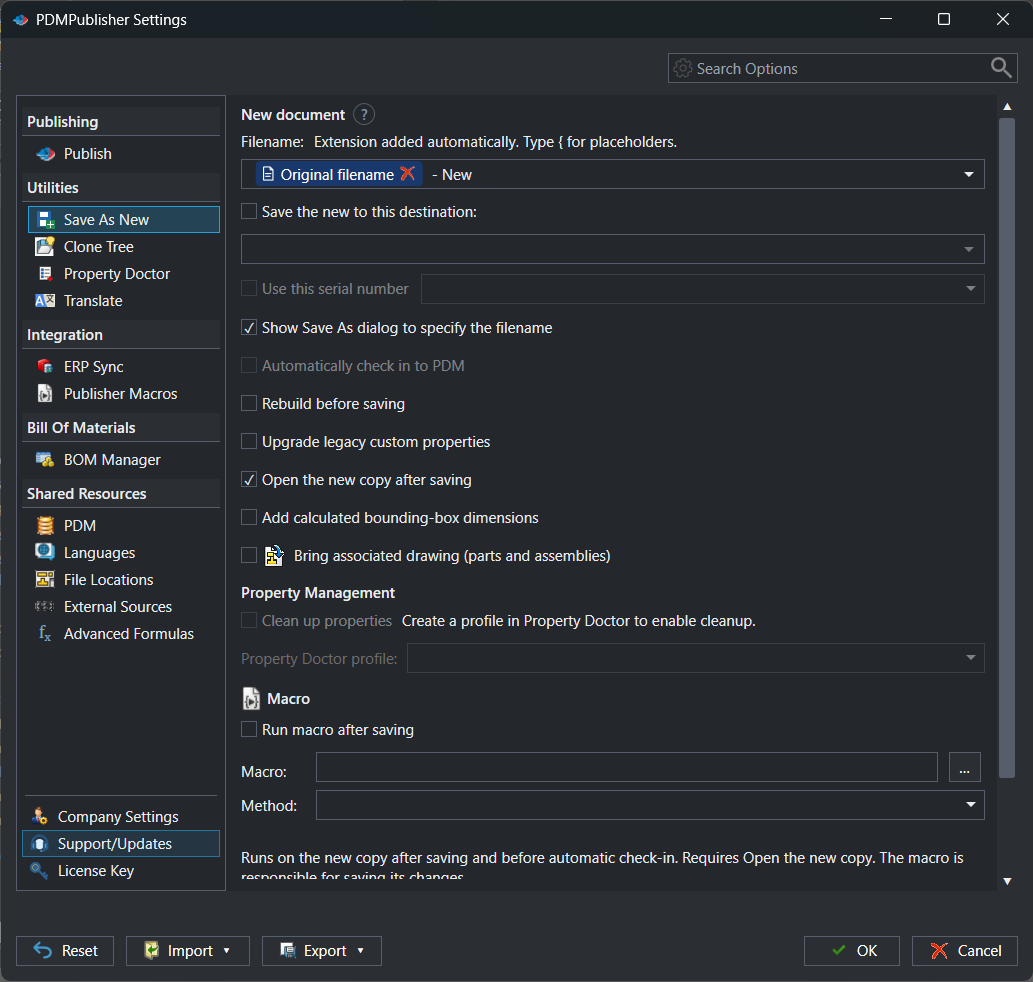
Create a separate native SOLIDWORKS document without renaming the source or touching its assembly references. Naming, destination and follow-up steps come from a profile, so every copy is made the same way.
✓ Filenames and folders from document values, properties, PDM variables, formulas, serial numbers or prompts
✓ Copy and relink the associated drawing
✓ Rebuild before saving, open the copy afterwards
✓ Write bounding-box dimensions, run a macro on the new file
✓ Add and check the new files into the vault automatically
Document tools
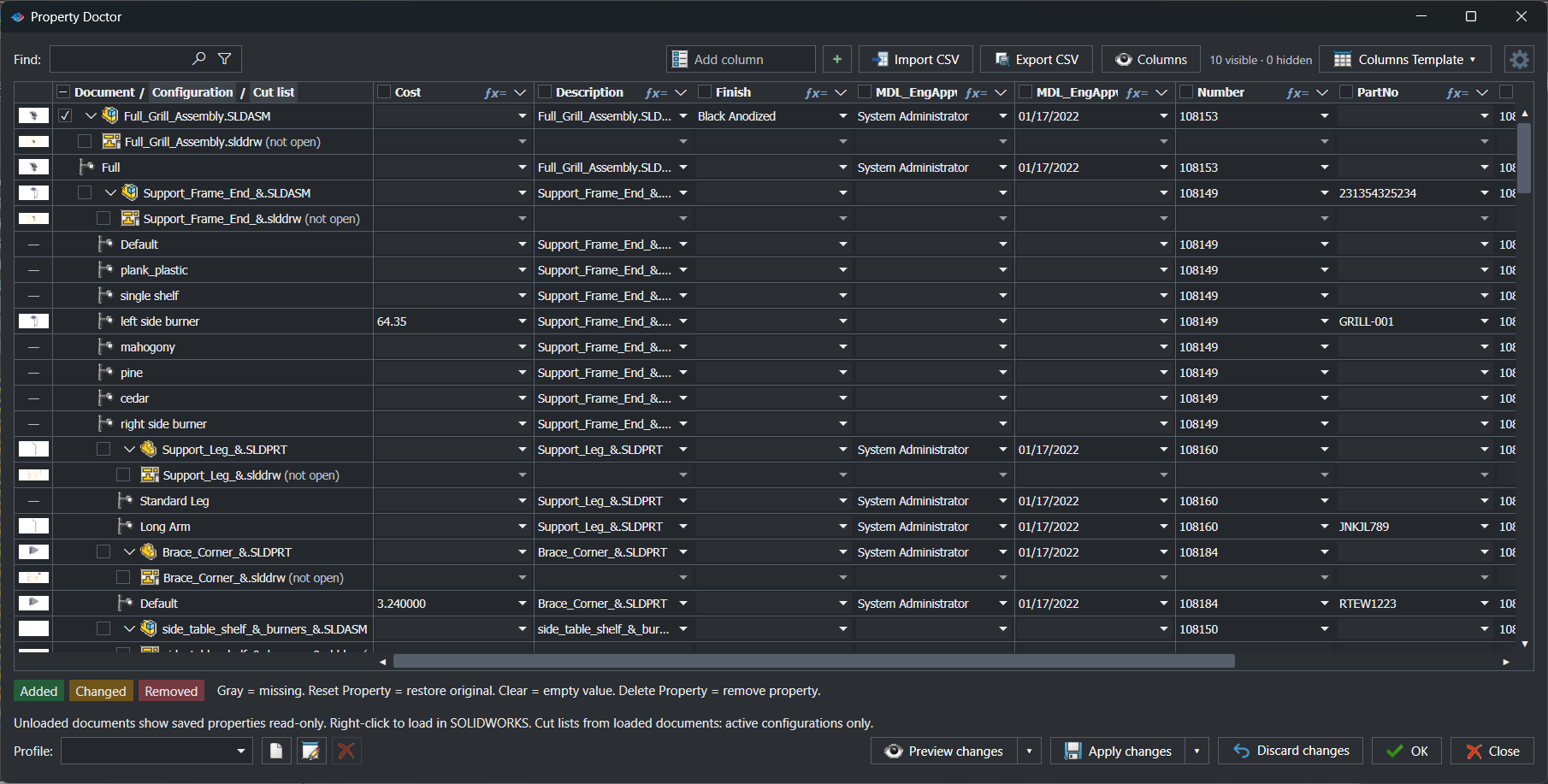
The active document, its configurations, cut lists, drawings and every referenced document in one editable property grid. Change what needs changing, preview it, then apply it in one pass.
✓ Add, edit, clear, reset or delete custom and configuration-specific properties
✓ Search, filter, find and replace, and fill values across visible rows
✓ Use document values, formulas, PDM information and external SQL sources
✓ Import from CSV, export the grid to CSV, load column templates
✓ Check files in or out, get latest and resolve references when permitted
Document tools
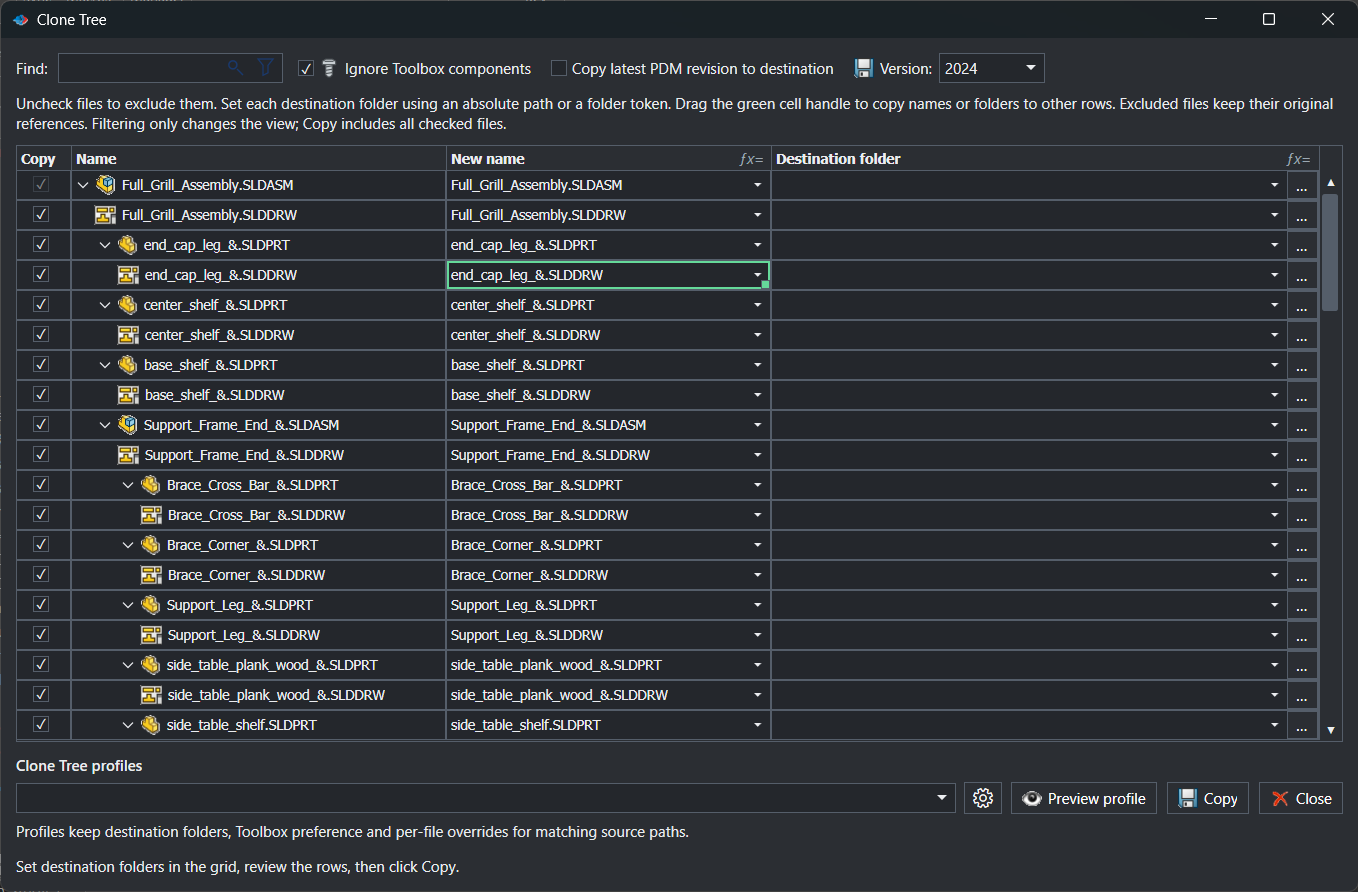
A copy plan for a document and all its references. Every file gets its own name and destination, SOLIDWORKS references are updated to the copies, and the plan is checked for duplicates and overwrites before a single file is written.
✓ Include or exclude individual models and drawings
✓ Per-file names and destinations from properties, folders, PDM variables, serial numbers and formulas
✓ Keep Toolbox components pointing at their original locations
✓ Bring STEP, PDF or DXF companion files, copy the latest PDM revision
✓ Save in the current or an earlier SOLIDWORKS release, zip the result
Bill of materials
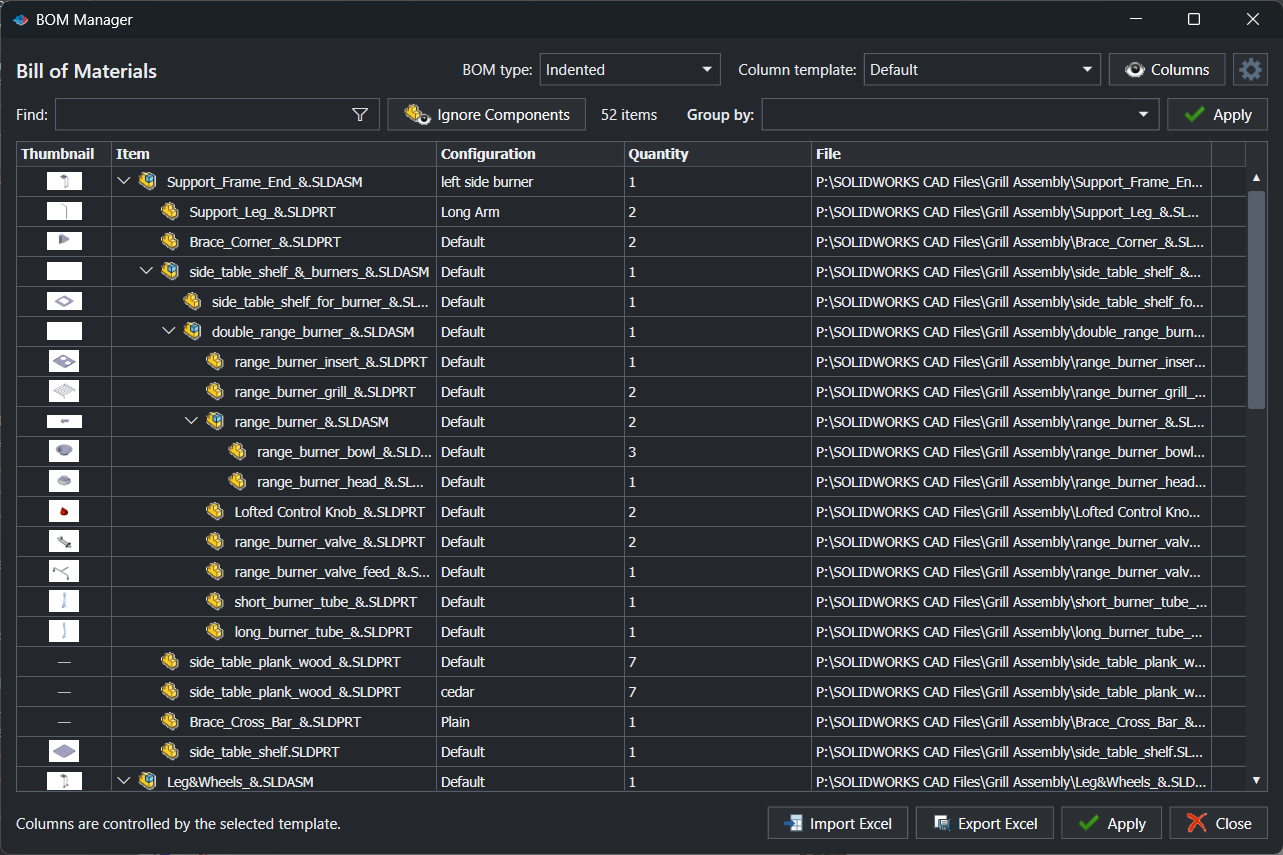
The assembly hierarchy with your own property columns, configuration and quantity. Group rows, exclude components by rule without suppressing them in the model, and move data in and out of Excel.
✓ Indented or flat BOM types with reusable column templates
✓ Find and filter rows, group entries by expression
✓ Ignore Components: condition-based exclusions that leave the assembly untouched
✓ Import and export Excel, apply supported changes back to the model
Integrations
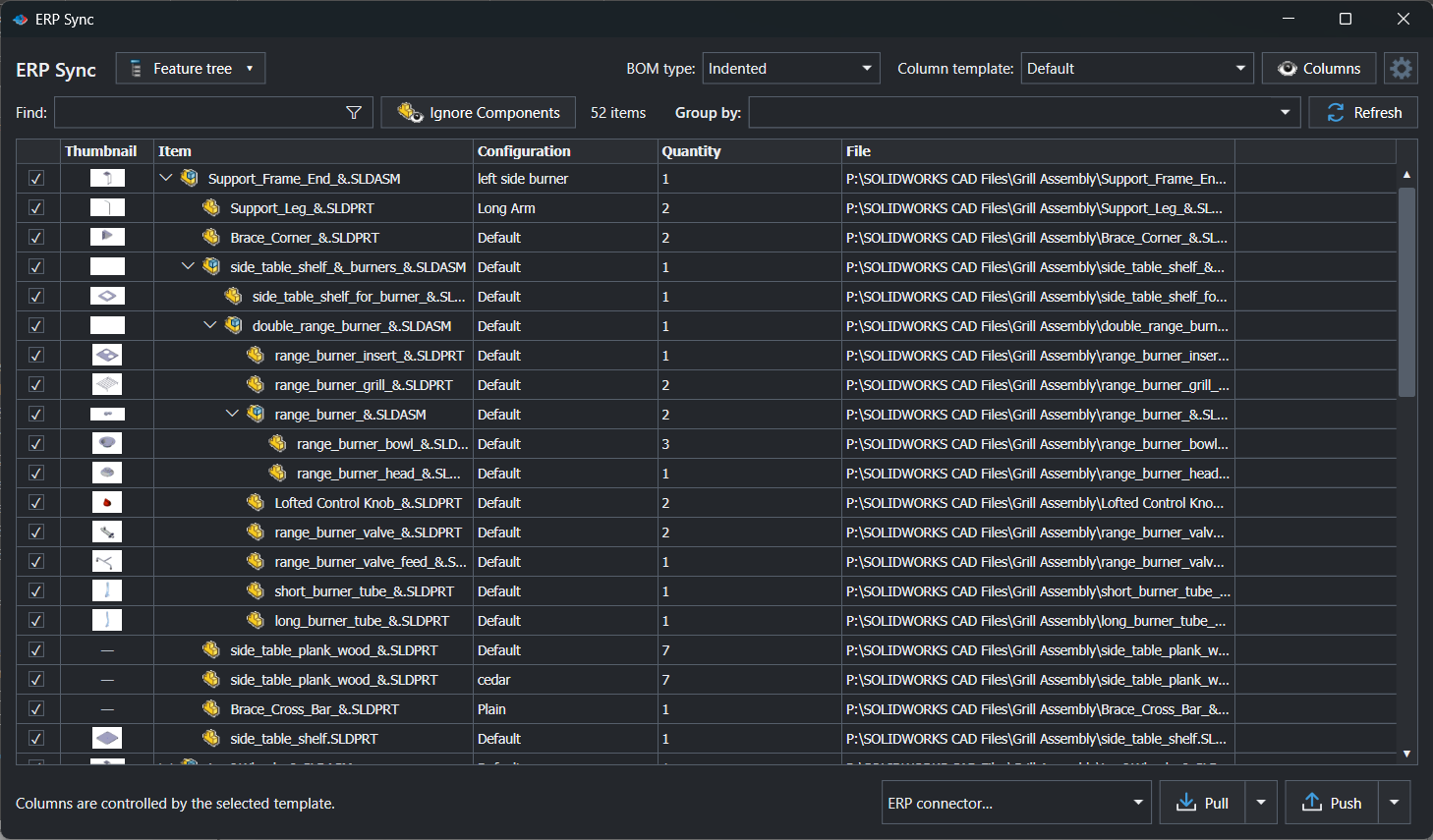
Push checked items, mapped properties, ERP-created part numbers and multi-level BOM relationships from the feature tree, a BOM table or a CSV file. Pull ERP properties back into SOLIDWORKS only after reviewing the diff.
✓ Connectors for Odoo, ERPNext and Microsoft Dynamics 365 Business Central
✓ Build your own C# connector with PDMPublisher.ERPExtension
✓ Attribute mapping and a required review before any pull is applied
✓ Same column templates and exclusions as BOM Manager
Integrations
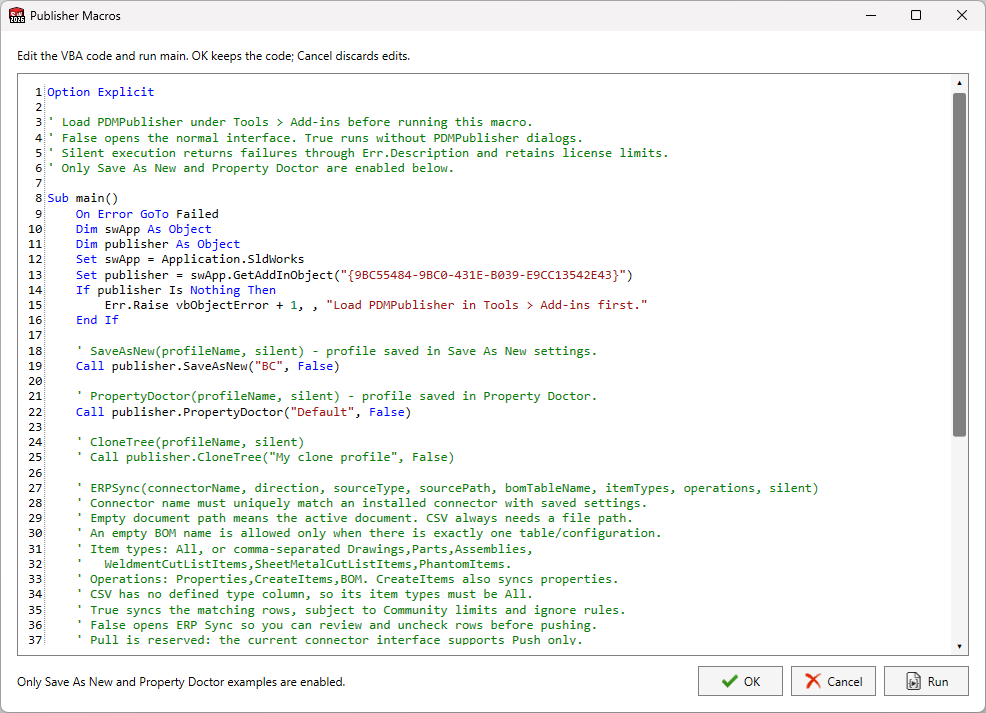
An editable VBA example and macro runner inside the add-in. Call Save As New, Property Doctor, Clone Tree and ERP Sync from your own scripts, and chain them into the automation your team already runs.
Control and traceability
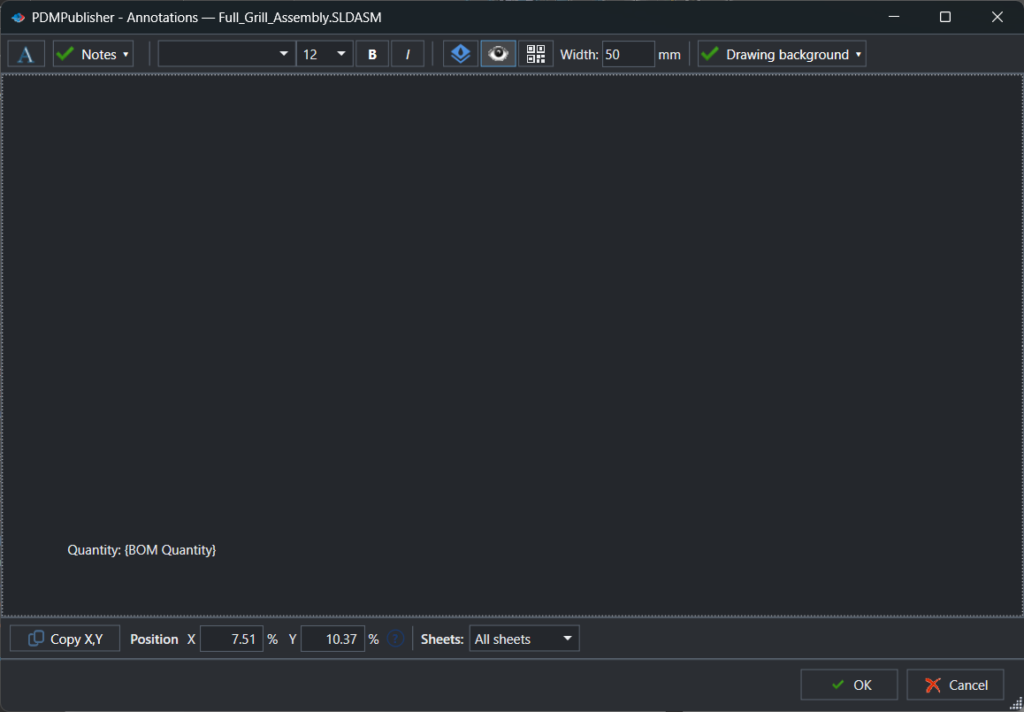
Text, SOLIDWORKS property values, watermarks and QR codes on published pages. Each one has its own position, formatting and sheet selection, stored in the profile.
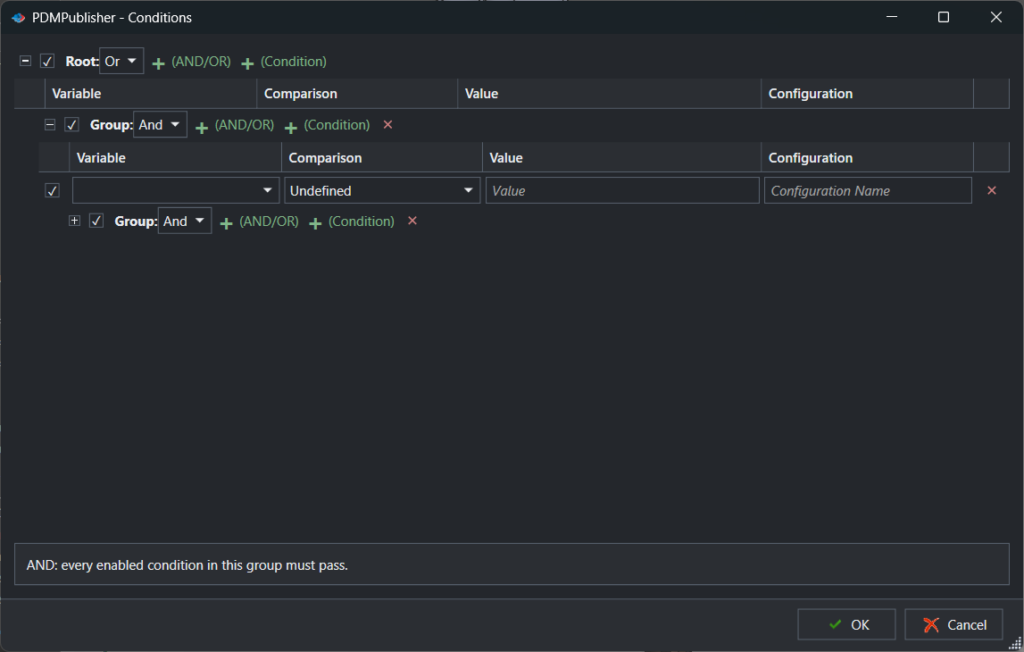
Nested AND/OR rules on properties, names, folders, configurations and PDM variables decide which documents and references are published. The review shows the result first.
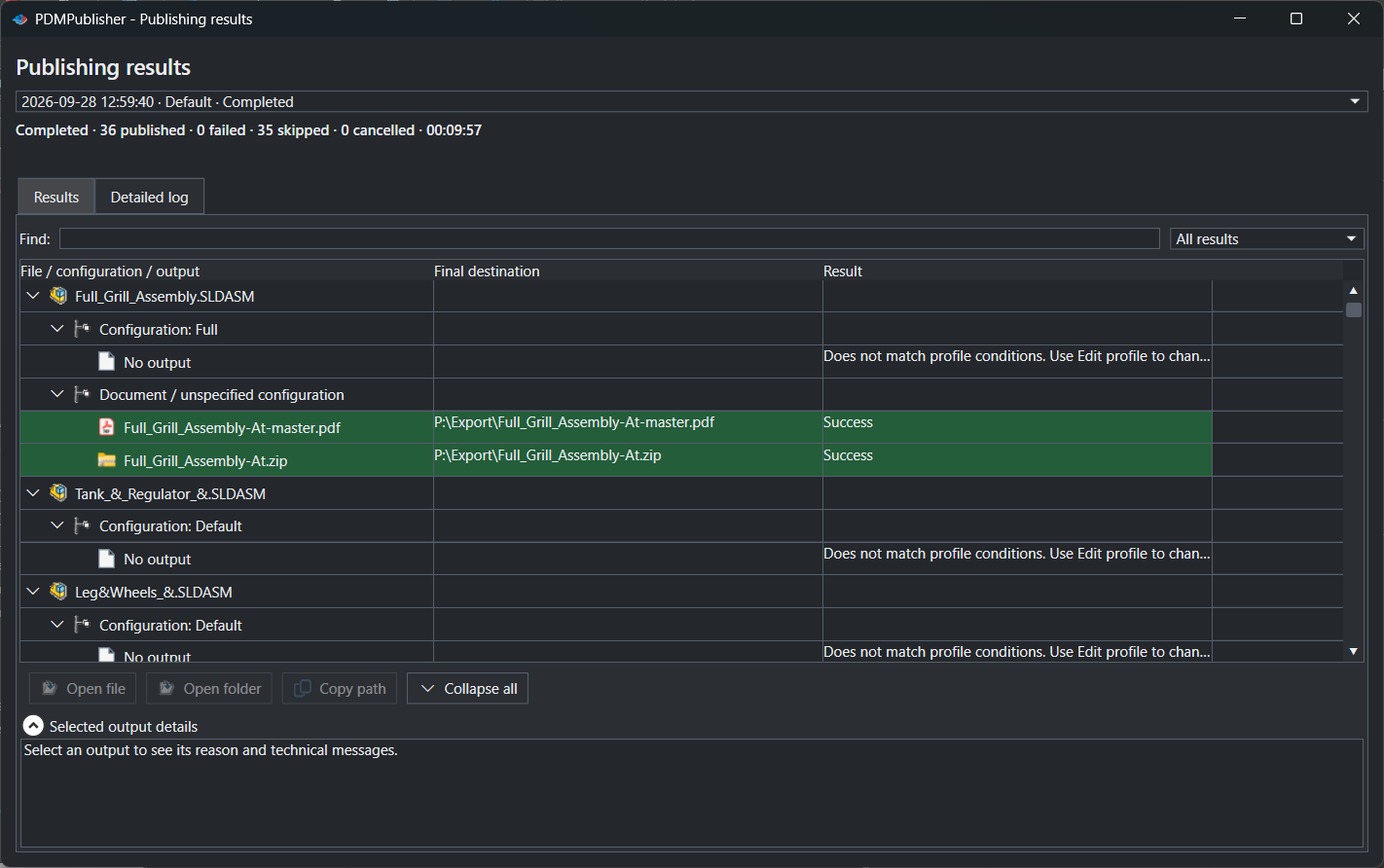
Every publish job records its output files, warnings, skipped items and errors in a dedicated Logs tab, filterable down to what went wrong.
Community vs Premium
Without a Premium key the add-in runs as the Community Edition. The main workflows are all there, with per-operation limits that never expire. Premium removes them.
Feature
Community (free)
Premium
Publish formats
PDF, DXF and STEP
All supported formats
References per publishing run
Up to 5
Unlimited
Save As New
Filename settings; choose destination each time
Reusable filename and destination settings
Clone Tree
Up to 5 rows per run
Unlimited
Property Doctor
Up to 5 rows per apply
Unlimited
BOM Manager and ERP Sync
Up to 10 rows
Unlimited
Export locations by file format
Not available
Available
Profiles, settings transfer, annotations, conditions, logs
Included
Included
Licensing for the PDM Professional Task is separate and per vault. Full comparison in the documentation.
Pricing
Every paid tier includes all Premium features. Prices are per seat, and the more seats you buy the less each one costs. Pay yearly, prepay two or three years, or own it with a perpetual seat.
Secure checkout on bluebyte.biz, the official store of Blue Byte Systems Inc. The PDM Professional Task is licensed separately, per vault. Compare everything on the Get Premium page.
Installation
One signed .msi package. SOLIDWORKS must be closed while it runs, and Windows may need an administrator prompt when installing for all users.
1
Save the .msi locally. If Windows marked it as downloaded, right-click, Properties, and tick Unblock.
2
Follow the wizard through to Finish. Keep SOLIDWORKS closed until it completes.
3
In SOLIDWORKS, open Tools > Add-Ins, find PDMPublisher (SOLIDWORKS) under Partner Solution Add-Ins, and tick both Active Add-ins and Start Up.
4
Start with Settings to create your first Publish profile, or use any command with its defaults. Updates are one click from the CommandManager.
Keep exploring
Product
Publish automatically on workflow transitions, right-click commands or a schedule.
Read more →
Hub
Every capability of the add-in and the task, explained with setup steps.
Read more →
Hub
34 step-by-step guides: SLDPRT, SLDASM and SLDDRW to STEP, PDF, DXF and more.
Read more →
Publishing
Export configurations, bodies and flat patterns from SLDPRT files.
Read more →
Publishing
Sheets to PDF, DWG and DXF with sheet filters and naming patterns.
Read more →
Publishing
One release package with a table of contents and bookmarks.
Read more →
Guide
Convert every configuration of a part to STEP in one run.
Read more →
Contact
Licensing questions, a technical consultation or a partnership enquiry.
Read more →
The Community Edition is free and needs no key. Premium is a seat away when you outgrow it: yearly, prepaid for two or three years, or perpetual.