
Copying an assembly is never just copying files. The subassemblies must be renamed, the references must point at the copies rather than the originals, Toolbox hardware should stay where it is, the customer wants STEP and PDF alongside the models, and PDM wants new part numbers. SOLIDWORKS Pack and Go does part of that. Clone Tree in PDMPublisher for SOLIDWORKS does all of it from one grid, with per-file names built from properties, PDM variables, serial numbers and formulas, and saves the whole plan as a profile.
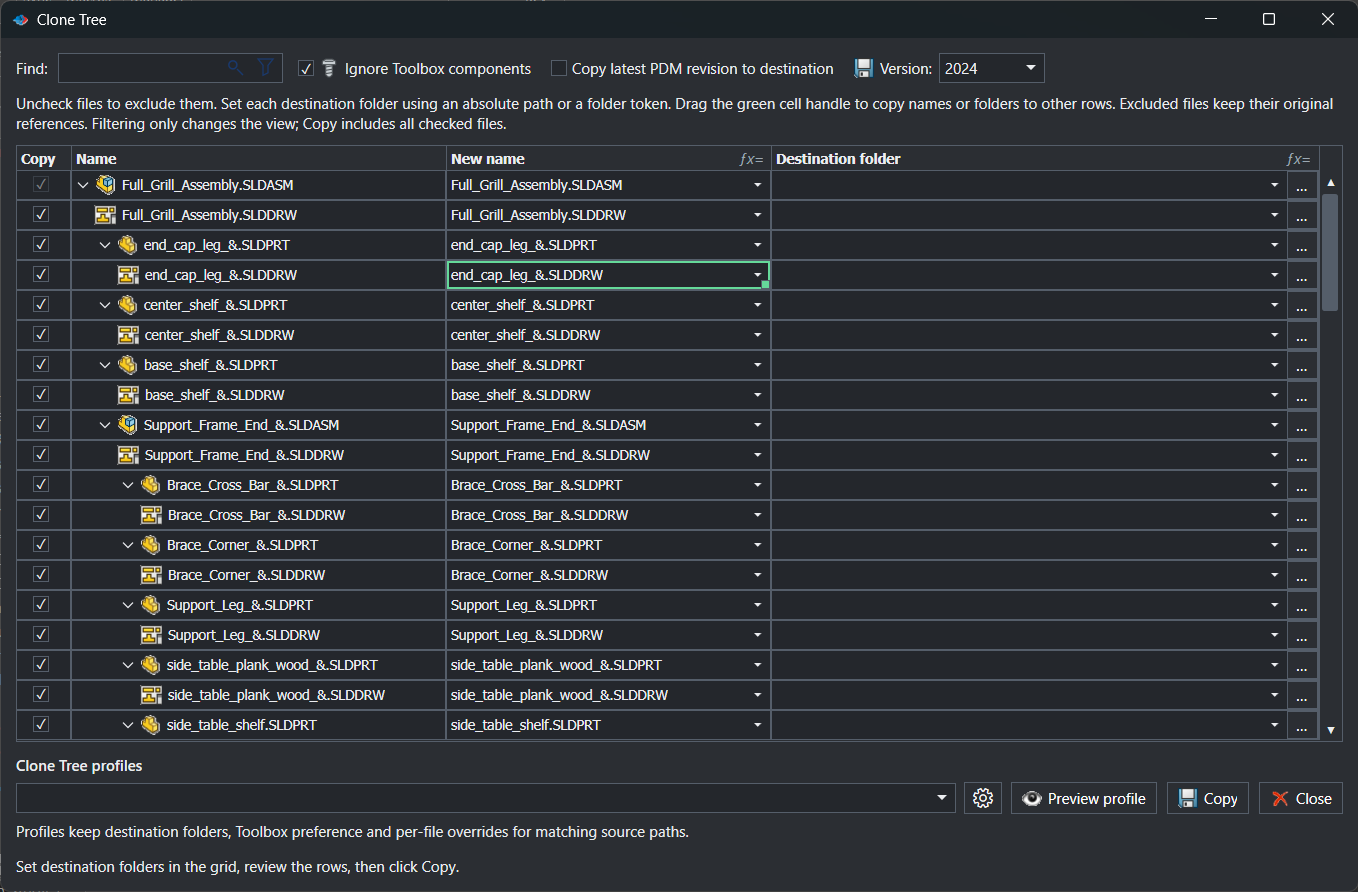
What Clone Tree does
Clone Tree builds a copy plan for the active document and its references. Each included file gets a New name and a Destination folder; when you select Copy, the files are written and the SOLIDWORKS references inside the copies are updated to point at the other copies. Files you uncheck are excluded and keep their original references, which is how a copied assembly can continue to use the same library parts or Toolbox hardware.
Around that core, Clone Tree can include existing same-named STEP/STP, PDF and DXF companion files, copy the latest assigned PDM revision instead of the local cache, save in an earlier SOLIDWORKS release, zip the result, assign one reserved PDM serial number per row, and run a Property Doctor profile on the copied files.
Why it matters
The typical failure mode of a manual copy is a reference that still points at the released original. Weeks later someone edits the copy, the original changes with it, and the released assembly no longer matches the drawing. Clone Tree updates every reference inside the plan and refuses to run when a target would overwrite a source, so the copied tree is genuinely independent.
The second failure mode is naming. A derived machine for a new customer needs new part numbers for every unique part but not for standard hardware. With Clone Tree, rows that need a number get one from the PDM serial-number generator, Toolbox rows are left alone, and a profile rule can build the name from a property or formula for the rest. The same plan runs identically for the next customer.
How it works, step by step
- Save the active SOLIDWORKS document and select PDMPublisher > Clone Tree, or pick a saved profile from the arrow beside the command. Clone Tree waits while SOLIDWORKS finishes loading references; changing the active document during that preparation cancels the operation.
- The grid lists the top document and its references. Check the files to copy and uncheck those to exclude. Ignore Toolbox components at the top removes Toolbox parts from the set in one click.
- Set the New name and Destination folder for each row. Use each cell’s menu to insert document values, properties, folder values, PDM values, serial numbers or formulas, or drag the green cell handle to copy a name pattern or folder to other rows. A destination can be an absolute path or a folder token.
- Optionally enable Copy latest PDM revision to destination, the companion formats, the Version to save in, and the ZIP archive row with its own filename and destination.
- Select Preview profile to see how the selected profile’s rules would fill the grid, then review the rows.
- Select Copy. Validation runs first; any problem stops the plan before a file is written. Serial numbers are generated at this point, and a retry reuses the same numbers while the window stays open.
- Files are copied with updated references, companion files follow, the ZIP is created after the copies complete, and the optional Property Doctor profile runs on the copied files.
Search and type filters change only the visible rows; every checked file remains in the copy plan whether or not it is currently displayed.
Every option in the Clone Tree window
| Option | What it does | Notes |
|---|---|---|
| Find and filter | Searches the grid and filters by document type. | Affects the view only; checked files stay in the plan. |
| Ignore Toolbox components | Leaves Toolbox components out of the copied document set. | Excluded Toolbox parts keep their original references. |
| Copy latest PDM revision to destination | Copies the latest assigned revision from the vault directly to each destination. | Does not update the local vault cache or reload SOLIDWORKS. Vault files without an assigned revision cannot use it. |
| Copy checkbox column | Includes or excludes a row. | The top document is always included. |
| New name | Filename of the copy; the extension must stay the same. | Cell menu inserts tokens; fx= marks formula-capable columns. |
| Destination folder | Absolute path or folder token per row; … browses. | Unresolved destination expressions block the copy. |
| Version | In SOLIDWORKS 2024 and newer, saves in the current release or either of the two previous releases. | Use for a supplier still on an older SOLIDWORKS. |
| Companion files (STEP / STP, PDF, DXF) | Includes existing same-named files found for a document. | Clone Tree does not generate exports; use Publish to create them first. |
| ZIP archive row / Create ZIP archive after copying | Creates a ZIP after the file copies complete, with its own filename and destination. | Ideal for a supplier or customer package. |
| PDM serial number | Assigns one reserved number per included row and reuses it when both the filename and the folder need it. | Generator chosen under Settings > Clone Tree. |
| Clone Tree profiles selector and gear | Selects a profile or opens profile management. | Profiles keep destination folders, Toolbox preference and per-file overrides for matching source paths. |
| Preview profile | Applies the selected profile’s rules to the grid for review. | |
| Copy | Validates and executes the plan. | Community Edition processes up to 5 rows per run. |
| Close | Closes without copying. |
Profiles and rules
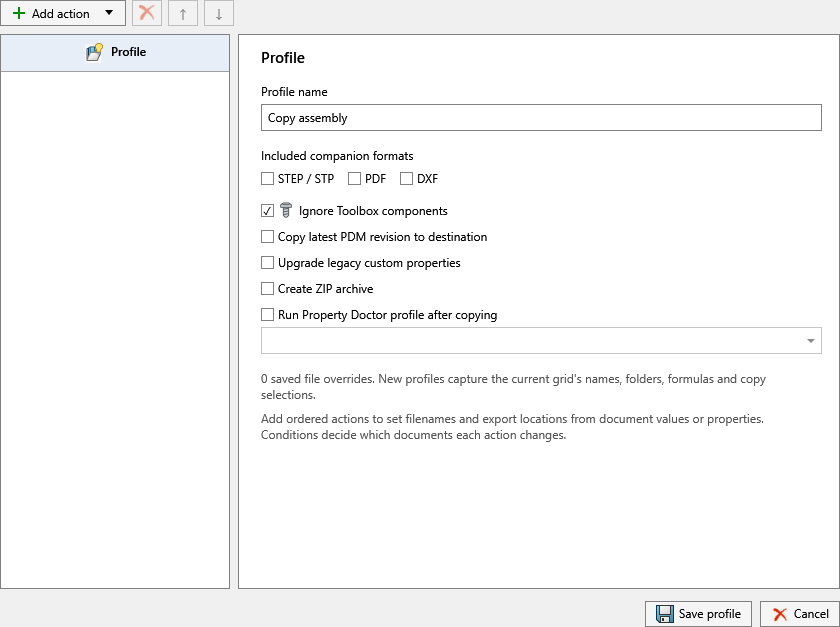
A Clone Tree profile preserves destinations, the Toolbox preference, companion formats, latest-revision behaviour, the ZIP setting, the save version, per-file overrides for matching source paths and an ordered list of rules. A rule is an action that sets a filename or export location from document values or properties when its conditions match; later rules can replace values set by earlier ones. New profiles capture the current grid’s names, folders, formulas and copy selections.
Manage profiles in Settings > Clone Tree or from the gear in the Clone Tree window. The arrow beside the CommandManager command opens a saved profile directly. A profile can also select a Property Doctor profile to run after copying; that processing applies to the copied files and requires files compatible with the current SOLIDWORKS version.
| Profile setting | What it does | Notes |
|---|---|---|
| Profile name | Name shown in the CommandManager arrow menu and Settings. | |
| Included companion formats: STEP / STP, PDF, DXF | Companion files to include for every copied document. | Off by default. |
| Ignore Toolbox components | Default for the window checkbox. | On in the example profile. |
| Copy latest PDM revision to destination | Default for the window checkbox. | |
| Upgrade legacy custom properties | Checkbox shown in the current profile editor. | Refer to the in-product tooltip; not described further in the documentation. |
| Create ZIP archive | Adds the ZIP step after copying. | |
| Run Property Doctor profile after copying | Runs the selected Property Doctor profile on the copied files. | Choose the profile in the dropdown below the checkbox. |
| Add action, remove, up/down | Ordered rules that set filenames and export locations from document values or properties, gated by conditions. | Later rules win. |
Settings page: serial numbers and profiles
Open PDMPublisher > Settings > Clone Tree under Utilities.
| Setting | What it does | Notes |
|---|---|---|
| Use this serial number | Selects the PDM serial-number definition used by rows that request a new number. | Requires Use vault and a vault on the PDM page. |
| Profile selector | Chooses the profile edited by the command. | |
| Create, rename/edit, delete buttons | Manage profiles. | The arrow beside the CommandManager command lists them. |
Serial numbers are generated when Copy is selected, and retries reuse the same number while the dialog remains open, so a validation failure does not burn numbers.
Tokens for names and destinations
Every New name and Destination folder cell has a menu of tokens. The groups mirror the ones used by Save As New.
- Rename every unique part with a new PDM number: name
{Serial number}on all non-Toolbox rows, folder{Vault root folder}\Projects\P-24017. - Prefix a whole tree for a variant: fill
NEW-{Original filename}down the New name column with the green handle and set one destination for all rows. - Supplier package: keep names, set destination
C:\Transfer\{Original filename}, enable STEP and PDF companions and the ZIP row named after the top assembly.
| Token | Inserts | Example |
|---|---|---|
{Original filename} | The source document’s filename without extension. | NEW-{Original filename} → NEW-Bracket |
{PropertyName} | Any custom or configuration property of the document, by its exact name. | {PartNumber}-{Revision} |
{Serial number} | The next value from the PDM serial number selected in the settings (requires a vault). | {Serial number} → BB-004512 |
{Prompt user} | Asks for a value when the command runs; affects the output path only, never the document properties. | {Prompt user}-{Original filename} |
{Folder location} | The source document’s folder (destination templates only, first position). | {Folder location}\Copies |
{Vault root folder} | The local root of the connected PDM vault view. | {Vault root folder}\Projects\{Project} |
{Top level assembly name}, {Top level assembly folder name}, {Top level assembly folder path} | Name, folder name or full folder path of the saved top-level assembly the document belongs to. | {Top level assembly folder path}\Exports |
{Vault name}, {PDM username}, {PDM variable: Name} | Vault name, the current PDM user, or any datacard variable. | {PDM variable: Project Number} |
{DateTime: Date}, {DateTime: Time}, {DateTime: Year} … | Date and time parts (Date = yyyy-MM-dd, Time = HH-mm-ss, plus Year, Month, Day, Hour, Minute, Second and Date and time). | {Original filename}_{DateTime: Date} |
{SQL: SourceName}, {Formula: Name} | The single value returned by a named External Source query, or a named Advanced Formula. | {Formula: NextRev} |
Type
{in a filename or destination field and pick from the menu; the token is inserted as a chip but stored as plain{Name}text, so templates copy between profiles and machines. Folder tokens go at the start of a destination, followed by a backslash for subfolders.
Smart Pack and Go: packaging with companion files and ZIP
Earlier builds listed this command as Smart Pack and Go in the Settings navigation and the documentation still lives at pdmpublishersolidworks_smart-pack; the current name is Clone Tree. The name change reflects what the tool became: SOLIDWORKS Pack and Go copies a set of files with optional prefix and suffix, whereas Clone Tree gives every file its own computed name and destination, updates references, reserves PDM numbers and runs rules.
The Pack and Go side of the feature is still there for anyone who needs a package rather than a renamed tree. Check STEP / STP, PDF or DXF to bring along the existing same-named exports found for each document, enable Create ZIP archive so a single file is produced after the copies complete, and combine it with Copy latest PDM revision to destination so the package contains the released revision rather than whatever is in the local cache. Because Clone Tree copies existing companion files and does not generate them, publish the STEP, PDF and DXF first with a Publish profile, then package.
Works with SOLIDWORKS PDM
Clone Tree uses the vault selected under PDMPublisher > Settings > PDM (Use vault plus the vault list). That vault supplies the serial-number generators, the revision data behind Copy latest PDM revision to destination, and PDM variables for tokens. The vault view must exist locally and the Windows user must be able to log in; selecting the vault does not log you in, move files or grant permissions. Unavailable PDM revision data is a validation error, and vault files with no assigned revision cannot use the latest-revision option.
Set it up in the SOLIDWORKS add-in
- Open PDMPublisher > Settings > PDM, enable Use vault and select the vault if the plan will use serial numbers, revisions or PDM values.
- Open Settings > Clone Tree, select the serial-number generator under Use this serial number, and create a profile with the create button.
- In the profile editor, name it, choose companion formats, set Ignore Toolbox components, Copy latest PDM revision to destination, Create ZIP archive and, if wanted, Run Property Doctor profile after copying.
- Select Add action to add ordered rules that set filenames and export locations from document values or properties, with conditions where needed. Save profile, then OK.
- Open the top assembly, save it, and choose the profile from the arrow beside Clone Tree in the CommandManager.
- Check or uncheck rows, adjust names and folders, select Preview profile to confirm the rules, then Copy.
- Share the profile through Export (file or PIN) at the bottom of Settings.
Recipes
| Scenario | Settings | Result |
|---|---|---|
| New customer machine from the standard design | Profile: Ignore Toolbox components; rule sets New name to {Serial number}; destination {Vault root folder}\Projects\{Prompt user} filled down; Run Property Doctor profile after copying = New project. | Every unique part gets a new PDM number in the project folder, hardware stays shared, properties are reset for the new project. |
| Supplier package of the released revision | Copy latest PDM revision to destination; companions STEP and PDF; destination C:\Transfer\{Original filename}; Create ZIP archive named after the assembly. | One ZIP with released models, STEP and PDF, without touching the local vault cache. |
| Copy for a partner on an older release | Version = previous release; names unchanged; destination outside the vault; Ignore Toolbox components off so hardware is included. | A self-contained tree that opens in the partner’s SOLIDWORKS. |
Tips, limits and troubleshooting
- Community vs Premium. Community Edition processes up to 5 rows per run; Premium has no row limit. The limit applies per operation and does not expire.
- Validation errors. Before copying, PDMPublisher rejects duplicate targets, source overwrites, changed SOLIDWORKS extensions, existing targets, unresolved destination expressions and unavailable PDM revision data. Fix the row named in the message and select Copy again; reserved serial numbers are reused.
- References changed while the window was open. Review the grid again before copying.
- Companion files missing from the package. Clone Tree only includes existing files with the same base name as the model. Publish them first.
- Latest revision option unavailable. The file has no assigned PDM revision, or the vault is not selected on the PDM page.
- Property Doctor step skipped. The copied files must be compatible with the current SOLIDWORKS version; a tree saved in an earlier release cannot be post-processed.
- Automation.
publisher.CloneTree profileName, silentin Publisher Macros runs a saved profile; completed copies are not rolled back if a later step fails. - Logs. Save the session log from PDMPublisher > Logs right after a failed run and include it when contacting support.
Availability
Available in PDMPublisher for SOLIDWORKS, the add-in that runs inside SOLIDWORKS. Not part of the PDM Professional task. Clone Tree (previously labelled Smart Pack and Go in the Settings navigation) is a command of the PDMPublisher for SOLIDWORKS add-in. It runs on the active document set inside SOLIDWORKS and is not part of the PDM Professional task.
Documentation and related features
- Clone Tree command reference
- Save As New
- Property Doctor
- SOLIDWORKS assembly documents
- SOLIDWORKS PDM integration
- Publisher Macros
- Publishing profiles and Company Settings
Frequently asked questions
How is Clone Tree different from SOLIDWORKS Pack and Go?
Pack and Go copies files with a common prefix or suffix. Clone Tree gives each file its own computed name and destination from properties, PDM values, serial numbers and formulas, updates references to the copies, can reserve PDM numbers, include STEP/PDF/DXF companions, zip the result and run a Property Doctor profile afterwards.
Is Smart Pack and Go the same as Clone Tree?
Yes. Smart Pack and Go was the earlier label for the command in the Settings navigation; the current name is Clone Tree and the documentation page is the same.
Can Clone Tree assign new PDM part numbers?
Yes. Select the generator under Settings > Clone Tree > Use this serial number and insert the serial-number token in a row’s name or folder. One number is reserved per row and reused when both name and folder need it.
Does it keep Toolbox hardware shared?
Enable Ignore Toolbox components. Toolbox parts are left out of the copied set and the copied assemblies keep referencing the original Toolbox files.
Can I save the copy in an older SOLIDWORKS version?
In SOLIDWORKS 2024 and newer, the Version option saves in the current release or either of the two previous releases.
How many files can the free Community Edition copy?
Community processes up to 5 rows per run. Premium removes the limit.