
Suppliers quote from STEP, machinists program from it, and customers on other CAD systems can only open it. PDMPublisher turns a SOLIDWORKS part into correctly named STEP files in one click, one per configuration and per body if you want, and a PDM Professional task does the same when the part is released.
Quick answer
- Open the part, tick STEP (step) under File formats on the PDMPublisher tab, set a filename such as
(FileNameWithoutExtension)-(Revision), select Publish. - Tick Convert multiple configurations and put
(ConfigurationName)in the filename to get every configuration, not just the active one. - STEP is free in the Community Edition, up to 5 references per run.
In SOLIDWORKS: step by step
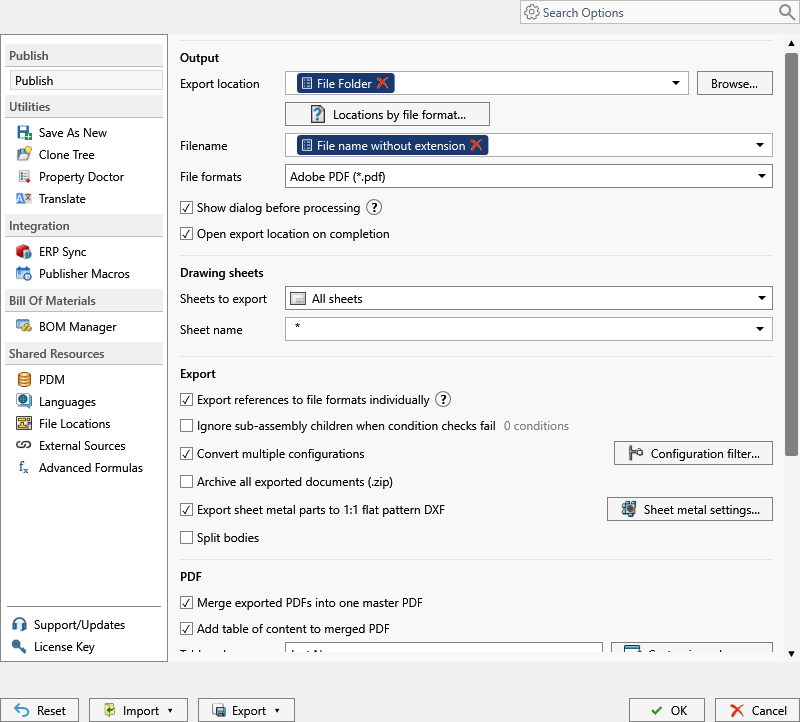
- Open the part (or an assembly if you want all its parts).
- On the PDMPublisher tab, select Settings > Publish.
- Set Export location and Filename, for example
(FileNameWithoutExtension)-(Revision). The.stepextension is added for you. - Under File formats, tick STEP (step).
- For every configuration, tick Convert multiple configurations and add
(ConfigurationName)to the filename. Use the Configuration Filter to includePROD*or exclude*Flat*. - For one file per body, tick Split bodies.
- Select PDMPublisher > Publish, confirm the review dialog, and check Publishing results.
As a PDM task: on every release
PDMPublisher for PDM Professional runs the same engine as a task, so the export happens when the file changes state, not when somebody remembers.
- In PDM Administration, right-click Tasks > New Task, choose PDMPublisher, name it and tick the task hosts.
- On the Options page set Export Location, for example
(VaultRootFolder)\Exports\STEP(no trailing backslash), and the Filename. - Tick STEP (step) under File Formats.
- Enable Convert multiple configurations and Split bodies as needed, with
(ConfigurationName)in the filename. - For release workflows, enable Get latest revision only, then attach the task to a workflow transition.
Settings that matter
| Setting | What to put | Why |
|---|---|---|
| Filename | (FileNameWithoutExtension)-(ConfigurationName) | Configurations do not overwrite each other: Bracket-Default.step, Bracket-Machined.step. |
| Configuration Filter | PROD* to include, *Flat* to exclude | Only the configurations a supplier should see. |
| Split bodies | On for multi-body parts | One STEP per body, body name appended. |
| Export location | (VaultRootFolder)\Exports\STEP, no trailing backslash | Created if missing; you need add and edit permission there. |
Naming examples
Placeholders, properties and revision in the filename, shown in the add-in.
(FileNameWithoutExtension)-(Revision)givesBracket-B.step.(FileNameWithoutExtension)-(ConfigurationName)with Convert multiple configurations givesBracket-Default.stepandBracket-Machined.step.(VaultRootFolder)\Supplier Packages\($ProjectNumber)\(TargetExtension)in the task files STEP in a step subfolder per project.
Customize Location (Premium in the add-in, standard in the task) sends STEP to a supplier share while PDF from the same job goes to the released-drawings folder.
If something looks wrong
- Only the active configuration came out: Convert multiple configurations is off, or the filename has no
(ConfigurationName). - Flat patterns appeared as configurations: exclude
*Flat*in the Configuration Filter. - Nothing in the folder: you need add and edit permission in the export location. Target a subfolder, not the vault root.
- Community Edition stopped at 5 references: a larger assembly needs Premium or the PDM task.
Keep going
Documentation
Frequently asked questions
Can I convert all configurations of a SLDPRT to STEP at once?
Yes. Enable Convert multiple configurations and add (ConfigurationName) to the filename. The Configuration Filter can include PROD* or exclude *Flat*.
How do I export each body of a multi-body part to a separate STEP file?
Tick Split bodies. You get one STEP per body, body name appended, in the add-in and the task.
Is SLDPRT to STEP free in PDMPublisher?
The Community Edition of the add-in publishes STEP, PDF and DXF free, up to 5 references per run. The PDM task is licensed per vault with a 7-day trial.
Can a PDM workflow transition create the STEP file automatically?
Yes. Attach a PDMPublisher task with STEP ticked to the transition, say to Released, and enable Get latest revision only.