
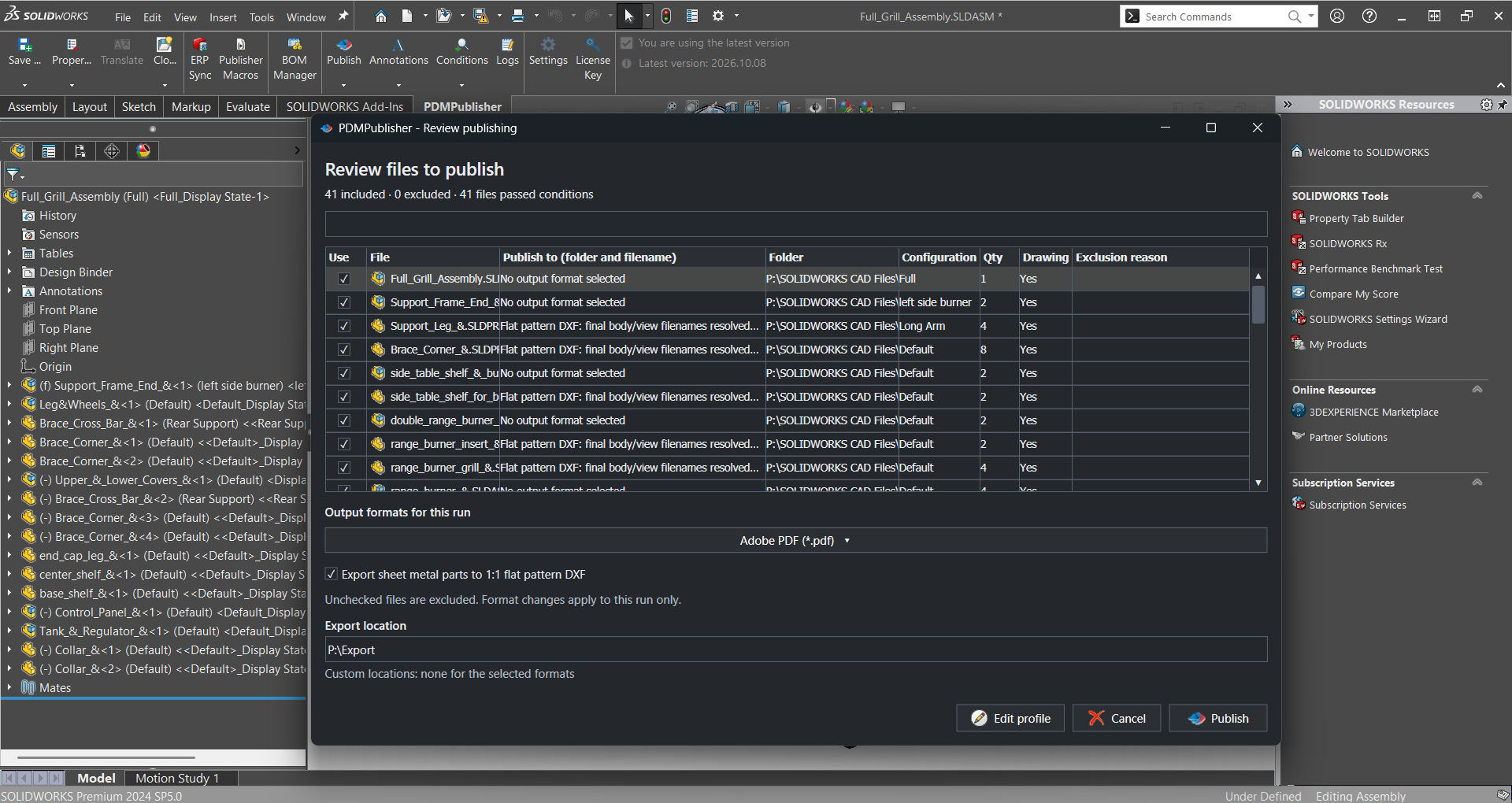
PDMPublisher for SOLIDWORKS is a desktop add-in that batch-publishes parts, assemblies and drawings to PDF, STEP, DXF and 20+ other formats, and adds Save As New, Property Doctor, Clone Tree, BOM Manager and ERP Sync to SOLIDWORKS. This guide walks through a clean install or an update in about five minutes: download, unblock, install with SOLIDWORKS closed, enable the add-in, and (optionally) activate a Premium key. It replaces the October 2025 version of this article and reflects the current installer and the 2026 add-in.

Before you begin
- Close every SOLIDWORKS window and save your work. An open SOLIDWORKS process stops the installer from replacing or registering add-in files.
- Your Windows account must be able to install applications. Some organisations require administrator approval for the MSI.
- Download the installer to the local computer. Do not run it from an email attachment, a ZIP preview or a network share preview.
- The task pane help viewer uses the Microsoft Edge WebView2 Runtime, which is usually already present on Windows 10 and 11. If it is missing, every CommandManager command still works; only the embedded help page is affected.
Step 1 – Download the installer
Download the current MSI from the official link below, or from the PDMPublisher for SOLIDWORKS product page. Your browser saves a file named PDMPublisher.msi in your Downloads folder.
Download PDMPublisher for SOLIDWORKS →
The same installer is used for the free Community Edition and for Premium. Which features are unlocked depends on the license key you activate later, not on which file you download.
Step 2 – Unblock the downloaded MSI
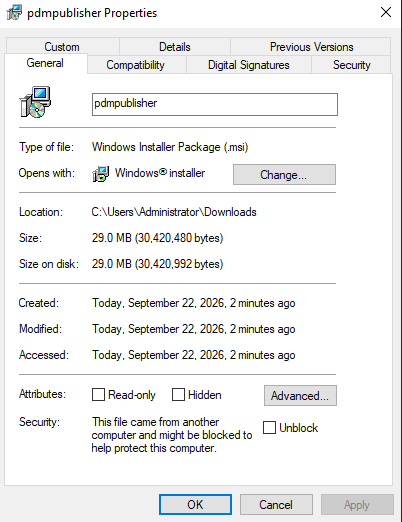
Windows marks files downloaded from the internet as blocked. Unblock the installer first, otherwise the setup may fail silently or SOLIDWORKS may refuse to load the add-in.
- Open File Explorer and locate
PDMPublisher.msi. - Right-click the file and select Properties.
- On the General tab, under Security, select Unblock.
- Select Apply, then OK.
Step 3 – Verify the digital signature (optional but recommended)
Every official PDMPublisher installer is code-signed by Blue Byte Systems Inc. On the Digital Signatures tab of the same Properties dialog, the signature should read Issued to: BLUE BYTE SYSTEMS INC. If the tab is missing or the name is different, delete the file and download it again from the official link above.

Step 4 – Run the installation wizard
- Confirm that SOLIDWORKS is closed.
- Double-click the unblocked
PDMPublisher.msi. - Approve the Windows security or administrator prompt if one appears.
- Follow the wizard pages and select Install when prompted.
- Wait for the installer to finish, then select Finish.
Updating? The same wizard upgrades an existing installation in place. Your profiles, settings and license activation are preserved.
Step 5 – Enable PDMPublisher in SOLIDWORKS
On most computers the add-in loads automatically on the next start. If the PDMPublisher tab is not visible, enable it once:
- Start SOLIDWORKS.
- Select Tools > Add-Ins.
- Expand Partner Solution Add-Ins if the group is collapsed.
- Find PDMPublisher (SOLIDWORKS).
- Tick Active Add-ins to load it now, and Start Up to load it every time SOLIDWORKS starts.
- Select OK.
PDMPublisher is a SOLIDWORKS Certified Solution Partner product, which is why it appears under Partner Solution Add-Ins rather than under the SOLIDWORKS add-ins group.
Step 6 – First launch: Community Edition or activate Premium
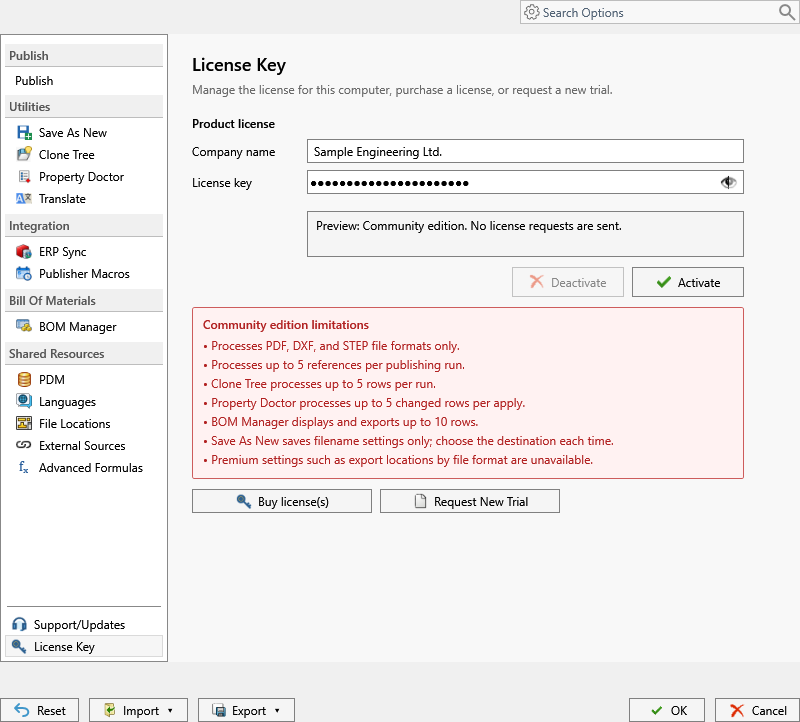
After the add-in loads, open the PDMPublisher CommandManager tab. Without a key it runs as the free Community Edition: PDF, DXF and STEP export, up to five references per run, and the add-in tools with row limits. The limits never expire.
To unlock Premium, open PDMPublisher > License Key (or Settings > License Key), enter the Company name and License key exactly as supplied, and select Activate. Use Deactivate before moving the license to another computer.
The 7-day trial mentioned on this site is for the separate PDM Professional task, not for the SOLIDWORKS add-in. The add-in’s free tier is the Community Edition.
Keeping PDMPublisher up to date
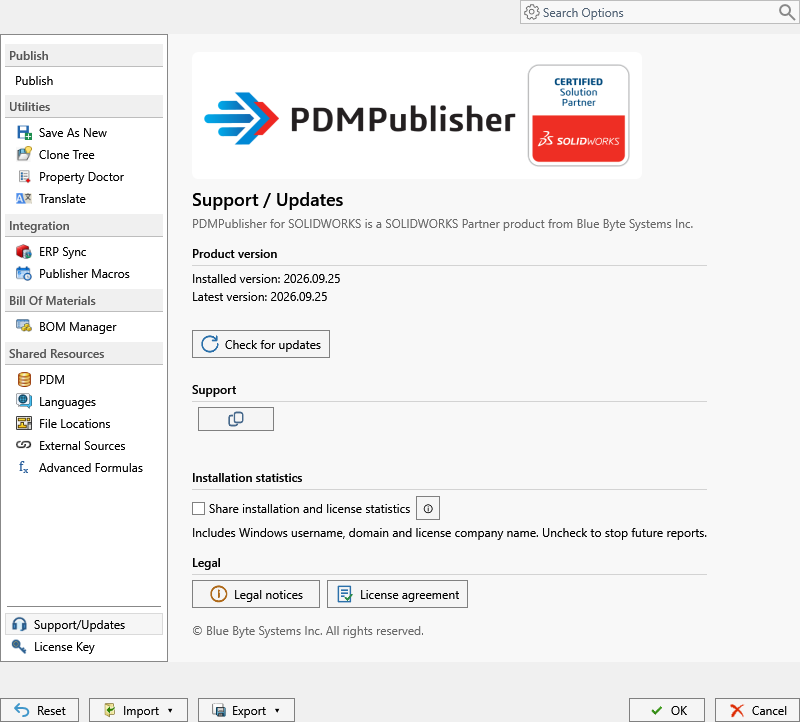
The Updates CommandManager group and Settings > Support and Updates show the installed version and the latest release. Select Check for updates to refresh; when a newer version is available, the download action opens the installer in your browser.
To update: close SOLIDWORKS, download the current MSI, unblock it, run the wizard, and reopen SOLIDWORKS. Two or three minutes, no reconfiguration.
Troubleshooting
Still stuck? Email support@bluebytesystemsinc.zohodesk.com with your SOLIDWORKS version and a screenshot of the Add-Ins dialog.
| Symptom | Likely cause | Fix |
|---|---|---|
| Installer stops or reports files in use | SOLIDWORKS still running | Close all SOLIDWORKS windows (check Task Manager for SLDWORKS.exe), run the MSI again. |
| PDMPublisher tab missing after install | Add-in not enabled | Tools > Add-Ins > Partner Solution Add-Ins > tick PDMPublisher (SOLIDWORKS) in both columns. |
| Add-in listed but fails to load | MSI was not unblocked | Uninstall, unblock the MSI in Properties, reinstall. |
| Help task pane is blank | WebView2 Runtime missing | Install the Microsoft Edge WebView2 Runtime; all commands work regardless. |
| “Could not check for updates” | No internet access or proxy blocking the update service | Check for updates from a connected network, or download the MSI from the product page manually. |
| License will not activate | Company name or key mistyped, or key active on another computer | Copy both values exactly from the order email; deactivate on the old computer first. |
What to do next
- Publish your first part or batch of drawings to PDF.
- Set up profiles and company settings so the whole team publishes the same way.
- Read the Community vs Premium guide to see what a key unlocks, or compare editions and pricing.
- Automating a vault? Install the PDM Professional task instead of, or alongside, the add-in.
Availability
Available in PDMPublisher for SOLIDWORKS, the add-in that runs inside SOLIDWORKS. Not part of the PDM Professional task. The PDM Professional task is installed differently, through the PDM Administration tool; see the task documentation linked below.
Documentation and related features
- Install PDMPublisher for SOLIDWORKS (documentation)
- Installing the PDM Professional task
- Free SOLIDWORKS batch export tool (Community Edition)
- Publishing profiles and company settings
- All PDMPublisher features
Frequently asked questions
Do I need to uninstall the old version before updating PDMPublisher?
No. Close SOLIDWORKS, unblock the new MSI and run it; the wizard upgrades the existing installation and keeps your profiles, settings and license.
Why does Windows block the PDMPublisher installer?
Windows flags every file downloaded from the internet. Unblocking it in File Properties is a one-time step; the installer itself is code-signed by Blue Byte Systems Inc.
Is PDMPublisher for SOLIDWORKS free?
Yes: without a license key it runs as the Community Edition (PDF, DXF and STEP, up to five references per run) and the limits never expire. A Premium key unlocks all formats and removes the limits.
Which SOLIDWORKS versions does PDMPublisher support?
The current release runs in recent SOLIDWORKS versions on 64-bit Windows (the screenshots in this guide are from SOLIDWORKS 2026). If you run an older SOLIDWORKS release, ask support which PDMPublisher build to use.
PDMPublisher does not appear under Tools > Add-Ins. What now?
Close SOLIDWORKS and run the installer again with the MSI unblocked. If it still does not appear, contact support with your SOLIDWORKS version and a screenshot of the Add-Ins dialog.
