
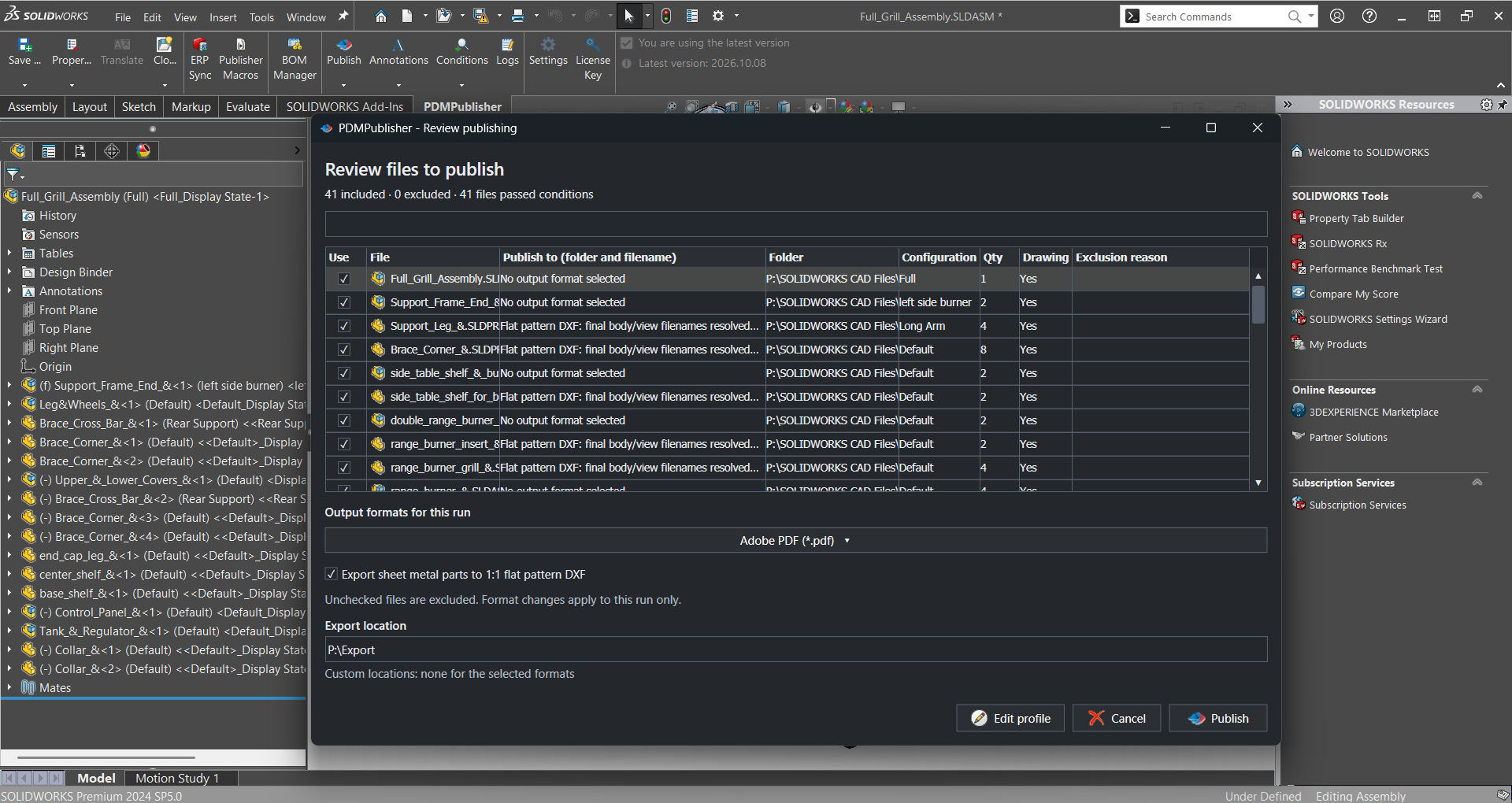
There are two different free ways to evaluate PDMPublisher, and people regularly mix them up. PDMPublisher for SOLIDWORKS (the add-in) is free to install and runs as the Community Edition without any key, forever. PDMPublisher for PDM Professional (the task add-in that runs on workflow transitions) is licensed per vault and comes with a free 7-day trial that you request from the Blue Byte Systems store. This guide covers both, including requirements, what each free option includes, how to request the task trial and how to activate it.
Which trial do you need?
| SOLIDWORKS add-in (Community Edition) | PDM Professional task (7-day trial) | |
|---|---|---|
| Runs where | Inside SOLIDWORKS, on the engineer’s computer | On a PDM task host, triggered by workflow transitions, right-click or Scheduled Items |
| How to get it | Download and install; no key needed | Request from the store, activate the key in the PDM Administration tool |
| Duration | Never expires | 7 days from activation |
| What is included | PDF, DXF and STEP export, up to 5 references per run; Save As New, Property Doctor, Clone Tree, BOM Manager and ERP Sync with row limits | Full task functionality on one vault |
| Upgrade path | Premium key per computer | Task license per vault for a duration |
| Requirements | SOLIDWORKS on 64-bit Windows | SOLIDWORKS 2018 or later and SOLIDWORKS PDM Professional 2018 or later (PDM Standard is not supported) |
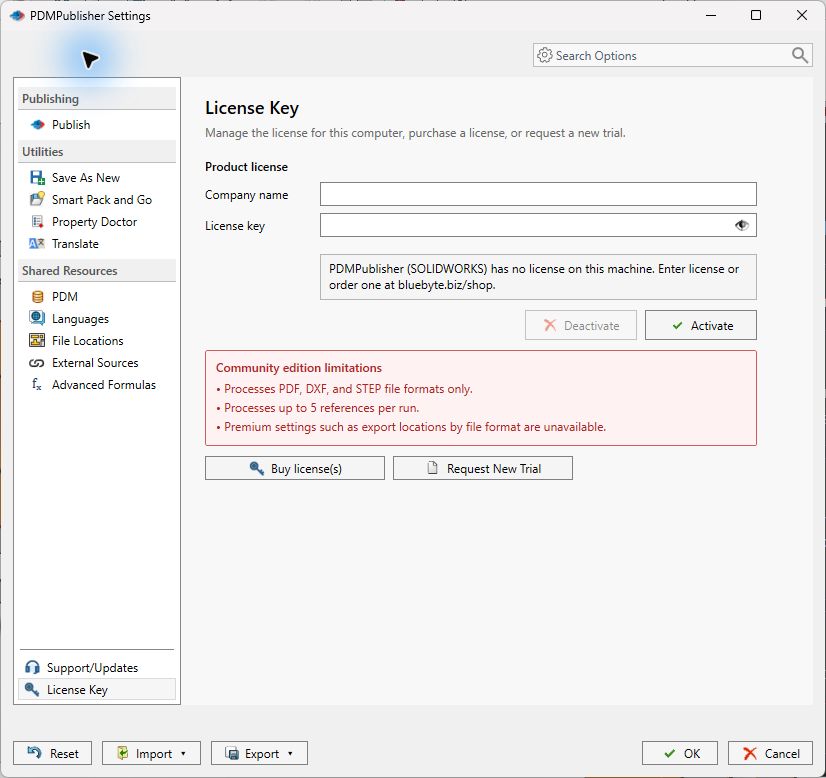
The 7-day trial is for the PDM Professional task only. The SOLIDWORKS add-in does not need a trial: it is free as the Community Edition, and the Request New Trial button on its License Key page opens the same store page to evaluate Premium features.
Option 1 – Try the SOLIDWORKS add-in for free (no key)
That is the whole process. The Community Edition is the real product with limits, not a time-boxed demo: PDF, DXF and STEP output, up to five references per run, and the add-in tools capped at a handful of rows. See Free SOLIDWORKS batch export tool for the full Community vs Premium table.
- Download PDMPublisher for SOLIDWORKS (MSI).
- Unblock the file in Properties, close SOLIDWORKS and run the installer. Full steps: How to install PDMPublisher for SOLIDWORKS.
- Start SOLIDWORKS. If the tab is missing, enable PDMPublisher (SOLIDWORKS) under Tools > Add-Ins > Partner Solution Add-Ins.
- Open the PDMPublisher tab and publish. Without a key the add-in runs as the Community Edition.
Option 2 – Request the 7-day PDM Professional task trial
The task trial is issued through the Blue Byte Systems online store as a zero-dollar order, so we have your contact details for the license email.
- Open the PDMPublisher trial page.
- Review the requirements and select the number of seats that best represents your team. The seat pricing shown is for reference only; the trial is free.
- Select Add to cart, open the cart and proceed to checkout.
- Enter your contact and company information. Your request may be reviewed by Blue Byte Systems before the license is issued, so make sure the details are accurate.
- Confirm that the product is listed as PDMPublisher (Trial) and that the total due is US$0.00, then submit the order.
- Watch for the confirmation email. It contains the download, installation instructions and the trial license key.
Before you submit: total US$0.00, product PDMPublisher (Trial). If either is different, go back and fix the cart.
Install the task add-in in your vault
Updating later works the same way: import the newer .cex and drop it onto the Add-ins node. The PDM add-in installation guide has screenshots for each step.
- Download the file from your Blue Byte account or from the link in the confirmation email. Right-click it, open Properties and select Unblock if the option is shown.
- Open the SOLIDWORKS PDM Administration tool and log in to the vault.
- Select File > Open…, browse to the
.cexfile and open it. The add-in appears in a new window. - Drag the add-in from that window onto the Add-ins node of the vault.
- Confirm that PDMPublisher is listed under Add-ins and that the version matches the email.
- Add a task under Tasks, choose PDMPublisher and assign the task host(s) that have SOLIDWORKS installed.
Activate the trial license
Deactivate releases the key from the vault. When you buy a task license, reopen Manage license…, enter the new key and activate again; the new expiry date replaces the trial date.
- In the PDM Administration tool, expand Add-ins, right-click PDMPublisher and select Manage license….
- Paste the license key from the confirmation email and select Activate.
- Check that the expiry date appears. The trial runs for 7 days from activation on that vault.
A task license entitles you to run PDMPublisher for a specified duration on a specified number of vaults. Licenses are managed from the Add-ins node, not from the SOLIDWORKS add-in’s License Key page.
Run your first task in the 7 days
The Run as a PDM task and PDM integration articles walk through every option.
- Create one task with File Formats set to PDF and STEP, an Export Location using placeholders such as the vault root plus
(Revision), and a Filename pattern. - Attach it to a release transition in a test workflow, or run it by right-click on a small assembly.
- Turn on Merge exported PDFs with a table of contents and bookmarks for the assembly’s drawings.
- Add one condition (for example, publish only when a variable equals a value) and one annotation with the revision and state.
- Read the publishing results and logs after the run so you know how failures are reported.
Troubleshooting
| Problem | What to check |
|---|---|
| No confirmation email | Check spam, then contact support with the order number. |
| Checkout shows a price | Wrong product in the cart. It must read PDMPublisher (Trial) with a US$0.00 total. |
| Manage license… is missing | The add-in was not imported into this vault, or you are logged in without admin rights. |
| Key will not activate | Copy the key exactly; make sure the vault has internet access from the machine running the Administration tool. |
| Task runs but nothing is published | Open the task’s Publishing results and the vault logs; the usual causes are a missing task host with SOLIDWORKS, or a condition that excluded every file. |
| Trial expired before you finished | Email support and explain where you got to. |
What to do next
- Compare editions and pricing for the add-in and the task.
- PDMPublisher vs the PDM Convert task if you are replacing the built-in task.
- Conversion guides for the exact settings per source and target format.
- Book a demo if you would rather see it configured on your own vault.
Availability
Available in PDMPublisher for SOLIDWORKS (the add-in) and PDMPublisher for PDM Professional (the task).
Documentation and related features
- License Key page (SOLIDWORKS add-in)
- Request a trial license (PDM task)
- Free SOLIDWORKS batch export tool (Community Edition)
- Run as a SOLIDWORKS PDM task
- How to install PDMPublisher for SOLIDWORKS
Frequently asked questions
Is there a free trial of PDMPublisher for SOLIDWORKS?
The add-in does not need one: install it and it runs as the free Community Edition with no expiry. To evaluate Premium features, use Request New Trial on the License Key page, which opens the trial request form.
How long is the PDMPublisher PDM task trial?
Seven days from the moment you activate the key on a vault.
Does PDMPublisher work with SOLIDWORKS PDM Standard?
No. The task requires SOLIDWORKS PDM Professional 2018 or later. The SOLIDWORKS add-in works without any PDM system.
Why do I have to check out in the store for a free trial?
The zero-dollar order captures your contact and company details so the license email goes to the right person; you are not charged.
Can I convert the trial into a paid license without reinstalling?
Yes. Open Manage license… on the PDMPublisher add-in in the PDM Administration tool, enter the purchased key and select Activate.
