
You can batch export SOLIDWORKS drawings to PDF in more ways than most tutorials admit. SOLIDWORKS Task Scheduler, a VBA macro, eDrawings, the built-in SOLIDWORKS PDM Professional Convert task, third-party add-ins, and PDMPublisher all do it. Each trades setup time, cost and automation differently. Here are the steps and limits of each, with or without PDMPublisher.
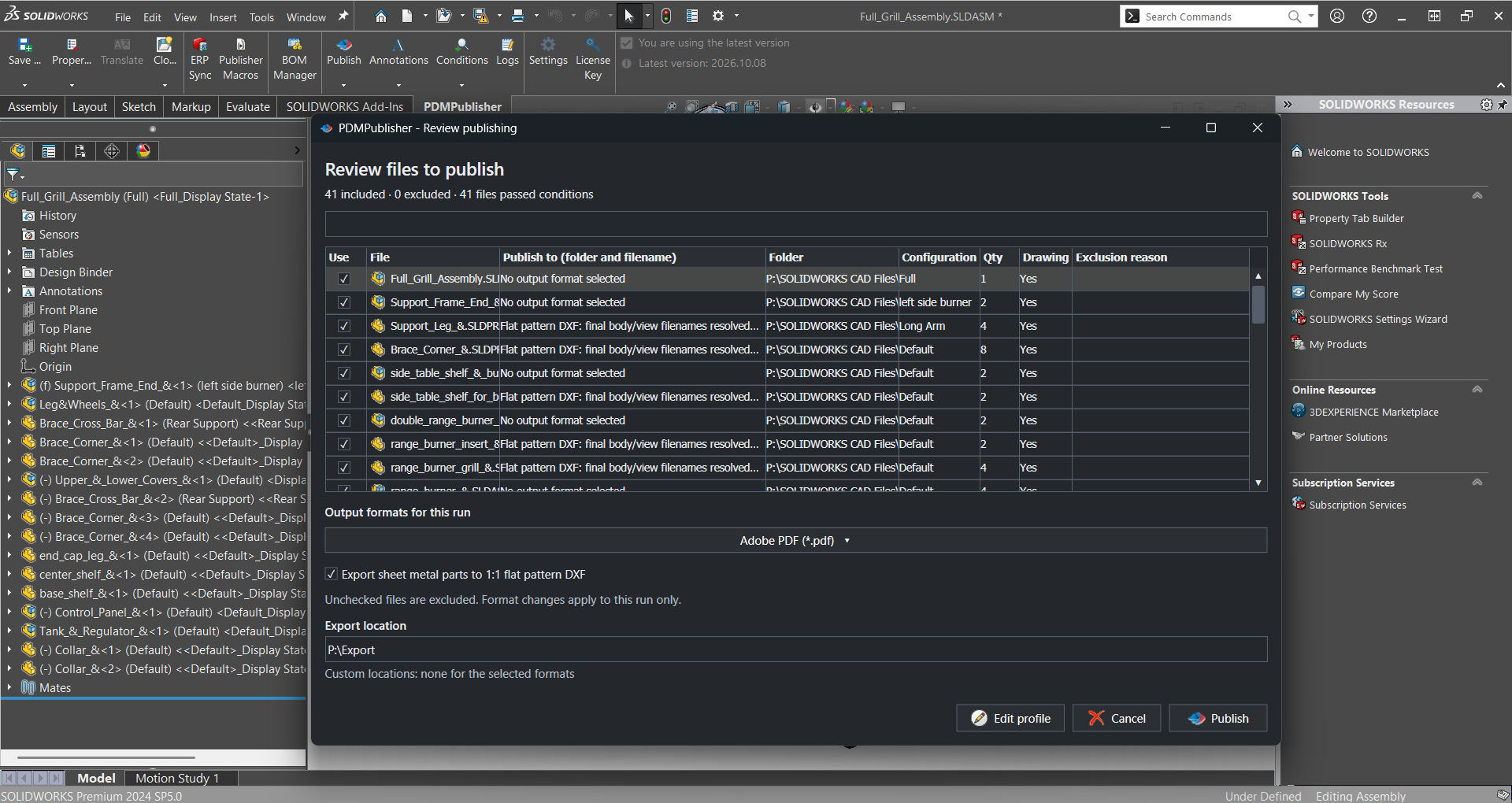
Why exporting drawings to PDF by hand hurts
File > Save As > PDF is fine for one drawing. It stops being fine when a release needs sixty drawings, a supplier wants every sheet, or a revision bump makes the PDFs on the share wrong. At a hundred drawings that’s a day of clicking, and the names drift.
Then come the quiet failures: only the active sheet exported, stale PDFs next to new ones, blank views from a lightweight assembly. Batch tools fix throughput. Naming, sheet handling and unattended running separate the methods below.
Method 1: SOLIDWORKS Task Scheduler (Export Files or Print Files)
SOLIDWORKS ships a standalone Task Scheduler in the Windows Start menu. The SOLIDWORKS Tech Blog says any license can use it to update files to the latest version, but scheduling anything else, exports included, needs SOLIDWORKS Professional or Premium. Export Files supports DXF, DWG, IGES, PDF, STEP AP203, STEP AP214 and JPEG.
- Open SOLIDWORKS Task Scheduler and choose Export Files.
- Give the task a title and pick PDF.
- Use Add File or Add Folder (subfolders optional) to queue the drawings.
- Choose output next to the originals or in a custom folder.
- Set the schedule (Once, Daily, Weekly, Monthly) and start time. A missed start runs when the PC next switches on.
- Use Options for format settings, Advanced for working folder, timeout and background mode, then Finish.
There’s also a Print Files task. Hawk Ridge Systems’ guide notes you can’t mix files and folders in one Print Files task, and that Options opens the Print dialog for picking the printer. A PDF printer works, but naming and sheet handling are up to the driver. Task Scheduler ties up a SOLIDWORKS seat, knows nothing about PDM, and names outputs after the source file only.
Method 2: a VBA macro (Save As loop)
A macro is free and fully yours. The reference example is CodeStack’s Export to multiple formats macro. It exports the active document to every format in its OUT_NAME_TEMPLATES array, naming outputs from templates such as <PartNo>.pdf built from custom properties. With ALL_CONFIGS = True it steps through every configuration (parts, assemblies) or every sheet (drawings). To make it a batch, wrap it in a loop:
- Paste the macro into a new
.swpvia Tools > Macro > New. SetOUT_NAME_TEMPLATESto one PDF entry such asArray("<PartNo>-<Revision>.pdf")andALL_CONFIGS = True. - Add an outer routine that reads a folder with
Dir()or a text list, callsOpenDoc6for each.slddrw, runs the export, thenCloseDoc. - Save every source file first (the macro expects saved documents with custom properties). Run it and leave the machine alone.
Pros: free, any format SOLIDWORKS can save, full control of naming. Cons: you maintain it, it needs an interactive SOLIDWORKS session, logging is yours to write, and it ignores PDM states and check-in. For scripting on a supported engine, PDMPublisher ships Publisher Macros, a VBA example that drives its own commands.
Method 3: eDrawings
eDrawings opens .slddrw files without a SOLIDWORKS license and can print a drawing or save it as PDF, handy on shop-floor or purchasing PCs. The catch: we found no documented batch-print command, so batch work means one file at a time or scripting the eDrawings API. A SOLIDWORKS forum thread does that with OpenDoc and Print2 in a VBA loop, timing crashes and multi-sheet problems included.
A middle path is Xarial’s CAD+ eXport+: a standalone app built on eDrawings, no SOLIDWORKS needed, whole folders, command line. Its docs flag PDF output as experimental, so test it on your title blocks first.
- Install eDrawings. Check its docs for which edition offers Save As PDF (the free viewer prints).
- Open each drawing and print to a PDF printer, or loop over files with the eDrawings API or eXport+.
- Check sheet coverage on a multi-sheet drawing before the full run.
Best for PCs without SOLIDWORKS and occasional jobs. Not for unattended release automation, PDM-aware naming, or drawings that must be rebuilt first.
Method 4: the SOLIDWORKS PDM Convert task
If your drawings live in PDM, try the built-in Convert task first; it’s included. GoEngineer’s guide explains that PDM Standard converts drawings to PDF on a workflow transition, while PDM Professional adds stp, igs, x_t, dwg and Microsoft Office documents. If the task isn’t in the vault, import convert_gb.cex from C:\Program Files\SOLIDWORKS Corp\SOLIDWORKS PDM\Default Data.
- In the Administration tool, expand the vault, right-click Tasks and import
convert_gb.cexif the task is missing. - Open the task. Set the run-as account on Add-in and the computers on Execution Method. Then permit the task in Task Host Configuration (PDM tray icon) on each of them, as Javelin’s Convert task article stresses.
- Set PDF options and the referenced-file version on Conversion Settings, path and filename on Output File Details, and variable mapping on File Card.
- Attach the task to a workflow transition or run it from the right-click Tasks menu.
Limits: PDM Standard is drawings-to-PDF only, locks most options and, per GoEngineer, only runs on the machine that launched the task. Professional adds parts, assemblies, DWG, replacing existing files, a second destination, and Office-to-PDF as Javelin documents here. Merged PDFs, stamps, table-of-contents pages and sheet-name filtering aren’t included.
Method 5: third-party batch add-ins
Two well-known commercial options, described from their own sites. CAD+ Batch+ (Xarial) runs macros against a batch of models, restarts SOLIDWORKS after a crash or hang, and can be scheduled with Windows Task Scheduler. Its PDM Professional integration runs as a PDM task with caching, check-out and check-in. CAD Booster Drew is a drawing-automation add-in with one-click batch export to PDF, DXF and STEP. It’s paid, with a 14-day trial and a Solo license listed at €590 per year.
Add-ins fit when you want vendor support and a GUI, and need more than the Convert task offers. Check the vendors’ sites for current pricing.
Method comparison
| Method | Cost | Handles configurations/sheets? | Runs unattended? | Best for |
|---|---|---|---|---|
| SOLIDWORKS Task Scheduler | Included with SOLIDWORKS Professional/Premium | Whole document; no sheet filter or naming pattern | Scheduled; needs a SOLIDWORKS seat | Occasional folder-wide exports |
| VBA macro (CodeStack style) | Free | Yes if you code it (ALL_CONFIGS loops sheets) | Interactive session; no logging | Engineers comfortable with the API |
| eDrawings / eXport+ | eDrawings free; eXport+ commercial | Per file; check multi-sheet handling | Only via API or eXport+ command line | PCs without SOLIDWORKS |
| PDM Convert task | Included with PDM Standard/Professional | Drawings to PDF; Standard options locked | Yes, on transition or right-click | Basic release PDFs inside PDM |
| CAD+ Batch+ / Drew | Commercial (see vendor) | Yes (vendor documented) | Batch+: Windows Task Scheduler or PDM task | Teams wanting supported GUI tooling |
| PDMPublisher | Add-in: free Community (PDF/DXF/STEP, 5 refs) or Premium; task: per vault, 7-day trial | Sheets by name pattern, configurations, merged PDF with TOC | Task: transition, right-click or schedule | Release packages with naming, stamping and merging |
Doing it with PDMPublisher
PDMPublisher is our product, so limits first. The add-in’s free Community Edition publishes PDF, DXF and STEP only, up to 5 references per run; Premium removes those limits. The PDM Professional task is licensed per vault with a 7-day trial. Both use the same PDF settings.
What it adds: a wildcard sheet filter, and export location and filename built from placeholders such as (Revision), (State) and (ConfigurationName). It also publishes a whole assembly, finding each component’s drawing, and merges the output into one master PDF with bookmarks and a table of contents.
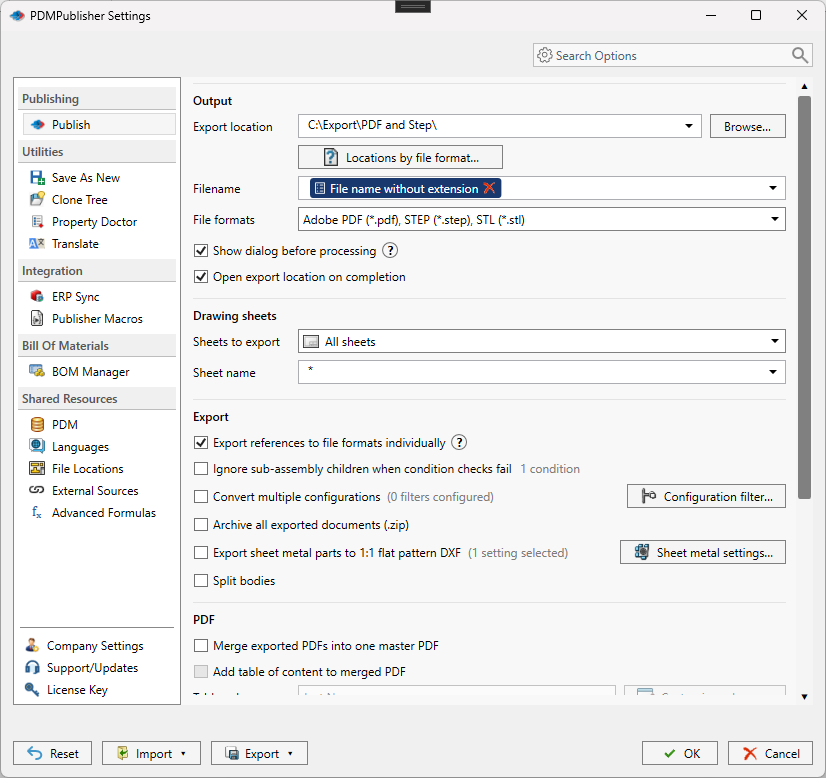
Batch export SOLIDWORKS drawings to PDF in the add-in
- Open the drawing or assembly in SOLIDWORKS. Save it and resolve its references.
- Open PDMPublisher > Settings > Publish and create a profile with New > New….
- Set Export location, for example
(TopAssemblyFolder)\Exports\(Revision). No trailing backslash. - Set Filename, for example
(FileName)-(Revision). - Under File formats select Adobe PDF (pdf).
- Leave Sheets to export at
All sheets, or pickSheets matching nameand enter a pattern such asSheet*or(ConfigurationName)*. - For an assembly, tick Export references to file formats individually so every component’s drawing is processed. Optionally tick Merge exported PDFs into one master PDF, PDF Bookmarks and Add table of content to merged PDF.
- Tick Show dialog before processing if an operator should confirm the list. Click OK.
- Select PDMPublisher > Publish, or use the arrow beside it to run a named profile.
- Review Publishing results, grouped by source file and configuration. PDMPublisher > Logs keeps the log.
For a part or assembly, PDF output means PDMPublisher looks for the same-name drawing in the same folder (
Bracket.SLDPRTtoBracket.SLDDRW). Add drawing folders under Settings > File Locations.
Batch export drawings to PDF with the PDM Professional task
- Add PDMPublisher to the vault (PDMDeploy or
.ceximport) and activate the license. - In the Administration tool, right-click Tasks > New Task…. Name it and pick PDMPublisher on the Add-in page.
- On Execution Method tick the task computers. Permit PDMPublisher on each in Task Host Configuration from the PDM tray icon.
- On Options: set Use this version of SOLIDWORKS to a version installed on the host. Set Export Location (for example
(VaultRootFolder)\Released PDFs\(State)) and Filename, select PDF in File Formats, and choose Sheets to Export and Sheet Name Pattern. - For assemblies, pick a BOM Template with name, configuration and quantity columns, then tick Export References to File Formats Individually and, if wanted, the merge and table-of-contents options. Tick Use PDM Search to Locate Drawings when drawings aren’t next to their models.
- Set Log Folder (Vault Only) to
(VaultRootFolder)\Logs\PDMPublisherso Task Details lists every checked-in output. - Launch from a workflow transition, the right-click Tasks menu, or the Scheduling page with Scheduled Items for a nightly run. Tick Ask User to Specify Files on Task Launch when users should pick files, CSV included.
The task user needs add, check-out and check-in rights in the export folder. The vault root is usually locked, so use a subfolder. Files saved outside the vault aren’t tracked in Task Details.
Tips and troubleshooting
- Sheet pattern matched nothing? Since 2026.08.09 PDMPublisher exports all sheets and logs the fallback. Check the log.
- Single-sheet drawings always export their one sheet; the pattern is ignored.
- Missing PDFs from an assembly run usually means references aren’t cached. Get Latest on the assembly and its children on the job machine.
- A Helvetica-Bold warning in the merged PDF comes from the PDF reader. Install the font.
- Leave SOLIDWORKS alone while any batch job runs. Changing the active document mid-job breaks all of them.
- Community Edition stops at 5 references per run. A 41-file assembly needs Premium or the PDM task.
- If the PDF already exists in the vault, the task creates a new version; the check-in comment names PDMPublisher.
Availability
Available in PDMPublisher for SOLIDWORKS (the add-in) and PDMPublisher for PDM Professional (the task). PDMPublisher for SOLIDWORKS publishes the drawing or assembly open in SOLIDWORKS. PDMPublisher for PDM Professional runs as a task on vault files, on a transition or on a schedule. Both share the same PDF settings.
Documentation and related features
- Run a Publish Job (SOLIDWORKS add-in)
- Sheets to Export option
- SOLIDWORKS drawing documents
- Merge multiple drawings into one PDF
- PDF table of contents
- Run as a SOLIDWORKS PDM task
- Batch SLDDRW to PDF
- SLDDRW to PDF
- PDMPublisher for SOLIDWORKS
- PDMPublisher for PDM Professional
Frequently asked questions
How do I batch export SOLIDWORKS drawings to PDF for free?
Task Scheduler’s Export Files task (Professional or Premium seat), a VBA macro such as CodeStack’s in a loop, or the PDM Convert task. PDMPublisher’s free Community Edition also publishes PDF, DXF and STEP, up to 5 references per run.
Can SOLIDWORKS Task Scheduler export all sheets of a drawing to PDF?
No sheet filter or naming pattern is documented; it exports the drawing as a whole. For certain sheets only, use a macro with ALL_CONFIGS logic or PDMPublisher’s sheet pattern.
Does the PDM Standard Convert task export drawings to PDF?
Yes, on a workflow transition, with most options locked and execution limited to the machine that launched it, per GoEngineer. PDM Professional adds parts, assemblies, DWG, STEP, Parasolid and Office conversion.
How do I merge all drawing PDFs of an assembly into one file?
In PDMPublisher, select PDF, tick Export references to file formats individually, then Merge exported PDFs into one master PDF. Add PDF Bookmarks and a table of contents if you like. Works in the add-in and the PDM task.
Can eDrawings batch print drawings to PDF?
One open drawing at a time; we found no documented batch command. Batch work needs the eDrawings API in a script or a tool built on eDrawings such as CAD+ eXport+, whose PDF output the vendor marks as experimental.