
DXF is the vendor-neutral 2D format any drafting or CAM tool reads: sheets, views, dimensions and notes as 2D entities. PDMPublisher writes one DXF per drawing, named by revision, with only the sheets you want, in SOLIDWORKS or as a PDM Professional task.
Quick answer
- Open the drawing, tick DXF (dxf) under File formats on the PDMPublisher tab, set a filename such as
(FileNameWithoutExtension)-(Revision), select Publish. - Keep All sheets, or use Sheets matching name with
Sheet*to leave internal sheets out. - DXF is free in the Community Edition, up to 5 references per run.
In SOLIDWORKS: step by step
- Open the drawing (in a vault, Get Latest first so references resolve).
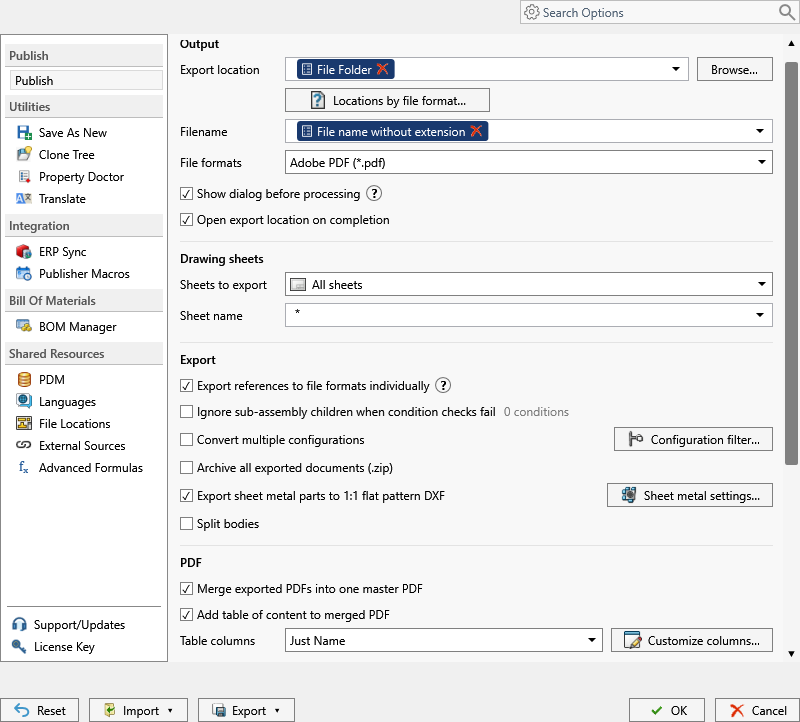
- On the PDMPublisher tab, select Settings > Publish.
- Set Export location and Filename, for example
(FileNameWithoutExtension)-(Revision). The.dxfextension is added for you. - Under File formats, tick DXF (dxf).
- Under Sheets to export, keep All sheets or choose Sheets matching name with a pattern such as
Sheet*. - Leave Export sheet metal parts to 1:1 flat pattern DXF off here; that is a model-side option for laser flat patterns, a different job.
- Select PDMPublisher > Publish, confirm the review dialog, and check Publishing results.
As a PDM task: on every release
PDMPublisher for PDM Professional runs the same engine as a task, so the export happens when the file changes state, not when somebody remembers.
- In PDM Administration, right-click Tasks > New Task, choose PDMPublisher, name it and tick the task hosts.
- On the Options page set Export Location, for example
(VaultRootFolder)\Exports\DXF(no trailing backslash), and the Filename. - Tick DXF (dxf) under File Formats and set Sheets to export as in the add-in.
- For release workflows, enable Get latest revision only.
- Attach the task to a workflow transition, or leave it in the right-click menu and Scheduled Items.
Settings that matter
| Setting | What to put | Why |
|---|---|---|
| Filename | (FileNameWithoutExtension)-(Revision) or, in the task, ($PartNumber)_Rev($Revision) | Bracket-B.dxf cannot be confused with Bracket-C.dxf. |
| Sheets to export | All sheets, or Sheets matching name with Sheet* | Internal and manufacturing-only sheets stay out. A pattern that matches nothing falls back to every sheet and logs it. |
| Export location | (VaultRootFolder)\Exports\DXF, no trailing backslash | Created if missing; you need add and edit permission there. |
Naming examples
(FileNameWithoutExtension)-(Revision)givesBracket-B.dxf.($PartNumber)_Rev($Revision)in the task names files by PDM part number.- Customize Location (Premium in the add-in, standard in the task) gives each format its own folder from one job.
If something looks wrong
- You expected a flat pattern: run the job on the sheet metal part with Export sheet metal parts to 1:1 flat pattern DXF instead. The drawing DXF is a different output.
- Every sheet came out despite a pattern: the pattern matched nothing. Check the spelling and the evaluated
(ConfigurationName)in the Logs tab. - Nothing in the folder: you need add and edit permission in the export location. Target a subfolder, not the vault root.
Keep going
Documentation
Frequently asked questions
How do I convert a SOLIDWORKS drawing to DXF?
Open the drawing, tick DXF (dxf) under File formats, set the export location and filename, and Publish. A PDM Professional task does the same on a state change.
Does SLDDRW to DXF give me a flat pattern?
No. DXF under File formats converts the drawing. Flat patterns come from the separate Export sheet metal parts to 1:1 flat pattern DXF option, run on the sheet metal part.
Can I export only one sheet of the drawing to DXF?
Set Sheets to export to Sheets matching name and enter the sheet name or a wildcard such as DXF*. A one-sheet drawing always exports its only sheet.
Is DXF free in the PDMPublisher add-in?
Yes. DXF is a Community Edition format with PDF and STEP, limited to 5 references per run. The PDM task is licensed per vault.