
Most SOLIDWORKS automation starts as a VBA macro, and most of the time the hard part is not the macro but everything around it: choosing the right filename, checking the copy in to SOLIDWORKS PDM Professional, fixing custom properties on a dozen files, or pushing a bill of materials to ERP. Publisher Macros in PDMPublisher for SOLIDWORKS exposes the add-in’s utility commands, Save As New, Property Doctor, Clone Tree and ERP Sync, as late-bound methods you can call from any VBA macro, and gives you an editor and runner inside SOLIDWORKS so you do not need the SOLIDWORKS macro editor just to try one out.
What Publisher Macros does
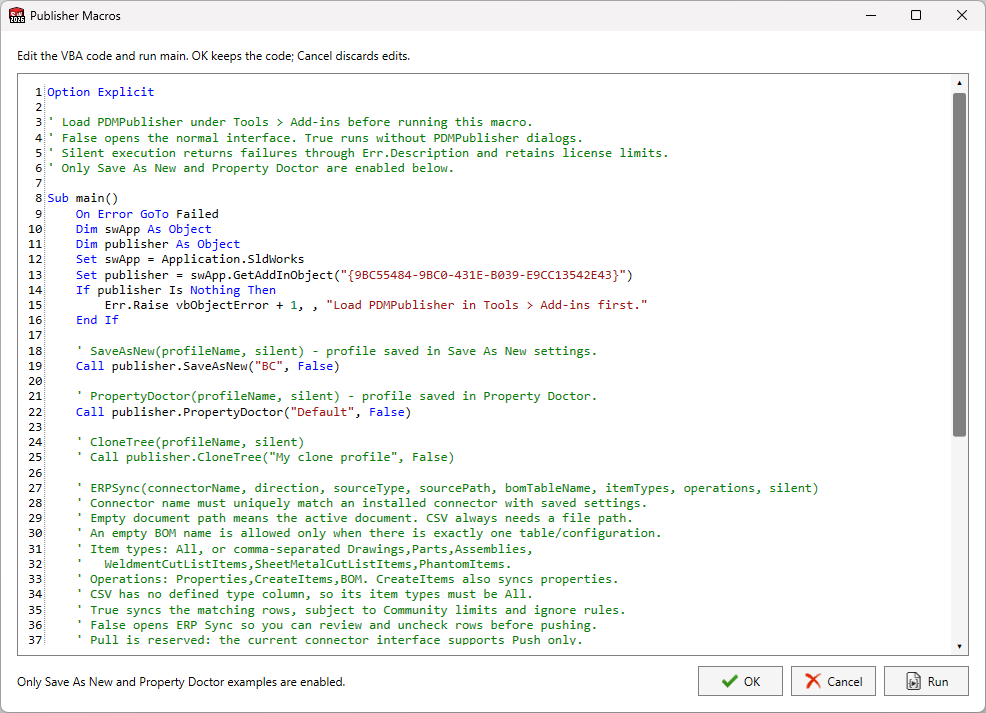
Publisher Macros is listed in the Integration group of the PDMPublisher CommandManager tab. Selecting it opens an editable VBA example with syntax highlighting and line numbers, a Run button that executes the displayed code through SOLIDWORKS, and OK and Cancel buttons that decide whether your edits are retained for the next session.
The example code connects to the loaded PDMPublisher add-in with GetAddInObject and then calls PDMPublisher commands by name. Because the connection uses late binding, the macro does not need a PDMPublisher VBA reference, and the same code works from a normal .swp macro, from a SOLIDWORKS macro button, or from the Publisher Macros editor itself.
The commands you can call are the four utility commands of the add-in. Each one takes a saved profile (or, for ERP Sync, a connector name plus explicit arguments) and a silent flag that decides whether the normal PDMPublisher window is shown or whether the command runs to completion without dialogs.
- Save As New: save the active document as a separate native SOLIDWORKS file using a saved naming and destination profile.
- Property Doctor: apply a saved property-action profile to the active document and its references.
- Clone Tree: copy a document set with per-file names and destinations using a saved Clone Tree profile.
- ERP Sync: push SOLIDWORKS or CSV data to an ERP connector, or pull mapped ERP properties back, with the review window open.
Publisher Macros is different from Run macro after saving on the Save As New settings page. That option runs a macro method on the newly saved copy before automatic PDM check-in. Publisher Macros is the reverse: your macro is the caller, and PDMPublisher commands are what it runs.
Why it matters for an engineering office
The add-in commands are already one-click operations, but a macro lets you chain them and drive them from your own logic. A release macro can save a customer variant with the BC Save As New profile, run the Default Property Doctor profile to normalize Description, Material and Revision, and then open ERP Sync with the assembly BOM already selected for the ERPNext connector. None of that requires the user to remember which profile to pick from the arrow menu.
It also gives you a stable surface for larger SOLIDWORKS automation. If you already have a macro library that opens models, sets configurations or renames files, adding a PDMPublisher call is a few lines. Profile names are case-insensitive, and calls made without arguments simply open the command interactively, exactly as the CommandManager button would.
How it works
- Load PDMPublisher (SOLIDWORKS) under Tools > Add-Ins. The add-in must be loaded before any macro can obtain the publisher object.
- Save the profiles and connector settings the macro will use. Save As New, Property Doctor and Clone Tree profiles are created from their pages in PDMPublisher > Settings; ERP Sync connectors are configured on the ERP Sync settings page.
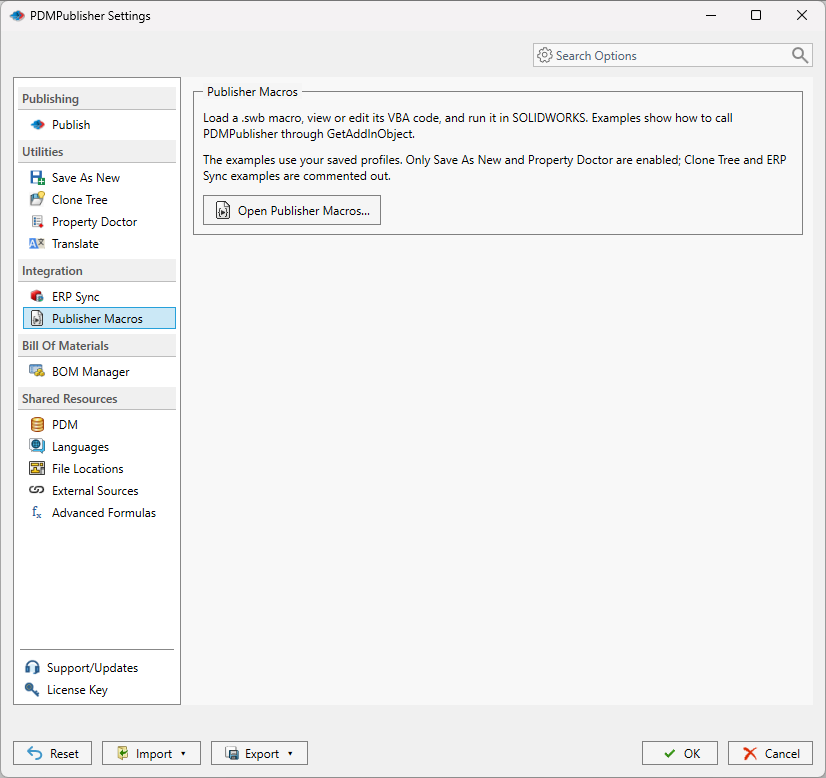
- Open PDMPublisher > Publisher Macros from the CommandManager, from Tools > PDMPublisher > Publisher Macros, or from PDMPublisher > Settings > Publisher Macros.
- Replace the example profile or connector names with names that exist on this computer. On first use the example selects available Save As New and Property Doctor profiles when possible.
- Uncomment only the commands you intend to execute.
- Select Run to execute the displayed code through SOLIDWORKS. Run requires a
Sub main()entry point. - Review any PDMPublisher window, result or error opened by the macro.
- Select OK to retain the edited code for the next session, or Cancel to discard the edits. Later sessions restore the code most recently retained with OK.
Cancel does not undo operations that were already executed by Run. If the macro saved a file or applied properties, those changes stand.

Connect to PDMPublisher from VBA
Every macro starts by asking SOLIDWORKS for the add-in object. The GUID below identifies the PDMPublisher add-in; it is the same on every installation. Use late binding (As Object) so no reference needs to be added in the VBA editor.
The complete example as shown in the documentation:
Dim publisher As ObjectSet publisher = Application.SldWorks.GetAddInObject( _"{9BC55484-9BC0-431E-B039-E9CC13542E43}")If publisher Is Nothing ThenErr.Raise vbObjectError + 1, , _"Load PDMPublisher in Tools > Add-ins first."End If
If
GetAddInObjectreturnsNothing, the add-in is not loaded in this SOLIDWORKS session. Enable it under Tools > Add-Ins and run the macro again.
Command reference: every object, method and argument
The publisher object exposes four automation methods. Profile names are case-insensitive. A blank, missing or ambiguous profile name fails. Calls without arguments retain the interactive behavior of the CommandManager button. The older SaveAsNewWithProfile, CloneTreeWithProfile and PropertyDoctorWithProfile methods remain supported for existing macros.
| Member | Signature | What it does |
|---|---|---|
publisher object | Application.SldWorks.GetAddInObject("{9BC55484-9BC0-431E-B039-E9CC13542E43}") | The PDMPublisher add-in object. Returns Nothing when the add-in is not loaded. |
SaveAsNew | publisher.SaveAsNew profileName, silent | Runs Save As New on the active document with the named Save As New profile. Interactive mode shows the destination dialog. |
PropertyDoctor | publisher.PropertyDoctor profileName, silent | Runs Property Doctor with the named action profile. Changes documents as the normal Apply does; save the documents afterward. |
CloneTree | publisher.CloneTree profileName, silent | Runs Clone Tree on the active document set with the named Clone Tree profile. |
ERPSync | publisher.ERPSync connectorName, direction, sourceType, sourcePath, bomTableName, itemTypes, operations, silent | Opens ERP Sync for the named connector with the source, item types and operations preselected. Push and Pull require the review window, so use silent = False. |
SaveAsNewWithProfile | legacy | Older equivalent of SaveAsNew; still supported. |
PropertyDoctorWithProfile | legacy | Older equivalent of PropertyDoctor; still supported. |
CloneTreeWithProfile | legacy | Older equivalent of CloneTree; still supported. |
The silent argument: interactive versus unattended
Every method accepts a silent Boolean as its last argument. It controls whether PDMPublisher shows its usual progress, review and result dialogs.
- Community Edition limits continue to apply when a command is run from a macro (5 references, 5 Clone Tree rows, 5 Property Doctor rows, 10 ERP Sync rows per run).
- Completed changes are not rolled back if a later step in your macro fails.
- Property Doctor changes documents exactly as its normal Apply operation does; save those documents afterward from your macro or manually.
- Silent Save As New requires Premium, does not overwrite existing files, and rejects prompt placeholders, after-save macros and automatic PDM check-in. Its saved profile must contain enough destination information to run without a prompt.
- ERP Push and Pull cannot run silently because PDMPublisher requires the user to review the diff before any remote or SOLIDWORKS change.
silent = TrueonERPSyncstops before connecting and returns an error.
silent value | Behavior | Notes |
|---|---|---|
False | Opens the normal PDMPublisher interface with the requested profile or options. Save As New displays its destination dialog, and ERP Sync lets you review and uncheck rows before Push. | Default behavior; identical to selecting the command from the CommandManager with that profile. |
True | Runs without PDMPublisher progress, review or result dialogs and waits for completion. Errors are returned to the VBA error handler. | Silent Save As New requires Premium. ERP Sync cannot run silently. |
ERPSync parameters
ERPSync is the only method with more than two arguments, because it has to describe where the data comes from, what it contains and what to do with it. All string values are case-insensitive.
| Parameter | Supported value | Notes |
|---|---|---|
connectorName | A unique installed connector name with saved connection settings. | Silent execution uses the named connector without changing the global connector selection. |
direction | Push or Pull. | Pull requires a connector with preview support and must run interactively (silent = False). |
sourceType | FeatureTree, AssemblyBOM, DrawingBOM or CSV. | Values are case-insensitive. |
sourcePath | A native document path, or blank to use the active document. | CSV always requires a file path and does not require an open SOLIDWORKS document. |
bomTableName | A BOM feature name, full displayed table/configuration label, or stable table ID. | Can be blank only when exactly one table/configuration is available. |
itemTypes | All, or a comma-separated list of Drawings, Parts, Assemblies, WeldmentCutListItems, SheetMetalCutListItems and PhantomItems. | CSV requires All. |
operations | A comma-separated list of Properties, CreateItems and BOM. | CreateItems also synchronizes properties; BOM requires a source with valid hierarchy. |
silent | Use False. | Current ERP Push and Pull require review; True stops before connecting and returns an error. |
Example 1: basic commands with saved profiles
This is the example shipped in the editor. False opens each command with the named profile so you can review before committing. The Clone Tree line stays commented until a matching Clone Tree profile exists on the computer.
' False opens the command with the named profile.Call publisher.SaveAsNew("BC", False)Call publisher.PropertyDoctor("Default", False)' Uncomment after saving a matching Clone Tree profile.' Call publisher.CloneTree("My clone profile", False)
Example 2: open ERP Sync with the feature tree preselected
This call opens the ERP Sync review window for the ERPNext connector, sourcing parts and assemblies from the active document’s feature tree, and preparing a Push that synchronizes properties, creates missing items and uploads the BOM. The two blank strings leave sourcePath (active document) and bomTableName (not needed for a feature tree source) empty.
Call publisher.ERPSync( _"ERPNext", _"Push", _"FeatureTree", _"", _"", _"Parts,Assemblies", _"Properties,CreateItems,BOM", _False)
For native documents, files opened by automation remain available in SOLIDWORKS. ERP-generated part numbers can leave documents modified and requiring a save. See the ERP Sync article for connector behavior.
Example 3: handle errors safely
Authentication, profile validation, license limits, document state and external integrations can all stop an operation. Wrap the calls in a VBA error handler so a failure surfaces as a message instead of an unhandled runtime error in SOLIDWORKS.
Sub main()On Error GoTo Failed' Obtain the publisher object and run one or more commands here.Exit SubFailed:MsgBox Err.Description, vbExclamation, "PDMPublisher"End Sub
Set it up in the SOLIDWORKS add-in
- In SOLIDWORKS, open Tools > Add-Ins and load PDMPublisher (SOLIDWORKS). Tick the start-up box if you want it loaded every session.
- Open PDMPublisher > Settings. On the Save As New, Property Doctor and Clone Tree pages, create and save the profiles you will call by name. On the ERP Sync page, configure the connector and save its connection settings.
- Select OK to save the settings.
- Open PDMPublisher > Publisher Macros (CommandManager, Tools > PDMPublisher menu, or Settings > Publisher Macros).
- Edit the profile names in the example, uncomment the commands you want, and select Run.
- Check the PDMPublisher windows or results the macro opened. Select OK to keep the code for next time.
Use the calls from your own SOLIDWORKS macro
The Publisher Macros editor is convenient for testing, but the calls are ordinary COM calls. Paste the connection snippet and any command into a .swp macro created with Tools > Macro > New, assign it to a macro button on your own toolbar, or call it from a larger automation routine that opens models, changes configurations and saves. Nothing changes: the add-in must be loaded, the profiles must exist on that computer, and the silent rules above still apply.
- Test on non-production documents first.
- Third-party and PDM integrations can require their own login or permissions; a macro cannot bypass the SOLIDWORKS PDM Professional permissions of the user running it.
- The retained code in the Publisher Macros editor is per Windows user and per computer. Keep your production macro in a shared macro folder rather than relying on the editor’s retained copy.
Recipes
Three short scenarios built only from the calls above.
- Customer variant in one click. Create a Save As New profile named
BCwith a filename template and destination for customer copies. Macro:Call publisher.SaveAsNew("BC", False). The destination dialog opens so the user confirms, then the copy is saved and, if the profile enables it, checked in to PDM. - Property cleanup before release. Save a Property Doctor profile named
Defaultthat fills Description and Revision. Macro:Call publisher.PropertyDoctor("Default", True)on Premium runs it without dialogs; follow with your own save loop because Property Doctor leaves the documents modified. - BOM handoff to ERP. After the assembly is saved, call
ERPSyncwith"AssemblyBOM"assourceType, the BOM table name asbomTableName,"All"for item types and"Properties,CreateItems,BOM"for operations,silent = False. The review window opens with everything preselected; the user unchecks rows and selects Push.
Tips, limits and troubleshooting
- The publisher object is Nothing. PDMPublisher is not loaded. Enable it under Tools > Add-Ins; the example raises a descriptive error for this case.
- Run does nothing or reports a missing entry point. Run requires a
Sub main(). Keep the entry point name exactly as in the example. - A profile name fails. The name must exist on this computer and be unique. Blank, missing or ambiguous names fail. Names are case-insensitive, so
bcandBCare the same profile. - Silent Save As New fails. It requires Premium, refuses to overwrite existing files, and rejects profiles with prompt placeholders, after-save macros or automatic PDM check-in. Use
Falseor adjust the profile. - ERPSync with silent = True returns an error. This is by design: Push and Pull require the review window. Use
False. - Community Edition row and reference limits apply per operation exactly as they do from the CommandManager.
- Nothing is rolled back. If step three of your macro fails, steps one and two stay applied. Design macros so each step is safe on its own, and check PDMPublisher > Logs for the detailed processing log of any publish-related operation.
- Documents stay modified. Property Doctor and ERP-generated part numbers leave files needing a save. Save them from the macro or in SOLIDWORKS.
- Settings transfer. Retained VBA code is stored locally for the current Windows user and is not included in the complete settings bundle exported from Settings > Export. Profiles are included, so a colleague who imports your bundle gets the profiles your macro names, but not the macro text.
Availability
Available in PDMPublisher for SOLIDWORKS, the add-in that runs inside SOLIDWORKS. Not part of the PDM Professional task. Publisher Macros is a command of the PDMPublisher for SOLIDWORKS add-in. It automates the add-in’s utility commands from VBA inside SOLIDWORKS and has no equivalent in the PDM Professional task, which is driven by workflow transitions, right-click commands and scheduled items instead.
Documentation and related features
- Publisher Macros documentation
- Save As New
- Property Doctor
- Clone Tree
- ERP Sync
- Publishing profiles and Company Settings
- SOLIDWORKS PDM integration
Frequently asked questions
Can I call PDMPublisher from a SOLIDWORKS VBA macro?
Yes. Get the add-in object with Application.SldWorks.GetAddInObject(“{9BC55484-9BC0-431E-B039-E9CC13542E43}”) and call SaveAsNew, PropertyDoctor, CloneTree or ERPSync on it. Late binding means no VBA reference is required; the add-in only has to be loaded under Tools > Add-Ins.
Do I need a PDMPublisher type library reference in the VBA editor?
No. Publisher Macros uses late binding (Dim publisher As Object), so the macro works without adding any reference.
Can Save As New run without any dialog?
Yes with silent = True, which requires Premium. The saved profile must contain enough destination information to run without a prompt, and it cannot use prompt placeholders, after-save macros or automatic PDM check-in. Existing files are never overwritten.
Why does ERPSync fail when I pass silent = True?
ERP Push and Pull always require the user to review the diff before any remote or SOLIDWORKS change, so silent execution stops before connecting and returns an error. Pass False and the review window opens with your arguments preselected.
Are my macro edits saved?
Select OK in the Publisher Macros editor to retain the code for the next session; Cancel discards the edits. The retained code is stored locally for the current Windows user and is not included in exported settings bundles.
Do the older SaveAsNewWithProfile methods still work?
Yes. SaveAsNewWithProfile, CloneTreeWithProfile and PropertyDoctorWithProfile remain supported alongside the current SaveAsNew, CloneTree and PropertyDoctor methods.