
Converting SLDPRT to eDrawings gives reviewers a light .eprt they can open in the free eDrawings viewer, measure, mark up and send back, without a SOLIDWORKS seat. PDMPublisher writes EPRT files in batch from the add-in, and as a SOLIDWORKS PDM Professional task that applies the measurement and file-property preferences the same way on every task host.
What you get
eDrawings Part (eprt) is the eDrawings container for a part; assemblies become easm and drawings edrw. PDMPublisher picks the right one: on a part only eDrawings Part is valid, and the other two are dropped.
You get one .eprt per part, and one per configuration with Convert multiple configurations. The PDM task sets three preferences before saving: allow measurement, save file properties in the file, and save file properties per component when the output holds assembly components. So the export no longer depends on the eDrawings preferences of the task host’s Windows account (task version 2026.08.12; the add-in is unchanged and uses the running SOLIDWORKS’ settings).
The manual way, and why it doesn’t scale
Open the part, go to File > Save As, pick eDrawings (*.eprt), set folder and name, save. Repeat for every configuration, and again for every body you want as its own file.
Fine for one part. For forty, or a supplier package redone at every revision, it’s an afternoon of clicking and badly named files. Worse, whether the receiver can measure the file depends on a Save As checkbox someone forgets half the time.
Convert SLDPRT to eDrawings with the add-in
- Open the part in SOLIDWORKS, saved, references resolved. An assembly works too if you want its parts.
- On the PDMPublisher tab, select Settings, then Publish.
- Set Export location: a fixed folder, UNC path, relative folder, or placeholders from the
>...menu. - Set the Filename pattern, such as
(FileNameWithoutExtension)-(Revision); the.eprtextension is added for you. - Under File formats, tick eDrawings Part (
eprt). Other ticked formats come out in the same pass. - Tick Convert multiple configurations and put
(ConfigurationName)in the filename so configurations don’t overwrite each other. The Configuration Filter includes (PROD*) or excludes (*Flat*) by wildcard. - Tick eDrawings Assembly and eDrawings Drawing too if the profile also serves assemblies and drawings.
- Select
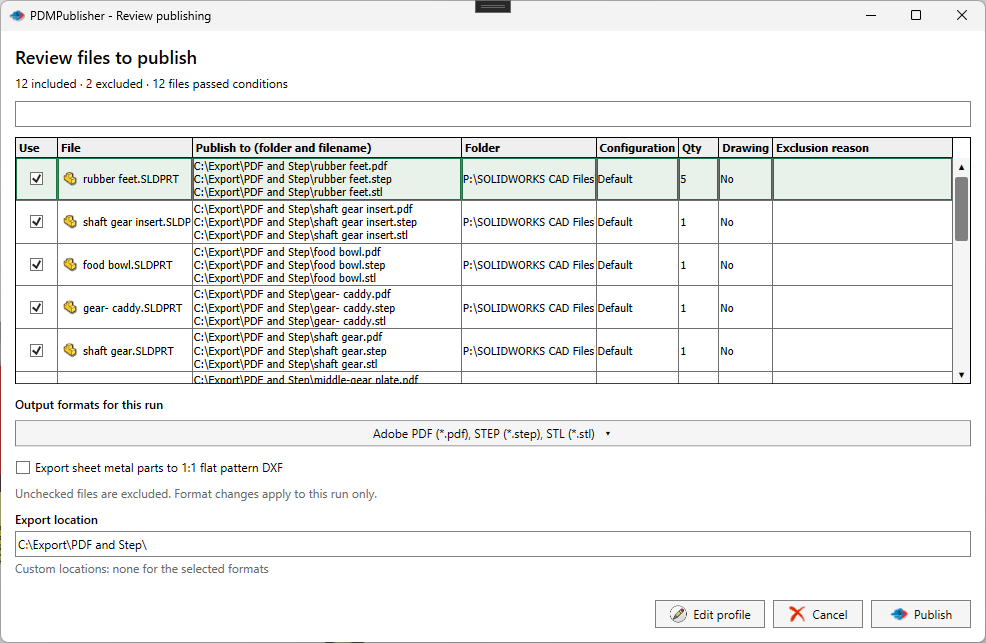
PDMPublisher > Publish; the arrow beside it runs a named profile at once. Confirm the review dialog if it appears. - Open Publishing results to see every file, its configuration and destination.
In PDMPublisher for SOLIDWORKS, eDrawings Part output needs Premium. The free Community Edition publishes PDF, DXF and STEP only, up to 5 references per run.
Automate it as a PDM task
PDMPublisher for PDM Professional runs the same engine as a task, so parts become eDrawings Part when they change state.
- In PDM Administration, right-click Tasks, select New Task, choose PDMPublisher and name it; users see that name in the right-click menu.
- On the Options page, set Export Location and Filename.
(VaultRootFolder)\Exports\eDrawingsPartkeeps output in the vault, a UNC path keeps it outside; no trailing backslash. - Under File Formats, tick eDrawings Part (
eprt). - Enable Convert multiple configurations and the Configuration Filter as in the add-in, with
(ConfigurationName)in the filename. - There’s no eDrawings checkbox; the task applies the measurement and file-property preferences itself. Update PDMPublisher on every computer that can run the task, and make sure its Windows account can start the chosen SOLIDWORKS version.
- Pick Use this version of SOLIDWORKS: an installed year on the host, or
Latest. For release workflows, enable Get latest revision only too; it exports the revised version, not work in progress. - Attach the task to a workflow transition, leave it in the right-click menu, or run it from Scheduled Items.
A task run on an assembly needs Template set to a PDM BOM layout with name, configuration and quantity columns, and Export references to file formats individually enabled. A single part needs neither.
Settings that matter for eDrawings
| Setting | What it does | Tip |
|---|---|---|
| Export location | Output folder: vault, relative, UNC or outside. Created if missing. | (TopAssemblyFolder)\Exports\(Revision) works; no trailing backslash. |
| Filename | Static text, placeholders, custom properties or PDM variables. | (ConfigurationName) for configurations, (Revision) for released files. |
| File formats | Tick eDrawings Part (eprt). easm and edrw are for assemblies and drawings. | Tick all three in a mixed profile; invalid ones are dropped per file. |
| Convert multiple configurations | Every configuration, not just the active one. | Needs a configuration-specific filename. |
| Configuration Filter | Include or exclude by name or wildcard. | Exclude *Flat* to skip flat patterns. |
| eDrawings export settings (task) | Allows measurement and saves file properties (per component too). | Task version 2026.08.12 or later on every execution host. |
| Customize Location | Per-format folders overriding the main one. | Premium in the add-in. |
| Use this version of SOLIDWORKS (task) | Which installed SOLIDWORKS year runs the export. | That version’s export options apply. |
Naming and folders
Placeholders resolve when the job starts, so one profile or task names every eDrawings the same way:
(FileNameWithoutExtension)-(Revision):Valve-Body-D.eprtin(TopAssemblyFolder)\Review.(FileNameWithoutExtension)-(ConfigurationName)with Convert multiple configurations: one EPRT per configuration for review.(VaultRootFolder)\Review Packages\($Customer)\(TargetExtension)in the task: aneprtfolder per customer, driven by a PDM variable.
Customize Location (Premium in the add-in, standard in the task) gives each format its own folder: enable the
eprtrow to override the main location for eDrawings only. A common setup:eprtto a shared review folder while STEP stays in the vault.
Tips and troubleshooting
- Activate a Premium key under
PDMPublisher > License Key; the PDM task is licensed per vault and includes every format. - Reviewers can’t measure the file? In the task, make sure PDMPublisher 2026.08.12 or later is on every execution host. In the add-in, check the eDrawings options of the running SOLIDWORKS.
- HTML output in the same list needs eDrawings Professional on the computer running the job.
- Some formats depend on the SOLIDWORKS version installed; if one vanishes from the results, check what’s installed where the job ran.
- Can’t see the exported files? You need add and edit permission in the export location. The vault root is usually locked; target a subfolder such as
(VaultRootFolder)\Exports. - If the exported file already exists in the vault, the task (and the add-in in a vault context) overwrites it as a new version, with a check-in comment naming PDMPublisher.
Availability
Available in PDMPublisher for SOLIDWORKS (the add-in) and PDMPublisher for PDM Professional (the task).
Documentation and related features
- Run a Publish Job (PDMPublisher for SOLIDWORKS)
- eDrawings Export Settings
- SOLIDWORKS part documents
- SOLIDWORKS assembly documents
- SOLIDWORKS drawing documents
- Run as a SOLIDWORKS PDM task
- Convert SLDASM to eDrawings (EASM)
- Convert SLDDRW to eDrawings (EDRW)
- Convert SLDPRT to 3D PDF
Frequently asked questions
How do I batch export SOLIDWORKS parts to eDrawings?
Tick eDrawings Part (eprt) under File formats, set the export location and filename pattern, and Publish, or let a PDM task do it on a workflow transition.
Why can’t the recipient measure my exported EPRT file?
Measurement must be allowed when the file is saved. The PDM task (2026.08.12 and later) enables it automatically; the add-in follows the eDrawings options of the running SOLIDWORKS.
Does PDMPublisher export EPRT, EASM and EDRW?
Yes. Parts become eprt, assemblies easm and drawings edrw. Tick all three in one profile and PDMPublisher keeps the one valid for each source.
Can I export every configuration of a part to eDrawings?
Yes. Enable Convert multiple configurations and include (ConfigurationName) in the filename.