
Custom properties drive title blocks, BOMs, PDM data cards and ERP records, and they are the first thing to drift in a large assembly: a Material written three different ways, a Description missing on half the parts, a Revision that was never updated on the configurations. Property Doctor in PDMPublisher for SOLIDWORKS opens the active document and every reference in one editable grid, shows what is missing, lets you fix it by typing, filling, replacing or importing, and can run the same corrections as a saved profile.
What Property Doctor does
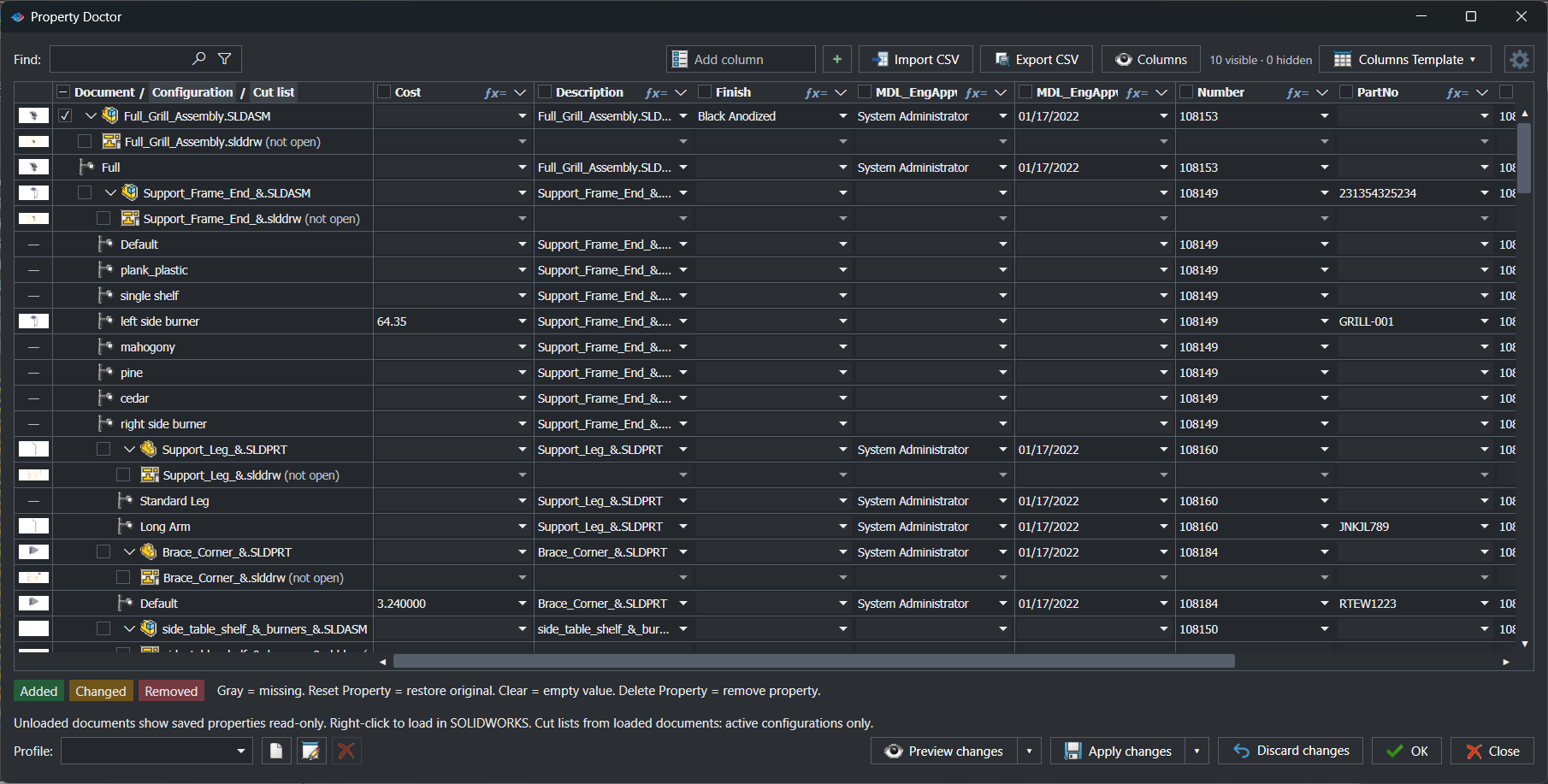
Property Doctor presents the active part, assembly or drawing together with its configurations, cut lists, drawings and referenced documents as rows of a property grid. Each column is a property. You can add, edit, clear, reset or delete custom and configuration-specific properties for any editable row, and every pending change is marked Added, Changed or Removed until you select Apply changes.
Beyond manual editing, the grid searches and filters, runs find and replace with regular expressions, fills values down or across with the green cell handle, imports and exports CSV, and evaluates document values, linked values, Advanced Formulas, PDM information and SQL Server external sources per row. A Property Doctor profile turns an ordered list of actions into a repeatable, previewable cleanup.
Why it matters
Opening 60 parts one at a time to correct a property is the kind of task that never gets done, so the BOM ships with blanks and the drawing title blocks disagree. Because Property Doctor works on the reference tree, the fix takes one pass, and because it shows gray cells for missing properties you see the gaps before they reach a released document.
For teams, the profile is the point. A Release cleanup profile that sets Description from a formula, resets Revision, deletes obsolete properties and assigns the SOLIDWORKS material from a material code can be shared by PIN and previewed on every assembly before it writes anything. Downstream tools such as BOM Manager, ERP Sync and PDM data cards then read consistent data.
How it works, step by step
- Open a saved part, assembly or drawing and select PDMPublisher > Property Doctor, or pick a saved profile from the arrow beside the command. Property Doctor waits while SOLIDWORKS finishes loading references; switching the active document during that preparation cancels it.
- The grid loads with the columns of the default column template. Use Add column or Columns to show, hide, add and organise property columns, or switch Columns Template.
- Edit values directly, pick from a cell’s value menu (document values, linked values, formulas, PDM information, external sources) or open an Advanced Formula. Formula and linked-value cells are evaluated for the document row where they are applied.
- Use Find, the filters, Find and Replace, the fill handle or Import CSV to change many rows at once.
- Review the Added, Changed and Removed indicators. Gray cells are missing properties.
- Optionally select a Profile and Preview changes to see what its actions would do in the same grid.
- Select Apply changes to write the pending changes to the documents, or Discard changes to restore the values loaded when the window opened. Save the modified documents in SOLIDWORKS afterwards.
Clear keeps the property name and writes an empty value. Delete Property removes the property entirely. Reset Property restores the original value.
Every control in the Property Doctor window
| Control | What it does | Notes |
|---|---|---|
| Find | Searches document names, configurations, property names and values. | The filter icon beside it narrows rows to parts, assemblies, drawings, custom properties, configuration properties, cut lists or empty values. |
| Add column | Adds a property column by name. | New properties appear as gray (missing) cells until a value is written. |
| Import CSV | Loads an exported Property Doctor CSV as pending values. | Review the pending cells, then Apply changes. |
| Export CSV | Writes the current grid to CSV. | Edit in Excel and re-import, or keep as an audit record. |
| Columns | Shows, hides, adds and organises property columns. | The counter beside it reports visible and hidden columns. |
| Columns Template | Switches the saved column set. | Defaults are set under Settings > Property Doctor. |
| Gear button | Opens the Property Doctor settings. | |
| Column header menu | Sorts, and offers Mark property for deletion (visible rows) and Mark selected properties for deletion (visible rows). | Filtered-out and read-only rows are not changed. Select the checked command again, or use the header delete icon, to undo. |
| Cell value menu | Inserts document values, linked values, formulas, PDM information or external-source results. | Evaluated per row on apply. |
| Green fill handle | Drag vertically to fill rows, horizontally to copy into visible columns. | |
| Find and Replace | Plain-text, case-sensitive or regular-expression replacement across the grid. | |
| Document menu | Load the document in SOLIDWORKS, reopen references for editing, resolve lightweight references, check in or out, get latest, select, zoom to or isolate the item. | Availability depends on document state and PDM access. |
| Profile selector and buttons | Select, create, edit or delete a Property Doctor profile. | |
| Preview changes | Runs the selected profile and shows its result as pending changes. | Nothing is written until Apply. |
| Apply changes | Writes all pending changes to the documents. | Community Edition applies up to 5 rows at a time. |
| Discard changes | Restores the values loaded when the window opened. | |
| OK / Close | Closes the window. |
Settings page: columns, thumbnails and profiles
Open PDMPublisher > Settings > Property Doctor under Utilities.
| Setting | What it does | Notes / default |
|---|---|---|
| Hide thumbnail column (faster loading) | Skips preview-image loading when the grid opens. | Select OK and reopen Property Doctor to apply. Recommended for large assemblies. |
| Default column template selector | Chooses which property columns appear when Property Doctor opens. | For example a Description template with Description, Material, PartNumber and Revision. |
| Edit columns… | Changes the columns of the selected template. | |
| Save default | Stores the selected template as the default. | |
| Property Doctor profiles | Selector plus new, edit and delete buttons for action profiles. | Saving stores the automation; Preview and Apply run it from Property Doctor. |
Defaults, external sources and formulas are saved separately from the other utility settings, but a complete settings bundle (file or PIN) carries Property Doctor profiles, column templates, formulas and source definitions. SQL credentials are never exported.
Profiles: ordered property actions
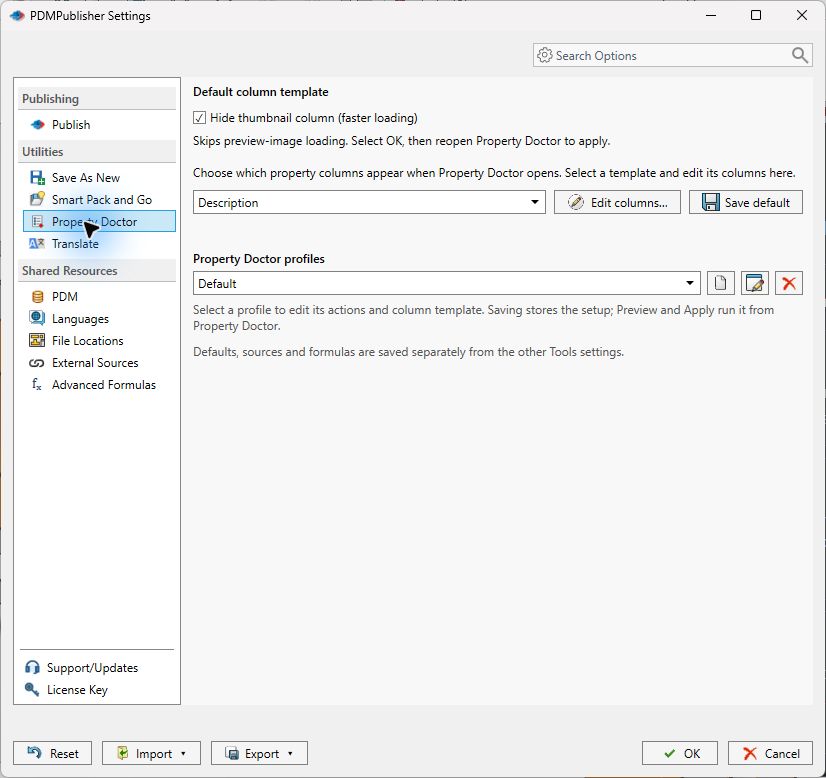
A profile is an ordered set of actions. Each action names a Property, an Action (set a value, delete properties, reset property values, or set a part material from a property), a Value where relevant, a Property scope such as All Configurations, and Conditions that decide which documents the action changes. No conditions means the action always runs.
Actions run from top to bottom; a later matching action can replace a value produced by an earlier one. Use the arrows in the editor to order them and the checkbox beside each action to enable or disable it. Saving a profile changes no document; it is applied only after Preview changes and Apply changes.
Set material from a property
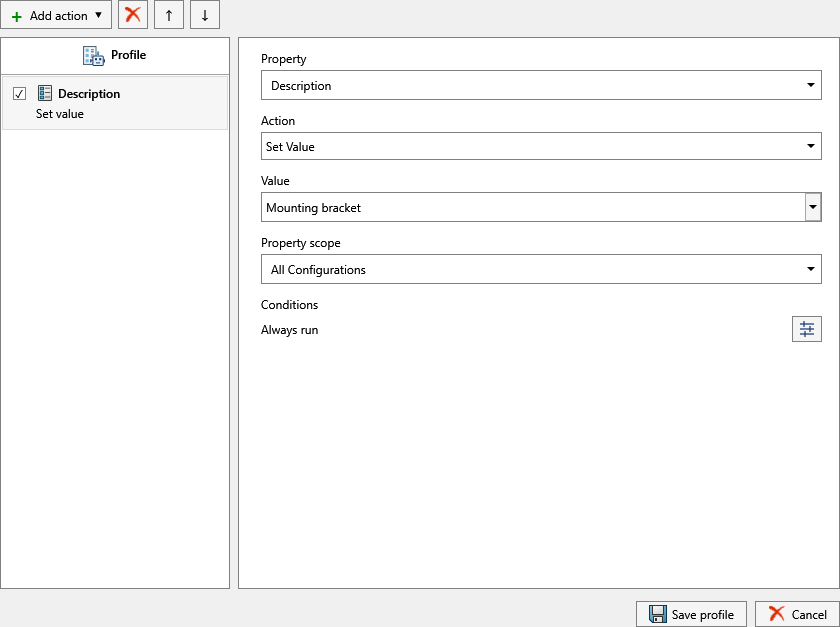
The Set Material From Property action assigns a real SOLIDWORKS material to part configurations from a property value such as a material code, so the model’s mass, appearance and cut-list data follow the property rather than the other way round.
- Add an action, select the source property (for example
Material) and set Action to Set Material From Property. - Choose the Documents scope, for example Current Document, and the part-configuration scopes to process.
- Under SOLIDWORKS material libraries, check one or more
.sldmatlibraries to search. Select Refresh libraries to reload the list. If a material name exists in more than one selected library, the assignment is skipped, so select only one matching library. - Add Optional material mappings when the property holds a code or does not match a material name exactly. A pattern may contain
*as a wildcard:SS*to AISI 304,ST*to Alloy Steel. - Use Import CSV… / Export CSV… to exchange mappings as a two-column CSV with
PatternandMaterialheadings. - Save the profile, then Preview changes and review every proposed material before Apply changes.
Empty, linked, unresolved or ambiguous values are skipped and the reason is shown in the preview. This action supports part configurations only; it does not assign materials to cut-list bodies.
Values from formulas and external sources
Cells and profile actions can draw on the shared resources configured in Settings. A named Advanced Formula is a definition, not a copied result: it is evaluated for each document and configuration when applied. An External Source is a reusable SQL Server connection and query that can be tested with a configuration name, filename or property value under Settings > External Sources > Edit / Test.
- Test formulas with documents that have values, missing values, configuration-specific values and characters that are invalid in filenames.
- Define the empty-result behaviour in the consuming action: a successful connection does not guarantee that every document returns a row.
- Database credentials stay local and are not part of settings export or PIN sharing; re-enter them on each computer. Use a read-only account with only the permissions the query needs and never put passwords in query text, profile names or formulas.
Works with SOLIDWORKS PDM
Property Doctor is aware of the vault selected under Settings > PDM. The document menu can check files out before editing, check them in afterwards and get latest so the grid reflects the vault version; PDM values are available in the cell value menu. Rows you cannot check out are read-only and are left untouched by fills, deletions and profiles. Selecting a vault does not log you in or change PDM permissions.
Set it up in the SOLIDWORKS add-in
- Open PDMPublisher > Settings > Property Doctor.
- Select a default column template and use Edit columns… to list the properties your title blocks and BOMs depend on, then Save default.
- Enable Hide thumbnail column (faster loading) for large assemblies.
- Create a profile with the new-profile button: add actions, order them, set scopes and conditions, and Save profile.
- If actions use formulas or SQL sources, define them under Shared Resources > Advanced Formulas and External Sources first.
- Select OK. Open an assembly, choose the profile from the arrow beside Property Doctor, Preview changes, then Apply changes.
- Share the setup with Export > Share complete settings using PIN…; colleagues import it with Import complete settings using PIN….
Recipes
| Scenario | How | Result |
|---|---|---|
| Fill missing descriptions across an assembly | Filter to empty values in the Description column, type the first value, drag the fill handle down, Apply changes. | No more blank Description cells in the BOM. |
| Normalise material spelling | Find and Replace with a regular expression on the Material column (for example ^ss ?304$ to SS304), case-insensitive. | One spelling everywhere; ERP Sync and BOM grouping work. |
| Release cleanup profile | Actions in order: set Description from a formula (All Configurations); reset Revision; delete legacy properties; Set Material From Property with mappings. | Preview on every release, apply in one click, share by PIN. |
| Delete an obsolete property everywhere | Right-click the column header, Mark property for deletion (visible rows), Apply changes. | Property removed from every editable visible row, read-only rows untouched. |
Tips, limits and troubleshooting
- Community vs Premium. Community Edition applies changes to up to 5 rows at a time; Premium has no row limit. The limit applies per operation and never expires.
- Slow to open. Enable Hide thumbnail column, reduce the default template to the columns you need, and let SOLIDWORKS finish loading references before switching documents.
- Rows are read-only. The file is checked in, read-only on disk or not loaded. Use the document menu to check out, get latest or reopen the reference for editing.
- Material was skipped. The preview states why: empty or linked value, no match in the selected libraries, or the same name in several libraries. Adjust the mappings or select one library.
- Changes are gone after closing SOLIDWORKS. Apply writes to the documents in memory; save them in SOLIDWORKS (or check them in) afterwards.
- Imported settings lost SQL access. Credentials are never exported. Re-enter them under External Sources on the destination computer.
- Automation.
publisher.PropertyDoctor profileName, silentin Publisher Macros runs a profile; silent mode applies it without dialogs and Community limits still apply. - Logs. Save the session log from PDMPublisher > Logs immediately after a failed apply and include it with the source filename when contacting support.
Availability
Available in PDMPublisher for SOLIDWORKS, the add-in that runs inside SOLIDWORKS. Not part of the PDM Professional task. Property Doctor is a command of the PDMPublisher for SOLIDWORKS add-in. It works on the active document and its references inside SOLIDWORKS; the PDM Professional task does not include it.
Documentation and related features
- Property Doctor
- Save As New
- Clone Tree
- BOM Manager
- ERP Sync
- External Sources and Advanced Formulas
- Publisher Macros
Frequently asked questions
Can Property Doctor edit configuration-specific and cut-list properties?
Yes. The grid shows document rows, configuration rows and cut-list rows, and each can be edited, cleared or have properties deleted.
How do I delete a custom property from every part in an assembly?
Right-click the column header and select Mark property for deletion (visible rows), then Apply changes. Filtered-out and read-only rows are not changed.
Does a Property Doctor profile change files when I save it?
No. Saving stores the automation. Documents change only after you Preview and then Apply the profile in Property Doctor.
Can it set the SOLIDWORKS material from a property?
Yes. The Set Material From Property action searches selected .sldmat libraries and supports wildcard mappings such as SS* to AISI 304. It works on part configurations, not cut-list bodies.
Can I edit properties in Excel and import them back?
Yes. Export CSV, edit the file, then Import CSV. The values arrive as pending changes that you review before Apply.
What is the Community Edition limit for Property Doctor?
Community applies changes to up to 5 rows at a time. Premium removes the limit.