
Converting SLDPRT to IGES still comes up every week: older CAM packages, mold and tooling shops, and some inspection software want an .igs rather than STEP. PDMPublisher adds IGES to the same batch engine that writes PDF and STEP, in SOLIDWORKS or as a SOLIDWORKS PDM Professional task. One job produces the IGS for every part, configuration or body.
What you get
IGES (igs) is the older neutral surface and solid format. It’s still the safe choice for legacy CAM, wire EDM and some tooling suppliers, and it’s often requested alongside STEP so the receiver can pick whichever imports cleanly.
You get one .igs per part, per configuration with Convert multiple configurations, and per body with Split bodies. STEP and IGES can come out of the same run. SOLIDWORKS’ current IGES export options (surface representation, trimming) apply.
The manual way, and why it doesn’t scale
Open the part, go to File > Save As, pick IGES (*.igs), set folder and name, save. Repeat for every configuration, and again for every body you want as its own file.
Fine for one part. For forty, or a supplier package redone at every revision, it’s an afternoon of clicking and badly named files. When a supplier wants both STEP and IGES, the count doubles.
Convert SLDPRT to IGES with the add-in
- Open the part in SOLIDWORKS, saved, references resolved. An assembly works too if you want its parts.
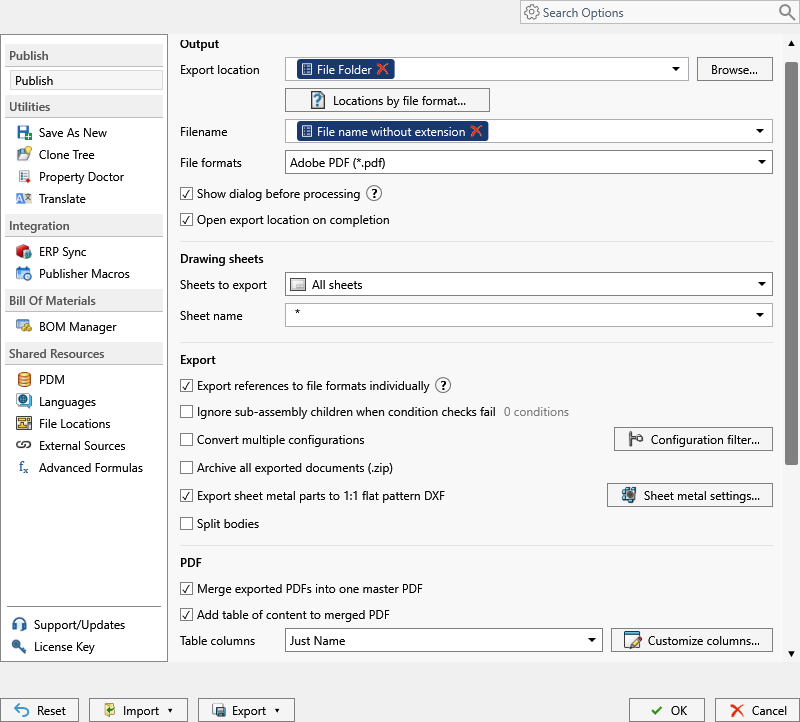
- On the PDMPublisher tab, select Settings, then Publish.
- Set Export location: a fixed folder, UNC path, relative folder, or placeholders from the
>...menu. - Set the Filename pattern, such as
(FileNameWithoutExtension)-(Revision); the.igsextension is added for you. - Under File formats, tick IGES (
igs). Other ticked formats come out in the same pass. - Tick Convert multiple configurations and put
(ConfigurationName)in the filename so configurations don’t overwrite each other. The Configuration Filter includes (PROD*) or excludes (*Flat*) by wildcard. - Tick Split bodies for one file per body, body name appended.
- Tick STEP as well if the package should carry both neutral formats.
- Select
PDMPublisher > Publish; the arrow beside it runs a named profile at once. Confirm the review dialog if it appears. - Open Publishing results to see every file, its configuration and destination.
In PDMPublisher for SOLIDWORKS, IGES output needs Premium. The free Community Edition publishes PDF, DXF and STEP only, up to 5 references per run.
Automate it as a PDM task
PDMPublisher for PDM Professional runs the same engine as a task, so parts become IGES when they change state.
- In PDM Administration, right-click Tasks, select New Task, choose PDMPublisher and name it; users see that name in the right-click menu.
- On the Options page, set Export Location and Filename.
(VaultRootFolder)\Exports\IGESkeeps output in the vault, a UNC path keeps it outside; no trailing backslash. - Under File Formats, tick IGES (
igs). - Enable Convert multiple configurations and the Configuration Filter as in the add-in, with
(ConfigurationName)in the filename. - Enable Split bodies for multi-body parts.
- Pick Use this version of SOLIDWORKS: an installed year on the host, or
Latest. For release workflows, enable Get latest revision only too; it exports the revised version, not work in progress. - Attach the task to a workflow transition, leave it in the right-click menu, or run it from Scheduled Items.
A task run on an assembly needs Template set to a PDM BOM layout with name, configuration and quantity columns, and Export references to file formats individually enabled. A single part needs neither.
Settings that matter for IGES
| Setting | What it does | Tip |
|---|---|---|
| Export location | Output folder: vault, relative, UNC or outside. Created if missing. | (TopAssemblyFolder)\Exports\(Revision) works; no trailing backslash. |
| Filename | Static text, placeholders, custom properties or PDM variables. | (ConfigurationName) for configurations, (Revision) for released files. |
| File formats | Tick IGES (igs); invalid formats are dropped. | Several formats per job. |
| Convert multiple configurations | Every configuration, not just the active one. | Needs a configuration-specific filename. |
| Configuration Filter | Include or exclude by name or wildcard. | Exclude *Flat* to skip flat patterns. |
| Split bodies | One file per body, name appended. | Flat pattern DXF has its own per-body option. |
| Customize Location | Per-format folders overriding the main one. | Premium in the add-in. |
| Use this version of SOLIDWORKS (task) | Which installed SOLIDWORKS year runs the export. | That version’s export options apply. |
Naming and folders
Placeholders resolve when the job starts, so one profile or task names every IGES the same way:
(FileNameWithoutExtension)-(Revision):Housing-C.igsin(TopAssemblyFolder)\Exports\IGES.(FileNameWithoutExtension)_(ConfigurationName)with Convert multiple configurations:Housing_Default.igs,Housing_Left-Hand.igs.(VaultRootFolder)\Tooling\($Supplier)\(TargetExtension)in the task: anigsfolder under the supplier’s folder, driven by a PDM variable.
Customize Location (Premium in the add-in, standard in the task) gives each format its own folder: enable the
igsrow to override the main location for IGES only. With STEP and IGES in one job, giveigsandsteptheir own rows so they don’t share a folder.
Tips and troubleshooting
- Activate a Premium key under
PDMPublisher > License Key; the PDM task is licensed per vault and includes every format. - Some formats depend on the SOLIDWORKS version installed; if one vanishes from the results, check what’s installed where the job ran.
- Can’t see the exported files? You need add and edit permission in the export location. The vault root is usually locked; target a subfolder such as
(VaultRootFolder)\Exports. - If the exported file already exists in the vault, the task (and the add-in in a vault context) overwrites it as a new version, with a check-in comment naming PDMPublisher.
- IGES has no sub-options in PDMPublisher. Set SOLIDWORKS’ export options under
Tools > Options > Exportwhere the job runs.
Availability
Available in PDMPublisher for SOLIDWORKS (the add-in) and PDMPublisher for PDM Professional (the task).
Documentation and related features
- Run a Publish Job (PDMPublisher for SOLIDWORKS)
- File Formats option
- SOLIDWORKS part documents
- SOLIDWORKS assembly documents
- Extension-specific export locations
- Publishing profiles and company settings
- Convert SLDPRT to STEP
- Convert SLDPRT to ACIS (SAT)
- Convert SLDPRT to Parasolid
Frequently asked questions
How do I batch convert SOLIDWORKS parts to IGES?
Tick IGES (igs) under File formats, set an export location and filename pattern, then Publish. From an assembly the add-in exports the resolved parts; a PDM task does the same on a workflow transition.
Can I export STEP and IGES at the same time?
Yes. Both are in the File formats list and every ticked format is written in one pass. Use Customize Location if each needs its own folder.
Does PDMPublisher export each configuration to its own IGS file?
Yes, with Convert multiple configurations on and (ConfigurationName) in the filename. The Configuration Filter limits which configurations are included.
Is IGES available in the free Community Edition?
No. Community Edition publishes PDF, DXF and STEP only. IGES needs Premium in the add-in; the PDM task includes all formats.