
A part without a drawing cannot be quoted, inspected or released. PDMPublisher for SOLIDWORKS creates the SLDDRW from your template, beside the model with the model’s name, with the views you choose, and can check it into the vault in the same run. Add-in only; the PDM task does not create drawings.
Quick answer
- Open the part, tick SOLIDWORKS Drawing (*.slddrw) under File formats, select Drawing Settings, pick your
.drwdottemplate and the views, select Publish. - Existing drawing: Skip leaves a drawing that already exists alone; Overwrite replaces it.
- Tick PDF, DXF or DWG in the same run and the export uses the new drawing immediately.
Create the drawing: step by step
- Open the part (or an assembly that contains the parts you want drawings for).
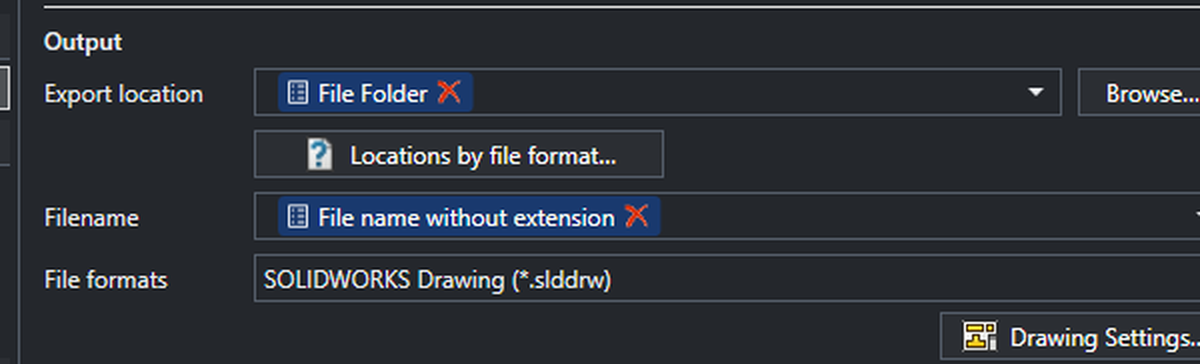
- On the PDMPublisher tab, select Settings > Publish and tick SOLIDWORKS Drawing (*.slddrw) under File formats. A Drawing Settings button appears under the list.
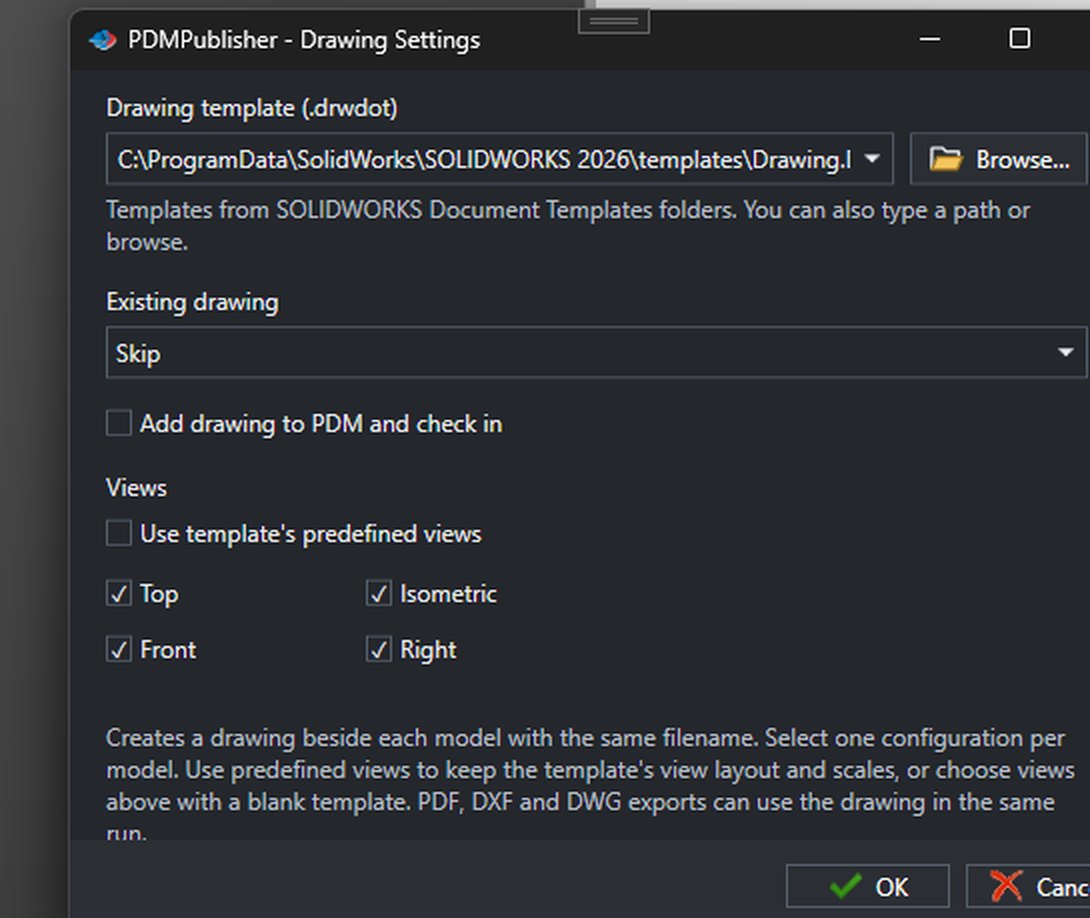
- In Drawing Settings, pick the Drawing template (.drwdot) from your SOLIDWORKS Document Templates folders, or browse to one.
- Set Existing drawing to Skip or Overwrite.
- Under Views, tick Use template’s predefined views, or tick Top, Front, Isometric and Right for a template without them.
- Tick Add drawing to PDM and check in if the part lives in a vault, select OK, then PDMPublisher > Publish.
Settings that matter
| Setting | What to put | Why |
|---|---|---|
| Drawing template | A company .drwdot with predefined views | Every drawing on the same layout and scale. |
| Existing drawing | Skip (default) or Overwrite | Skip makes re-runs safe; Overwrite rebuilds from the template. |
| Views | Template’s predefined views, or Top, Front, Right, Isometric | Predefined views beat ticked views when the template has them. |
| Add drawing to PDM and check in | On in a vault | The new SLDDRW is added and checked in with the run. |
Naming examples
Bracket.SLDPRTgetsBracket.SLDDRWbeside it; the drawing always takes the model’s name.- With Adobe PDF ticked in the same run,
Bracket-B.pdfis exported from the new drawing. - The drawing lands in the model’s folder; the Export location applies to the PDF, DXF or DWG, not the SLDDRW.
If something looks wrong
- No drawing was created: a drawing with that name already exists and Existing drawing is set to Skip.
- The views are wrong or missing: the template has no predefined views; tick the views to place instead.
- Only one configuration is on the sheet: that is by design. Filter to the configuration you want before publishing.
- The drawing is not in the vault: Add drawing to PDM and check in was off, or the model itself is not checked in.
Keep going
Documentation
Frequently asked questions
Can PDMPublisher create a SOLIDWORKS drawing from a part automatically?
Yes. Tick SOLIDWORKS Drawing (*.slddrw) under File formats, pick a template and views in Drawing Settings, and Publish. Each part gets a drawing beside it with the same file name.
Which views are placed on the drawing?
Either the predefined views saved in your .drwdot template, or the views you tick: Top, Front, Isometric and Right.
What happens if the part already has a drawing?
Existing drawing has two settings: Skip leaves the existing drawing as it is, Overwrite replaces it with a new drawing from the template.
Can I get the PDF in the same run?
Yes. Select PDF under File formats together with SOLIDWORKS Drawing. The drawing is created first and the PDF, DXF or DWG export uses it in the same run.
Does the drawing go into SOLIDWORKS PDM?
Tick Add drawing to PDM and check in under Drawing Settings and the new drawing is added to the vault and checked in.