
Converting a SOLIDWORKS assembly to a PDF drawing package means one thing to purchasing or a supplier: every drawing as PDF, in one folder, at the released revision. PDMPublisher walks the references, finds each same-name drawing, exports it to PDF and zips the lot if you want. It runs from the add-in or as a SOLIDWORKS PDM Professional task.
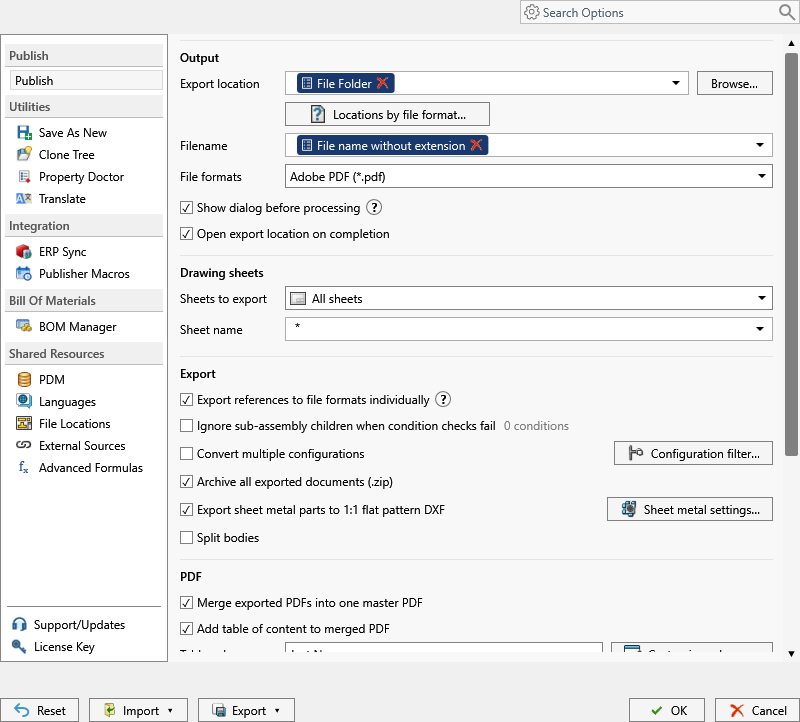
What you get
A folder of .pdf files, one per drawing, named by your pattern: Frame-B.pdf, Bracket-A.pdf, Motor-Mount-C.pdf, plus the assembly drawing. Archive all exported documents (.zip) adds one ZIP for the email or portal upload.
It works through the Adobe PDF (pdf) format on models: PDMPublisher looks for a drawing with the same name in the same folder and exports that. With Export references to file formats individually on, it does this for the assembly and every referenced part and sub-assembly. Components without a drawing produce no PDF. Tick STEP in the same job and the package carries the models too.
The manual way, and why it doesn’t scale
Open the assembly, open each component’s drawing, File > Save As, pick Adobe Portable Document Format, name it with the revision, save, close. Repeat for every part and sub-assembly, then check the folder against the BOM.
Fine for a five-part fixture. For a 200-component machine it’s a full day, and the revision on the PDF depends on who did the clicking. After an ECO you start over.
Convert the assembly to a PDF drawing package with the add-in
- Open the top-level assembly in SOLIDWORKS, references resolved (Get Latest first). Drawings must sit beside their models with the same filename.
- On the PDMPublisher tab, select Settings, then Publish.
- Set Export location, such as
(TopAssemblyFolder)\Drawing Package\(Revision), and a Filename pattern such as(FileNameWithoutExtension)-(Revision). - Under File formats, tick Adobe PDF (
pdf). Tick STEP too if the supplier needs models. - Tick Export references to file formats individually so every part and sub-assembly drawing is exported, not just the assembly’s.
- On the Conditions page, add rules such as a custom property that must not equal
Purchased. Tick Ignore sub-assembly children when condition checks fail to skip a rejected sub-assembly’s parts too. - Tick Archive all exported documents (.zip) for one ZIP beside the PDFs.
- Select
PDMPublisher > Publish, confirm the review dialog, then check Publishing results for components with no drawing found.
PDF is a Community Edition format of the add-in (with DXF and STEP), but Community is limited to 5 references per run. A package for a real assembly needs Premium.
Automate it as a PDM task
PDMPublisher for PDM Professional builds the package as a task at release, so purchasing always finds current PDFs in the same vault folder.
- In PDM Administration, right-click Tasks, select New Task, choose PDMPublisher and name it, say Drawing package.
- On the Options page, set Export Location to
(VaultRootFolder)\Drawing Packages\($ProjectNumber)\(Revision)(no trailing backslash) and the Filename pattern. - Under File Formats, tick Adobe PDF. Keep Export affected document on for the assembly drawing.
- Set Template to a PDM BOM layout with name, configuration and quantity columns, then enable Export references to file formats individually. Use drawing-derived BOM lets the first named BOM on the assembly drawing define the package.
- Enable Use PDM search to locate drawings if drawings aren’t always beside their models.
- Enable Archive all exported documents (.zip) when the package must travel as one file. Enable Get latest revision only so a release workflow exports the revised version and its saved references.
- Pick Use this version of SOLIDWORKS, then attach the task to the release transition, the right-click menu or Scheduled Items.
Settings that matter for a PDF drawing package
| Setting | What it does | Tip |
|---|---|---|
| Export location | Output folder: vault, relative, UNC or outside. Created if missing. | (TopAssemblyFolder)\Exports\(Revision) works; no trailing backslash. |
| Filename | Static text, placeholders, custom properties or PDM variables. | (ConfigurationName) for configurations, (Revision) for released files. |
| File formats | Adobe PDF (pdf) on a model exports the same-name drawing. | Add step for a package with models. |
| Export references to file formats individually | One file per part and sub-assembly, beside the top-level export. | Task: needs a BOM Template with name, configuration and quantity columns. |
| Template (task) | PDM BOM layout that works out references, configurations and quantities. | Must include <Name>, <Configuration> and <RefCount>. |
| Use PDM search to locate drawings (task) | Finds a drawing that isn’t beside its model via PDM search or Where Used. | Drawing and model names must match. |
Naming and folders
Placeholders resolve when the job starts, so the package is named and filed the same way every time:
(FileNameWithoutExtension)-(Revision)in(TopAssemblyFolder)\Drawing Package\(Revision):Frame-B.pdfand its siblings in a folder per assembly revision.($PartNumber)_Rev($Revision)in the task: PDM part numbers instead of filenames.(VaultRootFolder)\Supplier Packages\($Supplier)\(TargetExtension): apdffolder and astepfolder per supplier from one task.
Customize Location (Premium in the add-in, standard in the task) sends
stepto the supplier share from one job. Enable a format’s row and it overrides the main Export location for that format only.
Tips and troubleshooting
- A component produced no PDF? It has no same-name drawing in the same folder. Task: enable Use PDM search to locate drawings. Add-in: move or rename the drawing.
- Task missing or wrong references? Check the BOM Template columns. Suppressed, virtual, envelope and excluded-from-BOM components are ignored.
- Not all references captured? The job needs local copies of everything. Get Latest first.
- Want one PDF instead of a folder? Enable Merge exported PDFs into one master PDF with a table of content and bookmarks; see the merged-PDF guide.
- Can’t see the exported files? You need add and edit permission in the export location. The vault root is usually locked; target a subfolder like
(VaultRootFolder)\Exports.
Availability
Available in PDMPublisher for SOLIDWORKS (the add-in) and PDMPublisher for PDM Professional (the task).
Documentation and related features
- Run a Publish Job (PDMPublisher for SOLIDWORKS)
- Export References to File Formats Individually
- SOLIDWORKS assembly documents
- SOLIDWORKS drawing documents
- Conditional assembly processing
- Run as a SOLIDWORKS PDM task
- Extension-specific export locations
- Merge all assembly drawings into one PDF
- Convert SLDDRW to PDF
- Batch convert SLDDRW to PDF
Frequently asked questions
How do I export all the drawings of a SOLIDWORKS assembly to PDF at once?
Tick Adobe PDF under File formats and enable Export references to file formats individually. PDMPublisher exports the same-name drawing of the assembly and every referenced part and sub-assembly in one Publish.
Does the drawing have to be in the same folder as the part?
In the add-in, yes: same name, same folder. The PDM task can enable Use PDM search to locate drawings to find them elsewhere in the vault.
Can PDMPublisher zip the PDF drawing package?
Yes. Enable Archive all exported documents (.zip) and one ZIP with every exported file is created beside them.
Can I leave purchased parts out of the package?
Yes. Add a condition on a custom property or PDM variable, such as Source not equal to Purchased. Ignore sub-assembly children when condition checks fail skips a rejected sub-assembly’s parts too.