A supplier package wants one STEP per part, without the purchased hardware and without the assembly file itself. PDMPublisher exports every referenced part as its own STEP in one run and lets conditions decide which ones go out, in SOLIDWORKS or as a PDM Professional task.
Quick answer
- Open the assembly, tick STEP (step) and Export references to file formats individually, select Publish: one STEP per part and sub-assembly, repeated components once.
- On the Conditions page, a rule such as Source not equal Purchased keeps hardware out.
- STEP is free in the Community Edition, up to 5 references per run.
In SOLIDWORKS: step by step
- Open the top-level assembly with every reference resolved (Get Latest first).
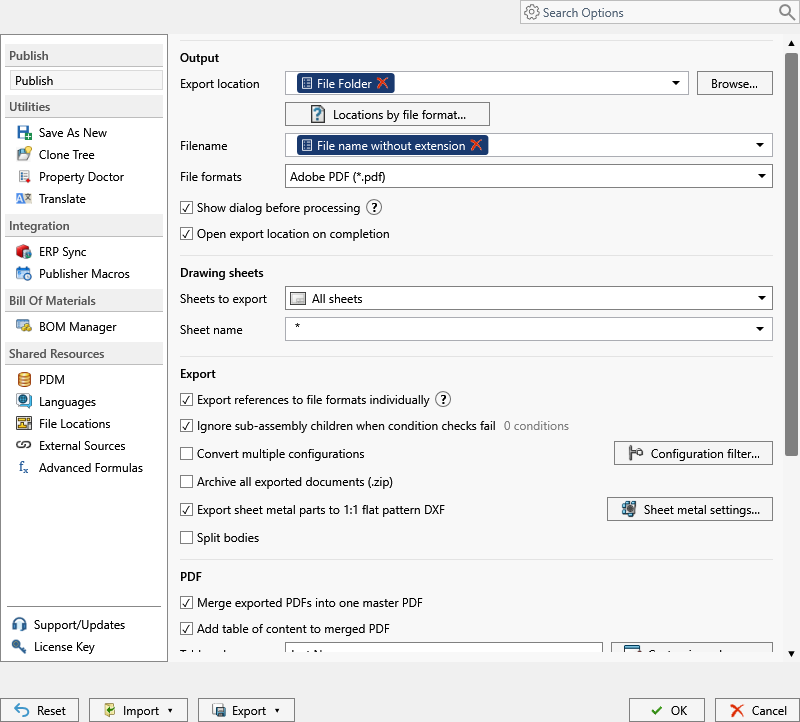
- On the PDMPublisher tab, select Settings > Publish; set Export location, for example
(TopAssemblyFolder)\STEP\(Revision), and Filename, for example(FileNameWithoutExtension)-(Revision). - Under File formats, tick STEP (step), then tick Export references to file formats individually.
- On the Conditions page, add a rule: variable Source, Text not equal, value Purchased. Only references that pass are exported.
- Tick Ignore sub-assembly children when condition checks fail if a rejected purchased sub-assembly should take its parts with it.
- Select PDMPublisher > Publish, confirm the review dialog, and check Publishing results.
As a PDM task: on every release
PDMPublisher for PDM Professional runs the same engine as a task, so the export happens when the file changes state, not when somebody remembers.
- In PDM Administration, right-click Tasks > New Task, choose PDMPublisher, name it and tick the task hosts.
- On the Options page set Export Location and Filename, tick STEP under File Formats. Turn Export affected document off if the assembly STEP itself is not wanted.
- Set Template to a PDM BOM layout (name, configuration, quantity) and enable Export references to file formats individually.
- Add the same conditions on PDM variables, for example
$Sourcenot equal Purchased. - For release workflows, enable Get latest revision only, then attach the task to a workflow transition.
Settings that matter
| Setting | What to put | Why |
|---|---|---|
| Export references individually | On | One STEP per referenced part and sub-assembly. |
| Conditions | Source not equal Purchased; Text equal accepts * | Which references go out. |
| Export affected document (task) | Off when only the parts are wanted | Otherwise the assembly STEP is written too. |
| Filename | (FileNameWithoutExtension)-(Revision) | Every part named the same way. |
Naming examples
(FileNameWithoutExtension)-(Revision)givesBracket-B.step,Frame-C.step, one per part.($PartNumber)_Rev($Revision)in the task names files by PDM part number.(VaultRootFolder)\Supplier Packages\($ProjectNumber)files the set by project.
If something looks wrong
- Only 5 files came out: that is the Community Edition limit. Activate Premium or run it as a PDM task.
- Parts are missing: the job needs local copies of every reference. Get Latest first. Suppressed, virtual and excluded-from-BOM components are skipped on purpose.
- Purchased parts still went out: check the property name and value in the condition; Text equal is exact unless you use
*. - In the task, the set is wrong: check the BOM Template columns.
Keep going
Documentation
Frequently asked questions
How do I export each part of a SOLIDWORKS assembly as a separate STEP file?
Tick STEP and enable Export references to file formats individually. Every part and sub-assembly becomes its own STEP in one Publish; a PDM task does the same with a BOM Template.
Can I skip purchased parts when exporting STEP files from an assembly?
Yes. Add a condition, say Source not equal Purchased. Only references that pass are exported; Ignore sub-assembly children when condition checks fail drops a rejected sub-assembly’s parts too.
Why does PDMPublisher export only 5 parts of my assembly?
The free Community Edition stops at 5 references per run. Premium removes the limit; the PDM task is licensed per vault with no limit.
Does the PDM task need a BOM template to export the parts?
Yes. Pick a BOM Template with name, configuration and quantity columns, then enable Export references to file formats individually. The add-in needs no template.