
Publishing an assembly rarely means publishing everything in it. Purchased hardware has no drawing, a sub-assembly belongs to another supplier, and only parts in the Released state should leave the vault. PDMPublisher Conditions are rules, grouped with AND/OR logic, that decide which files in the assembly are processed before any export starts. They read SOLIDWORKS custom properties, PDM variables and built-in values such as FileName or ConfigurationName, and they work identically in the SOLIDWORKS add-in and the PDM Professional task.
What conditions do
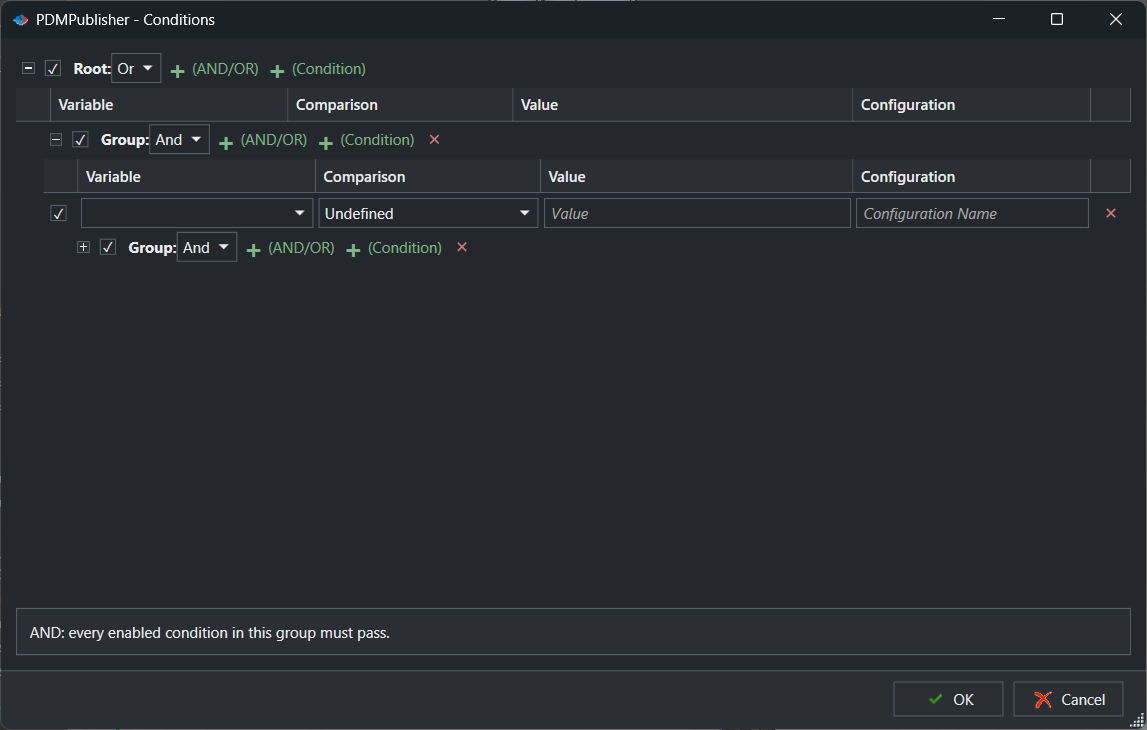
A condition tree starts at a root group set to AND or OR. Inside it you add condition rows and, when the logic needs it, nested groups with their own AND/OR setting. Each row names a Variable, a Comparison, a Value and, optionally, a Configuration to read the value from. PDMPublisher checks the tree against every file that is being considered for export. Files that satisfy the tree are processed; files that do not are skipped and reported.
Conditions run before export. Nothing is opened in SOLIDWORKS or written to disk for a file that fails. That makes them the right tool for keeping purchased parts, toolbox hardware, reference geometry, obsolete revisions or another team’s sub-assemblies out of a release package, and for producing different packages from the same assembly by switching profiles or tasks.
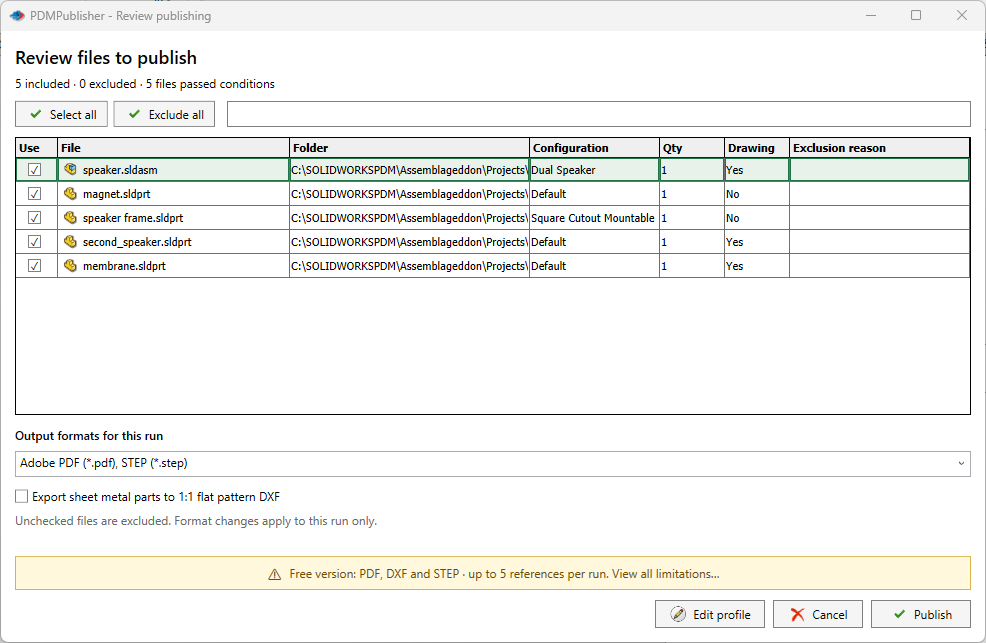
The add-in adds a review step: with Show conditions output dialog enabled, PDMPublisher lists the references that passed, with their evaluated destination paths, configuration, quantity and whether a same-name drawing exists, and lets the operator clear individual files for this run before publishing starts.
Why it matters
Without filtering, an assembly publish exports every resolved reference. For a 300-component machine that means hundreds of STEP files nobody asked for, PDFs of purchased fasteners that have no drawing, and a merged package that mixes your released drawings with vendor models. Someone then deletes files by hand, and the next release repeats the exercise.
The engineering rule is usually simple to state: only files with a drawing, in the Released state, from our own part number range, excluding anything with Source = Purchased. Conditions let you write that rule once, in the same profile or task that produces the output, and apply it consistently on every publish. Because the tree is evaluated against current property and PDM values, a part that moves from Under Review to Released is picked up automatically.
The same mechanism produces targeted packages. A profile with Material contains Steel feeds the laser shop; a profile with Source equal Make feeds the machine shop; a task with State equal Released attached to the release transition feeds the supplier portal. One assembly, three condition trees, three correct outputs.
- Exclude purchased or toolbox components from drawing and STEP packages.
- Publish only files in a given workflow state or revision.
- Limit output to a part number range using
FileNamewildcards. - Route sheet metal, machined and weldment parts to different profiles by material or a custom property.
- Skip an entire sub-assembly and its children when the sub-assembly fails the rule.
How it works, step by step
- The job starts on an assembly with Export references to file formats individually enabled. In the add-in the references are the resolved references of the open assembly; in the task they are calculated from the BOM Template and Calculation method, or from the drawing’s first named BOM when Use drawing-derived BOM is on.
- For each file under consideration, PDMPublisher evaluates the enabled condition tree. Enabled groups are evaluated by their AND or OR setting; disabled rows and groups are skipped. If a row names a Configuration, the value is read from that configuration; otherwise the referenced or active configuration is used where supported.
- Text comparisons are not case sensitive, and Text equal accepts
*as a wildcard, soFileNameequal11*matches every file whose name starts with 11. - A file is processed only when the condition setup allows it. Files that fail are excluded with a reason.
- If Ignore sub-assembly children when condition checks fail is enabled and a sub-assembly fails, PDMPublisher does not traverse its children. If it is off, the children are evaluated on their own merits.
- In the add-in, with Show conditions output dialog enabled, the review dialog opens. The operator can clear files, change Output formats for this run, enable flat-pattern DXF for this run, return to the profile with Edit profile, or Cancel.
- Export proceeds for the remaining files: formats, annotations, merging, bookmarks and archiving as configured. Skipped files appear in Publishing results as Skipped, and in the task’s vault activity log.
Every control in the condition editor
The editor is the same in both products. The add-in opens it from PDMPublisher > Conditions; the task shows it on the Conditions page of the task in the PDM Administration tool.
| Control | What it does | Notes / default |
|---|---|---|
| Enable check box | Enables the root, a group or a condition row. Disabled items stay in the profile but are not evaluated. | New rows are enabled. |
| Expand/collapse arrow | Shows or hides the children of a group. | Display only. |
| AND / OR | Sets whether every child must pass (AND) or any child may pass (OR) for that group. | Root defaults to And. |
| + (AND/OR) | Adds a nested condition group under the selected group. | Use when part of the rule needs different logic from its parent. |
| + (Condition) | Adds a condition row to the selected group. | A row stays Undefined until a comparison is chosen. |
| Variable | The property, file value, PDM variable or special variable to evaluate. | Dropdown only shows values available in the current document or vault context. |
| Comparison (Condition Type) | The test applied to the variable: text, number, date or yes/no. | Default Undefined; the row is not usable until set. |
| Value | The value to compare against. | Text comparisons are case-insensitive; * wildcard in Text equal. |
| Configuration | Limits property evaluation to the named SOLIDWORKS configuration. | Empty uses the referenced or active configuration where supported. |
| Delete (×) | Removes the group or row. | No confirmation for a row. |
| Import… / Export… | Saves or loads the condition tree as an .edmtdf file. | Import placement depends on the selected item; see below. |
| OK / Cancel | Saves the tree to the profile or task, or discards edits. | |
| Ignore sub-assembly children when condition checks fail | Publish/Options setting: stops traversal below a rejected sub-assembly. | Off by default. Leave off when children must still export independently. |
| Show conditions output dialog | Add-in: shows the review dialog after evaluation and before export. | On by default; applies to assemblies with reference export enabled. |
Condition types and special variables
The Comparison list groups tests by data type. Choose the type that matches the variable: a revision or description is text, a mass or a count is a number, a release date is a date, and a data card checkbox is yes/no.
Special variables let a rule check common file information without needing a PDM variable. The add-in also offers SOLIDWORKS custom properties from the active document and its references; the task offers PDM variables from the vault and file values such as state, revision and workflow. Only values that exist in the current context appear in the menu.
| Type or variable | Meaning | Example |
|---|---|---|
| Text equal / not equal | The value must match or not match specific text. * is a wildcard in Text equal. | Source equal Make; FileName equal 11* |
| Text contains / does not contain | The value only needs to include or avoid part of the text. | Material contains Steel |
| Text length | The length of the text matters. | PartNumber length 8 |
| Number comparisons | The value is numeric. | Weight greater than 10 |
| Date comparisons | The value is a date. | ReleaseDate after 2026-01-01 |
| Yes/No comparisons | The value is a yes/no variable. | HasDrawing is Yes |
FileName | Special variable: name of the file being evaluated. | Bracket.SLDPRT |
FilePath | Special variable: full path of the file. | C:\PDMVault\Projects\Speaker\Bracket.SLDPRT |
FolderName | Special variable: name of the containing folder. | Speaker |
FolderPath | Special variable: path of the containing folder. | C:\PDMVault\Projects\Speaker |
ConfigurationName | Special variable: configuration being evaluated. | Default |
| Custom property / PDM variable | Any SOLIDWORKS property (add-in) or vault variable (task) shown in the menu. | Revision, Description, State |
Worked examples. Root AND with
StateequalReleasedandSourcenot equalPurchasedexports only released, made parts. Root OR containingFolderPathcontains\Weldments\and a nested AND group (MaterialcontainsSteel,ConfigurationNameequalFlat) sends weldments plus flat steel parts to the laser profile. Root AND withFileNameequal1*andFileNamedoes not contain-OLDrestricts output to your part number range while dropping retired files.
Set it up in the SOLIDWORKS add-in
- Open the assembly in SOLIDWORKS and resolve its references. Conditions can only evaluate properties of files that are loaded and resolved.
- Open PDMPublisher > Settings > Publish, select the profile, and enable Export references to file formats individually. Optionally enable Ignore sub-assembly children when condition checks fail. Select OK.
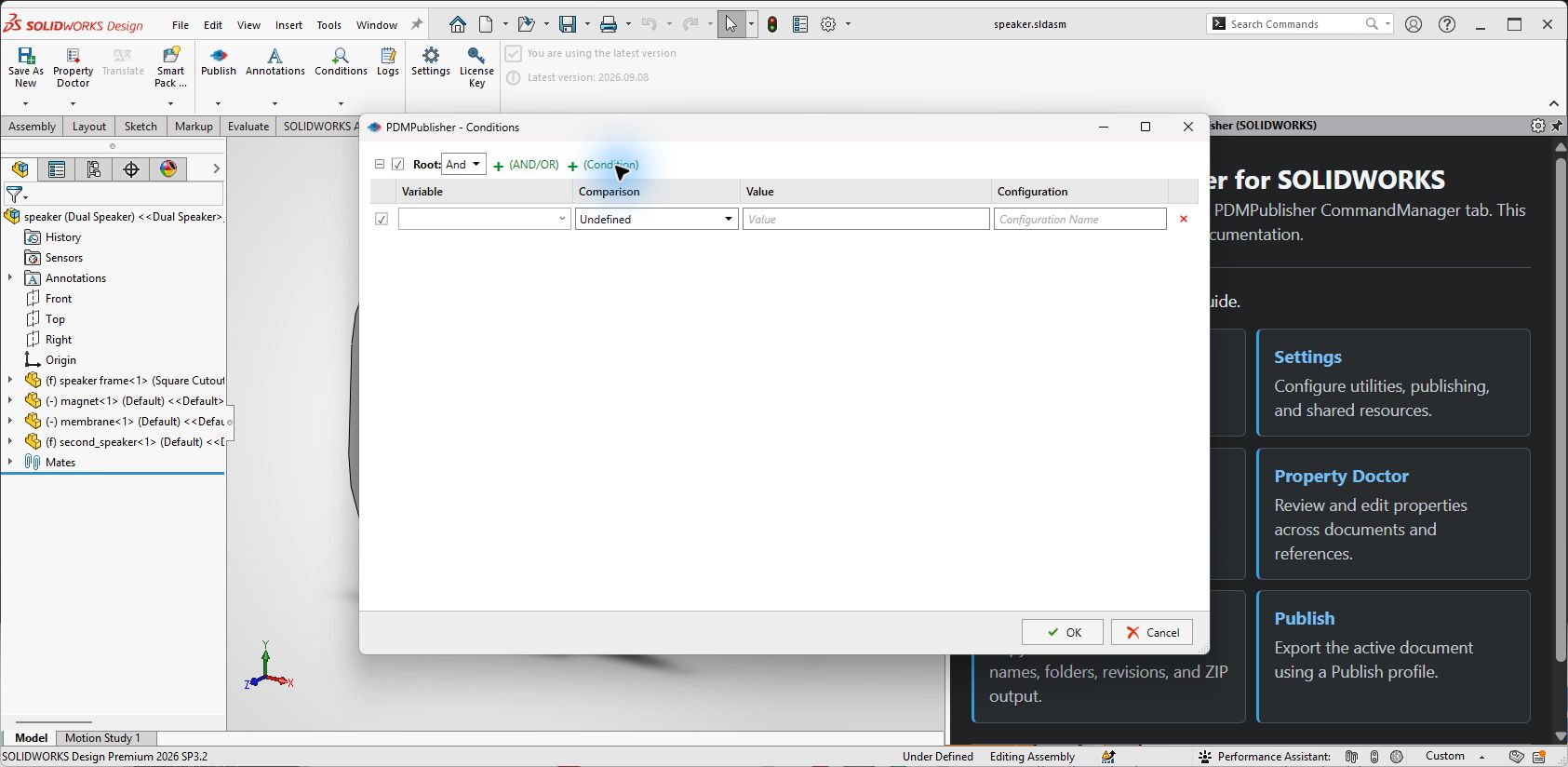
- On the CommandManager tab select Conditions; use the command arrow to open the named profile whose tree you want to edit.
- Set the Root group to
AndorOr. Select + (Condition) to add a row, choose the Variable, pick a Comparison (the row is Undefined until you do), enter the Value and, if needed, a Configuration. - For mixed logic, select + (AND/OR) to add a nested group, set its logic and add rows inside it. Use the checkboxes to disable rows you want to keep but not evaluate.
- Select OK to save the tree into the profile. To reuse it elsewhere, select Export… to write an
.edmtdffile. - Select PDMPublisher > Publish with the same profile. With Show conditions output dialog on, review the list, clear any file you want to skip this time, and select Publish.
- After the job, check Publishing results. Filter for Skipped to confirm every exclusion was intended.
Set it up in the PDM Professional task
- In the SOLIDWORKS PDM Administration tool, open your PDMPublisher task under Tasks or create one with New Task… and select PDMPublisher on the Add-in page.
- On the Options page, select a BOM Template that includes the name, configuration and quantity (
RefCount) columns, then enable Export references to file formats individually. Set the Calculation method as required. - Optionally enable Ignore sub-assemblies children when condition checks fail under the BOM, Activity Logs and Advanced section.
- Open the Conditions page. Set the root logic, add condition rows with Variable, Condition Type, Value and Configuration, and add nested AND/OR groups where needed. Use the PDM variables and special variables offered in the menu.
- Enable Vault Activity Logs and a Log Folder (Vault Only) while testing so skipped files and their reasons are recorded.
- Click OK. Attach the task to a workflow transition, run it from the right-click Tasks menu on the assembly, or schedule it through a scheduled item.
- Run the task on a representative assembly and read the vault activity log to confirm which references passed and which were skipped.
In the task, conditions are evaluated for the found PDM references. The BOM Template is what determines the reference set, so verify it before tuning the condition tree; missing columns produce missing references, not condition failures.
Recipes
- Released made parts only. Root
And:StateText equalReleased;SourceText not equalPurchased. Formats PDF and STEP, reference export on, merge on. Attach to the Released transition. - Laser shop package. Root
And:MaterialText containsSteel; nestedOrgroup:ConfigurationNameText equalFlat*,SheetMetalYes/No isYes. Enable Export sheet metal parts to 1:1 flat pattern DXF. - Skip vendor sub-assemblies wholesale. Root
And:FolderPathText does not contain\Vendor\. Enable Ignore sub-assembly children when condition checks fail so a rejected vendor sub-assembly takes its children with it. - Part number range. Root
And:FileNameText equal2*;FileNameText does not contain-OLD. Pair with an Export location using(FileNameNumberRange)to group the output by thousands.
Tips, limits and troubleshooting
- A row never matches. Check that its Comparison is not still Undefined and that the variable actually exists on the files being evaluated. The dropdown only shows values available in the current context; a property missing from a part evaluates as empty.
- Everything is skipped. A root AND with one impossible row rejects all files. Temporarily disable rows with their checkboxes rather than deleting them, and rerun with the review dialog on.
- Children of a rejected sub-assembly still export. That is the default. Enable Ignore sub-assembly children when condition checks fail to stop traversal; leave it off if those children must export on their own.
- Configuration-specific values. If the property differs per configuration, fill the Configuration field; otherwise the referenced or active configuration is used.
- Add-in cannot see all references. The assembly and its references need local copies. Do a Get Latest on the assembly and references on the publishing computer.
- Task references look wrong. The task builds its BOM from the selected Template and ignores suppressed, virtual, envelope and BOM-excluded components. Confirm the Template has
RefCountandConfigurationcolumns. - Importing conditions. With no group selected, the imported root tree replaces the current one. With a group selected, imported items are added as its children. With a row selected, the import stops. Export the current tree or the profile first.
- Review selection is not saved. Clearing files in the review dialog affects only that run; it does not rewrite the condition tree. Cancelling before processing starts writes nothing; cancelling later leaves completed files in place.
- Community Edition. Conditions are included in the free add-in; the 5-references-per-run limit is applied to the files that pass. Premium and the PDM task have no reference limit.
Availability
Available in PDMPublisher for SOLIDWORKS (the add-in) and PDMPublisher for PDM Professional (the task). The condition editor is shared by the SOLIDWORKS add-in and the PDM Professional task. The add-in evaluates values from the active document and its resolved references and stores the tree in the Publish profile; the task evaluates PDM variables and file values from the vault and stores the tree in the task definition. The Show conditions output dialog review is an add-in feature.
Documentation and related features
- Publishing Conditions in the SOLIDWORKS add-in
- Add Conditions and Groups
- SOLIDWORKS assembly documents
- Merge multiple drawings into one PDF
- Sheet metal publishing
- Extension-specific export locations
- Watermark your PDFs
- Publishing profiles and company settings
- Run as a SOLIDWORKS PDM task
Frequently asked questions
How do I exclude purchased parts when publishing a SOLIDWORKS assembly?
Add a condition row such as Source Text not equal Purchased under an AND root, enable Export references to file formats individually, and publish. Files that fail the rule are skipped before export.
Can conditions use wildcards?
Yes. Text equal accepts * as a wildcard, so FileName equal 11* matches every file starting with 11. Text comparisons are not case sensitive.
What is the difference between AND and OR groups?
In an AND group every child must pass; in an OR group any child may pass. Nest a group inside another when one part of the rule needs different logic from its parent.
Do conditions work on a single part or drawing?
Conditions filter the files considered for export in assembly processing. Ignore sub-assembly children when condition checks fail also has no effect on a standalone part or drawing.
Why are the children of a rejected sub-assembly still exported?
By default each file is evaluated on its own. Enable Ignore sub-assembly children when condition checks fail to stop traversal below a sub-assembly that fails.
Can I review which files passed before anything is exported?
In the SOLIDWORKS add-in, yes. Show conditions output dialog, on by default, lists the files that passed with destination paths, configuration and quantity, and lets you clear files for that run.
Can I reuse a condition tree in another profile or task?
Export it to an .edmtdf file from the Conditions window and import it into the other profile. Complete profiles and settings bundles also carry conditions.