
Laser, plasma and waterjet cutters want one thing from engineering: a clean, 1:1 flat pattern DXF for every sheet metal part, named so it cannot be confused with the drawing DXF, with bend lines when the brake needs them and nothing else. PDMPublisher’s Export sheet metal parts to 1:1 flat pattern DXF produces exactly that for a single part or for every sheet metal component of an assembly, in the SOLIDWORKS add-in and in the PDM Professional task, alongside the PDF and STEP outputs of the same job.
What sheet metal publishing does
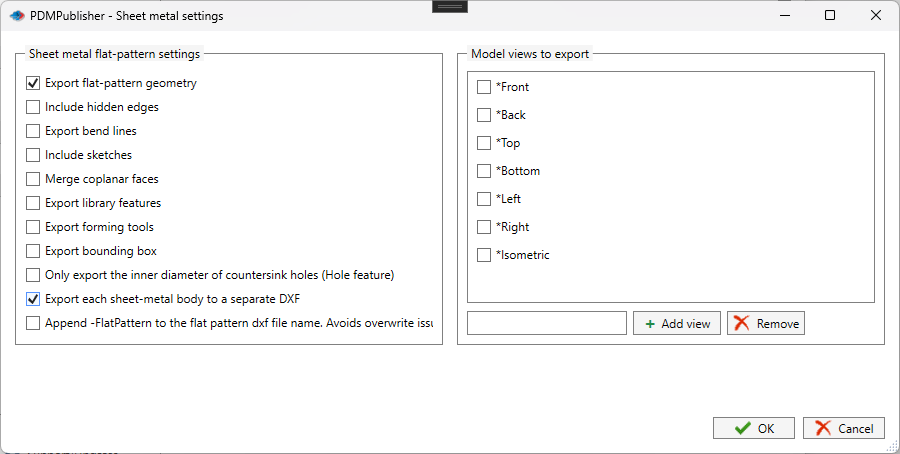
When the option is enabled, PDMPublisher detects sheet metal parts among the files being processed and exports each flat pattern as a 1:1 DXF. The Sheet metal settings dialog (documented as Flat Pattern Settings) decides which entities are written: the flattened outside profile and cutouts, hidden edges, bend lines, sketches, library features, forming tools, a bounding box, and how countersinks are represented. Multi-body sheet metal parts can produce one DXF per body, and a -FlatPattern suffix keeps the output distinct from a drawing exported to DXF.
This is a separate pipeline from File formats. Selecting DXF in File formats converts drawings to DXF; the add-in even warns that DXF there only converts drawings and that flat patterns need the sheet metal option below. You do not need to select DXF in File formats for the flat pattern export to run, and you can combine flat patterns with PDF, STEP or any other format in the same job.
The same dialog also offers Model views to export. Selecting one or more of the standard views (*Front, *Top, *Isometric and so on) or a named custom view changes the export from an unfolded flat pattern to a SOLIDWORKS annotation-view DXF. For manufacturing-ready profiles, leave the views cleared.
Why it matters
Manually flattening each part, exporting the DXF, renaming it and copying it to the shop share is slow and error-prone, and it produces DXFs that silently go stale when the part is revised. Fabricators regularly cut from an old flat because nobody re-exported after the last change. Tying the DXF export to the publish job or, better, to the PDM release transition means the shop always receives the flat pattern that matches the released model.
Consistency matters as much as freshness. One person exports with bend lines, another without; one includes sketches used for etching, another forgets. The Sheet metal settings dialog fixes the entity set in the profile or task, so every DXF from that workflow has the same content. Nesting software and CAM post-processors behave predictably when the input is predictable.
Assemblies are where the time saving is largest. Publish the top-level assembly with reference export and the sheet metal option on, and PDMPublisher walks every component, flattens each sheet metal part and writes its DXF, while producing PDFs and STEP files for the rest of the package in the same run. Combine it with conditions to restrict the DXF set to your own made parts, and with extension-specific locations to drop the DXFs straight onto the laser share.
- Release-driven DXF delivery to the cutting shop with no manual export.
- Uniform DXF content across engineers, defined once per profile or task.
- Whole-assembly flat pattern packages together with PDFs and STEP files.
- Per-body DXFs for multi-body sheet metal parts such as weldment enclosures.
How it works, step by step
- The job starts on a part or an assembly. For an assembly, Export references to file formats individually must be on so the components are processed; in the task this requires a BOM Template with name, configuration and quantity columns.
- Conditions, if any, filter the files. Only files that pass continue.
- For each remaining file, PDMPublisher runs the selected File formats exports (for example PDF of the same-name drawing and STEP of the model).
- If the file is a sheet metal part and Export sheet metal parts to 1:1 flat pattern DXF is enabled, PDMPublisher exports the flat pattern to DXF at 1:1 using the entity options in Sheet metal settings. With Convert multiple configurations on, each selected configuration is flattened separately; include
(ConfigurationName)in the Filename to keep them apart. - With Export each sheet-metal body to a separate DXF enabled, a multi-body sheet metal part yields one DXF per sheet metal body. Split bodies is not involved in this and does not control flat-pattern output.
- The DXF filename is built from the Filename pattern. With Append -FlatPattern to the flat pattern dxf file name enabled,
-FlatPatternis inserted before.dxf, so a drawing DXF and a flat pattern DXF of the same part cannot overwrite each other. - The DXF is written to the Export location, or to the DXF row of Locations by file format when one is enabled. In the vault, an existing file receives a new version with a check-in comment identifying PDMPublisher.
- The result appears in Publishing results (add-in) or the vault activity log and Task Details tab (task).
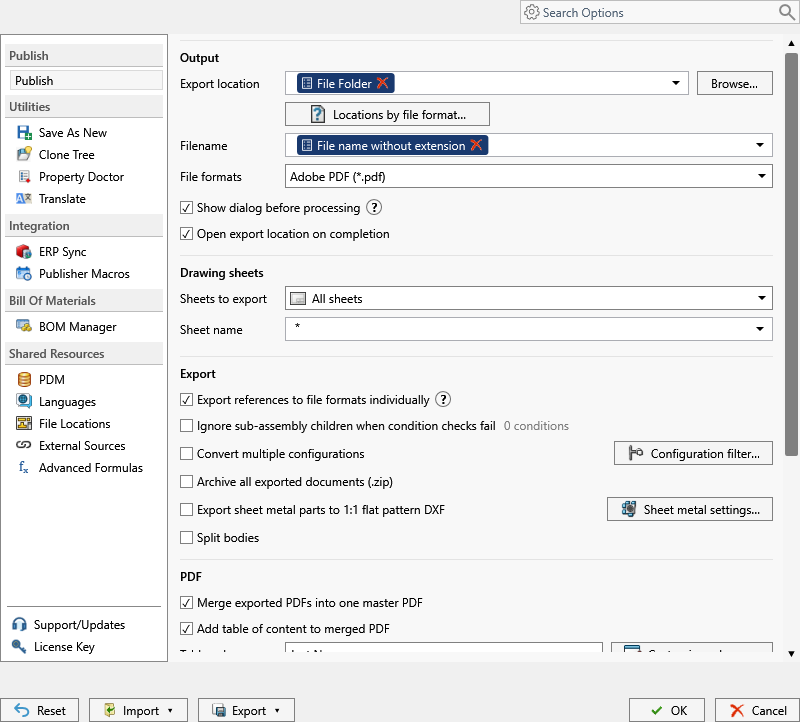
In the add-in’s review dialog, the checkbox Export sheet metal parts to 1:1 flat pattern DXF can be toggled for the current run only, without changing the profile. Use it when an operator needs DXFs from a profile that normally produces only PDFs.
Every setting in Sheet metal settings
Select Sheet metal settings… beside the main option in the add-in’s Publish page, or the equivalent Flat Pattern Settings button in the task Options page. The first eight geometry controls and the bounding box correspond to SOLIDWORKS sheet-metal DXF export options.
| Setting | What it does | Notes / default |
|---|---|---|
| Export sheet metal parts to 1:1 flat pattern DXF | Master switch. Exports sheet metal parts as 1:1 flat pattern DXF files. | Publish page / Options page. Off by default. Does not require DXF in File formats. |
| Export flat-pattern geometry | Exports the flattened outside profile, internal cutouts and other visible flat-pattern edges. | Selected by default. The normal starting point for a manufacturing DXF. |
| Include hidden edges | Adds edges that are hidden in the flat pattern. | Leave cleared for laser, plasma or waterjet unless the downstream process needs hidden geometry. |
| Export bend lines | Adds the bend lines from the SOLIDWORKS flat pattern. | Enable when the brake or nesting software uses bend lines. |
| Include sketches | Includes visible sketch entities from the part. | Use for manufacturing marks or etch geometry. |
| Merge coplanar faces | Merges adjacent faces on the same plane, removing unnecessary lines between them. | Cleaner profile for cutting. |
| Export library features | Includes geometry created by SOLIDWORKS library features. | |
| Export forming tools | Includes geometry for forming-tool features such as louvers, lances and embosses. | Result also depends on the part’s SOLIDWORKS sheet-metal document settings. |
| Export bounding box | Adds the rectangular bounding box around the flat pattern. | Useful for stock size estimation or nesting. |
| Only export the inner diameter of countersink holes (Hole feature) | For Hole Wizard countersinks, exports the inner hole diameter and omits the countersink outline. | Cleaner cutting geometry when countersinking is a later operation. |
| Export each sheet-metal body to a separate DXF | Creates one flat-pattern DXF per sheet metal body of a multi-body part. | Leave cleared for a single DXF. Split bodies is not required. |
| Append -FlatPattern to the flat pattern dxf file name | Inserts -FlatPattern before .dxf. | Enable when a drawing and its part can both export to DXF; avoids overwrite. |
| Model views to export | Checkboxes for *Front, *Back, *Top, *Bottom, *Left, *Right, *Isometric. | Selecting any view switches the export to an annotation-view DXF instead of a flat pattern. |
| Custom view text box, Add view / Remove | Adds or removes a named SOLIDWORKS view by its exact stored name. | Tick the checkbox beside the box to enable the view immediately. |
| Split bodies | Publish page option: exports bodies of a multi-body part as separate files with the body name appended. | Applies to general formats, not to flat-pattern DXF. |
| Filename / Export location | Name and folder of the DXF, built from placeholders. | A DXF row in Locations by file format overrides the folder for DXF only. |
| OK / Cancel | Saves or discards the dialog changes. | Profile changes are kept after OK in Settings. |
Placeholders for DXF names and folders
Flat pattern DXFs use the same Filename and Export location patterns as every other output, so the tokens below apply. Keep names unique across configurations and bodies; the body name is appended automatically when bodies are exported separately.
| Placeholder | Meaning | Example |
|---|---|---|
(FileNameWithoutExtension) | Source filename without extension. | Bracket |
(ConfigurationName) | Configuration being exported. Required in the filename when Convert multiple configurations is on. | Machined |
(Revision) | Current PDM revision; empty when none. | B |
(State) | Current PDM workflow state. | Released |
(TargetExtension) | Destination format extension when the operation supplies one. PDMPublisher adds the extension automatically; do not add another. | dxf |
(TopAssemblyFolder) | Folder of the top-level file that launched the job. | C:\PDMVault\Projects\Speaker |
(FileNameNumberRange) | Numeric filename grouped into a 1,000 range; non-numeric names return the name. | 11000-11999 |
(VaultRootFolder) | Local root of the vault on the processing computer. | C:\PDMVault |
($VariableName) | PDM data card variable such as material or thickness. | ($Material) → S235 |
Worked examples. Filename
(FileNameWithoutExtension)-Rev(Revision)with Append -FlatPattern on givesBracket-RevB-FlatPattern.dxf. Export location\\server\laser\($Material)\(FileNameNumberRange)gives\\server\laser\S235\11000-11999. Filename(FileNameWithoutExtension)_(ConfigurationName)with Convert multiple configurations givesPanel_Left.dxfandPanel_Right.dxf.
Set it up in the SOLIDWORKS add-in
- Open the sheet metal part, or the assembly that contains sheet metal parts, in SOLIDWORKS. Save it and resolve references.
- Open PDMPublisher > Settings and select the Publish page. Select or create the Publish profile, for example
Laser DXF. - Set Export location and Filename. If DXFs should land on a different share than PDFs, open Locations by file format… and enable a custom location on the DXF row.
- In File formats, select whatever else the job should produce (PDF, STEP). DXF is not required here for flat patterns.
- For an assembly, enable Export references to file formats individually.
- Enable Export sheet metal parts to 1:1 flat pattern DXF, then select Sheet metal settings….
- Keep Export flat-pattern geometry on, add Export bend lines if needed, enable Export each sheet-metal body to a separate DXF for multi-body parts and Append -FlatPattern to the flat pattern dxf file name to avoid collisions with drawing DXFs. Leave Model views to export cleared. Select OK.
- Select OK in Settings, then PDMPublisher > Publish with that profile. In the review dialog, confirm the files and select Publish.
- Check Publishing results, select a DXF and use Open folder to verify the output.
Set it up in the PDM Professional task
- In the SOLIDWORKS PDM Administration tool, open your PDMPublisher task under Tasks or create one with New Task… and select PDMPublisher on the Add-in page. Choose the task host computers on Execution Method.
- On the Options page, set Export Location and Filename, and confirm Use this version of SOLIDWORKS points to a version installed on the task host.
- Select the File Formats the job should also produce. For assemblies, choose the BOM Template and enable Export references to file formats individually.
- Enable Export sheet metal parts to 1:1 flat pattern DXF and open its Flat Pattern Settings. Configure the entity options exactly as for the add-in.
- If DXFs must go to a shop share, use Customize Location to enable an extension-specific location for DXF, for example
\\server\laser\DXF. Do not end the path with a backslash. - Enable Vault Activity Logs and set a Log Folder (Vault Only) while testing.
- Click OK. Attach the task to the release transition, run it from the right-click Tasks menu on the part or assembly, or schedule it through a scheduled item.
Recipes
- Basic cutting profile. Sheet metal settings: Export flat-pattern geometry only. Filename
(FileNameWithoutExtension), Append -FlatPattern on. DXF location\\server\laser\DXF. - Cut and bend package. Export flat-pattern geometry + Export bend lines + Export bounding box for stock estimation. Combine with PDF in File formats so the drawing PDF travels with the flat.
- Multi-body enclosure. Export each sheet-metal body to a separate DXF on; the body name is appended to each filename. Enable Include sketches if etch marks are sketched on the bodies.
- Released assemblies only. Task on the Released transition, reference export on, conditions
StateequalReleasedandSourcenot equalPurchased, flat pattern export on, PDF and STEP also selected.
Tips, limits and troubleshooting
- DXF contains a drawing, not a flat pattern. You selected
DXFin File formats, which converts drawings. Enable Export sheet metal parts to 1:1 flat pattern DXF for the unfolded profile. - DXF shows a projected view instead of a flat. A model view is ticked under Model views to export. Clear all views for a flat pattern.
- Drawing DXF overwrote the flat pattern. Enable Append -FlatPattern to the flat pattern dxf file name, or give DXF its own extension-specific location.
- Multi-body part produced one DXF. Enable Export each sheet-metal body to a separate DXF in Sheet metal settings. Split bodies does not control this.
- Formed features look wrong. The result of Export forming tools depends on the part’s SOLIDWORKS sheet-metal document settings.
- Some sheet metal parts were skipped. In an assembly, conditions and the review dialog decide the file set; in the add-in every reference needs a local copy, so Get Latest first. In the task, verify the BOM Template columns.
- Cannot see the exported files. The export location must be a folder where the publishing user has permission to add and edit files; the vault root is usually locked. The add-in Logs tab and the task activity log record the customized DXF path.
- Version differences. Some export capabilities depend on the SOLIDWORKS version; the task uses its configured version and the add-in the running one.
- Community Edition. DXF is one of the three free formats (PDF, DXF, STEP), so flat pattern export works in the free add-in within the 5-references-per-run limit.
Availability
Available in PDMPublisher for SOLIDWORKS (the add-in) and PDMPublisher for PDM Professional (the task). Export sheet metal parts to 1:1 flat pattern DXF and its Sheet metal settings dialog are shared by the SOLIDWORKS add-in and the PDM Professional task. The add-in uses the running SOLIDWORKS version; the task uses the version selected in Use this version of SOLIDWORKS on the task host.
Documentation and related features
- Run a Publish Job in the SOLIDWORKS add-in
- Export Sheet Metal Parts to 1:1 Flat Pattern DXF
- SOLIDWORKS part documents
- SOLIDWORKS assembly documents
- Extension-specific export locations
- Conditional assembly processing
- SOLIDWORKS drawing documents
- Publishing profiles and company settings
- Run as a SOLIDWORKS PDM task
Frequently asked questions
How do I export a 1:1 flat pattern DXF from SOLIDWORKS automatically?
Enable Export sheet metal parts to 1:1 flat pattern DXF in the PDMPublisher Publish profile or PDM task, configure Sheet metal settings, and publish the part or assembly. DXF does not need to be selected in File formats.
Why does my DXF contain the drawing instead of the flat pattern?
DXF in File formats converts drawings. The unfolded profile comes from the separate Export sheet metal parts to 1:1 flat pattern DXF option.
Can I include bend lines in the flat pattern DXF?
Yes. Enable Export bend lines in Sheet metal settings. Export flat-pattern geometry plus Export bend lines is the recommended cut-and-bend configuration.
How do I get one DXF per body from a multi-body sheet metal part?
Enable Export each sheet-metal body to a separate DXF in Sheet metal settings. Split bodies is a different option and is not required.
How do I stop the drawing DXF and the flat pattern DXF from overwriting each other?
Enable Append -FlatPattern to the flat pattern dxf file name, or route DXF to its own folder with Locations by file format.
Can the flat pattern DXFs go to the laser cutter’s network share?
Yes. Use an extension-specific location for DXF, for example \\server\laser\DXF, while PDFs and STEP files use the main Export location.