
Converting SLDPRT to 3D PDF gives anyone with a PDF reader a model they can rotate, section and measure, without SOLIDWORKS or eDrawings. PDMPublisher writes 3D PDF for every part and configuration in a batch, in SOLIDWORKS or as a SOLIDWORKS PDM Professional task. It keeps the 3D PDF separate from the drawing PDF, so a release package can carry both.
What you get
3D PDF – MBD (_3dpdf) is the model-based-definition output: the SOLIDWORKS model embedded in a PDF that opens in Adobe Reader with rotate, zoom and section tools. It suits reviewers, customers and shop-floor staff who will never install CAD.
The two PDF outputs differ. 3D PDF – MBD exports the part model. Adobe PDF (pdf) on a part exports the drawing with the same name in the same folder. Tick _3dpdf for the model, pdf for the drawing, or both. You get one 3D PDF per part and, with Convert multiple configurations, per configuration. SOLIDWORKS’ current 3D PDF export options apply.
The manual way, and why it doesn’t scale
Open the part, go to File > Save As, pick 3D PDF, set folder and name, save. Repeat for every configuration, and again for every body you want as its own file.
Fine for one part. For forty, or a supplier package redone at every revision, it’s an afternoon of clicking and badly named files. You usually end up with one 3D PDF for the active configuration and nothing for the others.
Convert SLDPRT to 3D PDF with the add-in
- Open the part in SOLIDWORKS, saved, references resolved. An assembly works too if you want its parts.
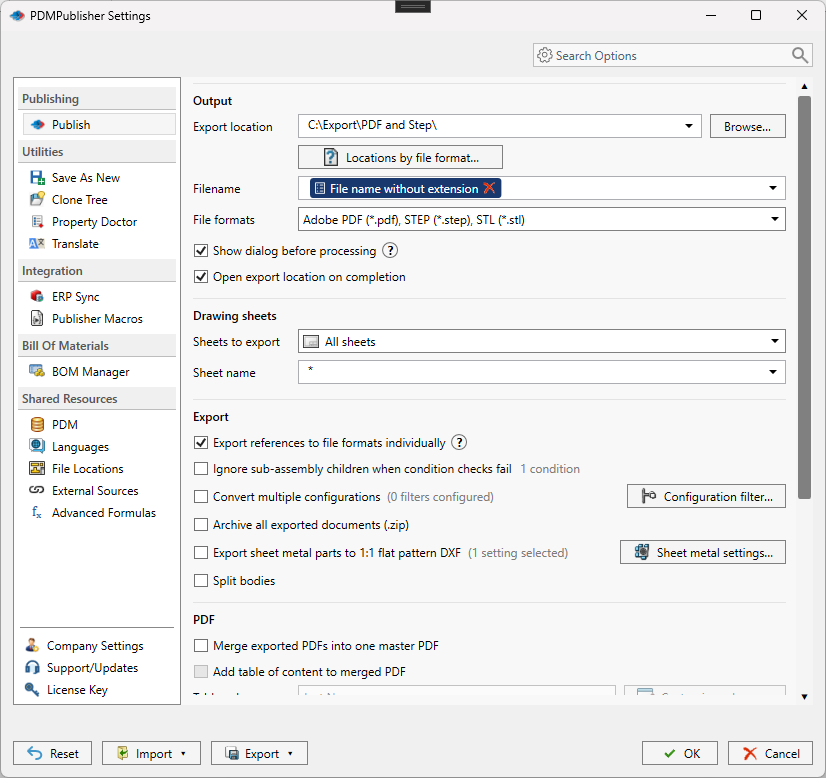
- On the PDMPublisher tab, select Settings, then Publish.
- Set Export location: a fixed folder, UNC path, relative folder, or placeholders from the
>...menu. - Set the Filename pattern, such as
(FileNameWithoutExtension)-(Revision); the._3dpdfextension is added for you. - Under File formats, tick 3D PDF – MBD (
_3dpdf). Other ticked formats come out in the same pass. - Tick Convert multiple configurations and put
(ConfigurationName)in the filename so configurations don’t overwrite each other. The Configuration Filter includes (PROD*) or excludes (*Flat*) by wildcard. - Tick Adobe PDF (
pdf) too for the drawing PDF. PDMPublisher looks forBracket.SLDDRWbesideBracket.SLDPRT. - Select
PDMPublisher > Publish; the arrow beside it runs a named profile at once. Confirm the review dialog if it appears. - Open Publishing results to see every file, its configuration and destination.
In PDMPublisher for SOLIDWORKS, 3D PDF – MBD output needs Premium. The free Community Edition publishes PDF, DXF and STEP only, up to 5 references per run.
Automate it as a PDM task
PDMPublisher for PDM Professional runs the same engine as a task, so parts become 3D PDF – MBD when they change state.
- In PDM Administration, right-click Tasks, select New Task, choose PDMPublisher and name it; users see that name in the right-click menu.
- On the Options page, set Export Location and Filename.
(VaultRootFolder)\Exports\3DPDF-MBDkeeps output in the vault, a UNC path keeps it outside; no trailing backslash. - Under File Formats, tick 3D PDF – MBD (
_3dpdf). - Enable Convert multiple configurations and the Configuration Filter as in the add-in, with
(ConfigurationName)in the filename. - Tick Adobe PDF as well for the drawing. If the drawing isn’t in the same folder, enable Use PDM search to locate drawings; that option is task-only.
- Pick Use this version of SOLIDWORKS: an installed year on the host, or
Latest. For release workflows, enable Get latest revision only too; it exports the revised version, not work in progress. - Attach the task to a workflow transition, leave it in the right-click menu, or run it from Scheduled Items.
A task run on an assembly needs Template set to a PDM BOM layout with name, configuration and quantity columns, and Export references to file formats individually enabled. A single part needs neither.
Settings that matter for 3D PDF
| Setting | What it does | Tip |
|---|---|---|
| Export location | Output folder: vault, relative, UNC or outside. Created if missing. | (TopAssemblyFolder)\Exports\(Revision) works; no trailing backslash. |
| Filename | Static text, placeholders, custom properties or PDM variables. | (ConfigurationName) for configurations, (Revision) for released files. |
| File formats | Tick 3D PDF – MBD (_3dpdf) for the model. Adobe PDF (pdf) exports the same-name drawing instead. | Tick both for drawing PDF and 3D PDF from one job. |
| Convert multiple configurations | Every configuration, not just the active one. | Needs a configuration-specific filename. |
| Configuration Filter | Include or exclude by name or wildcard. | Exclude *Flat* to skip flat patterns. |
| Use PDM search to locate drawings (task) | Finds the part’s drawing anywhere in the vault. | Task only; the add-in needs the drawing beside the part. |
| Customize Location | Per-format folders overriding the main one. | Premium in the add-in. |
| Get latest revision only (task) | Exports the version tied to the newest revision. | A file without a revision fails. |
Naming and folders
Placeholders resolve when the job starts, so one profile or task names every 3D PDF the same way:
(FileNameWithoutExtension)-(Revision):Manifold-B.pdfas a 3D PDF in(TopAssemblyFolder)\Exports\3D PDF.(FileNameWithoutExtension)-(ConfigurationName)-3Dwith Convert multiple configurations: a suffix that tells the drawing PDF and the 3D PDF apart.(VaultRootFolder)\Released\($ProjectNumber)\(State)in the task: 3D PDFs filed by project and workflow state.
Customize Location (Premium in the add-in, standard in the task) gives each format its own folder: enable the
_3dpdfrow to override the main location for 3D PDF only. Both outputs end in_3dpdfits own folder or add a filename suffix. Otherwise the model PDF overwrites the drawing PDF.
Tips and troubleshooting
- Activate a Premium key under
PDMPublisher > License Key; the PDM task is licensed per vault and includes every format. - Missing drawing PDF? The add-in needs the drawing beside the part with the same name; in the task, enable Use PDM search to locate drawings.
- Some formats depend on the SOLIDWORKS version installed; if one vanishes from the results, check what’s installed where the job ran.
- Can’t see the exported files? You need add and edit permission in the export location. The vault root is usually locked; target a subfolder such as
(VaultRootFolder)\Exports. - Save and Clear Logs packages the session log for a support request.
Availability
Available in PDMPublisher for SOLIDWORKS (the add-in) and PDMPublisher for PDM Professional (the task).
Documentation and related features
- Run a Publish Job (PDMPublisher for SOLIDWORKS)
- File Formats option
- SOLIDWORKS part documents
- SOLIDWORKS drawing documents
- Extension-specific export locations
- Run as a SOLIDWORKS PDM task
- Convert SLDASM to 3D PDF
- Convert SLDDRW to PDF
- Convert SLDPRT to eDrawings
Frequently asked questions
What is the difference between PDF and 3D PDF in PDMPublisher?
3D PDF – MBD (_3dpdf) exports the part model. Adobe PDF (pdf) on a part exports the same-name drawing in the same folder. Tick both to get both.
Can I convert every configuration of a SLDPRT to 3D PDF?
Yes. Enable Convert multiple configurations and add (ConfigurationName) to the filename; each configuration becomes its own 3D PDF.
Do I need SOLIDWORKS MBD to export 3D PDF with PDMPublisher?
PDMPublisher uses the 3D PDF export capability of the SOLIDWORKS installation running the job. A format that installation can’t write is dropped from the results.
Can a PDM task publish 3D PDF on a workflow transition?
Yes. Create a PDMPublisher task with _3dpdf ticked under File Formats and attach it to the transition.