
Run a Publish Job
The Publish command processes the document currently open in SOLIDWORKS by using the selected Publish profile.
Before Publishing
- Open the part, assembly, or drawing to process.
- Select the correct profile.
- Review the output location, filename, and file formats.
- For an assembly, confirm whether referenced files, conditions, multiple configurations, or merged PDFs should be processed.
Important
Save the active SOLIDWORKS document and resolve its references before publishing. Missing or unresolved references cannot be processed reliably.
Start the Job
Select PDMPublisher > Publish in the CommandManager. Use the command arrow to publish immediately with a named profile, or open the command to review settings first.

The arrow beside Publish selects the Publish profile used for the job. It does not select or associate a PDM vault. When a workflow uses PDM values, serial numbers, automatic check-in, or Vault root folder placeholders, configure the shared vault under PDMPublisher > Settings > PDM. See PDM Settings.
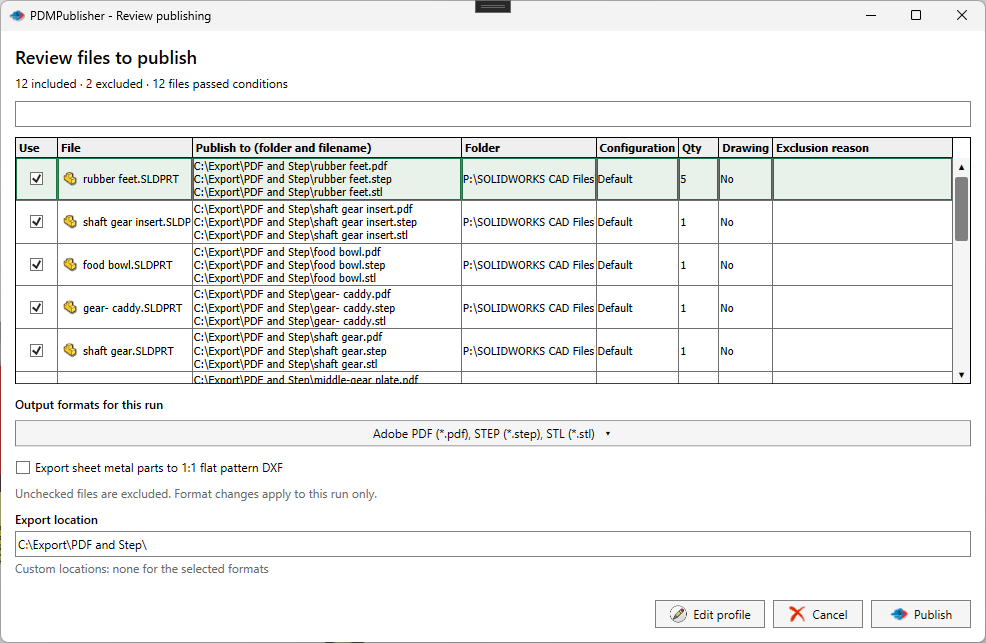
When Show conditions output dialog is enabled for an assembly, PDMPublisher displays the references that passed before export begins. Confirm the files to continue or cancel the job.
Create SOLIDWORKS drawings
Select SOLIDWORKS Drawing (*.slddrw) in the Publish profile's file formats, then open Drawing Settings. Drawing creation writes a drawing beside each selected part or assembly, using the model's base filename. Select one configuration per model. PDF, DXF, and DWG exports can use the drawing in the same run.
- Drawing template (.drwdot): choose a template discovered from SOLIDWORKS Document Templates folders, type a path, or use Browse.
- Existing drawing: choose whether to skip or overwrite an existing drawing.
- Views: choose standard views using the template's sheet scale. Enable predefined views for a template prepared with predefined views; this disables the standard-view choices.
- Add drawing to PDM and check in: requires the shared PDM vault to be selected and logged in.
- The option to check out, recreate, and check in existing drawings uses the configured template or macro. It overrides Skip for that drawing; it does not preserve the old sheets and annotations. Drawings checked out by another user or machine cannot be replaced.
Use an editable SWB macro
Version 2026.10.40 supports custom drawing-creation macros in Drawing Settings. Enable the custom macro option, then edit the code, import an SWB file, or load the example. The code is saved in the Publish profile and can be exported.
PDMPublisher runs Sub main with the selected model and configuration active. The macro must create exactly one new, unsaved drawing containing a model view and leave it active. PDMPublisher then saves the drawing and handles destination overwrite and optional PDM check-in. A macro that leaves no valid new drawing fails the output instead of replacing the destination.
In custom macro mode, the built-in template and standard-view controls are disabled; the macro controls drawing creation. Start from the provided example and test on sample files before using it in a production profile. For help writing a macro, request a quote from Blue Byte Systems.
Review the Result
After processing, use Publishing results to review generated files by source document and configuration, search results, filter outcomes, open destinations, or inspect technical details.
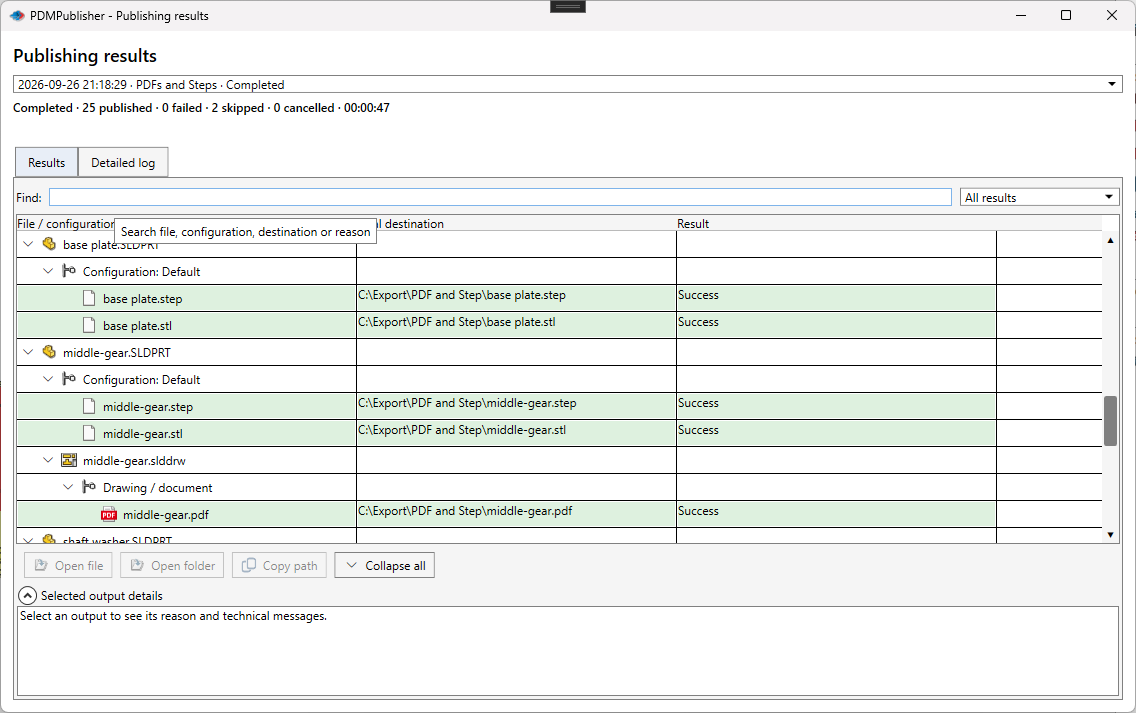
Select PDMPublisher > Logs when you need the complete session history. Use Save and Clear Logs to attach the job record to a support request.
See Publishing Workflow and Results for the complete sequence, including review, skipped files, cancellation, and troubleshooting outcomes.