
Publishing Workflow and Results
Use this sequence for a repeatable PDMPublisher for SOLIDWORKS job.
1. Prepare the Document
- Open and save the source part, assembly, or drawing.
- Resolve suppressed, lightweight, missing, or out-of-date references as required by the workflow.
- Activate the configuration and drawing sheets you want to evaluate.
- Confirm that any PDM-aware profile uses the intended local vault.
2. Select and Review the Profile
Choose the named profile from the arrow beside Publish.

Review the export location, filename, formats, sheet mode, references, configurations, annotations, and conditions. Enable Show dialog before processing when an operator must confirm the resolved job before files are written.
3. Review Assembly Selection
For an assembly with individual-reference export and condition review enabled, PDMPublisher lists the references that passed evaluation. Clear a file to omit it from this run. Confirm to continue, or cancel to stop before export processing.
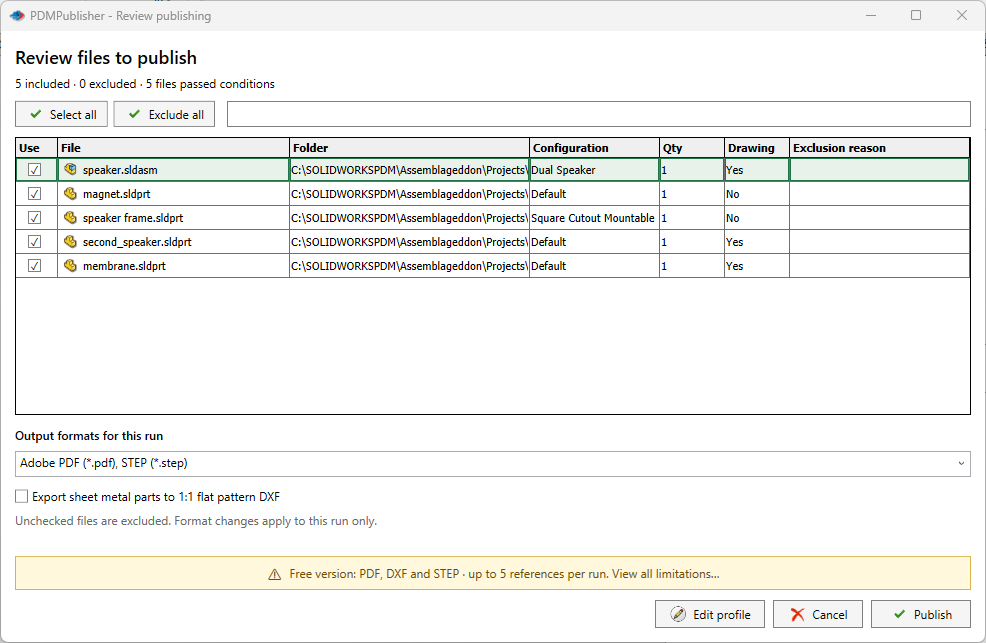
The review selection affects only the current run. It does not rewrite the profile or condition tree.
4. Process Outputs
During processing, PDMPublisher resolves placeholders for each source document and configuration, creates the required folders, invokes the corresponding SOLIDWORKS exporter, applies annotations or PDF operations, and optionally creates an archive.
Do not close SOLIDWORKS, change the active document, or modify referenced files while the job is running.
5. Interpret the Result
| Outcome | Meaning | Next action |
|---|---|---|
| Completed | The requested output was produced. | Inspect the destination and spot-check the files. |
| Warning | Processing continued, but a fallback or nonfatal issue occurred. | Read the preceding log entries and verify the affected file. |
| Skipped | A condition, unsupported source/format combination, missing input, or operator choice excluded the item. | Confirm that the skip was intended. |
| Error | The item could not be exported or a required post-processing step failed. | Save the log, correct the cause, and rerun a controlled job. |
| Cancelled | The operator cancelled a review or running job. | Check the destination; files completed before cancellation may remain. |
6. Review and Preserve the Log
Open PDMPublisher > Logs. Filter by Errors, Warnings, Completed, Processing, or Skipped, then inspect the messages immediately before the outcome.
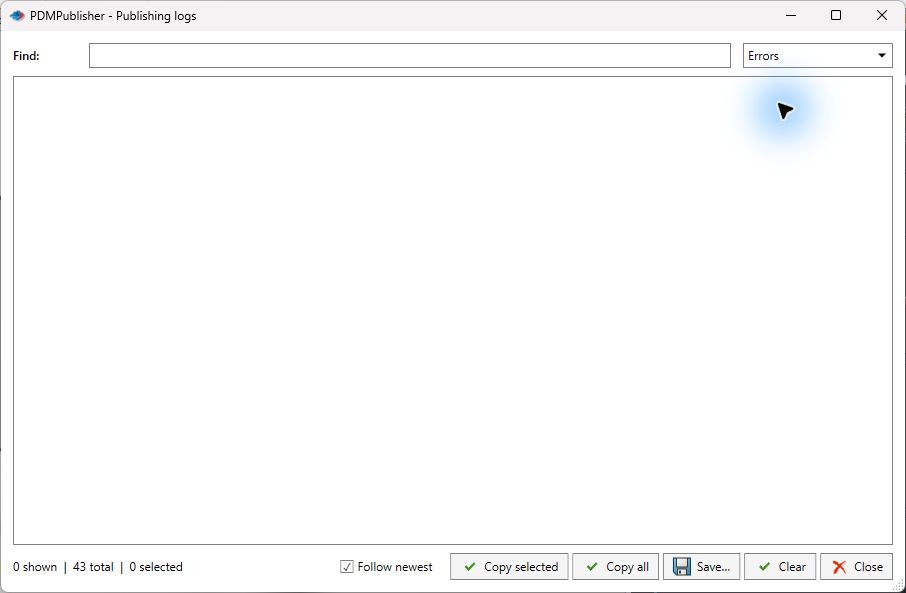
Use Save... for the complete session log or Copy selected for a focused excerpt. Include the profile name, source filename, expected output, and saved log when contacting support.
Important
Cancelling does not roll back files already exported. Inspect the output folder before rerunning so an earlier partial result is not mistaken for the new job.