
If you copy an old SOLIDWORKS part with Save As and the custom properties on the new file come out empty, stale or linked to the wrong file, you’ve hit the legacy custom properties problem. SOLIDWORKS changed how it stores custom properties in 2018, and files saved before that keep the old structure until something rewrites them. PDMPublisher’s Save As New has a one-click fix: Upgrade legacy custom properties. This article explains what the legacy format is, how to spot it, and what the option does.
What are legacy custom properties in SOLIDWORKS?
Custom properties are the name/value pairs under File > Properties: PartNo, Description, Revision, Material and so on. They drive drawing title blocks, PDM data cards and BOMs.
Up to SOLIDWORKS 2017 the Summary Information dialog stored them one way. From SOLIDWORKS 2018 the dialog was rebuilt (it’s now called Properties, with a Properties Summary tab and a link column) and the properties are stored in a newer structure. SOLIDWORKS still opens the old files fine, and it only rewrites the properties when you touch them. So a vault full of 2014 to 2017 parts can carry the old format for years.
That’s harmless until a tool reads and copies those properties programmatically. Values can read back blank, evaluated text can lag behind the expression, and configuration-specific properties can be missed. Save As New, Property Doctor, Clone Tree and BOM Manager all read properties, so an old file can give you a clean copy with wrong metadata.
How to tell if a file still has the old format
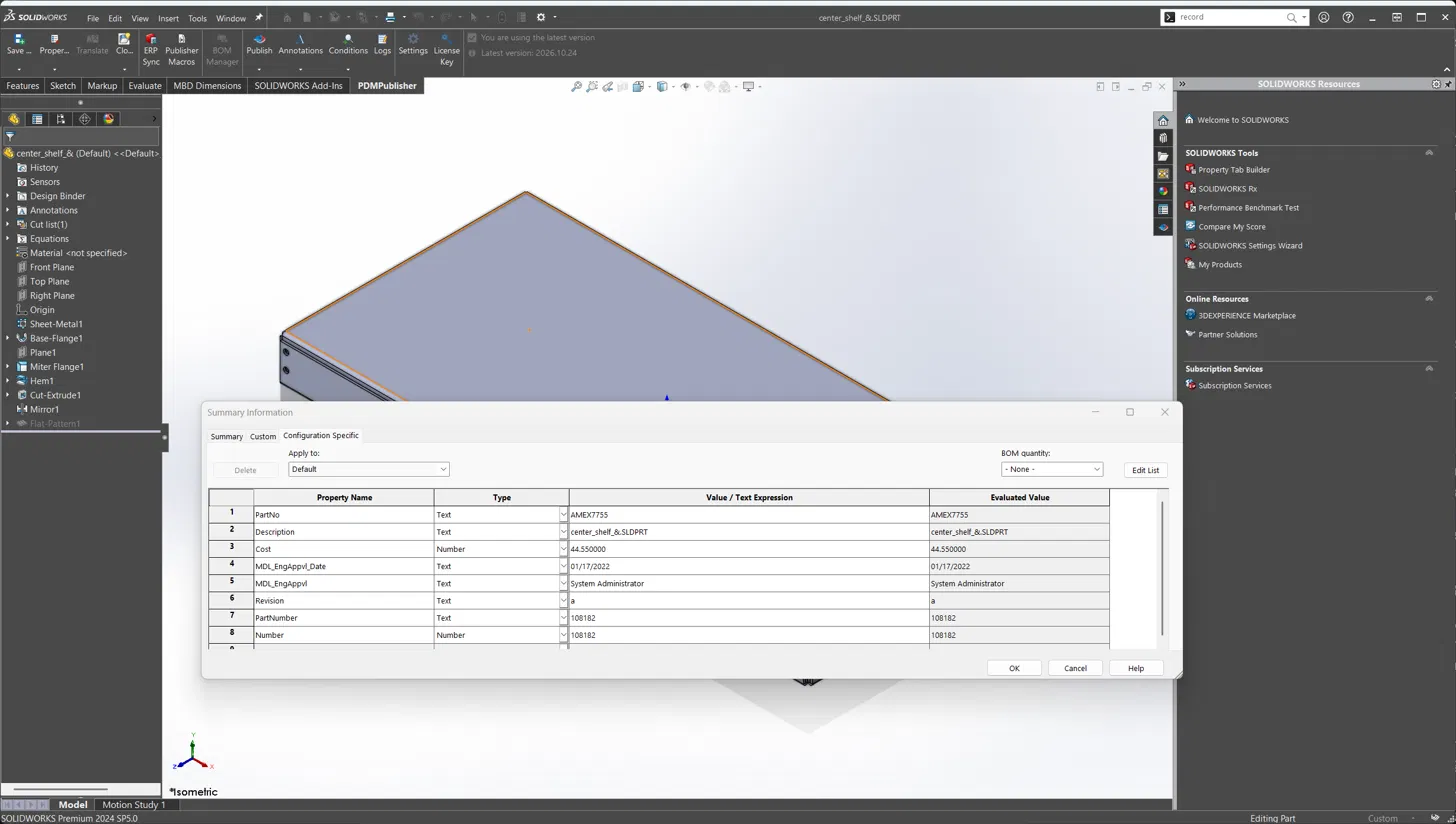
Open the file and press File > Properties. The old-style dialog is titled Summary Information and has three tabs: Summary, Custom and Configuration Specific.
After the upgrade: the modern Properties dialog
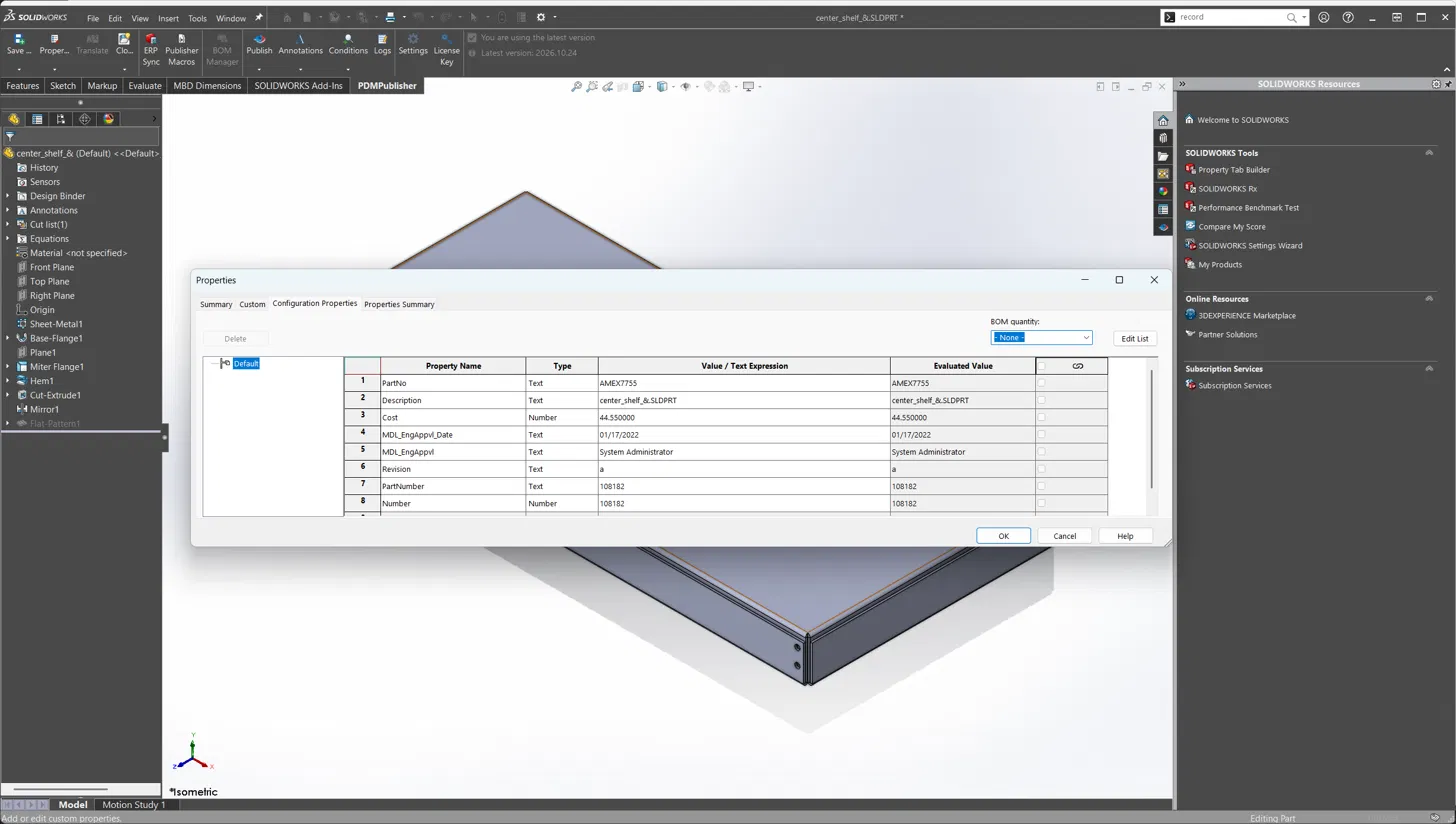
After an upgrade the same file opens the modern Properties dialog, with a Configuration Properties tab, a Properties Summary tab and a configuration tree on the left. Same values, new storage.
What the Upgrade legacy custom properties option does
When the option is on, Save As New checks the source document before it reads anything. If the custom properties are in the pre-2018 structure, it asks SOLIDWORKS to upgrade them to the current format first, in memory. Only then does it read the values and write them to the new copy.
The upgrade is the same conversion SOLIDWORKS performs when you edit a property in an old file and save. PDMPublisher just triggers it deliberately, before the copy, so the new file never starts from stale data.
- Applies to the document-level Custom tab and to every configuration’s Configuration Specific properties.
- Only runs when the file is actually legacy; current files are left alone.
- The source file is upgraded in the open session. Whether that change is saved back to the original depends on whether you save the source afterwards; the new copy is always written in the current format.
- Works with Clean up properties and a Property Doctor profile, which run after the upgrade on the new copy.
Turn it on
- In SOLIDWORKS, open the PDMPublisher tab and select Settings.
- Select Save As New in the left pane.
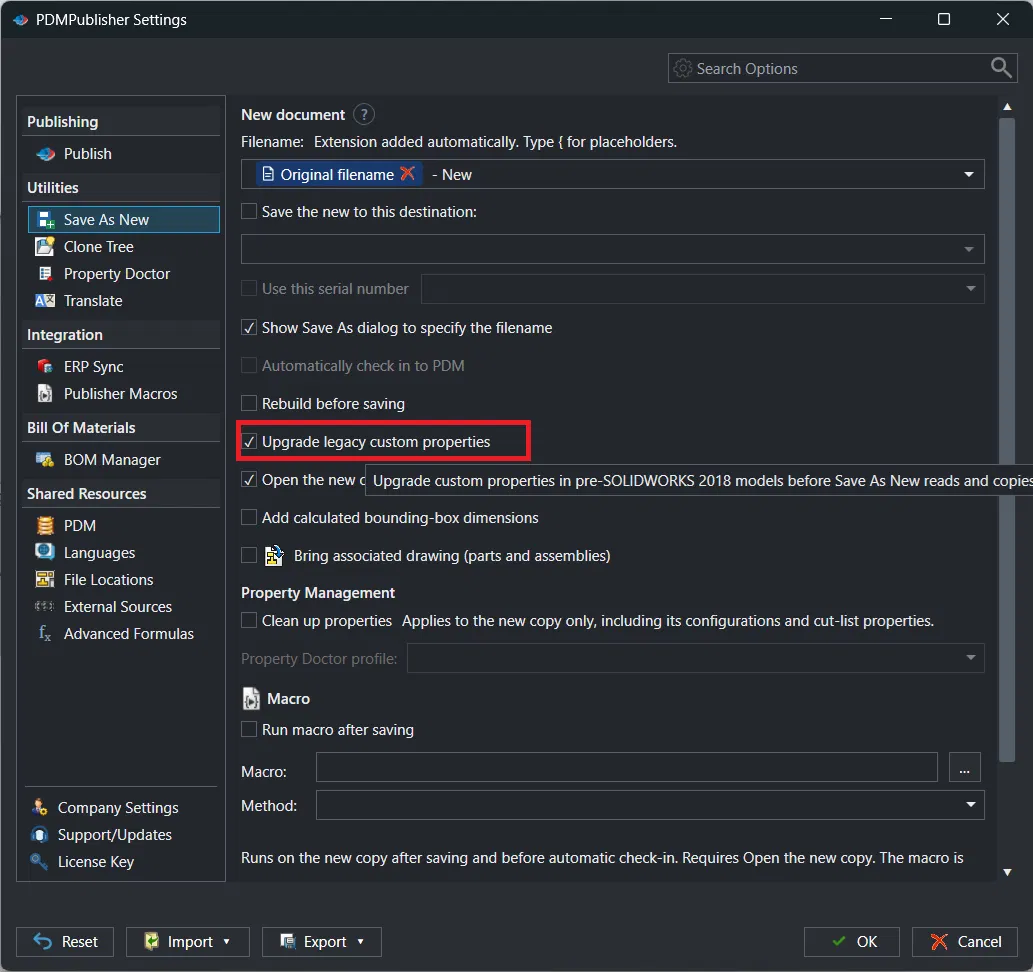
- Under New document, tick Upgrade legacy custom properties.
- Select OK. The setting is saved in the active Save As New profile, so you can keep it on for a “Legacy parts” profile and off elsewhere.
Working with a batch of old files? Clone Tree uses the same Save As New engine for every file in the tree, so the option covers whole assemblies, not just one part.
When you should leave it off
- Your vault has no files older than SOLIDWORKS 2018.
- You want the copy to be a byte-for-byte reflection of the source, old format included, for archiving or comparison.
- A downstream macro or PDM add-in still expects the old property structure (rare, but it happens with very old in-house tools).
Related options on the same page
| Option | What it does |
|---|---|
| Rebuild before saving | Rebuilds the active configuration (and sub-assemblies) and stops if the rebuild fails. |
| Add calculated bounding-box dimensions | Writes Bounding Box Length, Width and Height in millimetres on the new copy. |
| Clean up properties | Applies a Property Doctor profile to the new copy, including its configurations and cut-list properties. |
| Bring associated drawing | Copies the part’s or assembly’s drawing with the new file and repoints it. |
| Run macro after saving | Runs your VBA on the new copy, after saving and before check-in. |
Availability
Available in PDMPublisher for SOLIDWORKS, the add-in that runs inside SOLIDWORKS. Not part of the PDM Professional task.
Documentation and related features
Frequently asked questions
Why are my custom properties empty after Save As in SOLIDWORKS?
The source file probably stores its properties in the pre-2018 legacy format. Upgrade them first, or turn on Upgrade legacy custom properties in PDMPublisher’s Save As New so it happens automatically.
Does upgrading custom properties change the property values?
No. Names, expressions and evaluated values stay the same; only the way SOLIDWORKS stores them changes.
Does this change the original file?
The upgrade happens in the open session. The new copy is always written in the current format; the original only changes if you save it afterwards.
Can I upgrade legacy properties on many files at once?
Yes. Use Clone Tree with a Save As New profile that has the option enabled, and every file in the tree is upgraded as it is copied.
Which SOLIDWORKS versions are affected?
Files last saved in SOLIDWORKS 2017 or earlier. SOLIDWORKS 2018 introduced the new custom property storage and dialog.