
Every design office copies files: a customer variant of a bracket, a mirrored weldment, a next-generation assembly that starts from the released one. SOLIDWORKS File > Save As does the copy but leaves the hard part to you: choosing a name that follows the numbering scheme, putting the copy in the right vault folder, bringing the drawing, and checking everything in to SOLIDWORKS PDM Professional. Save As New in PDMPublisher for SOLIDWORKS turns that sequence into a one-click command driven by a reusable profile.
What Save As New does
Save As New creates a separate, native SOLIDWORKS document from the active part, assembly or drawing. The source document is never renamed and its referenced models are not touched; you get a new file beside (or away from) the original, named from a template you define once.
The template can combine literal text with document values, custom properties, folder values, SOLIDWORKS PDM values, a reserved PDM serial number, a named Advanced Formula and a Prompt user token that asks for a value at run time. The extension of the source file is appended automatically, so a template of NEW-Bracket on a .SLDPRT produces NEW-Bracket.SLDPRT.
- Save the copy to a fixed folder, to a folder built from a template, or through the normal SOLIDWORKS Save As dialog.
- Reserve a number from a PDM Professional serial-number generator and use it in the filename or folder.
- Copy the associated drawing beside the new model and repoint it to the copy.
- Rebuild the model first, open the copy afterwards, write bounding-box properties, run a macro, and add and check the result in to the vault.
- Store all of that as a named profile and run it from the arrow beside the command in the CommandManager.
Why it matters
Ad-hoc copies are where numbering schemes break. Someone types Bracket_v2_final.SLDPRT, saves it in a personal folder, forgets the drawing, and the file enters PDM weeks later under a different name. The next person who searches for the part number finds nothing. Multiply that by a team and you have duplicate numbers, orphaned drawings and revisions that cannot be traced.
Save As New moves the decisions into a profile. The serial-number generator issues the number, the destination template puts the file in the project folder, the drawing follows automatically, and Automatically check in to PDM adds the files to the vault before anyone can lose them. Because the profile is shared through Import/Export or a six-digit PIN, every engineer produces the same result.
How it works, step by step
- You open a saved part, assembly or drawing in SOLIDWORKS and select Save As New from the PDMPublisher CommandManager tab, or pick a named profile from the arrow beside it. A component selected in an assembly also offers the Save As New profiles on its right-click menu.
- If Rebuild before saving is enabled, PDMPublisher rebuilds the active configuration, including assembly subassemblies, and stops if the rebuild fails.
- If Use this serial number is enabled, a value is reserved from the selected PDM serial-number generator and made available to the filename and destination templates.
- The filename and destination templates are evaluated. Any Prompt user token asks you for text; the answer affects the output path only and does not change document properties.
- Validation runs: an unchanged filename, an existing target file, a different SOLIDWORKS extension, an unavailable destination or a filename already present in the selected vault all stop the command before anything is written.
- If Show Save As dialog is enabled, the SOLIDWORKS Save As dialog opens with the computed name so you can confirm or change the target.
- The copy is saved. If Bring associated drawing is enabled, an open or same-named drawing is copied beside the new model and its model reference is updated.
- Post-save actions run in order: bounding-box properties are written, the copy is opened and made active, the selected macro method runs on the copy, and finally the model and drawing are added and checked in to the vault.
If the model has already been saved and a later macro or PDM check-in fails, the error tells you that the new files already exist and must be inspected. Nothing is silently rolled back.
Every setting on the Save As New page
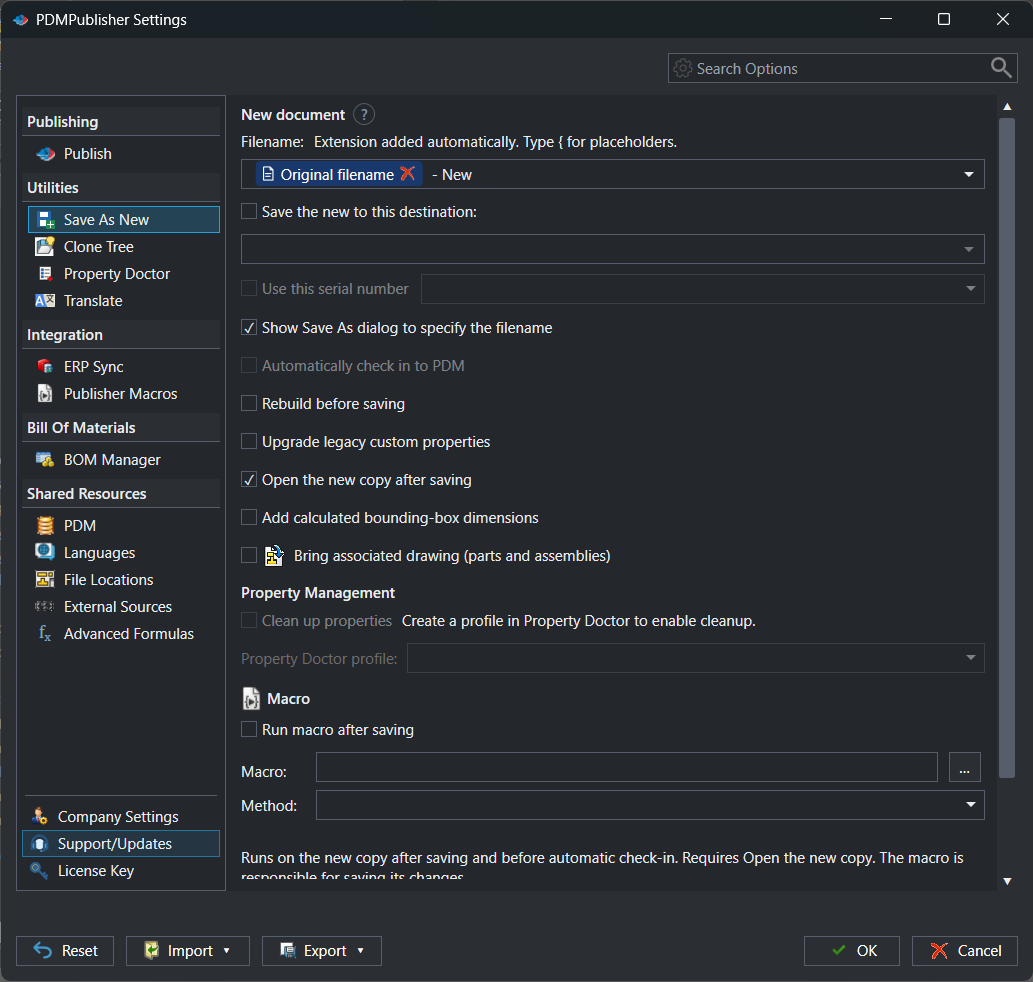
Open PDMPublisher > Settings > Save As New (under Utilities). Options that depend on another checkbox stay disabled until the parent is enabled. Reset restores the page defaults; OK saves, Cancel discards.
| Setting | What it does | Notes / default |
|---|---|---|
| Filename | Template for the new file name. Type { to insert a document value, property, folder value, PDM value, serial number, formula or Prompt user token. | The source extension is added automatically. An unchanged filename is rejected. |
| Save the new to this destination | Enables a destination folder or folder template instead of the source folder. | Must be an existing folder or resolve to one. Premium saves reusable destinations; Community chooses the destination for each save. |
| Use this serial number | Reserves a value from the selected PDM serial-number generator and exposes it to the name and destination templates. | Requires Use vault on the PDM settings page. The dropdown lists the vault’s generators, for example Document Serial Number. |
| Show Save As dialog to specify the filename | Opens the SOLIDWORKS Save As dialog with the computed name so the user can confirm or change the target. | Enable when the target should be checked each time. |
| Automatically check in to PDM | Adds and checks in the saved model and its associated drawing. | The destination must be inside the selected vault. |
| Rebuild before saving | Rebuilds the active configuration, including assembly subassemblies, and stops if the rebuild fails. | Off by default. |
| Upgrade legacy custom properties | Checkbox shown on the current settings page under the rebuild option. | Refer to the in-product tooltip; the documentation does not describe it further. |
| Open the new copy after saving | Opens the saved copy and makes it the active document. | Required by Run macro after saving. |
| Add calculated bounding-box dimensions | Writes Bounding Box Length, Bounding Box Width and Bounding Box Height in millimetres for the active configuration of a part or assembly. | Not applicable to drawings. |
| Bring associated drawing (parts and assemblies) | Copies an open or same-named drawing beside the new model and updates its model reference. | Drawings are found in the model folder first, then the folders listed on the File Locations page. |
| Clean up properties / Property Doctor profile | Intended to run a Property Doctor profile on the new copy, including its configurations and cut-list properties. | Visible but not enabled for Save As New yet. Run Property Doctor separately for now. |
| Run macro after saving, Macro, Method | Runs the selected macro method on the new copy before automatic PDM check-in. | Requires Open the new copy after saving. The macro must save its own changes. |
| Save As New profiles | Dropdown plus new, edit and delete buttons for named command configurations. | The first profile is treated as the default. Select a profile, edit the page, then OK to save it. |
Tokens for filenames and destinations
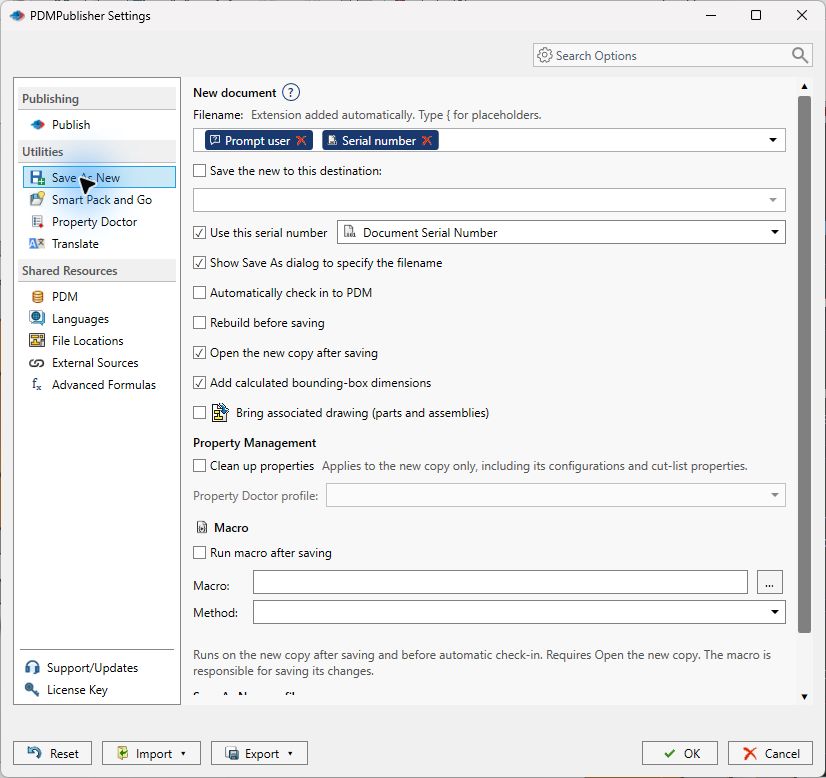
Both editors accept tokens inserted by typing {. The menu is organised by source; the same categories are available in Clone Tree and Property Doctor, so a naming convention learned once applies everywhere in the add-in.
{Prompt user}-{Serial number}: the engineer typesACME, the generator returns100234, the file becomesACME-100234.SLDASM.{Serial number}with destinationC:\PDMVault\Projects\{Project number}: the copy lands in the project folder taken from a PDM variable and is checked in there.{Original filename}-MIRRORwith Show Save As dialog enabled: a predictable proposal that the user can still adjust.
| Token | What it inserts | Example |
|---|---|---|
{Original filename} | The source document’s filename without extension. | NEW-{Original filename} → NEW-Bracket |
{PropertyName} | Any custom or configuration property of the document, by its exact name. | {PartNumber}-{Revision} |
{Serial number} | The next value from the PDM serial number selected in the settings (requires a vault). | {Serial number} → BB-004512 |
{Prompt user} | Asks for a value when the command runs; affects the output path only, never the document properties. | {Prompt user}-{Original filename} |
{Folder location} | The source document’s folder (destination templates only, first position). | {Folder location}\Copies |
{Vault root folder} | The local root of the connected PDM vault view. | {Vault root folder}\Projects\{Project} |
{Top level assembly name}, {Top level assembly folder name}, {Top level assembly folder path} | Name, folder name or full folder path of the saved top-level assembly the document belongs to. | {Top level assembly folder path}\Exports |
{Vault name}, {PDM username}, {PDM variable: Name} | Vault name, the current PDM user, or any datacard variable. | {PDM variable: Project Number} |
{DateTime: Date}, {DateTime: Time}, {DateTime: Year} … | Date and time parts (Date = yyyy-MM-dd, Time = HH-mm-ss, plus Year, Month, Day, Hour, Minute, Second and Date and time). | {Original filename}_{DateTime: Date} |
{SQL: SourceName}, {Formula: Name} | The single value returned by a named External Source query, or a named Advanced Formula. | {Formula: NextRev} |
Type
{in a filename or destination field and pick from the menu; the token is inserted as a chip but stored as plain{Name}text, so templates copy between profiles and machines. Folder tokens go at the start of a destination, followed by a backslash for subfolders.
Works with SOLIDWORKS PDM
Save As New is PDM-aware through the shared vault selected under PDMPublisher > Settings > PDM. Enable Use vault and pick the local SOLIDWORKS PDM Professional vault; the same choice feeds serial numbers, automatic check-in, vault root folder tokens and the duplicate-filename check for Save As New and Clone Tree.
Selecting a vault does not log you in, move files or grant permissions. The vault view must exist on the computer and the current Windows user must be able to log in to it; log in once through SOLIDWORKS PDM File Explorer before using vault-dependent options. Serial numbers come from the generators defined in the PDM Administration tool, and the vault refuses a filename that already exists anywhere in it, which is exactly the duplicate you want to catch.
- Use this serial number reserves the number from the selected generator when the command runs.
- Automatically check in to PDM adds and checks in the model and associated drawing; the destination must be inside the vault.
- PDM values in templates read from the vault database, so the copy can be filed by project, customer or state variables.
Set it up in the SOLIDWORKS add-in
- In SOLIDWORKS, open PDMPublisher > Settings from the CommandManager (or Tools > PDMPublisher > Settings).
- If the profile will use serial numbers, check-in or PDM values, open the PDM page under Shared Resources, enable Use vault and select the vault.
- Open Save As New under Utilities. In Save As New profiles, select the new-profile button and name it, for example Customer variant.
- Enter the Filename template. Type
{to insert tokens. - Optionally enable Save the new to this destination and enter a folder or folder template. Enable Show Save As dialog if the user should confirm the target.
- Enable Use this serial number and choose the generator when the name needs a PDM number.
- Select the post-save options you need: Rebuild before saving, Open the new copy after saving, Add calculated bounding-box dimensions, Bring associated drawing, Run macro after saving and Automatically check in to PDM.
- Select OK. Open a document and select Save As New, or use the arrow beside the command to pick the profile.
- To share the profile, use Export at the bottom of Settings (file or six-digit PIN) and Import on the other computers.
Recipes
Three profiles that cover most requests.
| Scenario | Settings | Result |
|---|---|---|
| New part number from the vault | Filename {Serial number}; Use this serial number = Document Serial Number; destination {Vault root folder}\Parts\{Project number}; Bring associated drawing; Automatically check in to PDM. | Model and drawing saved under the next number, filed by project, checked in with no manual steps. |
| Customer variant of a released assembly | Filename {Original filename}-{Prompt user}; Rebuild before saving; Open the new copy after saving; Show Save As dialog. | Engineer types the customer code, confirms the folder, and continues working in the copy. |
| Quote model with size properties | Filename {PartNumber}-QUOTE; Add calculated bounding-box dimensions; Run macro after saving with a macro that stamps quote properties. | Copy carries Bounding Box Length/Width/Height in millimetres plus the macro’s properties, ready for the estimator. |
Automate Save As New from VBA
The Publisher Macros command exposes publisher.SaveAsNew profileName, silent. With silent = False the normal interface opens with the named profile. With silent = True the command runs without dialogs and returns errors to the VBA handler. Silent Save As New requires Premium, does not overwrite existing files, and rejects prompt tokens, after-save macros and automatic PDM check-in, so the profile must contain enough destination information to run unattended.
Tips, limits and troubleshooting
- Community vs Premium. Community Edition saves the filename settings but asks for the destination on each save; Premium stores reusable filename and destination settings. Limits apply per operation and never expire.
- Save first. Document commands need a saved active document so file paths and references resolve.
- “Filename already exists in the vault.” The selected vault contains a file with that name. Change the template or the serial-number generator; PDM does not allow duplicate names.
- “Different SOLIDWORKS extension.” The template must not change the extension; it is added automatically from the source.
- Check-in requires a vault destination. If Automatically check in to PDM is on, the destination must be a folder inside the local vault view.
- Macro did not run. Enable Open the new copy after saving; the macro method runs on the open copy and must save its own changes.
- Drawing not found. The drawing must be open or share the model’s base name. Add extra drawing folders on the File Locations page and enable Include subfolders.
- Logs. Open PDMPublisher > Logs, save the session log with Save… right after the failed command and send it with the source filename to support.
Availability
Available in PDMPublisher for SOLIDWORKS, the add-in that runs inside SOLIDWORKS. Not part of the PDM Professional task. Save As New is a command of the PDMPublisher for SOLIDWORKS add-in. It runs on the active part, assembly or drawing inside SOLIDWORKS and is not part of the PDM Professional task.
Documentation and related features
- Save As New
- Clone Tree
- Property Doctor
- Publisher Macros
- External Sources and Advanced Formulas
- SOLIDWORKS PDM integration
- Publishing profiles and Company Settings
Frequently asked questions
Does Save As New rename the original file or its references?
No. It creates a separate native SOLIDWORKS document. The source document and the models it references are left untouched.
Can Save As New get the next part number from SOLIDWORKS PDM?
Yes. Enable Use this serial number, select a serial-number generator from the vault chosen on the PDM settings page, and insert the Serial number token in the filename or destination template.
Does the drawing come with the copy?
Enable Bring associated drawing. An open or same-named drawing is copied beside the new part or assembly and its model reference is updated to the copy.
Can the copy be checked in to PDM automatically?
Yes. Automatically check in to PDM adds and checks in the saved model and its drawing, provided the destination is inside the selected vault.
What does the free Community Edition allow?
Community saves the filename settings but asks you to choose the destination for each save. Premium stores reusable filename and destination settings in profiles.
Can I run Save As New from a macro?
Yes. Publisher Macros exposes publisher.SaveAsNew with a profile name and a silent flag. Silent mode requires Premium and a profile without prompt tokens, after-save macros or automatic check-in.