
A customer should get the Customer sheet, the shop the Machined sheet, and nobody the internal reference sheet. PDMPublisher does it with the sheet filter: a profile per sheet pattern, or one run per configuration, in SOLIDWORKS or as a PDM Professional task.
Quick answer
- Set Sheets to export to Sheets matching name and enter a Sheet name pattern such as
MachinedorCustomer-*; only matching sheets go into the PDF. - Save one named profile per pattern and run them one after the other.
- PDF is free in the Community Edition, up to 5 references per run.
In SOLIDWORKS: step by step
- Open the drawing (in a vault, Get Latest first so references resolve).
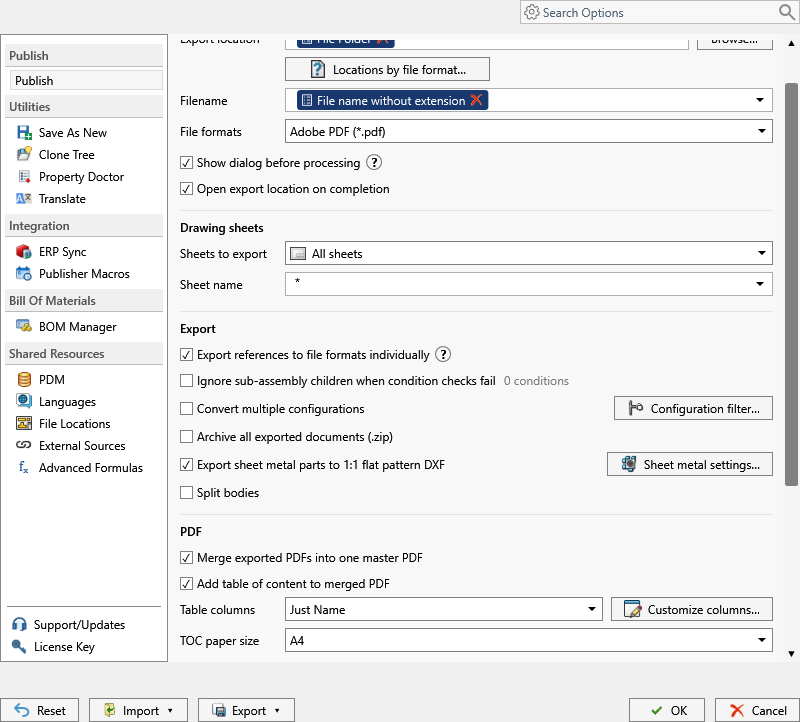
- On the PDMPublisher tab, select Settings > Publish and tick Adobe PDF (pdf) under File formats.
- Set Sheets to export to Sheets matching name and the Sheet name pattern:
(ConfigurationName)for configuration-named sheets,(ConfigurationName)*when names carry a suffix, or a literal such asCustomer-*. - For one PDF per configuration, tick Convert multiple configurations and put
(ConfigurationName)in the Filename. - Save the settings as a named profile. A second profile with another pattern covers another sheet set.
- Select PDMPublisher > Publish (the arrow runs a named profile), confirm the review dialog, and check Publishing results.
As a PDM task: on every release
PDMPublisher for PDM Professional runs the same engine as a task, so the export happens when the file changes state, not when somebody remembers.
- In PDM Administration, right-click Tasks > New Task, choose PDMPublisher, name it and tick the task hosts.
- On the Options page set Export Location and Filename, with
(ConfigurationName)in the filename when configurations drive the sheets. - Tick Adobe PDF under File Formats, set Sheets to export to Sheets matching name and enter the pattern.
- Create one task per sheet set, or drive the pattern from a PDM variable such as
($Customer)-*. - Attach each task to the workflow transition that should produce that set.
Settings that matter
| Setting | What to put | Why |
|---|---|---|
| Sheet name pattern | Machined, Customer-* or (ConfigurationName)* | * any text, ? one character; (ConfigurationName) is evaluated first. |
| Filename | (FileNameWithoutExtension)-(ConfigurationName) | PDFs from different configurations do not overwrite each other. |
| Convert multiple configurations | On when each configuration has its own sheet | One run gives every configuration its own PDF. |
Naming examples
(FileNameWithoutExtension)-Customeras the filename of the Customer profile givesBracket-Customer.pdf.(FileNameWithoutExtension)-(ConfigurationName)givesBracket-Machined.pdfandBracket-Welded.pdffrom one run.- Customize Location (Premium in the add-in, standard in the task) sends each profile to its own folder.
If something looks wrong
- One PDF with every sheet came out: the pattern matched nothing, so it fell back to all sheets and logged it.
Machineddoes not matchMachined-DXF; use(ConfigurationName)*. - A one-sheet drawing ignores the pattern and always exports its only sheet.
- PDFs overwrote each other: add
(ConfigurationName)or a literal suffix to the filename. - Nothing in the folder: you need add and edit permission in the export location.
Keep going
Documentation
Frequently asked questions
How do I export each sheet of a SOLIDWORKS drawing as a separate PDF?
Set Sheets to export to Sheets matching name with a Sheet name pattern. For configuration-named sheets, use (ConfigurationName) with Convert multiple configurations and (ConfigurationName) in the filename: one PDF per configuration.
What if my sheets are not named after configurations?
Run one profile or task per sheet pattern, such as Customer* and MFG* each with its own filename and folder.
Why did PDMPublisher export all sheets anyway?
The evaluated pattern matched no sheet name, so it fell back to every sheet and logged it (2026.08.09 and later). Check spelling and the configuration name.
Does this work in the PDM task too?
Yes. Sheets to export and Sheet name pattern are shared settings. Combine them with Convert multiple configurations or Ask user to select configuration on startup.