
A SOLIDWORKS PDM batch plot used to mean someone opening released drawings one by one and pressing Print. If the shop needs a packet for every released assembly, that person is the bottleneck. Here’s how to batch print and plot drawings from SOLIDWORKS PDM Professional automatically. The options are the built-in Print task, SOLIDWORKS Task Scheduler, batch PDF instead of paper, and PDMPublisher building a merged, bookmarked PDF on release.
Why plotting drawing packets by hand hurts
A release is never one drawing. A machined weldment might carry the assembly drawing, a dozen part drawings and a flat-pattern sheet. Somebody has to find every drawing under the assembly, check its revision, open it, set plotter, paper size and scale, and send it. Then a component gets revised and the packet on the floor is wrong.
The failures are predictable: missed child drawings, old revisions plotted from a local cache, only the active sheet printed, a plot queue nobody can trace to a release. Automation fixes throughput. Tying the plot to the workflow is what keeps the packet current.
Method 1: the built-in SOLIDWORKS PDM Print task
PDM Professional ships a native Print task. CATI’s article How to Print a Drawing Packet in SOLIDWORKS PDM says it “has exactly what you’re looking for” for printing all the drawings tied to an assembly. You import it from Print_gb.cex and set up the usual task pages (permissions, execution machines, menu) plus a Files section for packet settings. It launches from the right-click menu or a workflow transition.
- In the Administration tool, right-click the vault, choose Import and select
Print_gb.cexfromC:\Program Files\SOLIDWORKS Corp\SOLIDWORKS PDM\Default Data. - Open the task under Tasks. Set who may run it, which computers execute it (permit it in Task Host Configuration on each), and whether it shows in the menu.
- Under Files, set printer, paper size, scale and sheet options per the SOLIDWORKS PDM help.
- Right-click an assembly or drawing to run it, or add it to the release transition.
Limits: output is paper, or whatever a PDF printer driver makes of it. No merged, bookmarked PDF, no variable stamps, no sheet-name filter. CATI covers PDM Professional; for PDM Standard, GoEngineer’s guides describe only the Convert task, so check the SOLIDWORKS PDM help for your edition.
Method 2: SOLIDWORKS Task Scheduler Print Files
Outside PDM, Task Scheduler has a Print Files task. Hawk Ridge Systems’ guide explains that you add files or a folder (subfolders optional), not both. Options opens the Print dialog; the schedule is Once, Daily, Weekly or Monthly; Advanced sets working folder, timeout and background mode. Hawk Ridge suggests a small batch first to gauge run time.
- Open SOLIDWORKS Task Scheduler and choose Print Files.
- Add the drawings or a folder from your local vault view.
- Click Options and pick the plotter or a PDF printer.
- Set the schedule, adjust Advanced settings, and finish.
Limits: needs a SOLIDWORKS Professional or Premium seat, ignores PDM states and revisions, plots whatever is in the local cache, and can’t be triggered by a transition. Fair for a nightly plot of a fixed folder, not for release packets.
Method 3: batch PDF instead of paper
Many teams stop plotting paper: the release produces PDFs and the shop prints from a viewer. That turns it into a batch PDF problem, which the vault already handles. The built-in Convert task creates a PDF per drawing on a workflow transition. GoEngineer documents that PDM Standard converts drawings to PDF with most options locked, while Professional adds more formats, and Javelin shows the output path, filename and variable mapping pages.
The gap is the packet. One PDF per drawing isn’t a plot set: someone still collects, orders and sends them to the plotter. A macro or an add-in such as CAD+ Batch+ for PDM can fill that gap with your own logic. The next method does it out of the box.
- Set the Convert task (or another batch PDF method) to run on the release transition.
- Send PDFs to a folder the shop can reach, such as
Released PDFsin the vault. - Print from the viewer, or drop the folder on a PDF printer queue.
- Supersede old PDFs when a revision changes, or the shop prints the wrong one.
Method 4: PDMPublisher merged PDF on a workflow transition
PDMPublisher is our product, so the boundary first: it produces PDFs, not plotter output. What it adds is the packet. Run on an assembly with references exported individually, it finds each component’s drawing and exports all sheets or those matching a name pattern. It then merges them into one master PDF with bookmarks and a table of contents. Annotations can stamp PDM variables, revision, state or BOM quantity on every sheet. One merged PDF sent to a plotter is a plot set.
The PDM task is licensed per vault with a 7-day trial and runs from a transition, the right-click Tasks menu, or PDM scheduling with a saved Scheduled Items list. The add-in does the same from the open assembly; its free Community Edition stops at 5 references per run, so a full packet needs Premium or the task. If PDF export misbehaves, Use Microsoft Print To PDF to Save PDFs switches to the Windows printer; the docs advise it only when normal export doesn’t fit.
SOLIDWORKS PDM batch plot methods compared
| Method | Cost | Handles configurations/sheets? | Runs unattended? | Best for |
|---|---|---|---|---|
| PDM Print task | Included with PDM Professional | Prints associated drawings; sheet options per SOLIDWORKS help | Yes, right-click or workflow transition | Paper plots straight from the vault |
| Task Scheduler Print Files | Included with SOLIDWORKS Professional/Premium | Prints documents; no PDM awareness | Scheduled; needs a SOLIDWORKS seat | Nightly plot of a fixed folder |
| Batch PDF (Convert task) | Included with PDM Standard/Professional | One PDF per drawing; Standard options locked | Yes, workflow transition | PDF-first shops with simple packets |
| Macro or CAD+ Batch+ | Free / commercial | As coded or vendor documented | Batch+ for PDM: task or workflow | Custom packet logic |
| PDMPublisher | Task: per vault, 7-day trial; add-in: Community (5 refs) or Premium | All sheets or name pattern; merged PDF with TOC and bookmarks | Task: workflow, right-click or schedule | Release packets as one plottable PDF |
Doing it with PDMPublisher
This setup builds one merged, bookmarked PDF per released assembly and checks it into the vault.
- Add PDMPublisher to the vault (PDMDeploy or
.ceximport) and activate the license. - Right-click Tasks > New Task…, name it (say
Plot Packet), and choose PDMPublisher as the add-in. - On Execution Method tick the task hosts and permit PDMPublisher on each in Task Host Configuration.
- On Options: set Use this version of SOLIDWORKS to a version installed on the host. Set Export Location to a vault folder the task user can write to, such as
(VaultRootFolder)\Plot Packets\(TopAssemblyName)\(Revision)(no trailing backslash), and Filename to(FileName)-(Revision). - Select PDF under File Formats. PDMPublisher looks for the same-name drawing in the same folder; tick Use PDM Search to Locate Drawings if drawings live elsewhere.
- Set Sheets to Export to
All sheets, orSheets matching namewith a pattern such as*PLOT*. Single-sheet drawings always export; a pattern that matches nothing falls back to all sheets, logged. - Pick a BOM Template with name, configuration and quantity columns, then tick Export References to File Formats Individually.
- Tick Merge Exported PDFs into One Master PDF, PDF Bookmarks and Add Table of Content to Merged PDF; Table Columns picks the TOC columns.
- On Annotations, add a revision and state stamp if needed. On Conditions, exclude purchased parts or files not in the released state.
- Set Log Folder (Vault Only) to
(VaultRootFolder)\Logs\PDMPublisher. - Save the task, then add a task action running
Plot Packetto the release transition. Test from the right-click Tasks menu first.
A merged PDF needs all three: PDF under File Formats, Export References to File Formats Individually, and an assembly as source. Files saved outside the vault aren’t listed in Task Details.
Manual packets from the SOLIDWORKS add-in
- Open the assembly in SOLIDWORKS, save it and resolve references.
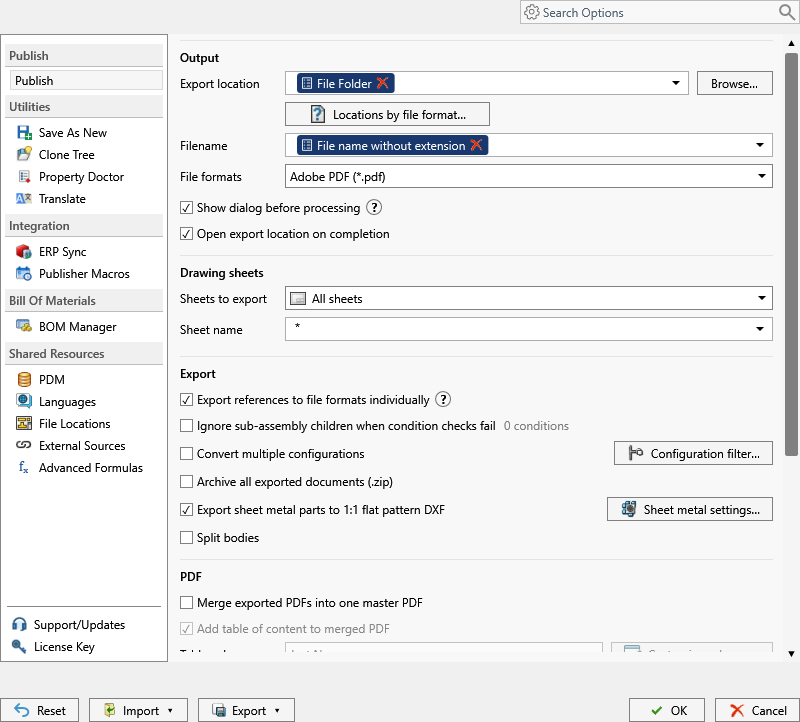
- Go to PDMPublisher > Settings > Publish, click New > New… and name the profile
Plot Packet. - Set Export location and Filename, select Adobe PDF (pdf) and choose the sheet mode. Tick Export references to file formats individually, Merge exported PDFs into one master PDF and Add table of content to merged PDF.
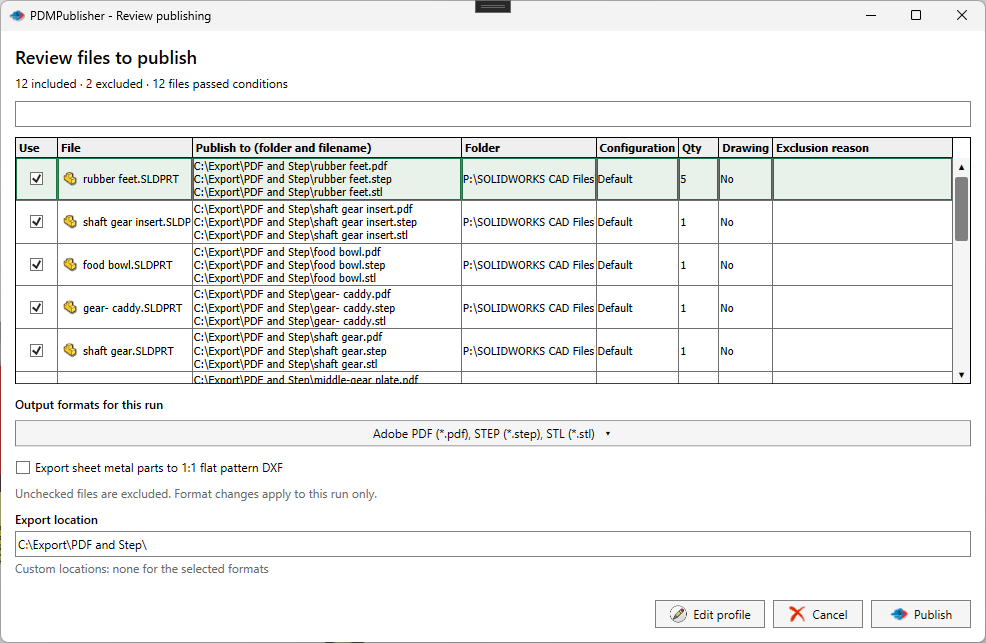
- Tick Show dialog before processing so the operator can clear drawings from the run, then OK.
- Run the profile from the arrow beside Publish and open the merged PDF from Publishing results.
Tips and troubleshooting
- Packet missing drawings: check the BOM Template columns and that the assembly and children are cached on the host (Get Latest). Suppressed, excluded or condition-filtered components are skipped by design.
- Wrong revision plotted: trigger from the release transition, not a schedule, and keep
(Revision)in Export Location. - Sheets you didn’t want: use
Sheets matching name, and remember the all-sheets fallback when nothing matches (logged since 2026.08.09). - Can’t see the exported files: the vault root is usually locked; export to a subfolder where the task user can add and check in.
- Helvetica-Bold warning in the merged PDF: a PDF reader issue; install the font.
- Tasks menu missing in File Explorer: see the docs page on it, and check Hide Task in File Explorer is off.
- Print task or Task Scheduler stalls: both need SOLIDWORKS left alone. Dedicate a task host.
Availability
Available in PDMPublisher for SOLIDWORKS (the add-in) and PDMPublisher for PDM Professional (the task). The PDM Professional task fits plotting on a workflow transition or schedule. The SOLIDWORKS add-in builds the same merged, bookmarked PDF from the open assembly when a user triggers the packet by hand.
Documentation and related features
- Merge Exported PDFs into One Master PDF
- Task Details tab
- Run as a SOLIDWORKS PDM task
- Merge multiple drawings into one PDF
- PDF table of contents
- PDF bookmarks
- Watermark your PDFs
- Batch SLDDRW to PDF
- SLDDRW to PDF
- PDMPublisher for PDM Professional
- PDMPublisher for SOLIDWORKS
Frequently asked questions
Does SOLIDWORKS PDM have a batch print task?
Yes. PDM Professional includes a native Print task, imported from Print_gb.cex, that prints all associated drawings of an assembly from the right-click menu or a transition. It plots to a printer; no merged PDF.
How do I batch plot drawings when an assembly is released in PDM?
Attach a task to the release transition. Use the PDM Print task for paper, or the Convert task for one PDF per drawing. A PDMPublisher task finds every component drawing and merges them into one bookmarked PDF with a table of contents.
Can SOLIDWORKS Task Scheduler print drawings automatically?
Its Print Files task prints files or a folder on a Once, Daily, Weekly or Monthly schedule. It needs a Professional or Premium seat, can’t mix files and folders in one task, and has no link to PDM workflows.
How do I print only certain sheets of SOLIDWORKS drawings in a batch?
PDMPublisher’s Sheets to export option with a name pattern (wildcards or (ConfigurationName)) exports only matching sheets. One-sheet drawings always export; a pattern matching nothing exports all sheets and logs it.
What is ‘Use Microsoft Print To PDF to Save PDFs’ in PDMPublisher?
An option that creates PDFs through the Windows Microsoft Print to PDF printer instead of the normal SOLIDWORKS export. The docs recommend it only when the standard export doesn’t fit your environment.