
A SOLIDWORKS part document (.sldprt) is the smallest unit PDMPublisher processes, and it is also the most common: a machined bracket that needs a STEP file for the supplier, a sheet-metal blank that needs a DXF, a purchased component that needs a PDF of its drawing. PDMPublisher turns one part into as many output files as you select in File formats, names them with placeholders such as (FileNameWithoutExtension) and (Revision), and writes them to a folder inside or outside the vault. The same profile works interactively inside SOLIDWORKS and unattended as a PDM Professional task.
What part publishing does
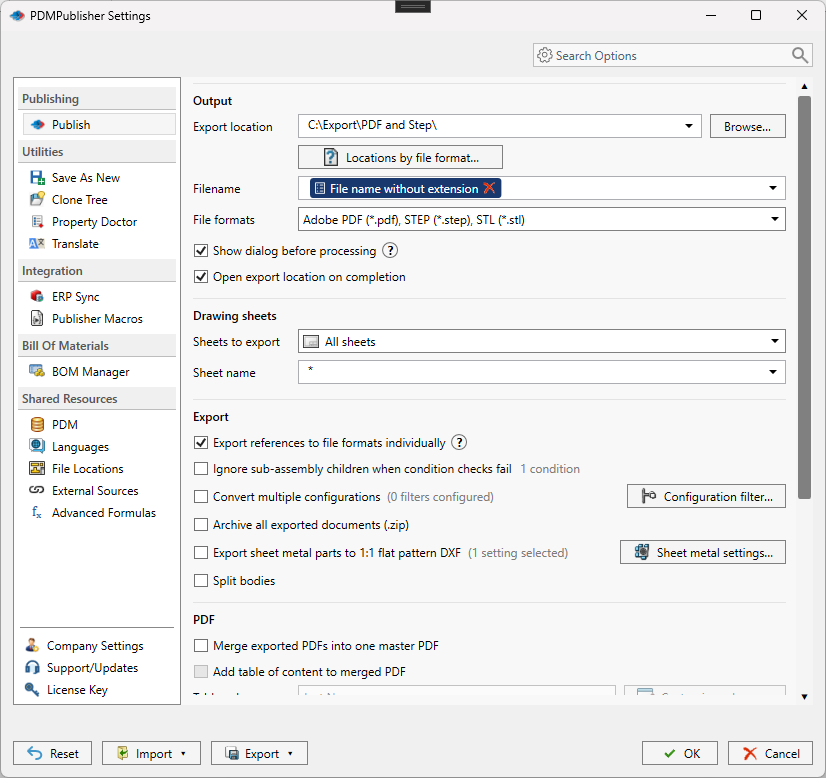
When PDMPublisher processes a part it opens the document in SOLIDWORKS, resolves the placeholders in Export location and Filename, creates the destination folder if needed, and calls the SOLIDWORKS exporter once per selected format. A part with STEP, DXF and PDF selected produces three files from one job.
Two behaviors are specific to parts. When PDF is selected, PDMPublisher looks for a drawing with the same name in the same folder (Bracket.SLDPRT looks for Bracket.SLDDRW) and exports that drawing to PDF, so a task run from the model still produces the drawing PDF users expect. And multi-body parts can be split into one file per body with Split bodies, while multi-configuration parts export once per configuration with Convert multiple configurations.
In the add-in the part is the document currently open; in the PDM task it is the file the task was launched on from a workflow transition, the right-click Tasks menu, or a scheduled item.
Why it matters
Suppliers do not open SOLIDWORKS. A release package for a machined part typically needs a STEP file for CAM, a PDF of the drawing for inspection, and sometimes an IGES or Parasolid for a legacy system. Doing this by hand means opening each part, running Save As three times, typing a filename that includes the revision, and remembering which folder the quote request expects. Multiply by a 200-part release and it is a day of clerical work with a real error rate.
PDMPublisher removes the manual step. The filename pattern guarantees every export carries the revision or configuration name, the export location pattern puts files where the downstream process looks for them, and because the PDM task can be attached to a workflow transition, the neutral files exist the moment the part reaches Released.
How it works, step by step
- PDMPublisher determines the source part: the active document in the add-in, or the affected document (the file that triggered the task) when Export affected document is enabled in the task.
- Export location and Filename are evaluated on the machine running the job. Placeholders such as
(FileNameWithoutExtension),(ConfigurationName),(Revision)and PDM variables are replaced with current values. Characters Windows does not allow are cleaned and the log names the variable responsible. - The destination folder is created if missing. A format with an enabled row under Locations by file format uses its own folder instead of the main export location.
- For each selected format, PDMPublisher invokes the SOLIDWORKS exporter. Formats invalid for a part are removed automatically. The task uses the SOLIDWORKS version chosen in Use this version of SOLIDWORKS; the add-in uses the running version.
- If
PDFis selected, PDMPublisher looks for a same-name drawing beside the part and exports that drawing. In the task, Use search to locate drawings can find a drawing stored elsewhere. - With Convert multiple configurations, the steps repeat for every configuration that passes the Configuration filter. With Split bodies, each body is written to its own file with the body name appended.
- If the file already exists in the vault, the task overwrites it by creating a new version; the add-in does the same when a vault is configured under Settings > PDM and the user has permission. The check-in comment identifies PDMPublisher.
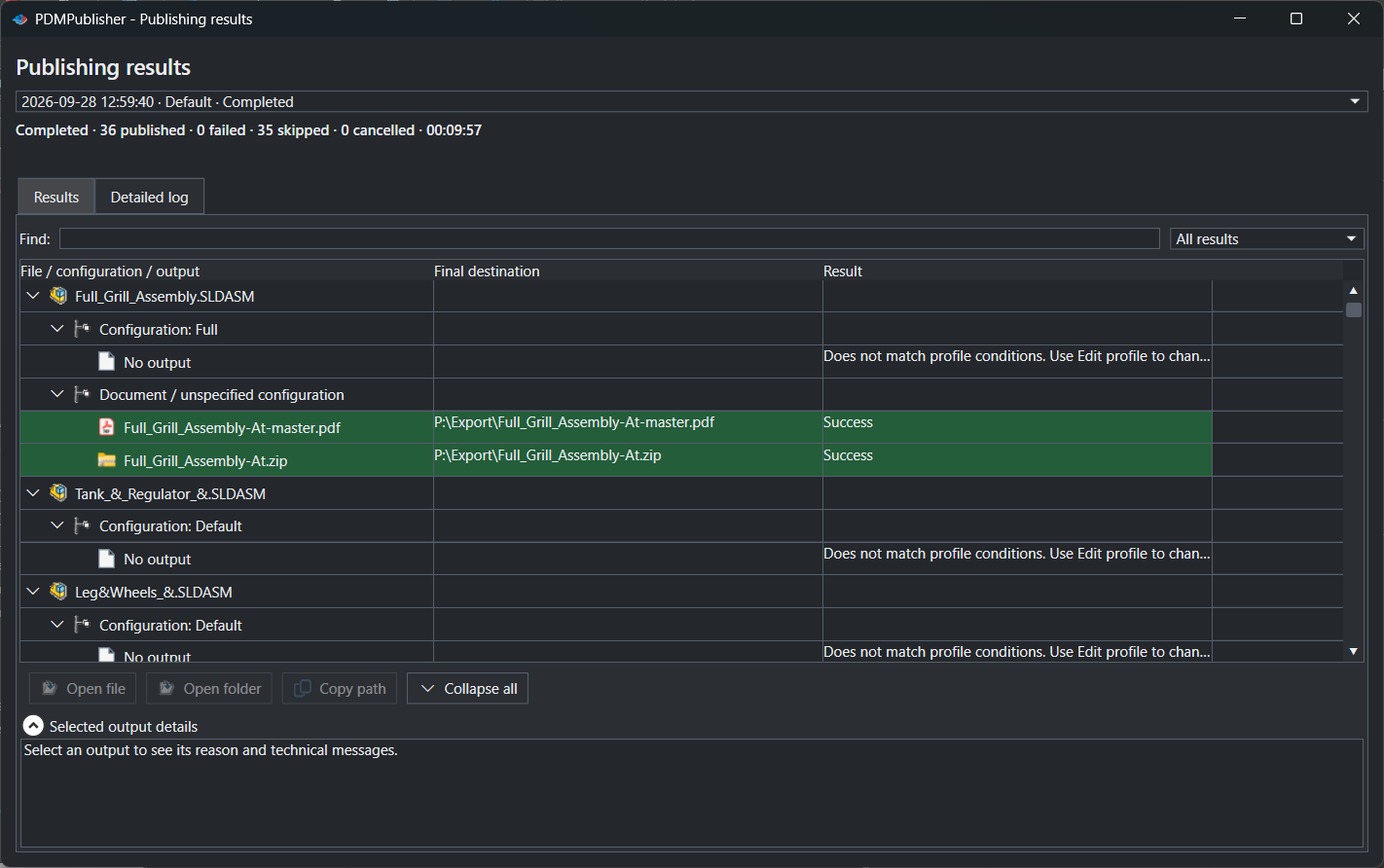
- Results are reported in Publishing results (add-in) or the vault activity log (task).
Supported output formats for parts
The File formats selector shows a descriptive name, the output extension and a Windows file-type icon (a visual identifier only):
| Group | Formats | Notes |
|---|---|---|
| PDF and MBD | Adobe PDF (pdf), 3D PDF – MBD (_3dpdf) | pdf exports the same-name drawing beside the part; _3dpdf exports the part itself. |
| Drawings | DWG (dwg), DXF (dxf) | dxf converts drawings only. Flat patterns use the separate sheet metal option. |
| eDrawings | eDrawings Part (eprt) | The PDM task (2026.08.12+) forces measurement and file-property saving on so output does not depend on the task host’s eDrawings preferences. |
| CAD and interchange | STEP (step), IGES (igs), STL (stl), Parasolid Text (x_t), Parasolid Binary (x_b), ACIS (sat), 3D XML (3dxml), 3MF (3mf), IFC (ifc), Universal 3D (u3d), VRML (wrl), VDAFS (vda), CATIA Graphics (cgr), HCG (hcg), HOOPS HSF (hsf) | ACIS through HOOPS HSF were added in version 2026.08.05. |
| Web and images | HTML (html), Microsoft XAML (xaml), JPEG (jpg), TIF (tif), Bitmap (bmp), Adobe Illustrator (ai), Adobe Photoshop (psd) | html requires eDrawings Professional. |
The free Community Edition of the SOLIDWORKS add-in publishes PDF, DXF and STEP only. Premium unlocks every format listed here plus Locations by file format. The PDM Professional task is licensed per vault and includes all formats.
Every setting that affects a part export
Controls on the Publish page (add-in) and the Options task page (task) that apply when the source is a part. Assembly-only controls are covered in the assembly article.
| Setting | What it does | Notes / default |
|---|---|---|
| Export location | Destination folder built from literal text and placeholders: a vault path, a relative path such as Exports\PDF, a UNC path, or a folder outside the vault. | No trailing backslash. Inside the vault the user needs create, check-out, check-in and overwrite permission. Browse writes a fixed folder. |
| Locations by file format / Customize Location | Opens a dialog with one row per format. Enabling a row gives that format its own folder, overriding the main export location for that format only. | Formats without an override keep using Export location. Premium only in the add-in. Logs identify customized paths. |
| Filename | Output filename pattern. Combine static text with built-in placeholders, SOLIDWORKS custom properties or PDM variables. The extension is supplied by the format. | Include (ConfigurationName) when Convert multiple configurations is on, otherwise configurations overwrite each other. |
| File formats | Multi-select of every output format to create in one job. | Invalid formats for the source type are removed automatically. |
| Export affected document (task) | Exports the top-level file that triggered the task. | Disable only when the task should process referenced documents but not the top-level file. |
| Convert multiple configurations | Processes every part configuration instead of only the active or selected one. The task begins with its selected or launched configuration; the add-in with the configuration active in SOLIDWORKS. | Requires a configuration-specific filename. |
| Configuration filter (button) | Dialog with Include Configurations and Exclude Configurations pattern fields; the dropdown lists configurations from every open document with Search documents or configurations, Add all shown and Remove all shown. | Leave include empty to allow all. Exclude *Flat* to skip flat-pattern configurations when exporting STEP. |
| Ask user to select configuration on startup (task) | Prompts for a Configuration and a Custom Quantity Multiplier at launch; the selection drives export, variable values and naming. | Multiplier applies to (BOMQuantity). Overridden by Ask user to specify files on task launch. |
| Split bodies | Exports each body of a multi-body part into a separate file, appending the body name to the filename. | Does not apply to sheet-metal flat-pattern DXF; use Export each sheet-metal body to a separate DXF under Flat Pattern Settings for that. |
| Use @ Tab to Evaluate Paths (task) | Reads PDM variables used in the path or filename from the file’s @ tab instead of the configuration tab. | Task only; not shown in the add-in. |
Placeholders for part paths and filenames
Placeholders are the blue entries inserted from the >... menu beside a field, resolved on the machine processing the job. The menu shows what each field supports. The ones most useful for parts:
- Filename
(FileNameWithoutExtension)-(Revision)for11345.SLDPRTat revision B produces11345-B.step,11345-B.pdfand so on. - Filename
(FileNameWithoutExtension)_(ConfigurationName)with Convert multiple configurations on producesBracket_Default.stepandBracket_Machined.step. - Export location
(VaultRootFolder)\Released PDFs\($ProjectNumber)\(FileNameNumberRange)for11345.SLDPRTin projectP-24017resolves toC:\PDMVault\Released PDFs\P-24017\11000-11999.
| Placeholder | Value | Example |
|---|---|---|
(FileNameWithoutExtension) | Source filename without its extension. | Bracket |
(ConfigurationName) | Configuration being exported. The PDM @ configuration is written as At. | Default, Machined |
(Revision) | Current PDM revision; empty if the file has none. | B |
(State) | Current PDM workflow state. | Released |
(TargetExtension) | Destination format extension. Do not add another period and extension after it. | step, pdf |
(FileFolder) | Local folder of the file being processed. | C:\PDMVault\Projects\Speaker |
(VaultRootFolder) | Local root of the current vault on the task host. Preferred way to build a vault path. | C:\PDMVault |
(FileNameNumberRange) | Numeric filename rounded down to a 1,000 range. Non-numeric names return the filename. | 11000-11999 for 11345.SLDPRT |
(FileNameNumberFirst3Digits) … First6Digits | First 3 to 6 digits of the first numeric sequence in the filename. | 1234 for PART-123456-A.SLDPRT |
($VariableName) | Any PDM variable, chosen from the PDM Variables submenu. | ($Description) = Speaker frame |
An empty value such as a missing revision contributes an empty string. Place separators so an empty value does not leave a trailing dash or an extra folder level.
Set it up in the SOLIDWORKS add-in
- Open and save the part in SOLIDWORKS. Activate the configuration to publish if you are not converting all configurations.
- On the PDMPublisher CommandManager tab select Settings, then the Publish page. Select or create a Publish profile.
- Set Export location by typing, using Browse, or inserting placeholders from the
>...menu. No trailing backslash. - Set Filename, for example
(FileNameWithoutExtension)-(Revision). - Open File formats and tick the outputs you need. Optionally open Locations by file format to give a format its own folder (Premium).
- Under Export, decide on Convert multiple configurations with its Configuration filter, and Split bodies for multi-body parts. Select OK.
- Select PDMPublisher > Publish. The arrow beside Publish runs a named profile immediately; opening the command lets you review first.
- Check Publishing results, and PDMPublisher > Logs if anything reports a warning or error.
If the profile uses PDM values or
(VaultRootFolder), enable Use vault under PDMPublisher > Settings > PDM first.

Set it up in the PDM Professional task
- In the PDM Administration tool, right-click Tasks and select New Task…. Name it after what it exports.
- On the Add-in page choose PDMPublisher, then Next.
- On Execution Method, tick the computers allowed to run the task. If the list is empty, open Task Host Configuration from the PDM tray icon and permit PDMPublisher.
- On Options, set Export Location (prefer
(VaultRootFolder)\...for vault paths), Filename and File Formats. - Confirm Use this version of SOLIDWORKS points to a version installed on the task host, and keep Export affected document enabled.
- Decide on Convert multiple configurations, Ask user to select configuration on startup, Split Bodies and, if path variables live on the
@tab, Use @ Tab to Evaluate Paths. - While testing, enable Vault Activity Logs and set Log Folder (Vault Only) to a folder such as
(VaultRootFolder)\Logs\PDMPublisher. - Select OK. Attach the task to a workflow transition, run it from the right-click Tasks menu, or use Scheduled Items.
Recipes
Three part-publishing setups that cover most shops.
| Scenario | Settings | Result |
|---|---|---|
| Supplier STEP on release | Task on the Released transition. File Formats: STEP. Export Location: \\server\purchasing\STEP\($ProjectNumber). Filename: (FileNameWithoutExtension)-(Revision). Export affected document on. | Every part that reaches Released drops a revision-stamped STEP into the project folder purchasing already watches. |
| One STEP per size configuration | Add-in profile. Convert multiple configurations on. Configuration filter: Include SIZE-*, Exclude *Flat*. Filename: (FileNameWithoutExtension)_(ConfigurationName). | Bracket_SIZE-S.step, Bracket_SIZE-M.step, Bracket_SIZE-L.step; no STEP from the flat-pattern configuration. |
| PDF and STEP to different folders | File Formats: PDF, STEP. Export Location: (TopAssemblyFolder)\Exports. Locations by file format: PDF enabled to (TopAssemblyFolder)\Exports\PDF. Premium. | The drawing PDF lands in the PDF subfolder, the STEP stays in Exports, both beside the source part. |
Tips, limits and troubleshooting
- No files appear. The export location must be a folder where the publishing user can add and edit files. The vault root is typically locked; publish to a subfolder.
- PDF produced nothing for a part. PDF needs a same-name drawing beside the part (or, in the task, found by Use search to locate drawings). To export the model itself, select 3D PDF – MBD.
- Configurations overwrite each other. Add
(ConfigurationName)to the filename before enabling Convert multiple configurations. - Unwanted STEP from flat patterns. Exclude
*Flat*in the Configuration filter. - Format missing from the list. Invalid formats for the source type are removed, some depend on the SOLIDWORKS version, and the Community Edition shows only PDF, DXF and STEP.
- Task cannot check in the log file. Check the task user’s permissions on the log folder and make sure
txtis not in the vault’s auto-add list. - Logs. In the add-in, open PDMPublisher > Logs, filter by Errors or Warnings, and use Save… to attach a
.logto a support request. In PDM, the Task Details Log tab lists files saved into the vault; files written outside the vault are not tracked there.
Availability
Available in PDMPublisher for SOLIDWORKS (the add-in) and PDMPublisher for PDM Professional (the task). Shared by the PDMPublisher for SOLIDWORKS add-in and the PDMPublisher for PDM Professional task; both use the same engine and the same File Formats, Export Location and Filename settings.
Documentation and related features
- Run a Publish Job in the SOLIDWORKS add-in
- File Formats reference
- SOLIDWORKS assembly documents
- SOLIDWORKS drawing documents
- Sheet metal publishing
- Extension-specific locations
- Run as a SOLIDWORKS PDM task
- Publishing profiles and company settings
Frequently asked questions
Can PDMPublisher export a SOLIDWORKS part to STEP and PDF at the same time?
Yes. Select both in File formats and one job creates both files. STEP is exported from the part model; PDF is exported from the drawing with the same name in the same folder, if one exists.
How do I export every configuration of a part to STEP?
Enable Convert multiple configurations, add (ConfigurationName) to the Filename pattern, and use the Configuration filter to exclude flat-pattern configurations such as *Flat*.
Which formats can the free Community Edition publish?
The Community Edition of the SOLIDWORKS add-in publishes PDF, DXF and STEP. Premium and the PDM Professional task include every listed format, including IGES, Parasolid, 3MF, IFC, eDrawings and 3D PDF.
Does Split bodies export sheet metal flat patterns?
No. Split bodies writes each solid body of a multi-body part to its own file. Flat patterns use Export sheet metal parts to 1:1 flat pattern DXF, which has its own per-body option.
Why did my part export land in a different folder than Export location?
A format with an enabled row in Locations by file format uses its own folder. The task activity log and the add-in Logs tab identify the customized path that was used.