
Re-typing a SOLIDWORKS bill of materials into Odoo is slow, and it goes wrong exactly when it matters: at release, under time pressure, with a part number mistyped. ERP Sync in PDMPublisher for SOLIDWORKS connects to Odoo with an API key, maps your custom properties to Odoo product fields once, and pushes products, properties and the manufacturing BOM after you’ve reviewed every change. This guide walks through the whole setup on a small speaker assembly.
What you’ll end up with
Watch the whole flow first, then follow the steps below.
- A product in Odoo for every checked part and sub-assembly, matched on Internal Reference (
default_code) so a second push updates instead of duplicating. - Mapped fields filled from SOLIDWORKS: name, description, weight, sale and purchase flags, barcode, your own
x_custom fields. - A manufacturing BOM under Inventory > Bills of Materials with one component line per part and the right quantity.
- Optionally the SOLIDWORKS thumbnail on the product and the STEP, DXF or PDF you already exported attached to it.
- A reviewed diff before every write, and a Pull that brings ERP values back into SOLIDWORKS properties.
Before you start
- Odoo 19+ or Odoo Online with JSON-2 external API access. The connector doesn’t use the older XML-RPC or JSON-RPC endpoints.
- A dedicated Odoo integration user with read access to the product fields you’ll map, create and write access for the operations you enable, manufacturing BOM access for BOM push, and attachment access for uploads.
- Unique Internal References. PDMPublisher matches your item code column to
default_codeexactly; blank or duplicate references stop the push preview. - An assembly open in SOLIDWORKS with references resolved. No SOLIDWORKS PDM required.
- A test database or test company in Odoo for the first run.
Step 1: create an API key in Odoo
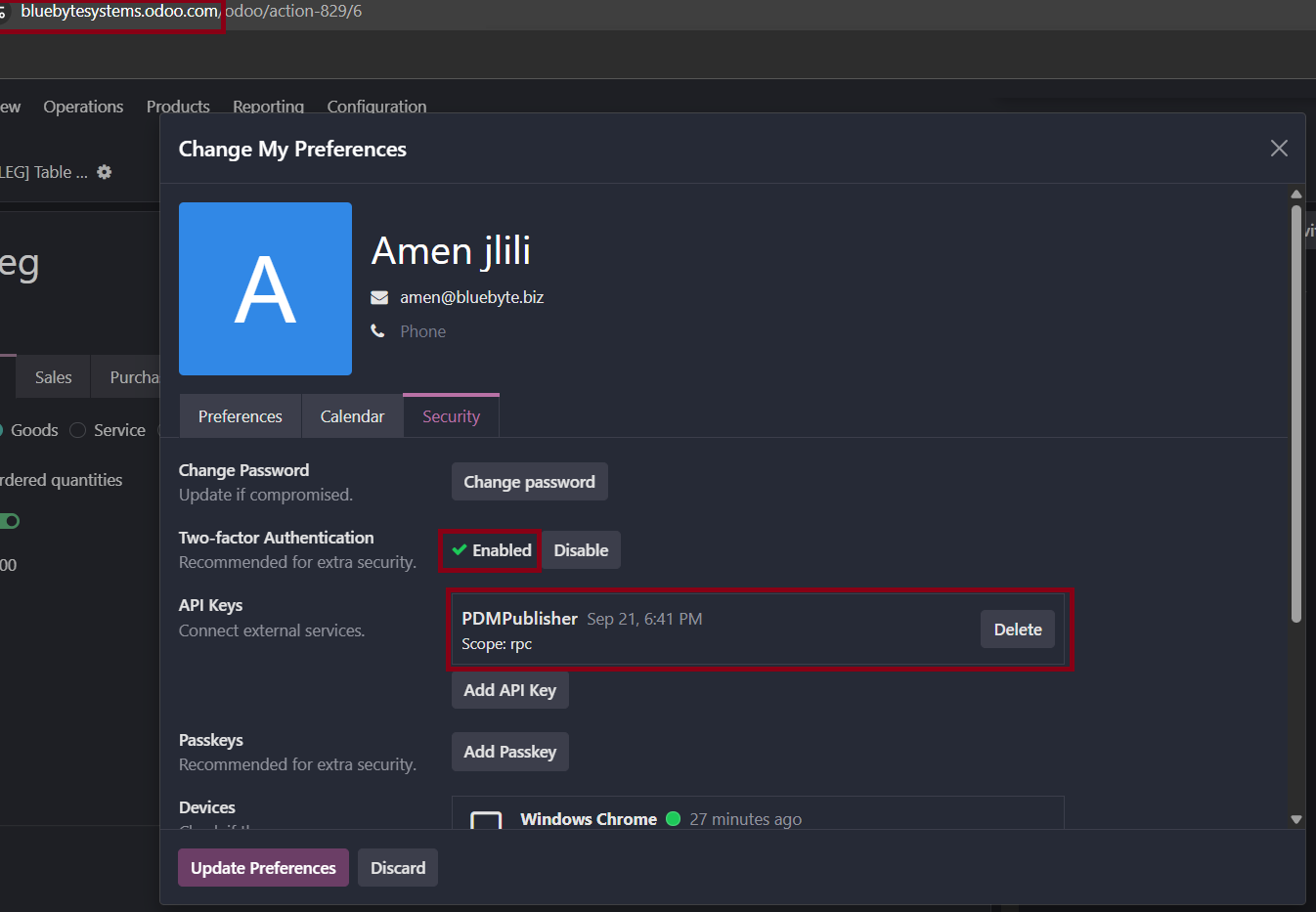
- Sign in to Odoo as the integration user and open My Preferences from the user menu.
- Open the Security tab and, under API Keys, select Add API Key.
- Name it
PDMPublisher, create it with therpcscope and copy the key straight away; Odoo won’t show it again. - Treat it like a password: no screenshots, no shared config files. To rotate it later, create a new key, update PDMPublisher, then delete the old one.
Step 2: install and connect the Odoo connector
- In SOLIDWORKS, open
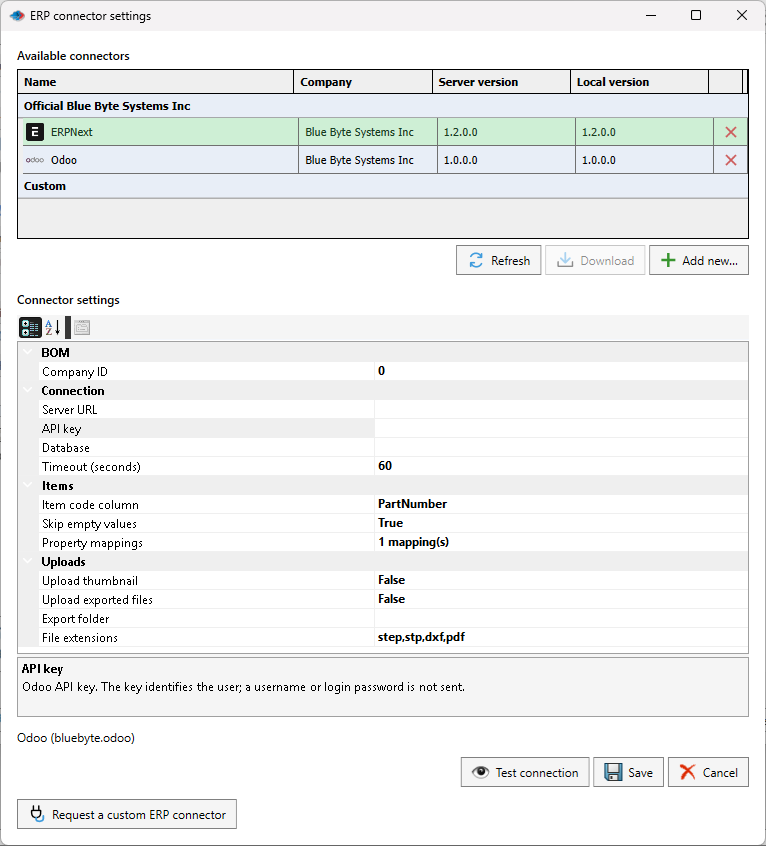
PDMPublisher > Settings > ERP Syncand select ERP connector settings. - Select Refresh, pick Odoo under Official Blue Byte Systems Inc and select Download if it isn’t installed yet or a newer version is offered.
- Select the Odoo row. Under Connection, enter the Server URL (the HTTPS root, such as
https://example.odoo.com/, nothing after the slash), paste the API key, and leave Database empty for Odoo Online. Set it only when your server hosts several databases. - Leave Timeout at 60 seconds unless Odoo is slow to answer.
- Select Test connection. It checks the URL and key, loads the writable product fields and confirms read access without creating anything.
- Select Save. Odoo is now the active connector. If you replaced a connector that was already loaded, restart SOLIDWORKS.
Step 3: pick the item code and map properties
- Under Items, set Item code column to the ERP Sync column or custom property that holds your part number. The default is
PartNumber; file name without extension works if your files are named by part number. - Leave Skip empty values on. A blank SOLIDWORKS property then never wipes a value someone typed in Odoo.
- Open Property mappings and select Load ERP fields. PDMPublisher asks Odoo which product fields this user can write.
- Add one row per property: SOLIDWORKS property on the left, Odoo field on the right. A sensible start is
Description→name(the default), a weight property →weighta sales text →description_sale. - Use the stored API field names (
description_sale, not the translated label), map each Odoo field once, and remember booleans takeTrue/FalseYes/Noor1/0and numbers use a decimal point. - Under Uploads, tick Upload thumbnail if you want the SOLIDWORKS preview on the product image, and Upload exported files if a STEP, DXF or PDF with the same base filename already sits in the export folder. The connector attaches files; it doesn’t export them.
Step 4: push and review
- Open
PDMPublisher > ERP Syncwith the assembly active. The default source is the feature tree; a BOM push needs the Indented view with no grouping. - Tick only the rows to synchronise. Use Ignore Components for hardware and purchased parts that shouldn’t become Odoo products.
- Make sure Odoo is the selected connector at the bottom of the window.
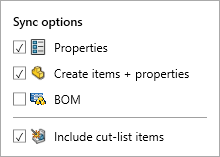
- Open the arrow beside Push and choose the operations: Properties, Create items + properties, BOM, Include cut-list items. For a first run, Create items + properties only.
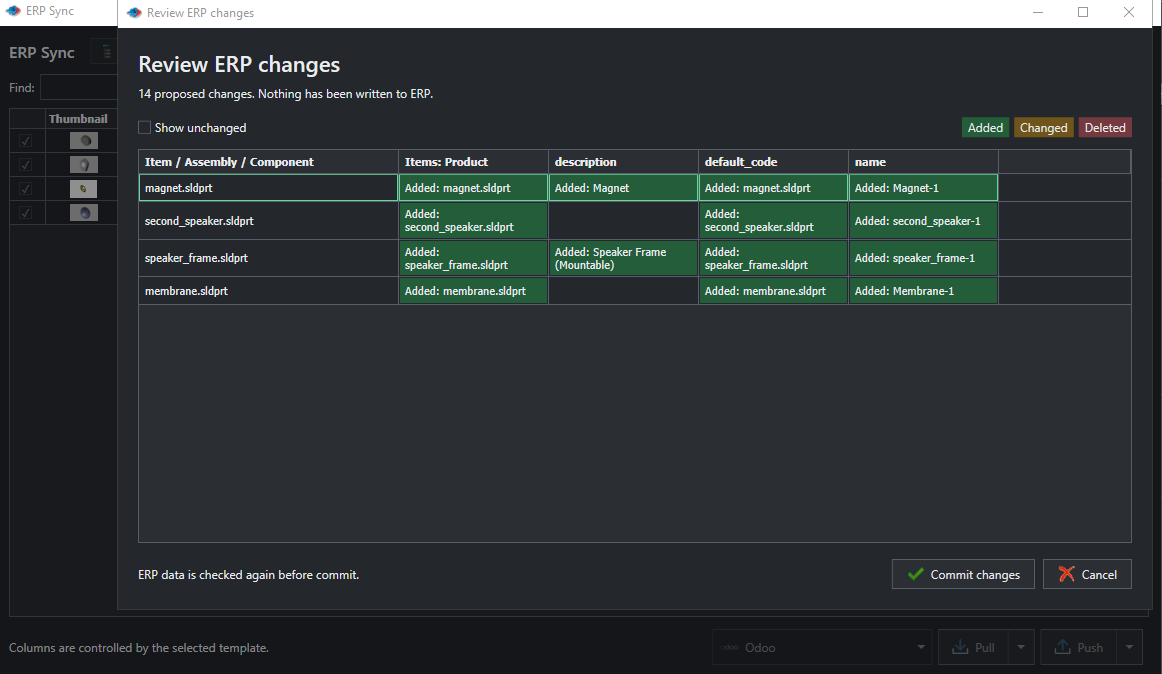
- Select Push. Nothing is written yet. Review ERP changes lists every product, field and BOM line marked Added, Changed or Deleted; Show unchanged reveals the rows that already match.
- Select Commit changes. PDMPublisher re-reads Odoo first; if anything changed since the preview, the commit stops and you preview again. Select Cancel to write nothing.
Step 5: check Odoo, then add the BOM
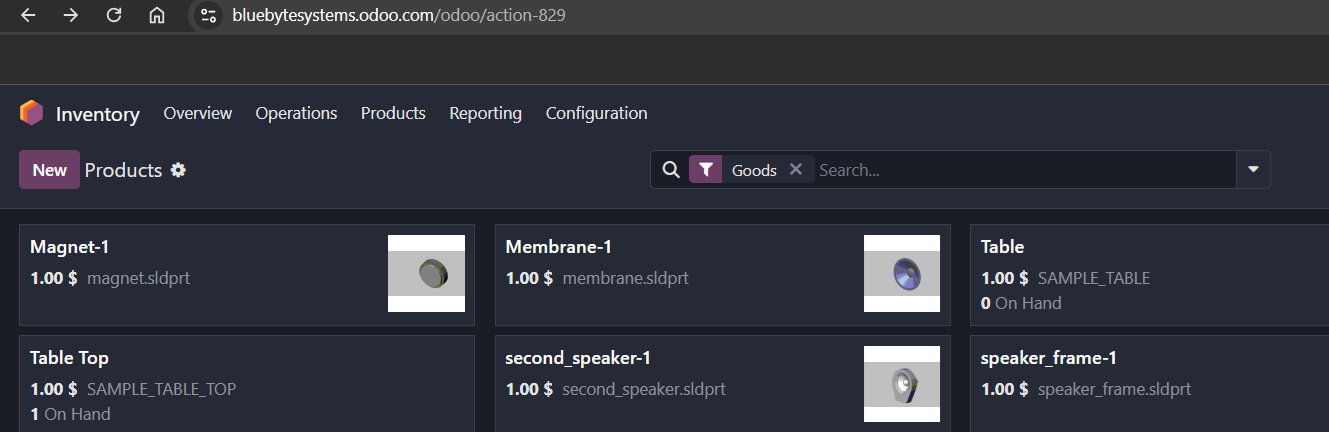
- In Odoo, open Inventory > Products. Each pushed part is there with its Internal Reference, mapped fields and, if you enabled it, the thumbnail.
- Back in ERP Sync, add BOM to the push operations and push again. The review now shows component additions, removals and quantity changes.
- After the commit, open Inventory > Bills of Materials. The assembly’s BOM is set to Manufacture this product, with one line per component and the SOLIDWORKS quantity. Existing line IDs and the BOM’s base quantity are kept when only a quantity changes.
Settings that matter
| Setting | What it does | Tip |
|---|---|---|
| Item code column | The SOLIDWORKS value matched to Odoo default_code. | Pick something that never changes. Duplicates or blanks stop the preview. |
| Skip empty values | Blank SOLIDWORKS values don’t overwrite Odoo on push, and blank Odoo values don’t clear SOLIDWORKS on pull. | Keep it on unless engineering owns every mapped field. |
| Property mappings | SOLIDWORKS property → writable scalar Odoo field. | Standard fields plus x_ custom fields; no relational fields, each target once. |
| Company ID | Odoo company used to create products and BOMs and to pick which BOM to update. | 0 uses the API user’s current company. Set it in multi-company databases. |
| Upload thumbnail / exported files | Preview to image_1920; matching STEP, DXF, PDF as attachments. | Same base filename as the model, 20 MB per file, 64 MB per product. |
| Push operations | Properties, Create items + properties, BOM, Include cut-list items. | Cut-list rows become separate lines for weldments and sheet metal. |
Where it goes wrong
| Symptom | Cause | Fix |
|---|---|---|
| Test connection fails | URL has an API path or trailing junk, key has whitespace, or the user lacks product read access. | Use the HTTPS root only, re-paste the key, check the user’s access rights. |
| Push preview stops before the review | Blank or duplicate item codes in the checked rows. | Fix the part numbers in SOLIDWORKS, or change Item code column. |
| Commit stops with ‘data changed’ | Someone edited Odoo between preview and commit. | Expected. Push again and review the new diff. |
| BOM push rejected | Several matching BOMs, duplicate lines, a cycle, unit mismatch, operations, by-products or variant-specific lines on the target. | Tidy the Odoo BOM first; the connector refuses ambiguous cases on purpose. |
| Products created without a category or unit | Odoo defaults are used unless a mapping supplies the value. | Map the field, or set defaults in Odoo. |
| Wrong value after push | A mapping used the translated label, or a selection value wasn’t the stored key. | Use API field names and stored selection keys. |
Variations
- Pull instead of push. Check rows, select Pull, review in Review ERP pull, then Apply to SOLIDWORKS. Only mapped properties change; the BOM structure never does.
- From a drawing BOM table or a CSV. Switch the source selector; a BOM push from a table needs numbered indented rows (1, 1.1, 1.2) and a visible hierarchy.
- Other ERPs. The ERPNext connector supports BOMs too; Business Central pushes and pulls items and properties only. Anything else: Request a custom ERP connector in the connector window, or build one in C#.
Documentation and related features
- Odoo connector documentation
- ERP Sync
- BOM Manager
- Property Doctor
- Convert SLDASM to STEP, one file per part
- How to sync SOLIDWORKS BOMs to Odoo (Blue Byte blog)
Frequently asked questions
Can I sync a SOLIDWORKS BOM to Odoo without SOLIDWORKS PDM?
Yes. ERP Sync runs inside SOLIDWORKS on the open assembly. PDM is not required.
Which Odoo versions work with PDMPublisher?
Odoo 19 and later, and Odoo Online, through the JSON-2 external API. The connector doesn’t use XML-RPC or JSON-RPC.
Does ERP Sync overwrite data in Odoo?
Only what you reviewed and committed. Every push shows a diff first, Skip empty values protects existing Odoo values from blank properties, and Odoo is re-read before the write.
Is the Odoo connector in the free edition?
Yes. The Community Edition of PDMPublisher for SOLIDWORKS includes ERP Sync for up to 10 rows per run. Premium removes the limit.
Can I pull Odoo data back into SOLIDWORKS?
Yes. Pull reads the matching products, reverses the property mappings and shows a review before writing to the SOLIDWORKS properties. It doesn’t change the assembly structure.
Does it sync inventory levels or create custom fields?
No. The connector synchronises products, mapped fields, attachments and manufacturing BOMs. Stock, custom field creation and missing Internal References are left to Odoo.