
Odoo Connector
The Odoo connector is an official Blue Byte Systems connector for Odoo 19+ and Odoo Online sites with JSON-2 external API access. It supports reviewed Push and Pull operations between checked ERP Sync rows and Odoo products.
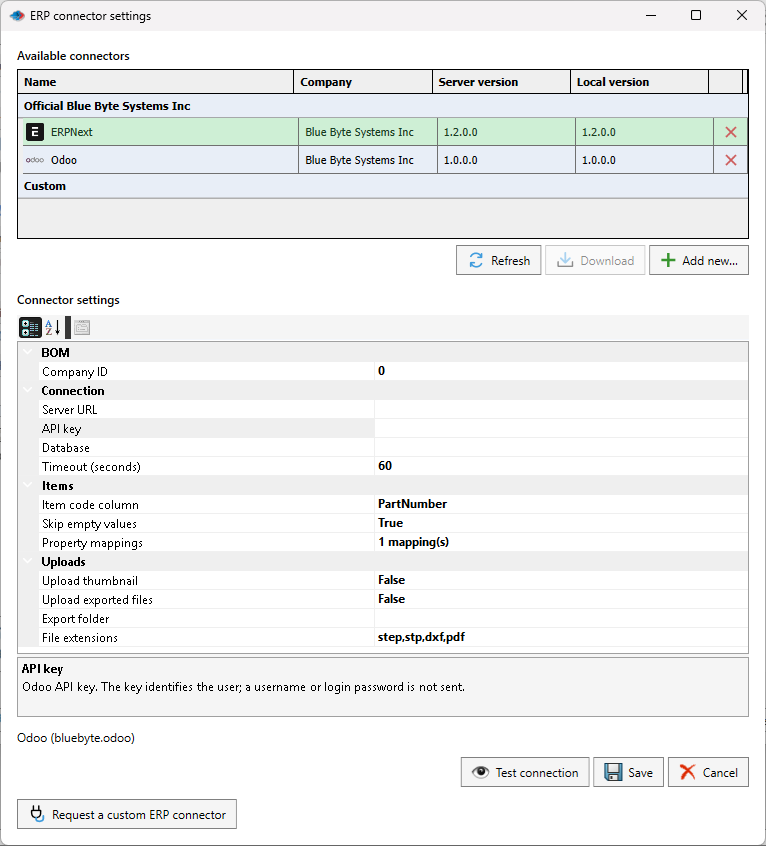
The API key identifies the Odoo user. The connector does not send a login username or password. PDMPublisher encrypts the saved connector settings for the current Windows user.
Requirements
Before configuring the connector:
- Use Odoo 19+ or Odoo Online with JSON-2 external API access.
- Create an API key for a dedicated Odoo integration user.
- Grant that user read access to product fields used by mappings and write/create access for the operations you will enable.
- Grant manufacturing BOM access when synchronizing BOMs.
- Grant attachment access when uploading thumbnails or exported files.
- Make every product Internal Reference unique. PDMPublisher matches the configured Item code column to
product.product.default_codeexactly. - Test with a non-production Odoo database or company first.
The connector uses Odoo's JSON-2 API, not the deprecated XML-RPC or JSON-RPC endpoints.
Install the connector
- Open PDMPublisher > Settings > ERP Sync.
- Open ERP connector settings and select Refresh.
- Select Odoo under Official Blue Byte Systems Inc.
- Select Download if the connector is not installed or the server offers a newer version.
- Select the installed Odoo row to display its settings.
- Complete the connection and synchronization settings described below.
- Select Test connection.
- Select Save to make Odoo the active connector.
Restart SOLIDWORKS before replacing a connector that was already loaded.
Create an Odoo API key
Use a dedicated Odoo user with only the permissions required for the products, fields, attachments, companies, and manufacturing BOMs that PDMPublisher must synchronize.
- Sign in to Odoo as the integration user.
- Open the user menu and select My Preferences.
- Open the Security tab.
- Under API Keys, select Add API Key.
- Enter a recognizable name such as
PDMPublisherand create the key with therpcscope. - Copy the generated key immediately and store it securely. Paste the key into the PDMPublisher API key field; do not enter the user's password.
- In PDMPublisher, select Test connection, then Save after the test succeeds.
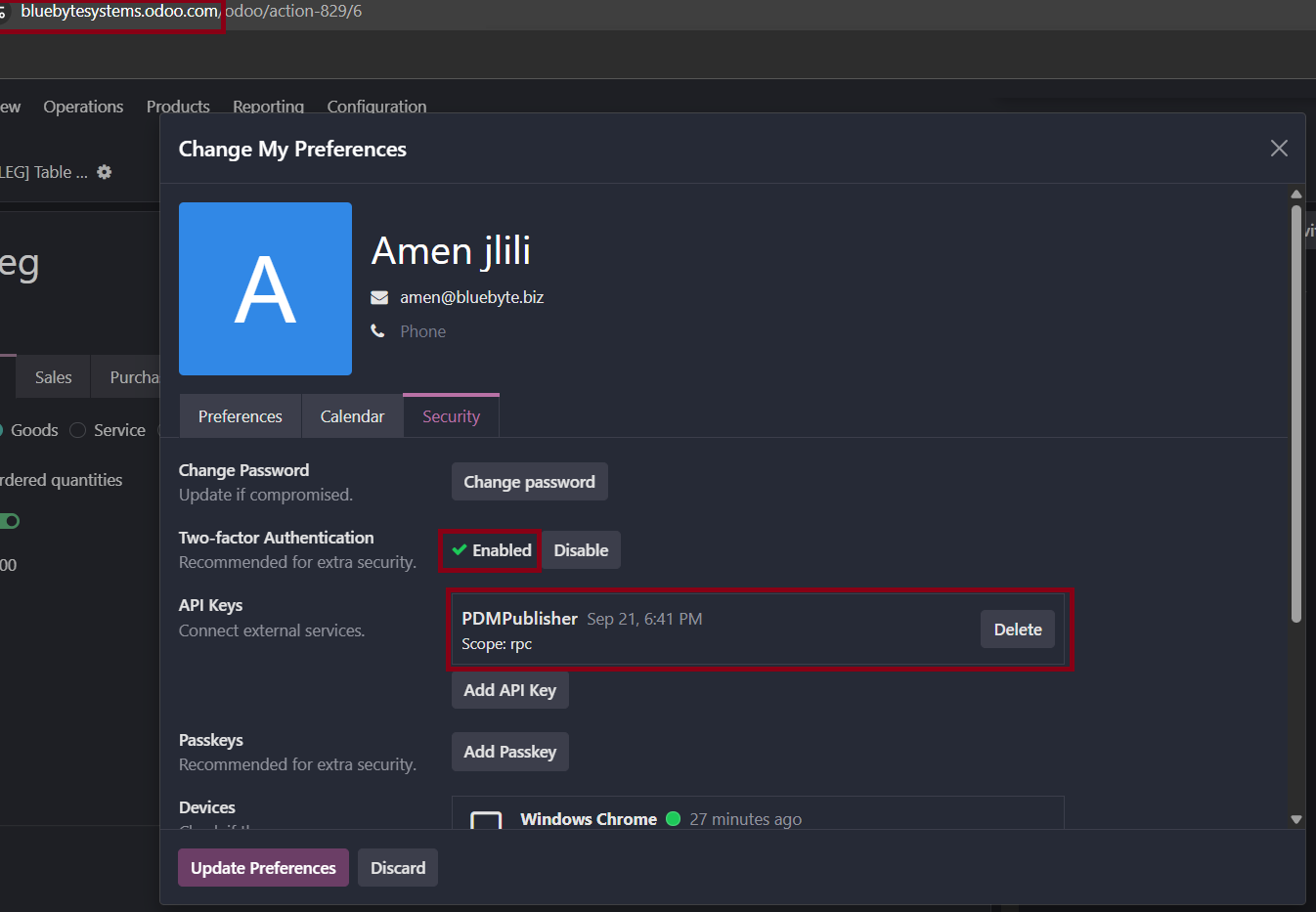
Treat the API key like a password. Do not include it in screenshots, logs, source control, or shared configuration files. To rotate a key, create a replacement, update and test PDMPublisher, save the connector settings, and then delete the old key in Odoo.
Connection settings
| Setting | What to enter |
|---|---|
| Server URL | The HTTPS root address of the Odoo site, such as https://example.odoo.com/. Do not include an API path, query, fragment, or credentials. |
| API key | The API key issued to the Odoo integration user. Whitespace is not allowed. The value is masked and encrypted locally. |
| Database | Optional X-Odoo-Database value. Usually leave this empty for Odoo Online. Enter it when the server hosts multiple databases and requires an explicit database header. |
| Timeout (seconds) | Per-request timeout from 1 through 300 seconds. The default is 60. |
Test connection validates the URL and credentials, loads writable product-field metadata, validates the mappings, and verifies product read access. It does not create or modify Odoo records.
Item settings
| Setting | Behavior |
|---|---|
| Item code column | ERP Sync column or custom property matched exactly to the Odoo product Internal Reference (default_code). The default is PartNumber. Blank or duplicate references stop Push preview. |
| Skip empty values | When enabled, blank mapped source values do not overwrite existing Odoo values, and blank values read during Pull do not clear local SOLIDWORKS properties. |
| Property mappings | Maps a SOLIDWORKS property or ERP Sync column to a writable scalar Odoo product field. The default mapping is Description → name. |
Open Property mappings > ... and select Load ERP fields to discover the fields available to the current Odoo user. Supported targets include standard scalar fields such as name, description, description_sale, description_purchase, sale_ok, purchase_ok, weight, volume, and barcode, plus writable x_* custom fields.
Use stored API field names, not translated labels. Boolean values accept True/False, Yes/No, or 1/0. Numeric values use invariant decimal notation, such as 12.5. Selection fields require the stored Odoo selection key. Relational fields are not generic property-mapping targets, and each Odoo target field can be mapped only once.
BOM setting
| Setting | Behavior |
|---|---|
| Company ID | Optional numeric Odoo company ID used for product and BOM creation and BOM selection. Enter 0 to use the API user's current company context. |
Select a company when BOM selection must be restricted to one company. Odoo access rights continue to apply even when a Company ID is entered.
Upload settings
| Setting | Behavior |
|---|---|
| Upload thumbnail | Sends the captured SOLIDWORKS preview to the product's image_1920 field. |
| Upload exported files | Uploads existing matching files as ir.attachment records. The connector does not generate exports. |
| Export folder | Folder containing exported files. Leave it empty to use each source model's folder. |
| File extensions | Comma-separated extensions to find. The default is step,stp,dxf,pdf. |
An exported file must have the same base filename as its source model. Existing attachments with the same name are updated; duplicate matching attachment names are rejected. Each file is limited to 20 MB, with a maximum of 64 MB per product. Missing files appear as skipped in the preview.
Push products and properties
- Open ERP Sync and prepare the desired source rows.
- Check only the products to synchronize.
- Select Odoo as the connector.
- Choose the required Push operations.
- Select Push and review the complete diff. Nothing has been written yet.
- Select Commit changes to revalidate Odoo and apply the reviewed plan, or Cancel to write nothing.
The connector can create products and update mapped product fields. New products use Odoo defaults for unit of measure, category, and product type unless a supported mapping supplies a value. A new product receives the mapped name or the source row name. This version does not generate missing Internal References or create custom Odoo fields.
Every recorded Odoo read is checked again before the first write. A preview plan is single-use. If Odoo data changed after preview, Commit stops without starting the reviewed writes and you must preview again.
Pull mapped properties
Select checked SOLIDWORKS rows and choose Pull. The connector reads the matching Odoo products and reverses the property mappings. Review the proposed local changes in Review ERP pull, then select Apply to SOLIDWORKS or Cancel.
Missing products, missing fields, and null values are skipped. Empty Odoo values can clear local text only when Skip empty values is disabled. The Item code property and built-in or calculated destinations remain protected. Pull modifies mapped SOLIDWORKS properties only; it does not pull Odoo BOMs into the SOLIDWORKS assembly structure. Save modified SOLIDWORKS documents afterward.
See Pull ERP properties into SOLIDWORKS for the diff and validation workflow.
Synchronize manufacturing BOMs
The connector synchronizes explicitly selected assembly relationships to standard Odoo manufacturing BOMs. Preview shows component additions, removals, and quantity changes. Existing BOM-line IDs and unrelated settings are retained when a quantity changes, and an existing BOM's base quantity is preserved.
Before Commit, PDMPublisher rejects ambiguous or unsafe cases, including multiple matching BOMs, duplicate lines, proposed graph cycles, unit mismatches, operations, by-products, and variant-specific lines. Writes to multi-variant products and multi-variant parent BOMs are blocked to avoid changing sibling variants through shared template fields.
Limitations and safe retries
- The connector does not synchronize inventory, create custom fields, generate missing Internal References, or import BOM structure into SOLIDWORKS.
- Odoo preflight checks are client-side checks, not one transaction spanning every request.
- Concurrent changes after preflight are still possible.
- A partial failure can leave confirmed changes in Odoo.
- Do not automatically retry a failed or uncertain Commit. Inspect Odoo, correct the cause, and preview again.
- Archived products and duplicate Internal References must be resolved in Odoo before synchronization.