ERP Sync
ERP Sync exchanges selected SOLIDWORKS data with an ERP system through an installed connector. Push sends items, properties, files, and supported BOM relationships to ERP. Pull previews mapped ERP property values before applying approved changes to SOLIDWORKS.
Open PDMPublisher > ERP Sync to prepare a Push or Pull operation. Open PDMPublisher > Settings > ERP Sync to choose the connector and configure the default BOM view. Pull is available only when the selected connector supports Pull with preview.
Configure ERP Sync
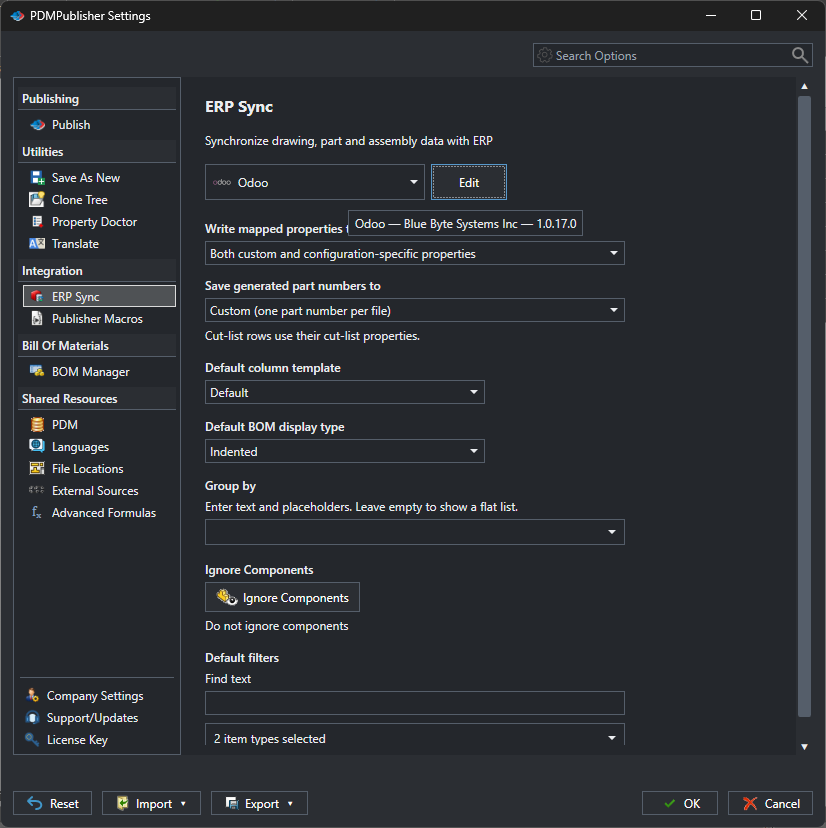
The settings page contains:
| Setting | Description |
|---|---|
| ERP connector | Selects the connector used by ERP Sync. Open the connector settings from the adjacent connector command. |
| Write mapped properties to (Push and Pull) | Choose the row's property scope, the file's Custom tab, the selected configuration's properties, or both tabs (default). This controls where Pull writes values and where Push creates missing mapped properties. Cut-list rows use their cut-list properties. |
| Save generated part numbers to | Choose Configuration Specific (default) for a separate number per configuration, or Custom (one part number per file) to share the number across configurations. |
| Choose Odoo product / variant scope | Read and write the item code in the Custom tab (Document per variant) or selected configuration (Configuration per variant). Existing references match products or variants; Create items allows new products in the same sync. This scope overrides the generated part-number destination. See Odoo variant matching. |
| Default column template | Selects the BOM Manager column template used when the ERP Sync window opens. The selected columns also provide available values to the connector. |
| Default BOM display type | Selects the initial Parts only, Top-level only, or indented BOM view. |
| Group by | Groups displayed rows by text, a property, or a supported placeholder. Leave it empty for a flat list. |
| Ignore Components | Opens conditions that exclude matching components from the ERP Sync view. |
| Find text | Filters the displayed rows by text. |
| Item types | Limits the kinds of rows included in the view. |
Select OK to save the defaults. These settings are independent from BOM Manager settings.
Install and configure a connector
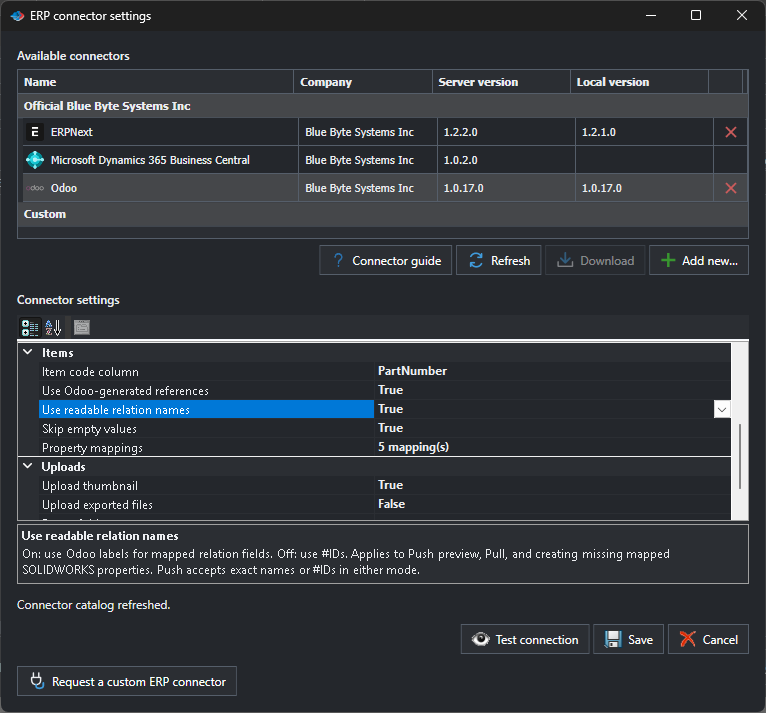
- Open Settings > ERP Sync, and open ERP connector settings.
- Select an official connector and choose Download, or choose Add new... to browse to a custom connector DLL.
- Select the installed connector. Its settings appear in the lower property grid.
- Enter the server URL, credentials, mappings, and other connector-specific values.
- Choose Test connection. Correct any reported authentication, URL, or mapping problem.
- Choose Save to make that connector active.
Connector settings are saved separately for each connector and encrypted for the current Windows user. The Edit button beside the connector selector opens the selected connector's settings directly. If an update is downloaded while its DLL is loaded, it is staged for the next session. A restart message appears and the alert remains in the connector window. Closing the message does not cancel the update. Save your work, fully close and restart SOLIDWORKS, then check the installed connector version.
For connectors supplied by Blue Byte Systems, see ERPNext Connector, Odoo Connector, and Microsoft Dynamics 365 Business Central Connector.
Connector capabilities differ. ERPNext and Odoo support BOM synchronization. The current Business Central connector supports item and mapped-property Push and Pull only because Business Central's standard API v2.0 does not expose BOM-definition endpoints.
Choose the synchronization source
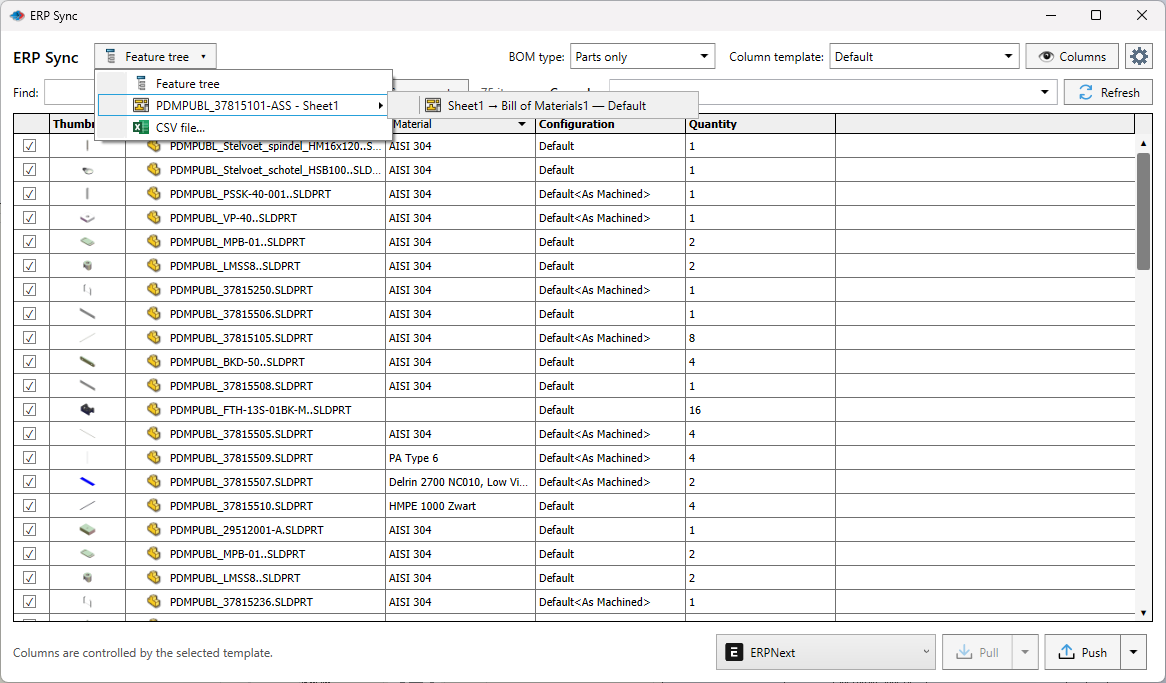
Use the source selector at the upper left of ERP Sync to choose where the rows, columns, quantities, and BOM hierarchy come from.
| Source | What ERP Sync uses | Important behavior |
|---|---|---|
| Feature tree | The active SOLIDWORKS document and its resolved component tree. | This is the default source. BOM type, column templates, grouping, component filters, cut-list items, and phantom rows remain available. A BOM Push requires the Indented view with no grouping. |
| SOLIDWORKS BOM table | A BOM table found in an assembly or drawing, including the table's selected configuration. | Visible table rows, visible columns, and displayed quantities are used. Item and property Push remain available for every valid table. BOM Push additionally requires an indented table with detailed numeric item numbers such as 1, 1.1, and 1.2, visible parent rows, and an unambiguous hierarchy. |
| CSV file | A UTF-8 CSV file selected from disk. | Every CSV column becomes a connector source property. Item and property Push are available after the file passes validation. BOM Push is enabled when item and parent columns define a valid hierarchy. |
The selected source is remembered for the saved SOLIDWORKS document.
Feature tree
Choose Feature tree to build rows from the active part, assembly, or drawing. Use BOM type, Column template, Group by, Ignore Components, and the item filters to shape the view. Feature-tree rows can include resolved components, cut-list items, and phantom rows according to the selected settings.
SOLIDWORKS BOM table
Open the document submenu in the source selector and choose a specific BOM table and configuration. ERP Sync reads the table as it is displayed:
- Hidden rows and hidden columns are omitted.
- Column titles and custom-property columns become source properties that a connector can map.
- The displayed quantity must be numeric.
- Item and property synchronization can use a flat table. BOM synchronization requires an indented hierarchy with detailed numeric item numbering and visible parent rows.
If a table cannot produce an unambiguous hierarchy, ERP Sync keeps item and property operations available and disables the BOM operation.
CSV file
Choose CSV file... to use data that is independent of the active SOLIDWORKS component tree. The file must meet these requirements:
- UTF-8 text, with or without a byte-order mark (BOM).
- No larger than 20 MB and no more than 50,000 nonblank data rows.
- Nonempty, unique headers, with the same number of fields in every data row.
- Positive whole-number quantities. If there is no quantity column, ERP Sync uses
1.
ERP Sync recognizes these conventional headers:
| Purpose | Recognized headers |
|---|---|
| Item code | Item code, item_code, PartNumber, Part Number, or Item |
| Quantity | Quantity or Qty |
| Parent item | Parent, Parent item, or parent_item |
| Description | Description |
| Material | Material |
To enable BOM Push from CSV, provide recognized item-code and parent columns. Each item code must occur once, every referenced parent must exist, and the relationships must not contain a cycle. A valid hierarchy must contain at least one parent with children.
Push document data
- Open or activate a saved SOLIDWORKS part, assembly, or drawing.
- Select PDMPublisher > ERP Sync.
- Select Feature tree, a SOLIDWORKS BOM table, or CSV file... as the source. Use the controls available for that source to prepare the view.
- Select the checkbox beside every row to include. Only checked, currently displayed rows are sent. Expand collapsed branches before pushing an indented BOM.
- Select the active connector at the bottom of the window.
- Open the arrow beside Push and select the required operations.
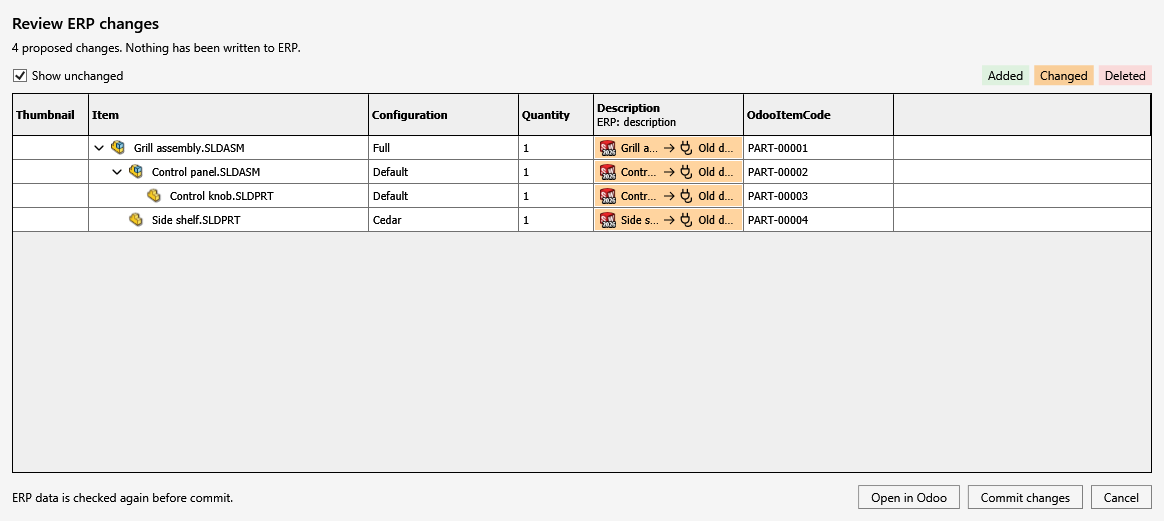
- Select Push to compare with ERP. Review the proposed changes, then select Commit changes to apply them or Cancel to write nothing.
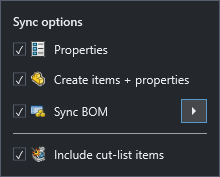
| Operation | Result |
|---|---|
| Properties | Updates mapped properties for existing ERP items. |
| Create items + properties | Creates missing ERP items and sends their mapped properties. Item creation includes property synchronization. |
| Sync BOM | Sends the explicitly selected parent-and-direct-child BOM relationships. Open its submenu to choose a supported ERP BOM type. |
| Include cut-list items | Includes supported cut-list rows in the snapshot. |
The snapshot contains plain data captured from SOLIDWORKS; a connector does not receive SOLIDWORKS COM objects. Root custom properties are merged with active-configuration properties, and configuration values take precedence. Mass is supplied in kilograms.
Review changes before Push
Push and Pull reviews follow the ERP Sync window's column widths, row height, typography, and hierarchy. The review includes the selected source columns and mapped ERP properties. Built-in <...> property columns are hidden; the standard item, configuration, quantity, and thumbnail columns remain available. Item names identify source documents rather than component occurrence names.
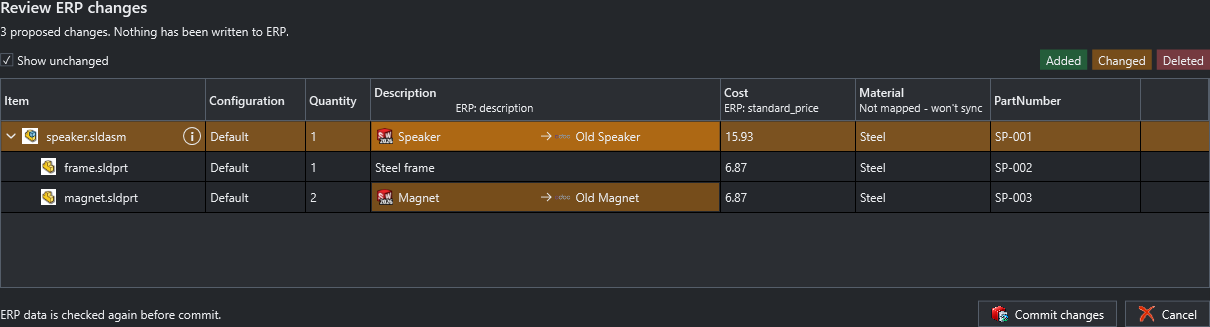
| Highlight | Meaning |
|---|---|
| Green row | A new ERP item will be created. |
| Green cell | A value will be added. |
| Red cell | A value will be removed or cleared. Clearing a property does not delete the item. |
| Orange comparison cell | An existing value will change. Push shows the SOLIDWORKS source on the left and current ERP destination on the right, with small system icons and an arrow. |
| Highlighted assembly row with (i) | Its BOM will change. Select (i) beside the item to inspect component additions, removals, quantity changes, or the BOM type. |
Use Show unchanged to include unchanged source rows. Changes appear in the review grid; the separate All planned changes panel and BOM: Changes column have been removed. BOM details belong to the assembly row. Thumbnail differences are omitted from the review and change count, while ordinary file attachments remain visible. The change count counts operations, not documents. Hover over a shortened value to read its full text.
Commit changes uses the ERP Sync icon. ERP data is checked again before commit; if it changed after comparison, preview again. Opening the review does not write ERP records.
Remembered sync options
The four Push-menu selections—Properties, Create items + properties, Sync BOM, and Include cut-list items—save automatically in general settings and restore when ERP Sync reopens. Applying a macro's options does not overwrite these saved defaults. Unsupported operations remain disabled for the selected connector or source.
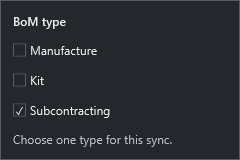
For Odoo, open Sync BOM > and select Manufacture this product, Kit, or Subcontracting. Only one type can be selected. Selecting a type keeps the submenu open and enables BOM sync. See Odoo BOM types for prerequisites and matching behavior.
Column mappings and item identity
Property-column headers show ERP: field name for mapped fields, Item code when used for matching, or Not mapped. In reviews, Not mapped - won't sync explains why a visible value will not be transferred. Choose Edit in a header to open connector settings and edit Property mappings. The indicators refresh after saving mappings or changing the active connector.
Correct invalid mapped values
Invalid values appear in red in the ERP Sync grid with an (i) button. Hover over or select it to see the source property, ERP field, rejected value, and expected format. Correct the value or mapping and preview again. Validation errors stop the operation before any ERP changes.
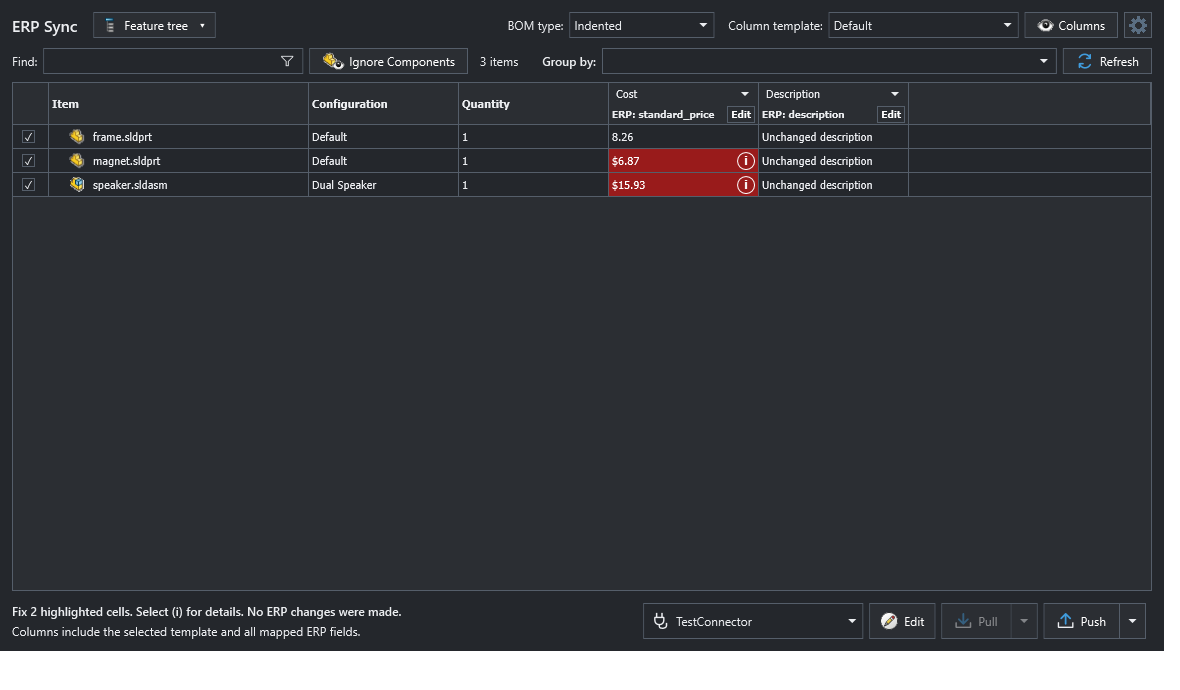
For example, Odoo Cost (standard_price) requires 15.93, not $15.93. A red validation cell in the source grid is different from a red removal cell in the review.
The mapping dialog loads supported ERP fields automatically. Use Load ERP fields to refresh discovery after changing the ERP schema. The destination dropdown lists ERP fields; it does not create custom fields in ERP.
| Item-code choice | Example |
|---|---|
<File> |
C:\Parts\Bracket.sldprt |
<File name> |
Bracket.sldprt |
<File name without extension> |
Bracket |
Custom property, such as PartNumber |
The evaluated property value |
Choose an identity that is unique in the ERP. Filenames in different folders can be identical. A displayed document name does not replace the configured item code.
In feature-tree mode, the top-level assembly appears in Indented and Top-level only views. Parts only omits the assembly row. Custom-property values use evaluated values, including valid empty results, rather than falling back to stored expressions.
Repeated source rows with the same item code can share an ERP item when mapped values are compatible. With Skip empty values enabled, an empty value does not conflict with a populated value. Genuine conflicting values stop synchronization and identify the field and values to correct. Display grouping is separate from item matching; feature-tree BOM Push still requires Indented with no grouping.
Pull ERP properties into SOLIDWORKS
Pull uses the connector's property mappings in reverse: the ERP field is the source and the mapped SOLIDWORKS custom property is the destination.
- Select a SOLIDWORKS feature-tree or BOM-table source. Pull cannot write to a CSV source.
- Check the rows whose mapped properties you want to compare.
- Select a connector that supports Pull with preview, then select Pull.
- Review every proposed or skipped value in Review ERP pull.
- Optionally enable Show unchanged to include values that already match.
- Select Apply to SOLIDWORKS to revalidate and write the proposed values, or Cancel to write nothing.
- Save the modified SOLIDWORKS documents.
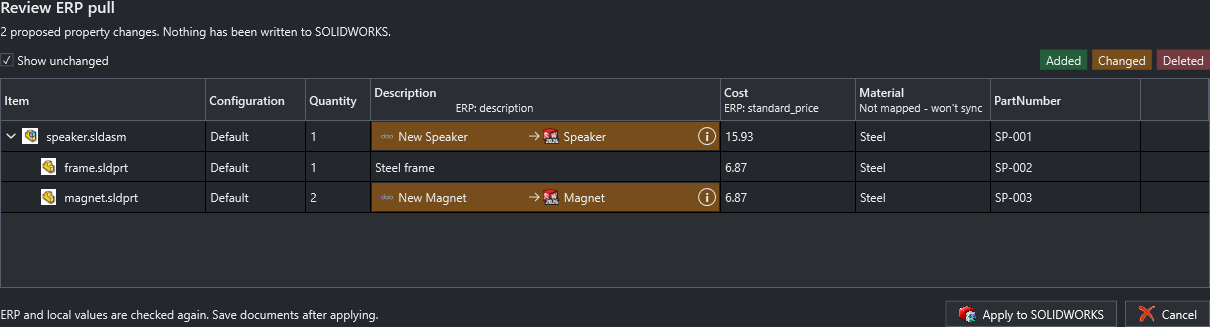
The diff uses green for Added, orange for Changed, and red for Deleted. Pull comparisons run ERP → SOLIDWORKS, with the source value on the left and the current destination value on the right. Built-in and calculated columns, the property used to match the ERP item, read-only documents, missing or null ERP fields, and unsupported targets are not overwritten.
Shared Odoo fields
Push and Pull identify Odoo variants by Internal Reference, independently of configuration names. A changed shared field, such as name or category, shows an (i) indicator. Select it to see the old and new values and that the update affects all variants, including those not selected for sync.
Conflicting values from selected sibling variants stop the preview before any changes are sent. Variant-specific fields update only the matched variant.
Generated numbers and saved ERP links
Save generated part numbers to controls file and configuration numbers. Weldment cut-list items always use their own cut-list properties. A missing cut-list number does not inherit the parent model's number. Each cut-list folder can have a separate number; bodies grouped in that folder share its number and quantity.
For Odoo-generated references, the document stores the confirmed product link separately from the visible part-number property. Save the modified document to retain the link. Links are separate for each file, configuration, or cut-list target and for each Odoo server, database, company, and item-code property.
Local recovery records protect against duplicate creation if synchronization is interrupted before the document is saved. Deleting a visible part number alone does not request a new product: Push can recover the existing reference.
A copied document retains its saved ERP links. Clear the link if the copy should become a separate ERP item.
Clear an ERP link
- In the ERP Sync grid, select the rows to reset.
- Right-click and choose Clear ERP link….
- Confirm, then save the modified documents.
This clears the selected saved links and their local recovery records. It keeps the part-number properties and existing ERP products. A file-wide link reset affects all configurations sharing that link; a cut-list reset affects the selected cut-list target.
To request a new number, also clear the part-number property in its destination, enable Create items + properties, and preview Push. Check the proposed changes before committing.
The source documents must be saved and writable. Grouped and phantom rows cannot be reset.
Custom and configuration-specific destinations
Set Write mapped properties to (Push and Pull) in Settings > ERP Sync. Both writes the mapped value to document custom properties and the selected row's configuration-specific properties. The other choices restrict the write to one scope. Cut-list rows use their cut-list properties.
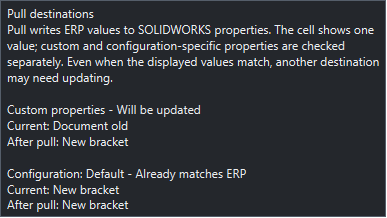
The grid shows one value per property rather than repeating custom and configuration-specific values. Select (i) in a changed cell to see which destinations will be updated and which already match. A cell can be highlighted even when its displayed values match: the document custom property may differ while the configuration-specific value already matches ERP.
Nothing is written while the diff is being reviewed. After approval, PDMPublisher asks the connector to validate the same ERP snapshot again and rechecks local document identity and values. If ERP data or the SOLIDWORKS target changed, the apply is stopped and you must preview again. Pull changes properties only; it does not change assembly or BOM structure, download attachments, create ERP items, or save SOLIDWORKS documents automatically.
Connector development
To build and load your own C# integration, including Pull-with-preview support, see Create a Custom ERP Connector.
Cut-list thumbnails
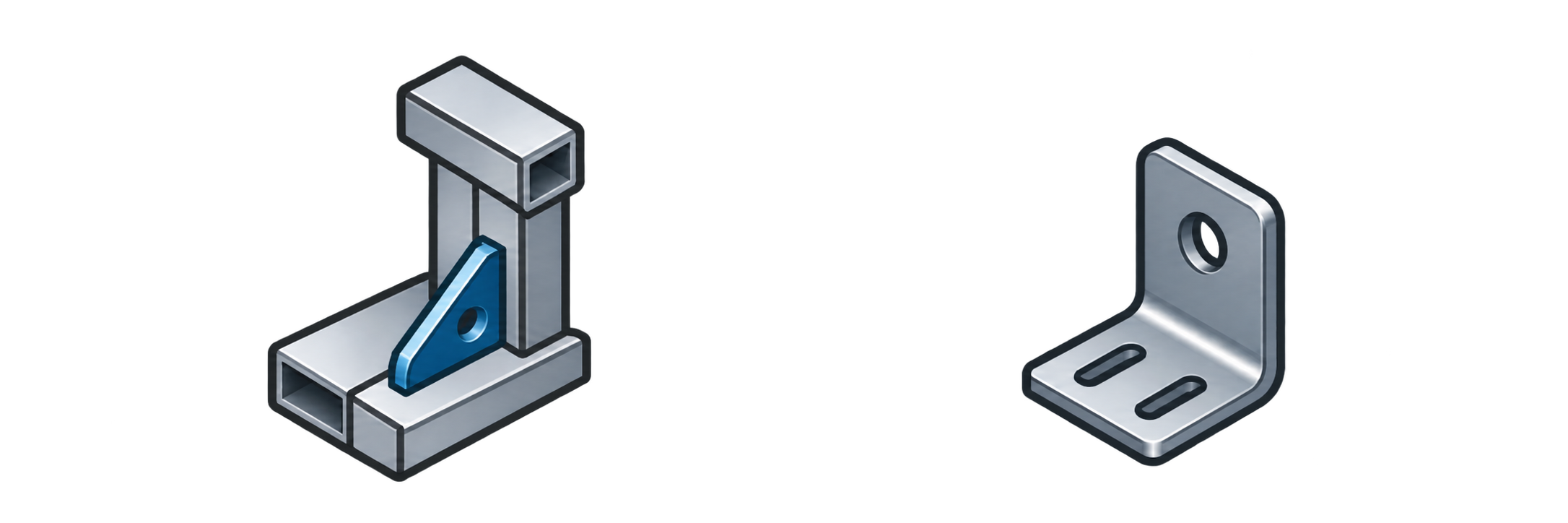
Weldment cut-list rows use a generic weldment image. Sheet-metal cut-list rows use a sheet-metal bracket image. These transparent 512 × 512 thumbnails also upload to ERP when thumbnail upload is enabled. Normal part and assembly rows keep their document previews.
Preview and report layout
The review preserves the selected source hierarchy, with expandable assembly rows, component icons and source indentation. Its size, shared column widths and row height follow the parent ERP Sync window. A Preparing preview… indicator appears before the review grid is displayed. The report keeps source indentation and vertically centered, single-line cell text; hover over details or copy/save the report to read full messages.
Drag the right edge of a preview column header to resize it, including the warning column.
For Odoo, Open in Odoo opens the selected known product in a browser. It does not perform a synchronization operation. See Odoo-generated references and warnings for writeback requirements and omitted BOM behavior.