
ERPNext Connector
The ERPNext connector is an official Blue Byte Systems connector available from the PDMPublisher connector catalog. It pushes checked SOLIDWORKS rows to ERPNext and can pull mapped Item fields back into writable SOLIDWORKS custom properties after review.
Note
Push and Pull do not create stock movements, purchase orders, custom-field definitions, submitted BOMs, or active default BOMs. Pull changes mapped SOLIDWORKS properties only.
Prepare ERPNext
Before configuring PDMPublisher:
- Create an ERPNext integration user and generate its API key and API secret.
- Grant the user read, create, and write access to Item records in the intended synchronization scope.
- For file uploads, grant File creation and Item write access.
- For BOM synchronization, grant access to the configured company and permission to read, create, and update BOM records.
- Confirm that the configured Item Group and stock unit of measure already exist.
- Create any required
custom_*fields on the ERPNext Item DocType. The connector maps values to existing fields; it does not define fields. - When requesting missing part numbers, configure ERPNext Stock Settings to name Items by Naming Series and prepare the series that PDMPublisher should request.
Use an ERPNext test site or non-production company while validating permissions, required fields, workflows, and server scripts.
Install the connector
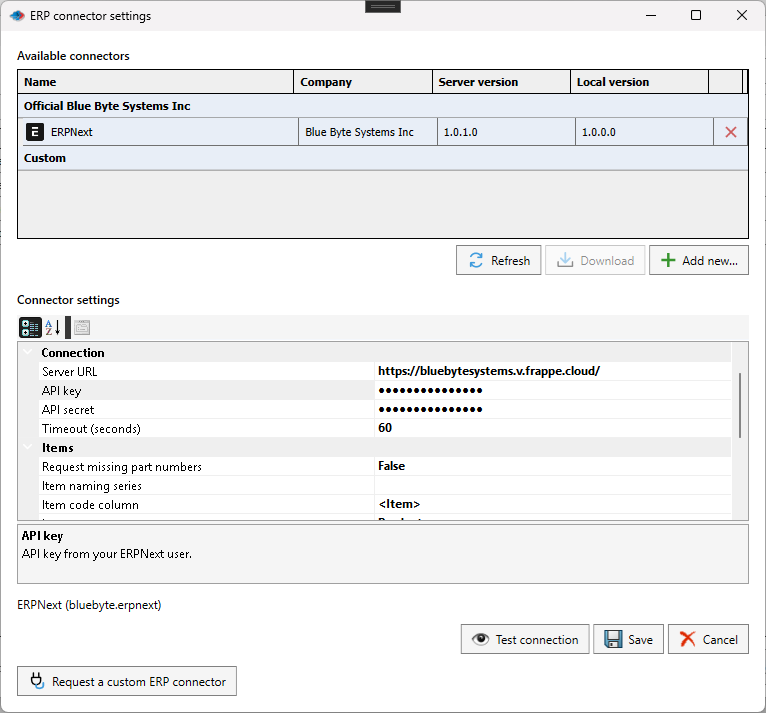
- Open PDMPublisher > Settings > ERP Sync.
- Open ERP connector settings and select Refresh.
- Select ERPNext under Official Blue Byte Systems Inc.
- Select Download when the connector is not installed or a newer server version is available.
- Select the installed ERPNext row to display its settings.
- Enter the connection and synchronization settings, then select Test connection.
- Select Save and restart SOLIDWORKS if an already loaded connector was replaced.
Test connection verifies authentication and Item read access without creating or changing ERPNext records. Create and write permissions are enforced when a Push operation runs.
Connector settings
| Setting | Purpose |
|---|---|
| Server URL | HTTPS root URL of the ERPNext site, without /api, credentials, a query, or a fragment. |
| API key / API secret | Credentials for the ERPNext integration user. Both values are masked and stored in the encrypted settings for the current Windows user. |
| Timeout (seconds) | Per-request timeout from 1 to 300 seconds. The default is 60. |
| Item code column | ERP Sync column or custom property used as item_code. The default is PartNumber; there is no filename fallback. |
| Item group | Existing ERPNext Item Group assigned when a new Item is created. The default is Products. |
| Stock unit of measure | Existing ERPNext UOM assigned when a new Item is created. The default is Nos. |
| Skip empty values | Keeps existing ERPNext values when mapped source values are blank. Missing source properties are always omitted. |
| Request missing part numbers | Requests an Item code from ERPNext when the selected writable custom property is empty and writes the confirmed number back to SOLIDWORKS. |
| Item naming series | ERPNext Item naming series used when requesting missing part numbers. |
| Property mappings | Maps SOLIDWORKS properties or columns to supported ERPNext Item fields. The default maps Description to description. |
| Maintain stock | Default is_stock_item value for newly created Items. |
| Allow sales | Default is_sales_item value for newly created Items. |
| Allow purchase | Default is_purchase_item value for newly created Items. |
| BOM company | ERPNext company used for managed draft BOM synchronization. |
| Upload thumbnail | Attaches the captured SOLIDWORKS preview and sets it as the ERPNext Item image. |
| Upload exported files | Uploads existing files whose base filename matches the source model. It does not generate exports. |
| File extensions | Comma-separated attachment extensions. The default is step,stp,dxf,pdf. |
| Export folder | Folder containing exported files. Leave empty to use each source model folder; subfolders are not searched. |
Map properties
- Enter the server URL and API credentials.
- Open Property mappings > ... and select Load ERP fields.
- Select a SOLIDWORKS property or available ERP Sync column as the source.
- Select the ERPNext field and save the connector settings.
Field discovery reads Item metadata but does not read Item values or write records. Supported targets are item_name, description, is_stock_item, is_sales_item, is_purchase_item, and writable scalar custom_* fields. Table, hidden, read-only, and unsupported fields are excluded.
Use ERPNext field names rather than labels. Boolean mappings accept True/False, Yes/No, or 1/0. Numeric fields require invariant numeric text such as 12.5. Property names are matched without case sensitivity, but Item codes are compared exactly.
Pull mapped properties
Select the desired ERP Sync rows and choose Pull. The connector reads the corresponding ERPNext Items and uses each property mapping in reverse. The ERP field becomes the source and its mapped SOLIDWORKS custom property becomes the destination.
Review added, changed, unchanged, and skipped values in the diff before selecting Apply to SOLIDWORKS. Pull never overwrites the Item-code matching property or built-in/calculated columns. Missing or null ERP values retain the local value; when Skip empty values is enabled, empty ERP text is also skipped. Documents are marked modified and must be saved manually.
See Pull ERP properties into SOLIDWORKS for the complete review and validation workflow.
Push Items and properties
- Open ERP Sync for a saved SOLIDWORKS document.
- Prepare the rows and check only the Items to send.
- Select the ERPNext connector.
- Open the arrow beside Push and choose Properties, Create items + properties, BOM, or a supported combination.
- Select Push and review every row result and the summary.
Properties requires every checked Item to exist. Create items + properties creates missing Items and updates mapped fields. Existing Items retain their identity, Item Group, stock UOM, and unrelated ERP fields. Repeated rows with the same Item code and values are sent once; conflicting values stop the batch before writing.
Monitor synchronization and review the report
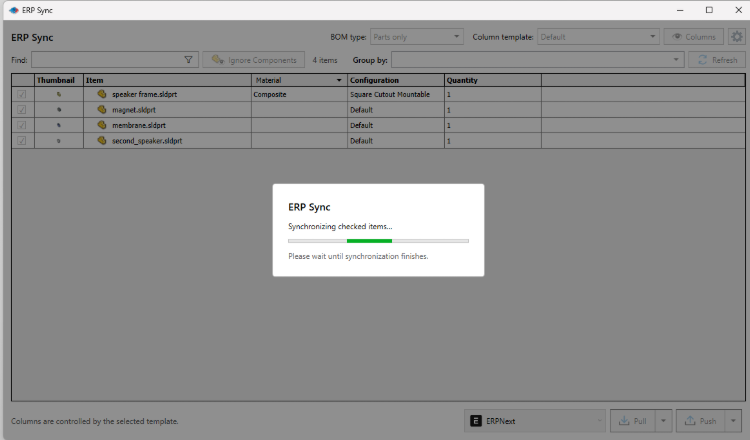
After you select Push, PDMPublisher locks the review window and displays progress while the checked Items are synchronized. Keep SOLIDWORKS open until the operation finishes.
When synchronization finishes, the ERP Sync report displays the run summary and one row for every checked Item.
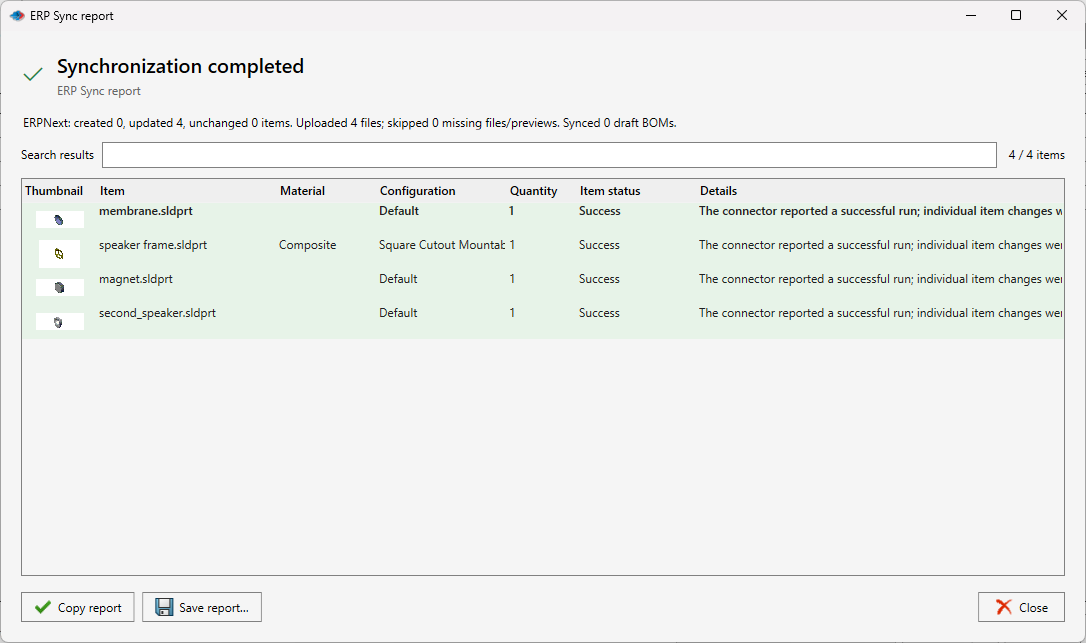
Each row reports one of these outcomes:
- Success: the Item completed successfully.
- No sync needed: ERPNext already contained the requested values and no change was required.
- Failure: the Item failed, was incomplete, or was not processed after the run stopped.
Successful runs that do not return individual Item outcomes mark the affected rows as Success and explain that the connector did not provide per-Item changes. Use the summary to review created, updated, unchanged, uploaded, skipped, and BOM counts. The search field filters the displayed rows; Copy report copies the complete text report and Save report... writes it to a file.
Request missing part numbers
Enable Request missing part numbers, choose a writable custom property as Item code column, and enter the ERPNext naming series. Empty values cause ERPNext to assign an Item code; confirmed numbers are written back to the matching model or cut-list rows.
The SOLIDWORKS documents are marked modified but are not saved automatically. Save them to retain the generated numbers. Existing numbers are not replaced. Grouped, aggregate, or phantom rows cannot receive generated numbers.
Upload previews and exported files
Uploads are private ERPNext attachments. Exported files must already exist with the same base filename as the source model, for example Bracket.SLDPRT and Bracket.step. Missing files and previews are skipped and counted. A file larger than 20 MB stops the operation before Item writes.
Repeated instances upload once per Item during a Push. Later Push operations can create additional File records; existing attachments are not removed.
Synchronize draft BOMs
BOM synchronization requires an Indented ERP Sync view with no grouping and a configured BOM company. Check each parent assembly and the direct children to include. A checked assembly with no checked children is skipped.
The connector creates or updates its own marked draft BOM for the source file, configuration, and company. Each successful synchronization replaces that draft's material list with the checked-child snapshot. It does not submit, activate, or set the BOM as default, and it does not modify submitted BOMs or unrelated drafts.
Handle failures safely
The connector stops on the first API error and does not automatically retry or roll back completed changes. If a request times out or a response cannot be confirmed, the write may still have reached ERPNext. Check the reported Item, attachment, or BOM in ERPNext before retrying.
When generated numbers were confirmed before a later failure, PDMPublisher returns them for local write-back. If local write-back fails, use the reported values for recovery rather than requesting replacements.