
The Conditions window decides which files a publish job touches. Every reference of an assembly is run through the tree you build here, and only the files that pass get exported. This article walks the window itself, row by row and dropdown by dropdown, as it appears when opened on a real assembly. For the strategy of filtering assembly references, and the recipes that go with it, read Conditional assembly processing; this page is the editor manual for the SOLIDWORKS add-in and the PDM Professional task.
What the window is for
A condition is a single test: a variable, a comparison and a value. The window arranges tests into groups, each group set to And or Or, starting from a root group. At publish time PDMPublisher evaluates the tree against every file being considered for export and skips the ones that do not pass. The skipped files show up in the results as Does not match profile conditions, which is the exact text the Publishing results window prints.
The tree is stored with the profile in the add-in and with the task in PDM Professional. An empty tree means no filtering; every resolved reference is processed. A tree with one row, such as FileName Text Equal To *.sldprt, is already enough to turn an assembly publish into a parts-only publish.
Why a dedicated editor matters
Assemblies carry files that should not leave the vault: purchased hardware, reference envelopes, fixtures, library parts, components still in work. Selecting them by hand before every export is slow and inconsistent. Writing the rule once, in a form that mirrors how engineers already think (released and not purchased, or in the weldment folder), makes the selection repeatable across users and computers.
The window is deliberately close to a PDM search card: the same state, revision and workflow values, the same data card variables, combined with AND/OR. A PDM administrator who has built a workflow condition will recognize every control.
The root row and group rows
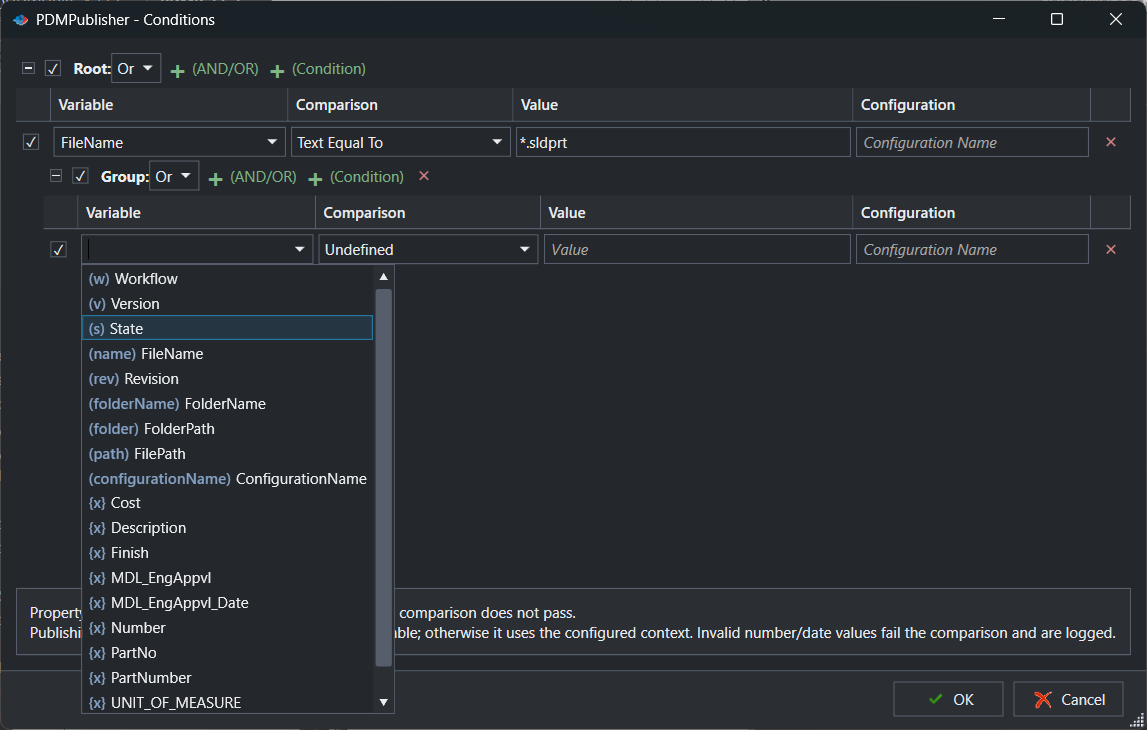
The first line reads Root: followed by a dropdown showing Or in the screenshot (And is the default for a new profile). To its left is a collapse toggle and an enable checkbox; to its right are two green links, + (AND/OR) and + (Condition). The first adds a nested group beneath the root, the second adds a condition row inside it.
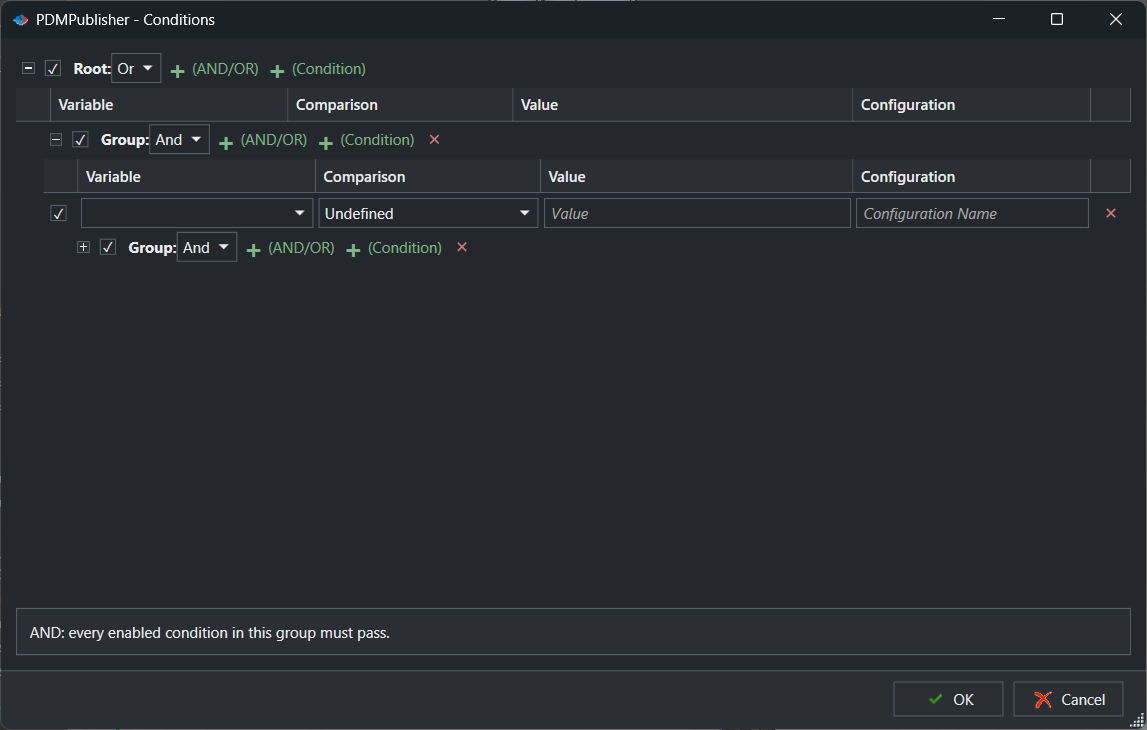
A nested group appears indented, labelled Group: with its own Or / And dropdown, its own enable checkbox, its own + (AND/OR) and + (Condition) links, and a red × that deletes the group with everything in it. Groups nest as deep as the rule needs, and each level shows a column header of its own: Variable, Comparison, Value, Configuration.
The enable checkbox is the fastest way to test a rule. Untick a row or a whole group and it is skipped during evaluation but stays in the profile; retick it to bring it back. Nothing is deleted until you press the ×.
| Control | What it does | Notes / default |
|---|---|---|
| Collapse toggle (−/+) | Shows or hides the children of the root or a group. | Display only. |
| Enable checkbox | Turns the root, a group or a single row on or off for evaluation. | New items are enabled. Disabled items stay in the profile. |
| Root: And / Or | Logic for the top-level group. And requires every child to pass; Or requires any child. | Default And. |
| + (AND/OR) | Adds a nested group under the root or the selected group. | Each group has its own And/Or. |
| + (Condition) | Adds a condition row to the root or the selected group. | Row starts with an empty Variable and Undefined comparison. |
| Group: And / Or | Logic for a nested group. | Independent of the parent. |
| × on a group | Deletes the group and all rows and subgroups inside it. | No undo; use the checkbox to disable instead. |
| × on a row | Deletes that condition row. | No confirmation. |
| OK / Cancel | Saves the tree to the profile or task, or closes without saving. | Bottom-right of the window. |
A condition row: Variable, Comparison, Value, Configuration
Every row has the same four cells. The screenshot’s first row reads FileName | Text Equal To | *.sldprt | Configuration Name (the placeholder text of an empty configuration cell). That single row passes every part and rejects every sub-assembly and drawing, because Text Equal To supports * as a wildcard and text comparisons are not case sensitive.
The second row, inside the nested group, is freshly added: an empty Variable dropdown, Undefined in the Comparison cell, the ghost text Value and Configuration Name. A row stays inert until a comparison is chosen, so an Undefined row is the first thing to look for when a rule never matches.
Configuration limits property evaluation to a named SOLIDWORKS configuration. Leave it empty and PDMPublisher reads the referenced configuration where one is available, otherwise the active or configured context. Fill it when a property genuinely differs between configurations, for example a Finish that is Painted in one configuration and Raw in another.
| Cell | What it holds | Notes / default |
|---|---|---|
| Variable | The built-in value, special variable, SOLIDWORKS custom property or PDM variable to test. | Dropdown; only values available in the current context are listed. |
| Comparison | The test to apply: text, number, date or yes/no family. | Default Undefined; row is not evaluated until set. |
| Value | The literal to compare against. | Free text; * wildcard in Text Equal To; not case sensitive for text. |
| Configuration | SOLIDWORKS configuration to read the property from. | Empty uses the referenced or active configuration where supported. |
The Variable dropdown
Opening the Variable cell shows a list in two visual groups. Built-in values come first, each prefixed with a short name in parentheses: (w) Workflow, (v) Version, (s) State, (name) FileName, (rev) Revision, (folderName) FolderName, (folder) FolderPath, (path) FilePath and (configurationName) ConfigurationName. Below them, marked {x}, are the properties found in the current context. In the screenshot, taken on a vaulted grill assembly, that list starts Cost, Description, Finish, MDL_EngAppvl, MDL_EngAppvl_Date, Number, PartNo, PartNumber, UNIT_OF_MEASURE and continues with the rest of the data card and custom-property names.
The list is context sensitive. In the add-in it is built from the active document and its resolved references, so a property that exists only on one component still appears; PDM values such as State and Revision appear when the add-in has a local vault view and the file is in the vault. In the task the list is built from the vault’s variables and the file values available to the task. A property missing from a given file evaluates as empty for that file.
| Variable | Meaning | Typical use |
|---|---|---|
| (w) Workflow | PDM workflow the file belongs to. | Workflow Text Equal To CAD Files |
| (v) Version | Current PDM version number. | Version Number greater than 1 |
| (s) State | Current PDM workflow state. | State Text Equal To Released |
| (name) FileName | Filename with extension. | FileName Text Equal To *.sldprt |
| (rev) Revision | Current PDM revision; empty when none. | Revision Text Length not 0 |
| (folderName) FolderName | Name of the containing folder. | FolderName Text Equal To Weldments |
| (folder) FolderPath | Full path of the containing folder. | FolderPath Text does not contain \Library\ |
| (path) FilePath | Full path of the file. | FilePath Text contains \Projects\Grill\ |
| (configurationName) ConfigurationName | Configuration being evaluated. | ConfigurationName Text Equal To Flat |
| {x} property or variable | SOLIDWORKS custom property (add-in) or PDM variable (task) from the context. | MDL_EngAppvl Yes/No is Yes |
The Comparison dropdown
The Comparison cell groups its tests by data type. Pick the family that matches the variable: a description or state is text, a cost or version is a number, an approval date is a date, a data card checkbox is yes/no. The footer of the window spells out the consequences: a property comparison that does not pass excludes the file, publishing reads the referenced configuration when it is available and otherwise the configured context, and invalid number or date values fail the comparison and are logged. That last point matters for properties such as Cost that sometimes hold text like TBD; the row fails for that file and the log says why.
| Comparison family | Use when | Example |
|---|---|---|
| Text Equal To / Not Equal To | The value must match or not match specific text. * is a wildcard in Text Equal To. | FileName Text Equal To *.sldprt |
| Text contains / does not contain | Only part of the text matters. | Description contains BRACKET |
| Text length | The length of the text matters, for example non-empty checks. | PartNumber length 8 |
| Number comparisons | The value is numeric. Non-numeric values fail and are logged. | Cost greater than 100 |
| Date comparisons | The value is a date. Invalid dates fail and are logged. | MDL_EngAppvl_Date after 2026-01-01 |
| Yes/No comparisons | The variable is a yes/no checkbox. | MDL_EngAppvl is Yes |
Worked examples. Root: Or with row
FileNameText Equal To*.sldprtand a nested Group: And holdingFileNameText Equal To*.sldasmplusFolderNameText Equal ToWeldmentsexports all parts plus only the sub-assemblies stored in a Weldments folder. Root: And withStateText Equal ToReleasedandUNIT_OF_MEASUREText Not Equal ToPURCHASEDexports released, made items only. Root: And withMDL_EngAppvlYes/No isYesandMDL_EngAppvl_Datedate after2026-01-01exports items approved this year.
Evaluation rules
- Conditions are checked before export, for each file being considered. In the add-in that is the active document plus its resolved references; in the task it is the files found through the BOM template.
- The root group is evaluated by its And/Or setting; each nested group by its own. A group’s result feeds its parent as a single pass or fail.
- Disabled rows and disabled groups are skipped entirely; they neither pass nor fail.
- A row with a Configuration reads the property from that configuration. Otherwise the referenced configuration is used where available, then the configured context.
- Text comparisons ignore case. Number and date comparisons require a parseable value; anything else fails the row and writes a log entry.
- A file is processed only when the tree allows it. Files that fail are reported as skipped with the reason Does not match profile conditions.
- With Ignore sub-assembly children when condition checks fail enabled in the Publish settings, a rejected sub-assembly’s children are not traversed. Leave it off when those children must still export on their own.
Conditions filter references; they do not filter the document you launched from. To filter the active assembly’s components, enable Export references to file formats individually on the profile or task; without it there are no references to gate.
The review dialog: conditions output before export
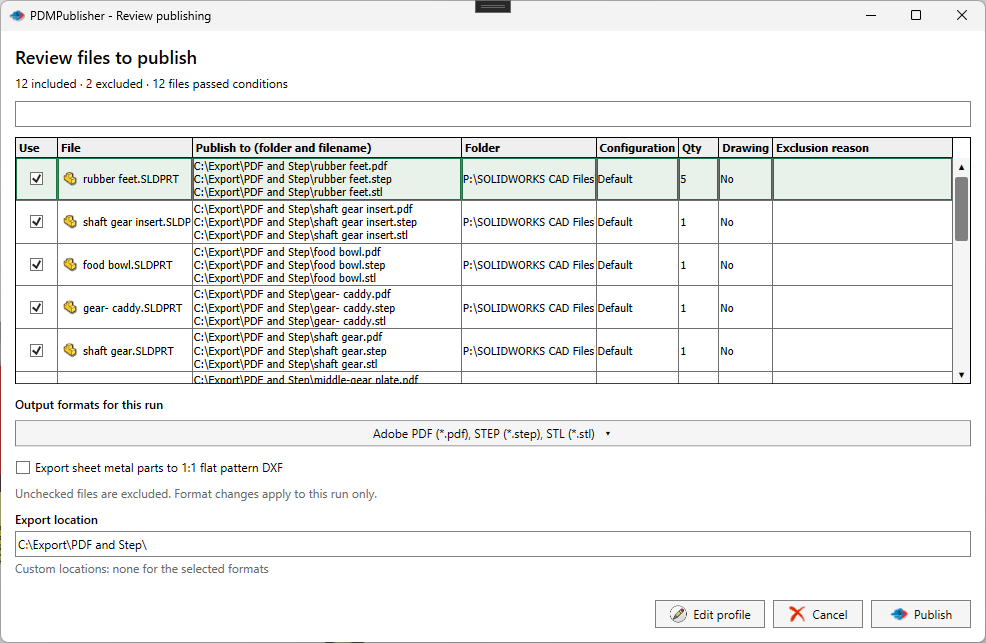
In the add-in, Show conditions output dialog is on by default. When the active document is an assembly, references are available and individual reference export is enabled, PDMPublisher evaluates the tree and shows the files that passed before writing anything. Each line shows the filename and source folder, the evaluated destination folder and filename for every selected format, the referenced configuration, the calculated quantity and whether a same-name drawing was found. Files that did not pass are listed with their exclusion reason, and a summary counts included, excluded and passed files.
The dialog is a per-run override, not an editor. The Use checkbox includes or excludes a file for this job only; Output formats for this run and Export sheet metal parts to 1:1 flat pattern DXF change the formats for this job only; Export location shows the evaluated base folder. Edit profile returns to the settings, Cancel stops before processing, and Publish starts the job with the current selection. Nothing you tick or untick here is written back to the condition tree.
Import and export the tree
Export… saves the tree as an .edmtdf file, preserving groups, And/Or behavior, variables, comparisons, values, configurations and enabled states. Import… loads one, and where it lands depends on what is selected: with nothing selected, the imported root replaces the current root; with a group selected, the imported root items are added as children of that group; with a row selected, the import stops. Clear the selection or pick a group first. Export the current tree or the whole profile before replacing a root you may want back. The .edmtdf format is retained for compatibility with existing exports and PDM task definitions; exchange new add-in setups as Publish profiles or settings bundles.
Set it up in the SOLIDWORKS add-in
- Open the assembly in SOLIDWORKS with its references resolved and locally cached (Get Latest on the assembly and references if it is in a vault).
- On the PDMPublisher tab open Settings and, on the profile’s Publish page, enable Export references to file formats individually. Leave Show conditions output dialog on.
- Select Conditions on the CommandManager; use the command arrow to open a specific Publish profile.
- Set Root: to And or Or. Select + (Condition) and fill Variable, Comparison and Value; add + (AND/OR) groups where part of the rule needs different logic.
- Fill Configuration only for configuration-specific properties. Use the enable checkboxes to switch rows off while testing.
- Select OK, then Publish with the same profile. Check the review dialog, then the Publishing results window, where skipped files carry the reason Does not match profile conditions. Use Edit profile to change….
Set it up in the PDM Professional task
- In the SOLIDWORKS PDM Administration tool open the PDMPublisher task under Tasks.
- On the Options page select a BOM Template with the required name, configuration and quantity columns, and enable Export references to file formats individually.
- Open the Conditions page. The same editor appears; the Variable list holds PDM variables plus Workflow, Version, State, FileName, Revision, FolderName, FolderPath, FilePath and ConfigurationName.
- Build the tree from the root down with + (AND/OR) and + (Condition), then click OK.
- Run the task on an assembly from the right-click Tasks menu, a workflow transition or a schedule, and confirm the skipped files in the task log.
Tips, limits and troubleshooting
- Everything is skipped. A Root: And containing one impossible row rejects every file. Disable rows one at a time with their checkboxes and rerun with the review dialog on.
- A row never matches. Confirm the Comparison is not Undefined, the wildcard is only used with Text Equal To, and the variable actually exists on the files in question; missing properties evaluate as empty.
- Number or date row fails unexpectedly. The property contains something unparseable for one file. Search the Detailed log for the filename; the invalid value is logged.
- {x} list is short or empty. The add-in lists properties from the active document and resolved references only. Open the assembly with references resolved; suppressed or lightweight components do not contribute.
- State, Revision or Workflow missing. The file is not in a vault the add-in can reach. Configure the vault under PDMPublisher > Settings > PDM.
- Review dialog does not appear. It requires an assembly, available references and individual reference export. A part or drawing publishes without it.
- Community Edition. Conditions are included in the free add-in; the 5-references-per-run limit applies to the files that pass. Premium and the task have no reference limit.
Availability
Available in PDMPublisher for SOLIDWORKS (the add-in) and PDMPublisher for PDM Professional (the task). The Conditions editor is shared by the SOLIDWORKS add-in and the PDM Professional task. The add-in evaluates values from the active document and its resolved references and stores the tree in the selected Publish profile; the task evaluates PDM variables and file values from the vault and stores the tree in the task definition.
Documentation and related features
- Publishing Conditions in the SOLIDWORKS add-in
- Add Conditions and Groups (task and add-in reference)
- Conditional assembly processing
- SOLIDWORKS assembly documents
- The Annotations editor explained
- Publishing results and logs
- SOLIDWORKS PDM integration
Frequently asked questions
What do (s), (name) and {x} mean in the PDMPublisher Conditions variable list?
Bracketed short names mark built-in values: (w) Workflow, (v) Version, (s) State, (name) FileName, (rev) Revision, (folderName) FolderName, (folder) FolderPath, (path) FilePath, (configurationName) ConfigurationName. {x} marks SOLIDWORKS custom properties or PDM variables found in the current context.
Why does my condition row say Undefined?
A new row has no comparison yet. Pick a Text, Number, Date or Yes/No comparison in the Comparison cell; until then the row is not evaluated.
Can I use wildcards in PDMPublisher conditions?
Yes. Text Equal To accepts * as a wildcard, for example FileName Text Equal To *.sldprt. Text comparisons are not case sensitive.
What happens when a number or date property contains text?
The comparison fails for that file and the reason is written to the log. The file is skipped if the rest of the tree does not let it pass.
Why are my assembly components not being filtered?
Conditions gate references, so Export references to file formats individually must be enabled. Without it only the launched document is processed.
Does unticking a file in the review dialog change my conditions?
No. The review dialog’s Use checkbox and format overrides apply to that run only; the saved condition tree and profile are unchanged.