
Every publish job ends in the Publishing results window, and every question that follows (“where did the PDF go?”, “why was this part skipped?”, “what failed?”) is answered there or in the log behind it.
In short
- The header counts Published, Failed, Skipped and Cancelled for the selected run; the Results tab lists every output with its Final destination.
- Select a skipped row and the reason is spelled out: Does not match profile conditions, no drawing beside the model, format not valid for this file type.
- Save the report and the session log (PDMPublisher > Logs > Save) before contacting support.
Reading the window
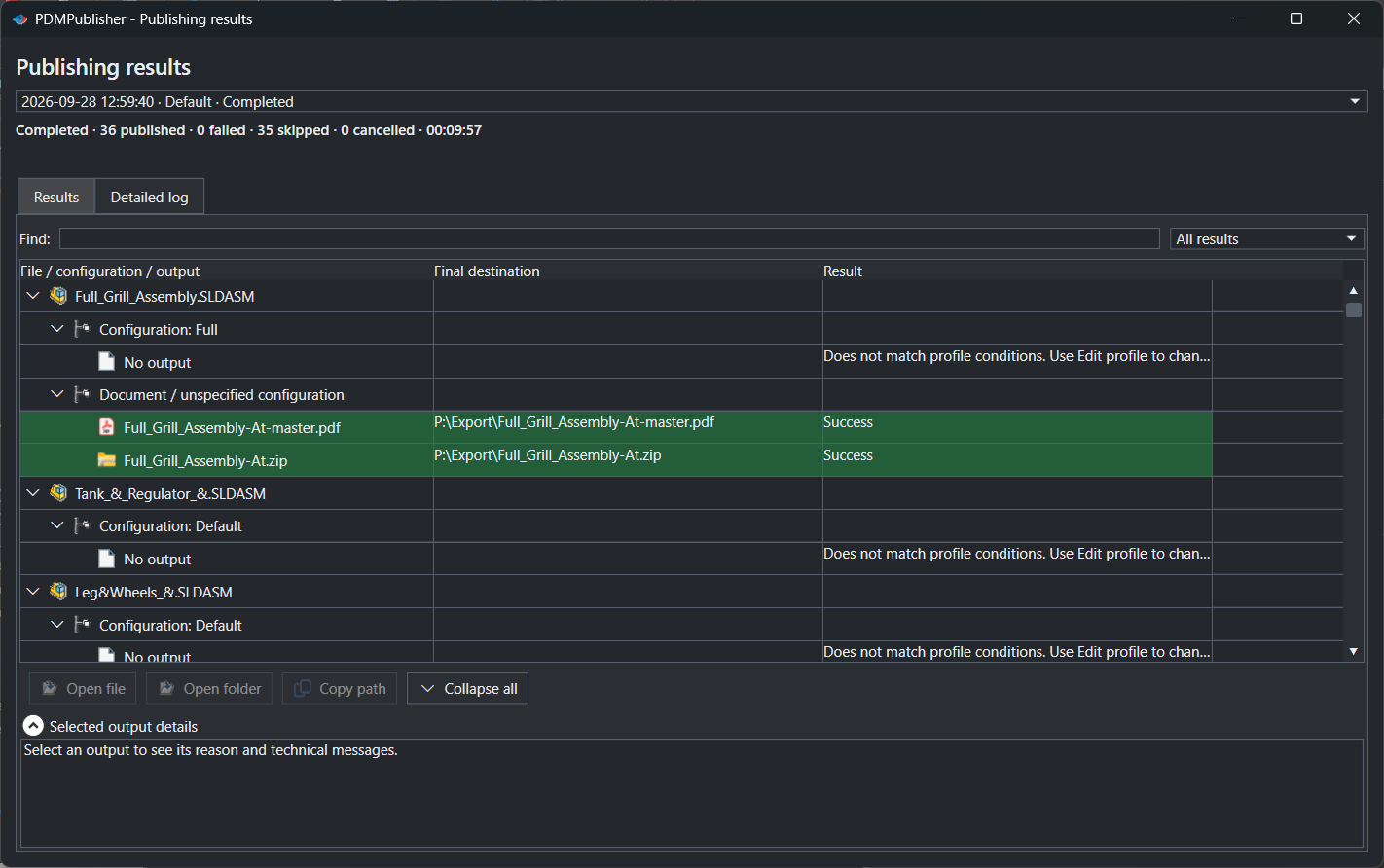
- Header: the run selector picks a run from this SOLIDWORKS session; the summary line gives the counts.
- Results tab: a tree of source files and their outputs, with columns for format, configuration, status and Final destination. Filters narrow it to failed or skipped rows.
- A skipped row: the Status column states the reason. Conditions, a missing same-name drawing and invalid formats are the usual three.
- The -At suffix: an output named
Bracket-At-Machined.pdfcame from a configuration or sheet selection; the suffix keeps variants apart when the filename pattern does not. - Detailed log tab and the Logs command: the full session history, filterable to errors, with Save and Clear for support requests. In the task, Vault Activity Logs and Task Details list every file checked in.
Settings that matter
| Setting | What to put | Why |
|---|---|---|
| Show dialog before processing | On while setting up a profile | The review dialog shows what will happen before it does. |
| Filter logs to errors | On when something failed | The Logs tab shows only what went wrong. |
| Vault Activity Logs (task) | On, in a vault folder the task host can write to | Task Details lists every file checked in, for audits and troubleshooting. |
| Open export location on completion | On | The folder opens with the outputs when the job ends. |
If something looks wrong
- Runs disappear when SOLIDWORKS closes: the list lives in memory for the session. Save what you need.
- The files are not where you expected: read Final destination; per-format locations and placeholders move outputs. In the task, the host needs add and edit permission in the export location.
- Skipped is high but nothing is wrong: a parts-only condition skips every assembly and drawing by design.
- A format vanished from the results: it does not apply to that file type, or the SOLIDWORKS version where the job ran does not support it.
Availability
Publishing results is shared by PDMPublisher for SOLIDWORKS and the PDM Professional task. The add-in shows the window after every run; the task writes the same information to its logs and the Task Details tab.
Keep going
Documentation
Frequently asked questions
What do published, failed, skipped and cancelled mean in PDMPublisher results?
They count outputs, not files. Published outputs were written to their final destination; failed outputs errored during export or post-processing; skipped items were excluded before export by conditions, a missing drawing, an unsupported format or the review dialog; cancelled items were not processed because the operator cancelled.
Why does PDMPublisher say Does not match profile conditions?
The configuration failed the profile’s condition tree, so no output was produced for it. Open PDMPublisher > Conditions on that profile to review the rules; this is the expected result for assembly configurations under a parts-only tree.
What does -At mean in a PDMPublisher output filename?
It is the (ConfigurationName) placeholder resolved for the PDM @ configuration. PDMPublisher writes @ as At because @ is not used in output names. -master marks the merged master PDF.
Where are PDMPublisher logs saved?
In the SOLIDWORKS add-in, logs are kept in memory for the session and saved to a .log or .txt file with Save… in PDMPublisher > Logs. In the PDM task, Vault Activity Logs are written to the vault folder set by Log Folder (Vault Only).
How do I see which files a PDMPublisher task created?
Open the task’s Task Details Log tab, which lists the outputs checked into PDM with timestamp, destination, version, source file and folder. Use Open Log File for the complete record, including outputs written outside the vault.
What should I send to PDMPublisher support after a failed job?
The session log saved with Save… immediately after the job (or the task log file from the vault), the profile or task name, the source filename and the expected output. A screenshot of the failing row with Selected output details expanded helps.