
Property Doctor
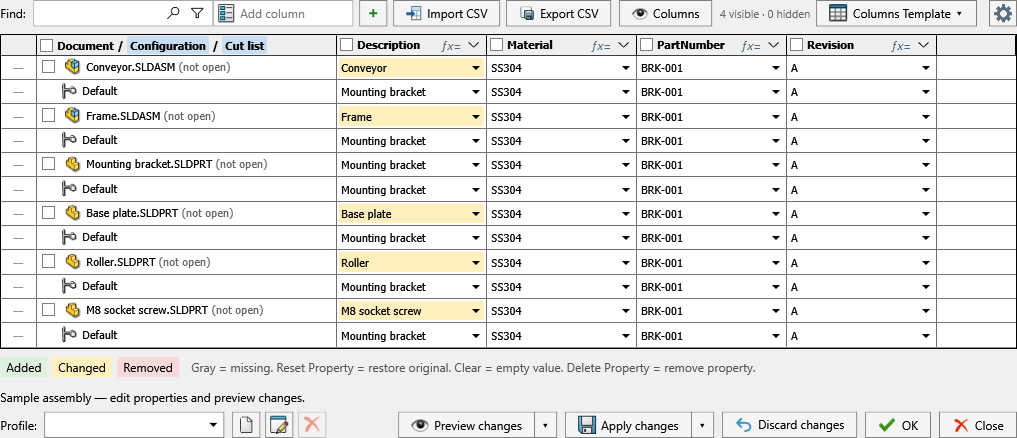
Property Doctor presents the active document, configurations, cut lists, drawings, and references in one editable property grid.
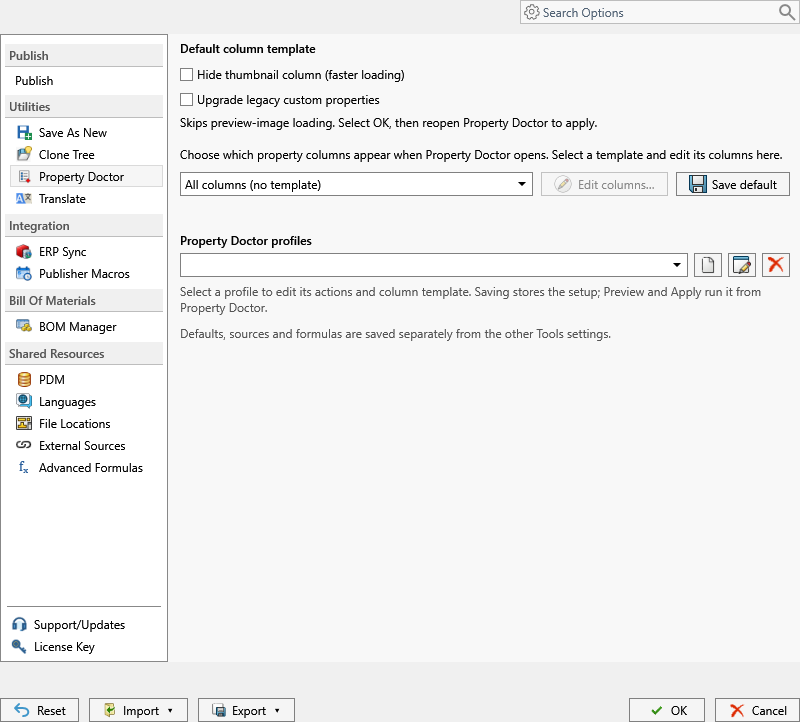
Open PDMPublisher > Settings > Property Doctor to configure the default columns, thumbnail loading, and reusable action profiles.
Edit Properties
- Open a saved part, assembly, or drawing.
- Select PDMPublisher > Property Doctor.
- Add or show the property columns you need.
- Edit values directly, use a value menu, or open an advanced formula.
- Review the Added, Changed, and Removed indicators.
- Select Apply changes to write the pending changes, or Discard changes to restore the original values.
Gray cells are missing properties. Clear keeps the property name and writes an empty value; Delete Property removes the property. Formula and linked-value cells are evaluated for the document row where they are applied.
Find, Filter, and Fill
- Search document names, configurations, property names, and values.
- Open Find and Replace for plain-text, case-sensitive, or regular-expression replacements.
- Filter parts, assemblies, drawings, custom properties, configuration properties, cut lists, and empty values.
- Drag the green cell handle vertically to fill rows or horizontally to copy into visible columns.
- Use Columns to show, hide, add, and organize property columns.
- Import an exported Property Doctor CSV, review the pending values, then apply them.
Document Commands
The document menu can load a document in SOLIDWORKS, reopen references for editing, resolve lightweight references, check files in or out, get latest, select the item, zoom to it, or isolate it. Availability depends on document state and PDM access.
Profiles and Column Templates
A Property Doctor profile is an ordered set of property actions. An action can set a value, delete properties, reset property values, or set a part material from a property for selected scopes and conditions. Preview a profile to inspect its changes in the grid before selecting Apply.
Column templates control which properties appear. In Settings > Property Doctor, choose the default template, edit its columns, manage profiles, or hide thumbnails for faster loading.
Actions run from top to bottom. Later matching actions can replace values produced by earlier actions. Saving a profile stores the automation; it does not change any document until the profile is previewed and applied.
Set Material from a Property
Use the Set material from property action to assign a SOLIDWORKS material to part configurations from a property value.
- Select the source property and the part-configuration scopes that the action should process.
- Select one or more SOLIDWORKS material libraries (
.sldmat) to search. - Add mappings when the property value is a material code or does not exactly match a material name. A mapping pattern can contain
*as a wildcard. - Preview the profile and review each proposed material change before selecting Apply.
Material mappings can be imported from or exported to a two-column CSV with Pattern and Material headings. Property Doctor skips empty, linked, unresolved, or ambiguous values and shows the reason in the preview. This action supports part configurations; it does not assign materials to cut-list bodies.
Shared Resources
Property Doctor can use named Advanced Formulas, SQL Server external sources, and drawing search folders configured under Shared Resources in Settings. Complete settings transfer includes these definitions but never includes SQL credentials.