
Settings
Open PDMPublisher > Settings to configure the SOLIDWORKS add-in. Search Options finds settings by page name, label, and related keyword.
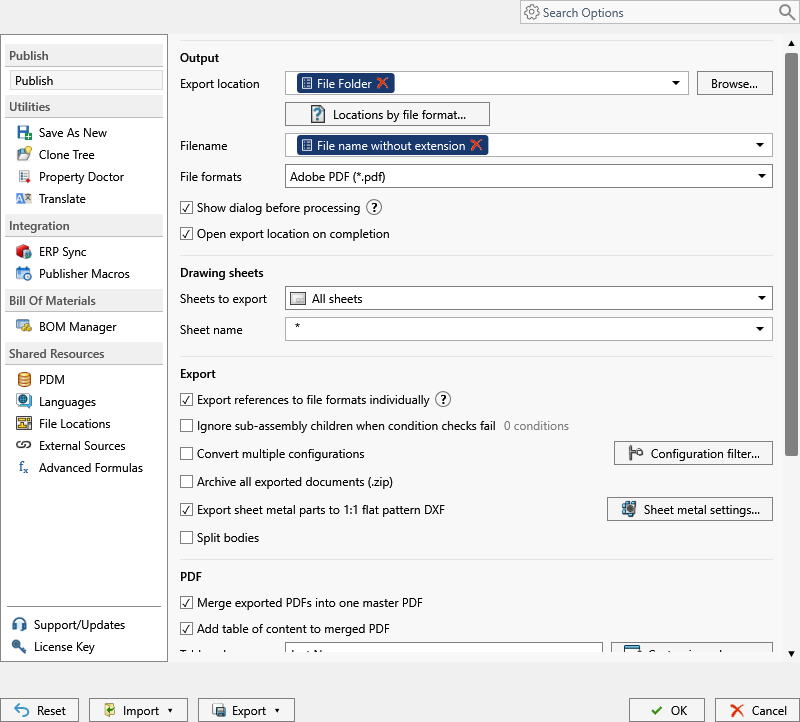
The left navigation divides the dialog into Publishing, Utilities, Integration, Bill Of Materials, Shared Resources, and product-information pages. Search Options finds a control by its label or a related keyword without requiring the user to know which page contains it.
Settings Pages
| Category | Page | What it controls |
|---|---|---|
| Utilities | Save As New | Filename and destination templates, PDM serial numbers, associated drawings, bounding-box properties, macros, and command profiles. |
| Utilities | Clone Tree | Clone profiles, PDM serial-number source, latest-revision behavior, companion files, ZIP output, and optional Property Doctor processing. |
| Utilities | Property Doctor | Default columns, thumbnail loading, and property-action profiles. |
| Utilities | Translate | Planned translation workflow; not available yet. |
| Integration | ERP Sync | Planned ERP synchronization integration; not available yet. |
| Integration | Publisher Macros | Planned publishing scheduler; not available yet. |
| Bill Of Materials | BOM Manager | Default BOM columns, display type, grouping expression, and component exclusions. |
| Shared Resources | PDM | The vault used by PDM-aware utility settings. |
| Shared Resources | Languages | The PDMPublisher interface language. |
| Shared Resources | File Locations | Additional drawing folders, optional subfolders, and SOLIDWORKS Referenced Documents folders. |
| Shared Resources | External Sources | Reusable SQL Server sources used by supported property and formula menus. |
| Shared Resources | Advanced Formulas | Named formulas shared by filenames, folders, and properties. |
| Publishing | Publish | Publish profiles, output, formats, references, drawing sheets, PDFs, and manufacturing output. |
| Support | About | Support, documentation, product, and legal links. |
| Product information | License Key | SOLIDWORKS add-in activation, deactivation, and Community Edition status. |
Select OK to save changes. Cancel closes the dialog without saving the current edits. Reset restores defaults for the selected page; select OK to keep the reset values.
Utility Settings
Save As New
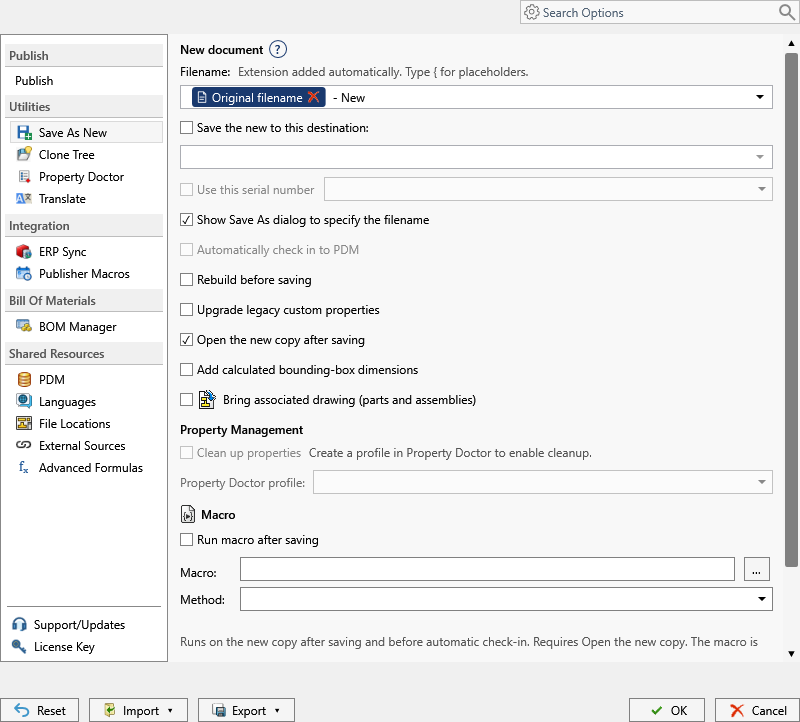
The page controls filename placeholders, an optional destination, PDM serial numbers, whether to show the SOLIDWORKS Save As dialog, automatic check-in, rebuild behavior, opening the new copy, calculated bounding-box properties, associated drawings, Property Doctor cleanup, post-save macros, and reusable profiles. Options that depend on another checkbox remain disabled until their parent option is enabled.
Clone Tree
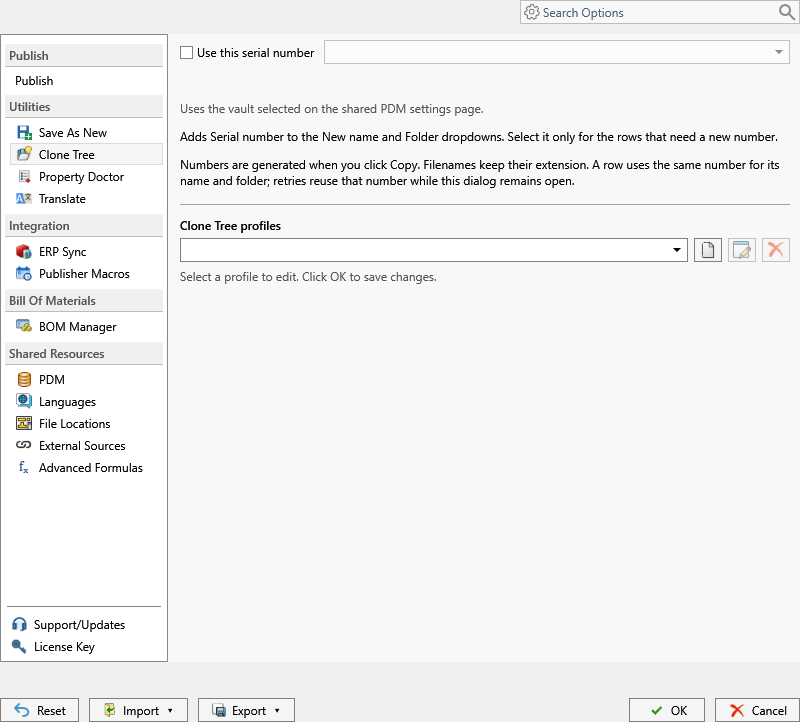
Use this serial number selects the PDM serial-number definition used by rows that request a new number. The profile selector chooses the settings edited by the command. The buttons beside it create, rename/edit, and delete profiles. Serial numbers are generated when Copy is selected in the workflow, and retries reuse the same number while the dialog remains open.
Property Doctor
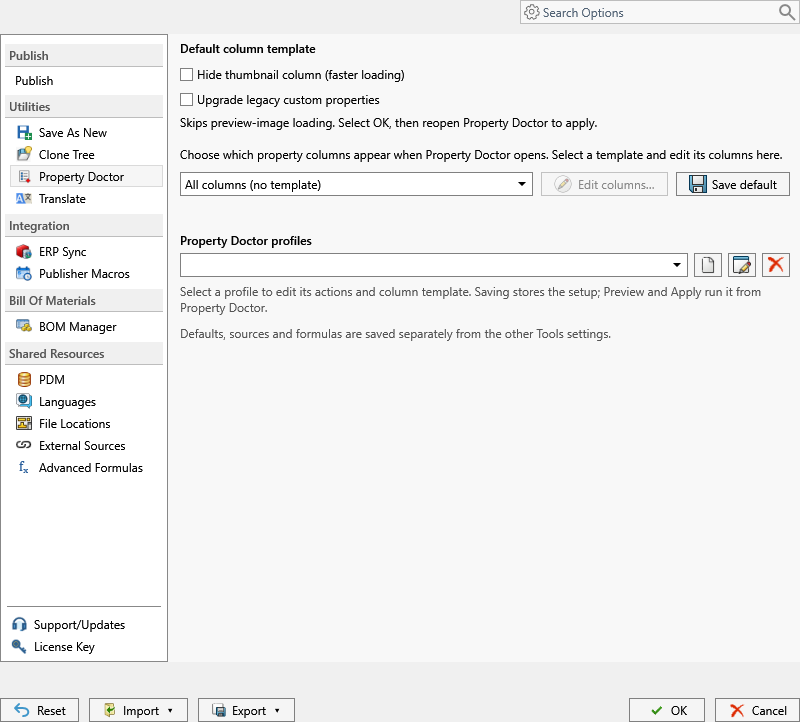
Hide thumbnail column improves loading performance. The column-template selector determines which properties appear when Property Doctor opens. Edit columns changes that template and Save default stores it as the default. The profile selector and adjacent buttons select, create, edit, or delete Property Doctor action profiles.
Shared Resources
PDM
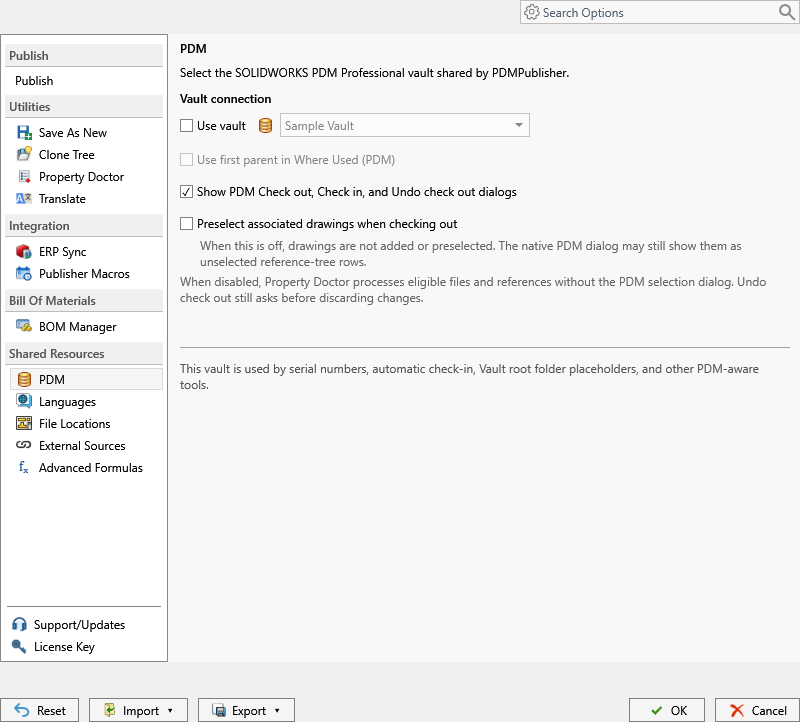
Enable Use vault and select the local SOLIDWORKS PDM Professional vault shared by serial numbers, automatic check-in, Vault root folder placeholders, and other PDM-aware tools.
Languages
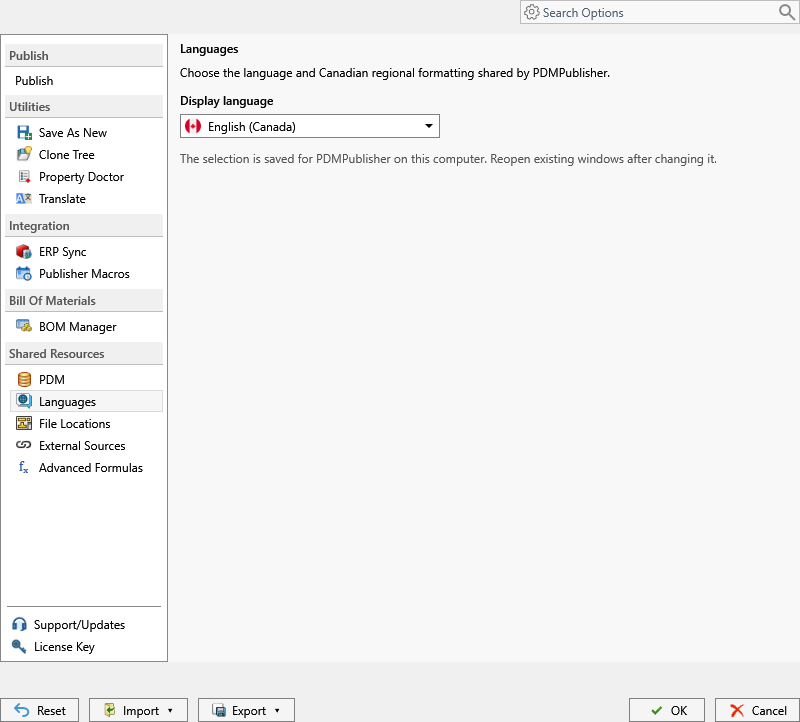
Select the display language and regional formatting used by PDMPublisher on this computer. Reopen existing PDMPublisher windows after changing it.
File Locations
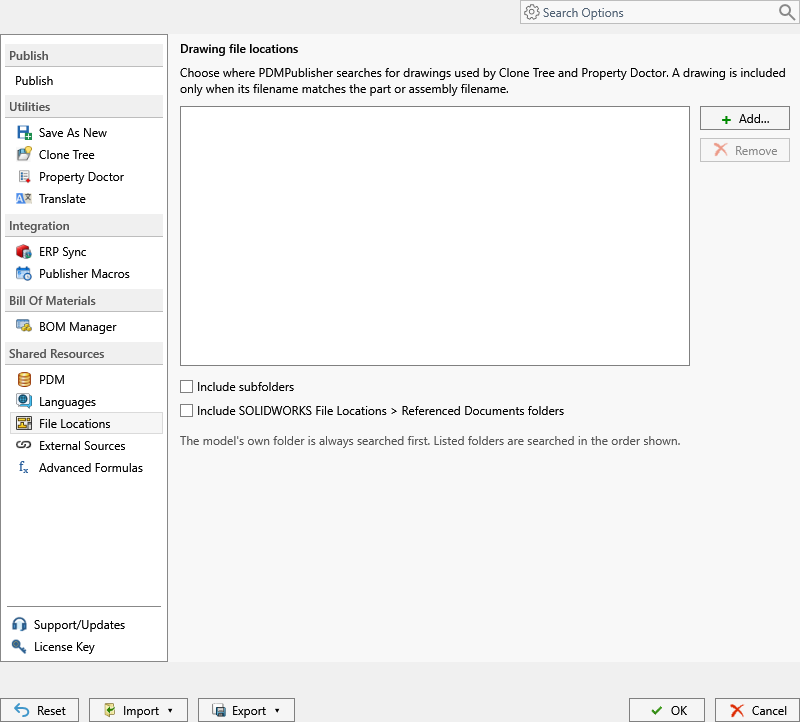
Use Add and Remove to maintain additional drawing search folders. Include subfolders searches below every listed folder. Include SOLIDWORKS File Locations > Referenced Documents folders also searches the folders configured in SOLIDWORKS. The active model's folder is always searched first, followed by the listed folders in order.
External Sources
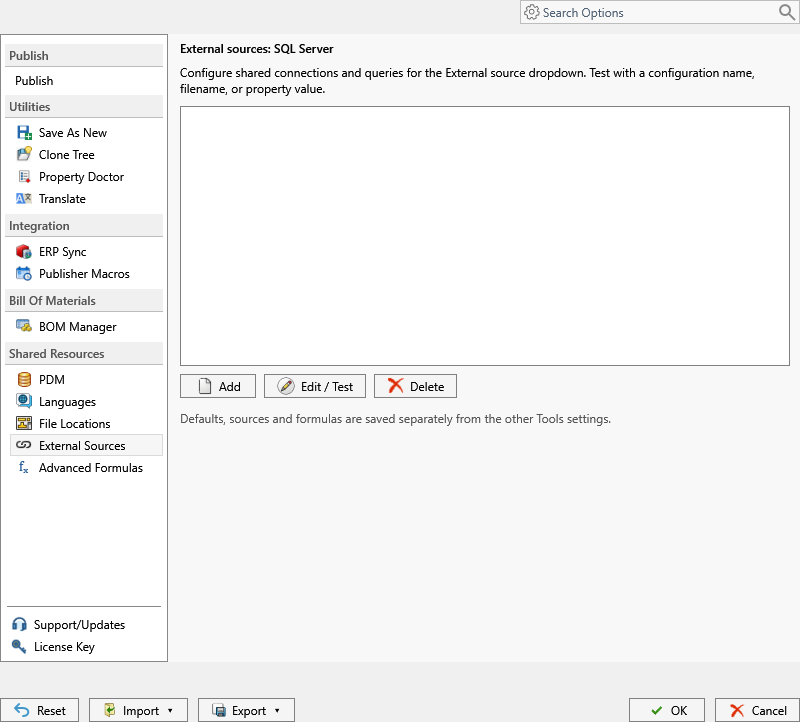
External sources are reusable SQL Server connections and queries. Add creates a source, Edit / Test changes it and validates the query using a configuration name, filename, or property value, and Delete removes the selected definition. Credentials remain local and are not included in exported settings.
Advanced Formulas
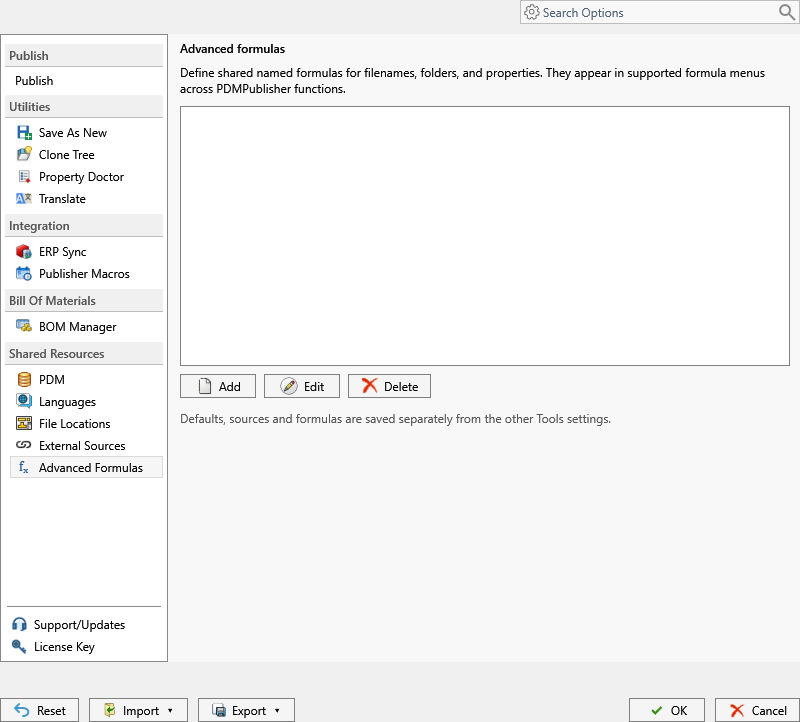
Advanced formulas are named expressions shared by supported filename, folder, and property menus. Add creates a formula, Edit changes the selected formula, and Delete removes it. Formula names should describe their result so they remain understandable when inserted from another workflow.
Dialog Commands
| Command | Behavior |
|---|---|
| Reset | Restores defaults for the selected settings page. The reset is saved only after selecting OK. |
| Import | Imports all settings from a file or a six-digit sharing PIN. |
| Export | Exports all settings to a file or uploads them and returns a sharing PIN. |
| OK | Validates and saves the current changes. |
| Cancel | Closes the dialog without saving edits made since it opened. |
Transfer All Settings
The Import and Export menus at the bottom transfer a complete PDMPublisher configuration.
- Export all settings to File... creates a complete settings bundle.
- Share complete settings using PIN... uploads the bundle and returns a six-digit PIN.
- Import all settings from File... validates and applies a bundle from disk.
- Import complete settings using PIN... downloads, validates, and applies a shared bundle.
A complete bundle contains utility settings, Save As New profiles, Property Doctor profiles, Clone Tree profiles, shared formulas and sources, and complete Publish profiles.
Planned pages that contain no configurable controls, such as ERP Sync, Publisher Macros, and Translate, do not add active behavior to an exported bundle.
Important
SQL Server connection secrets are not exported or uploaded. After an import, re-enter credentials for external sources that do not already have matching local credentials.
Before replacing settings, PDMPublisher validates every section and creates a timestamped local backup. If writing a section fails, it attempts to restore the previous settings.
For transferring only one Publish profile, use Profiles instead of a complete settings bundle.
For the complete procedure and conflict behavior, see Import, Export, and Reset Settings.