
License Management
This page applies only to PDMPublisher for SOLIDWORKS. PDM Task license administration belongs to the separate PDMPublisher for PDM Professional documentation.
Open PDMPublisher > License Key, or open PDMPublisher > Settings > License Key.
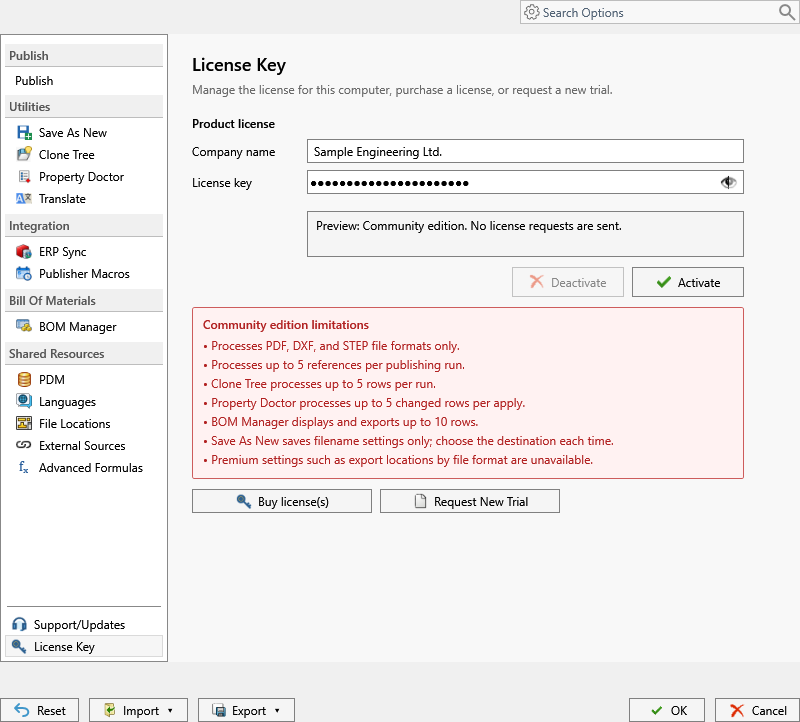
| Control | What it does |
|---|---|
| Company name | Identifies the company associated with the license. Enter it exactly as supplied. |
| License key | Accepts the key supplied with the order. |
| Eye button | Temporarily shows or hides the entered key. |
| Activate | Activates the key on this computer. |
| Deactivate | Releases the active license so it can be moved to another computer. |
| Buy license(s) | Opens the PDMPublisher for SOLIDWORKS purchase page. |
Activate a license
- Enter the supplied Company name and License key.
- Select Activate.
- Confirm that the status area reports an active license.
Deactivate the license before replacing the computer or making a system change that can change its machine identity.
Without a paid license, PDMPublisher for SOLIDWORKS runs as the Community Edition. The application displays the current Community Edition limits in the publish review window. The 7-day trial advertised elsewhere in this help site is for the separate PDM Professional Task version, not the SOLIDWORKS add-in.