
License Information
PDMPublisher for SOLIDWORKS
Open PDMPublisher > License Key, or open PDMPublisher > Settings > License Key.
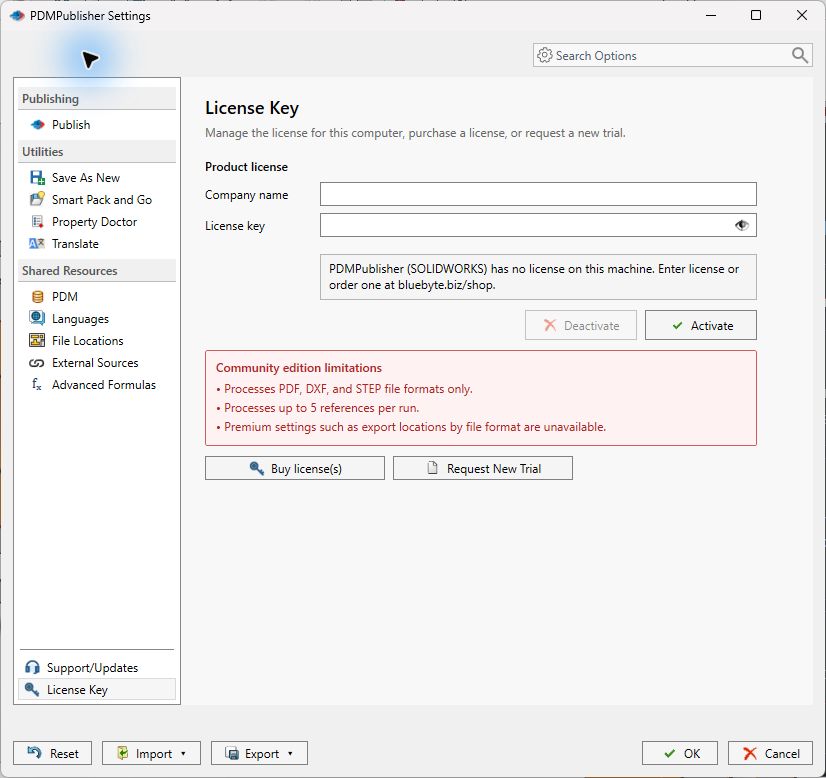
| Control | What it does |
|---|---|
| Company name | Identifies the company associated with the license. |
| License key | Accepts the key supplied with the order or trial. |
| Eye button | Temporarily shows or hides the entered license key. |
| Activate | Activates the entered license on this computer. |
| Deactivate | Releases an active license from this computer. It is unavailable until a license is active. |
| Buy license(s) | Opens the PDMPublisher purchase page. |
| Request New Trial | Opens the trial-license request page. |
Activate a SOLIDWORKS License
- Enter the Company name exactly as supplied with the license.
- Paste the License key.
- Select Activate.
- Confirm that the status area reports an active license.
Select Deactivate before moving a license to another computer, replacing the computer, or making a system change that could affect the machine identity.
License expiry instants are stored and compared in UTC so regional date formats and time zones do not change license validity. The interface displays the expiry date in the current user's local time.
Community Edition
Without an activated paid or trial license, the page identifies the Community Edition limits:
- PDF, DXF, and STEP output only.
- Up to five references per run.
- Premium settings, including export locations by file format, are unavailable.
Use Request New Trial to evaluate the premium features, or see Get a 7-day Trial.
PDMPublisher for PDM Professional
Managing a License
Your license is made of a secret key that was provided to you in the order email.
Your license entitles you to use PDM Publisher:
- For a specified duration.
- A number of domains (number of vaults where you can install the add-in).
To manage your license:
- Log into your vault from the PDM Administration tool.
- Right-click the add-in from the Add-ins node and select Manage license...

Activating a PDM Professional License
To activate a license:
- Enter your license key and click Activate to consume the license from the previous step.
Deactivating a PDM Professional License
To deactivate a license:
- Click Deactivate in the license manager to stop using the license on the logged-in vault.
Reactivate a PDM Professional License
To reactivate the license, please follow these instructions:
- Open the PDM Administration tool.
- Expand the Add-in nodes and right-click on PDMPublisher.
- Click Manage license…
- Enter your license key. If you are reactivating the same license key after expiry, you don't need to re-enter the license key.
- Click Activate.
- Your new expiry date should appear.
The PDM Task also compares the saved expiry instant in UTC and displays it in local time. Task activation is associated with the vault name.