
Import, Export, and Reset Settings
Use the commands at the bottom of PDMPublisher > Settings to transfer or restore the complete add-in configuration.
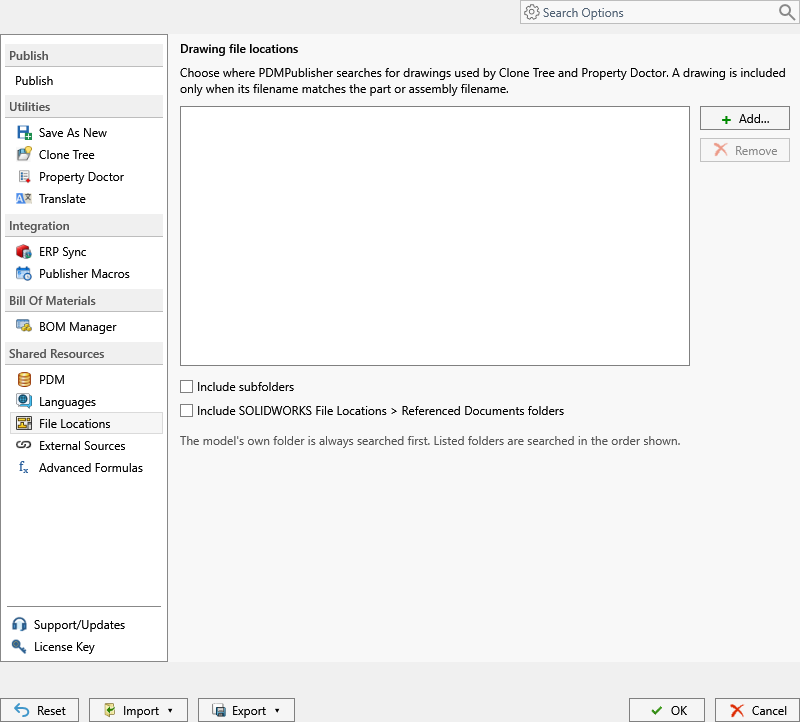
| Command | Scope |
|---|---|
| Reset | Restores defaults for the currently selected settings page. Select OK to keep the reset. |
| Export all settings to File... | Writes a complete configuration bundle for backup or offline transfer. |
| Share complete settings using PIN... | Uploads a complete bundle and returns a six-digit PIN. |
| Import all settings from File... | Validates and applies a bundle from disk. |
| Import complete settings using PIN... | Downloads, validates, and applies a PIN-shared bundle. |
Recommended Transfer Workflow
- On the source computer, export all settings to a file and keep it as a recovery copy.
- Export to a file or create a PIN for the intended recipient.
- On the destination computer, import the file or enter the PIN.
- Review vault selection, external-source credentials, local file locations, and output paths.
- Open each important profile and run a controlled test document.
The complete bundle includes utility profiles, Publish profiles, annotations, conditions, formulas, file locations, and external-source definitions. SQL Server secrets are excluded. Local paths and vault names may not exist on another computer.
PDMPublisher validates the imported sections and creates a timestamped local backup before replacing settings. If applying a section fails, it attempts to restore the previous configuration.
Warning
Anyone with an active PIN can retrieve its configuration until the PIN expires. Do not use profile or settings sharing for passwords or confidential query text.
To move only one Publish profile, use Publish Profiles.