
Company Settings
Company Settings lets an administrator publish selected PDMPublisher for SOLIDWORKS settings once and make them available to every licensed user whose activated license has the same company name. Users do not need a website account or the administrator password to download the settings.
Open PDMPublisher > Settings > Company Settings.
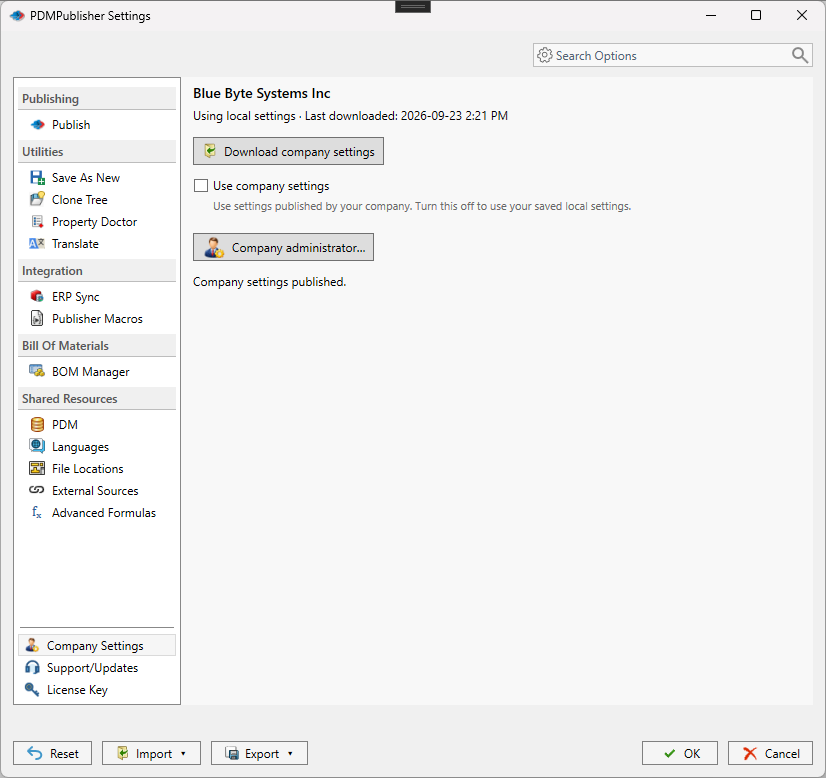
Company Settings requires an activated license that includes your company name.
Use company settings
The page shows whether this computer is using local or company settings and when it last downloaded the company configuration.
- Select Download company settings to get the latest settings published by your company administrator. Save your current work first.
- When the administrator chooses Let users choose, select Use company settings to apply the managed values. Clear it to return to the locally saved values.
- When the administrator chooses Required, the checkbox is locked. Managed pages show a padlock and are read-only.
Publish settings as the company administrator
Select Company administrator, enter your company administrator password, and select Unlock.
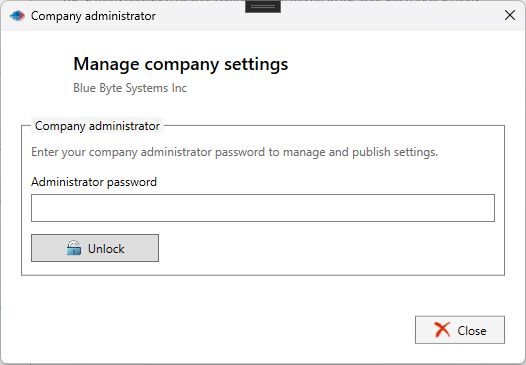
After the password is verified:
- Choose how the published settings apply:
- Off — every user keeps local settings.
- Let users choose — users can enable or disable Use company settings.
- Required — the selected settings are enforced and their pages become read-only.
- Select the setting groups to publish. Available groups include Advanced Formulas, BOM Manager, Clone Tree, ERP Sync, Languages, PDM, Property Doctor, Publish, and Save As New.
- Save any edits in the normal Settings dialog.
- Return to Company Settings and select Publish company settings.
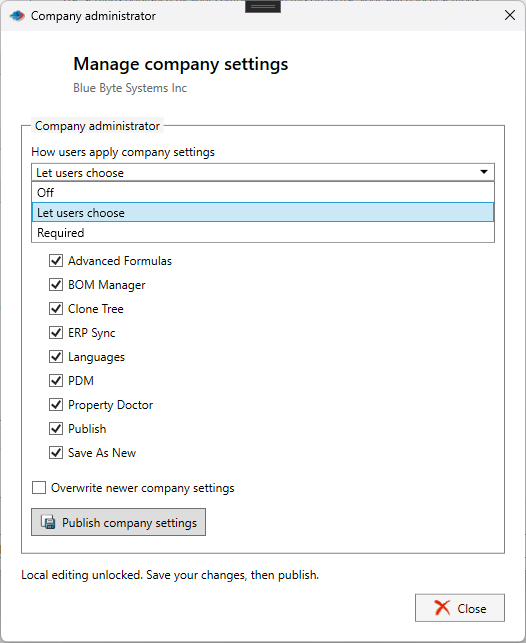
Only the selected groups are shared. Unselected groups continue to use each user's local settings.
Edit an existing company configuration
Select Company administrator and unlock the settings. Make and save your changes, return to Company Settings, and select Publish company settings. If you close the editing session without publishing, the changes remain only on your computer.
Revision conflicts and overwrite
If PDMPublisher reports that newer company settings are available, download them before publishing again.
Use Overwrite newer company settings only when you intentionally want your settings to replace the newer company settings. Review the confirmation carefully before continuing.