
Publisher Macros
Publisher Macros is available in PDMPublisher for SOLIDWORKS. It provides an editable VBA example that calls PDMPublisher commands through the loaded SOLIDWORKS add-in.

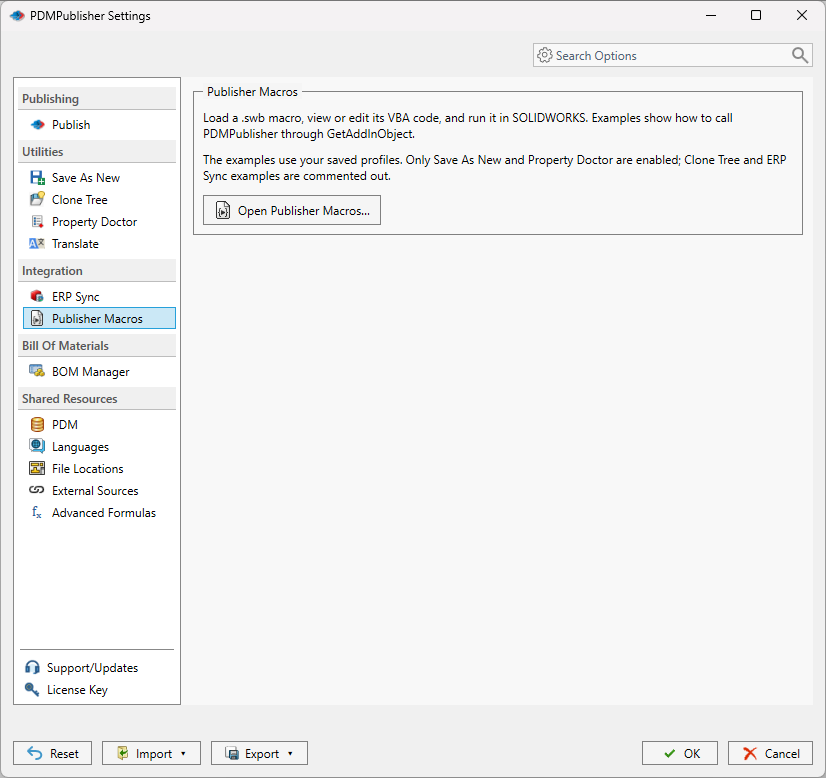
Open PDMPublisher > Publisher Macros from the CommandManager or Tools > PDMPublisher > Publisher Macros. You can also open it from PDMPublisher > Settings > Publisher Macros.
Important
Load PDMPublisher (SOLIDWORKS) under Tools > Add-Ins before running a macro. Publisher Macros is different from Run macro after saving in Save As New.
Edit and run a macro
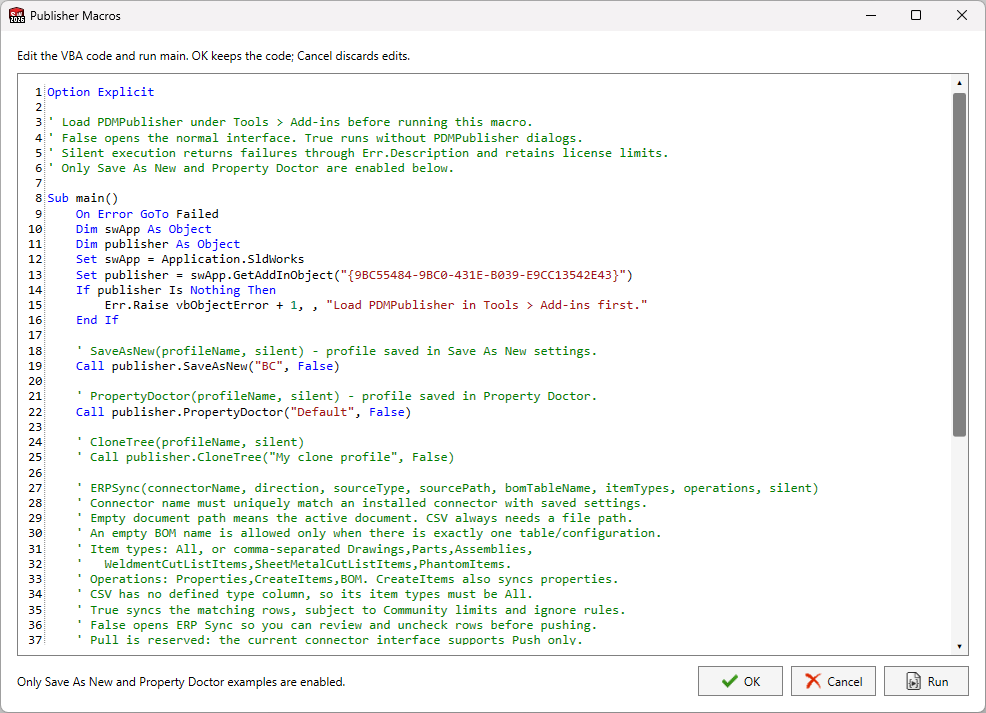
The editor includes a complete Sub main() example with syntax highlighting and line numbers.
- Save the profiles and connector settings that the macro will use.
- Open Publisher Macros.
- Replace the example profile or connector names with names available on this computer.
- Uncomment only the commands that you intend to execute.
- Select Run to execute the displayed code through SOLIDWORKS.
- Review any PDMPublisher window, result, or error opened by the macro.
- Select OK to retain the edited code for the next session, or Cancel to discard the edits.
Run requires a Sub main() entry point. Cancel does not undo operations that were already executed by Run. On first use, the example selects available Save As New and Property Doctor profiles when possible. Later sessions restore the code most recently retained with OK.
Connect to PDMPublisher from VBA
Publisher Macros uses late binding, so the macro does not require a PDMPublisher VBA reference:
Dim publisher As Object
Set publisher = Application.SldWorks.GetAddInObject( _
    "{9BC55484-9BC0-431E-B039-E9CC13542E43}")

If publisher Is Nothing Then
    Err.Raise vbObjectError + 1, , _
        "Load PDMPublisher in Tools > Add-ins first."
End If
The following automation calls are available:
publisher.SaveAsNew profileName, silent
publisher.PropertyDoctor profileName, silent
publisher.CloneTree profileName, silent
publisher.ERPSync connectorName, direction, sourceType, sourcePath, _
    bomTableName, itemTypes, operations, silent
Profile names are case-insensitive. A blank, missing, or ambiguous profile name fails. Calls without arguments retain their interactive behavior. The older SaveAsNewWithProfile, CloneTreeWithProfile, and PropertyDoctorWithProfile methods remain supported.
Interactive and silent execution
silent value |
Behavior |
|---|---|
False |
Opens the normal PDMPublisher interface with the requested profile or options. Save As New displays its destination dialog, and ERP Sync lets you review and uncheck rows before Push. |
True |
Runs without PDMPublisher progress, review, or result dialogs and waits for completion. Errors are returned to the VBA error handler. |
Community Edition limits continue to apply. Completed changes are not rolled back if a later step fails. Property Doctor changes documents as its normal Apply operation does; save those documents afterward.
Silent Save As New requires Premium, does not overwrite existing files, and rejects prompt placeholders, after-save macros, and automatic PDM check-in. Its saved profile must contain enough destination information to run without a prompt.
Basic command examples
' False opens the command with the named profile.
Call publisher.SaveAsNew("BC", False)
Call publisher.PropertyDoctor("Default", False)

' Uncomment after saving a matching Clone Tree profile.
' Call publisher.CloneTree("My clone profile", False)
Automate ERP Sync
Call publisher.ERPSync( _
    "ERPNext", _
    "Push", _
    "FeatureTree", _
    "", _
    "", _
    "Parts,Assemblies", _
    "Properties,CreateItems,BOM", _
    False)
| Parameter | Supported value |
|---|---|
connectorName |
A unique installed connector name with saved connection settings. |
direction |
Push or Pull. Pull requires a connector with preview support and must run interactively (silent = False). |
sourceType |
FeatureTree, AssemblyBOM, DrawingBOM, or CSV. Values are case-insensitive. |
sourcePath |
A native document path, or blank to use the active document. CSV always requires a file path and does not require an open SOLIDWORKS document. |
bomTableName |
A BOM feature name, full displayed table/configuration label, or stable table ID. It can be blank only when exactly one table/configuration is available. |
itemTypes |
All, or a comma-separated list of Drawings, Parts, Assemblies, WeldmentCutListItems, SheetMetalCutListItems, and PhantomItems. CSV requires All. |
operations |
A comma-separated list of Properties, CreateItems, and BOM. CreateItems also synchronizes properties; BOM requires a source with valid hierarchy. |
silent |
Use False. Current ERP Push and Pull require review; True stops before connecting and returns an error. |
ERP Push and Pull cannot run silently because PDMPublisher requires the user to review the diff before any remote or SOLIDWORKS change.
For native documents, files opened by automation remain available in SOLIDWORKS. ERP-generated part numbers can leave documents modified and requiring a save. Silent execution uses the named connector without changing the global connector selection.
For complete ERP behavior, see ERP Sync.
Handle errors safely
Use a VBA error handler because authentication, profile validation, license limits, document state, and external integrations can stop an operation:
Sub main()
    On Error GoTo Failed
    ' Obtain the publisher object and run one or more commands here.
    Exit Sub

Failed:
    MsgBox Err.Description, vbExclamation, "PDMPublisher"
End Sub
Test automation on non-production documents first. Third-party and PDM integrations can require their own login or permissions.