
PDMPublisher for SOLIDWORKS
PDMPublisher for SOLIDWORKS is an interactive SOLIDWORKS add-in for publishing deliverables, creating controlled document copies, editing properties, and packaging complete document sets. It runs inside SOLIDWORKS and can use SOLIDWORKS PDM Professional information when a vault view is available.
Important
This documentation describes the SOLIDWORKS add-in, not the PDMPublisher task configured in the SOLIDWORKS PDM Administration tool.
See PDM Task vs SOLIDWORKS Add-in for a side-by-side comparison and links to the settings shared by both products.
Current Interface
PDMPublisher commands are located on the PDMPublisher tab in the SOLIDWORKS CommandManager and under Tools > PDMPublisher. The task pane is now a documentation browser and no longer contains the publishing controls.

The CommandManager is organized into three groups:
| Group | Commands | Purpose |
|---|---|---|
| Document tools | Save As New, Property Doctor, Translate, Clone Tree | Create copies, manage properties, and package document sets. Translate is reserved for a future release. |
| Bill of materials | BOM Manager | Configure BOM columns, structure, grouping, and component exclusions. |
| Integrations | ERP Sync, Publisher Macros | Synchronize ERP data and run editable VBA automation examples for PDMPublisher commands. |
| Publishing | Publish, Annotations, Conditions, Logs | Configure and run exports, control annotations and processing rules, and review results. |
| Settings and updates | Settings, License Key, update status, version information | Configure the add-in, transfer settings, manage licensing, and check the installed version. |
See PDMPublisher Commands for command availability, profile drop-downs, and assembly context-menu commands.
Start a Workflow
- Open or activate a saved part, assembly, or drawing in SOLIDWORKS.
- Open the PDMPublisher CommandManager tab.
- Select a command to use its default settings, or select the arrow below a supported command to choose a saved profile.
- Review the command window or preview before writing files or document properties.
- Complete the operation and review any reported warnings or errors.
Save As New, Property Doctor, Clone Tree, and Publish support reusable profiles. A component selected in an assembly also has PDMPublisher commands on its right-click menu.
Save As New
Save As New creates a separate native SOLIDWORKS document without renaming the source document or changing the source assembly references.
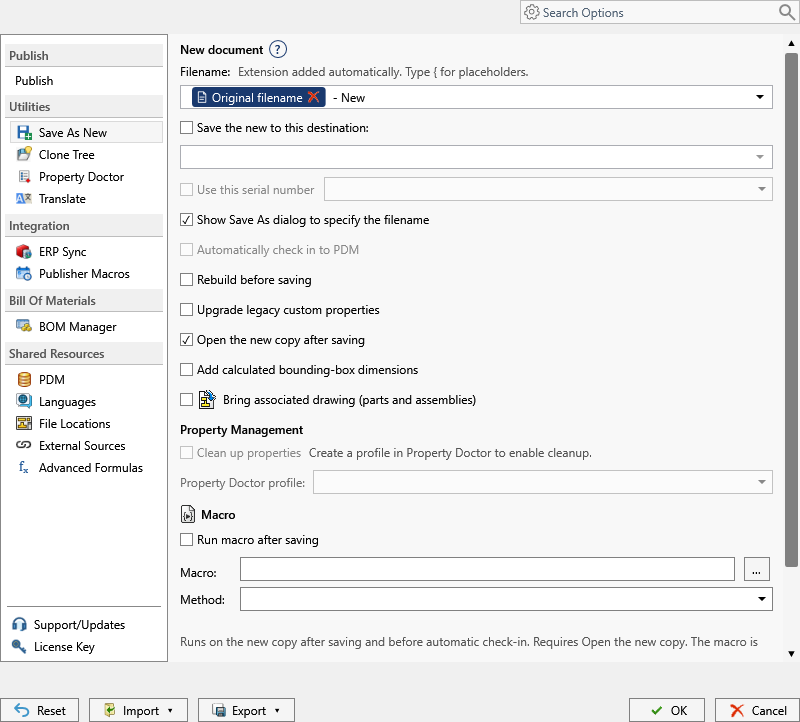
Use it to:
- Build filenames and destination folders from document values, properties, folder values, PDM variables, formulas, serial numbers, and prompted text.
- Display the normal Save As dialog when the destination needs user confirmation.
- Rebuild the model before saving and open the new copy afterward.
- Copy and relink an associated drawing.
- Write calculated bounding-box dimensions to the new part or assembly.
- Run a SOLIDWORKS macro after the copy is created.
- Add and check the new files into the selected PDM vault automatically.
Save As New validates the extension, destination, duplicate filenames, existing files, and vault conflicts before writing the copy.
Property Doctor
Property Doctor displays the active document, configurations, cut lists, drawings, and referenced documents in one editable property grid.
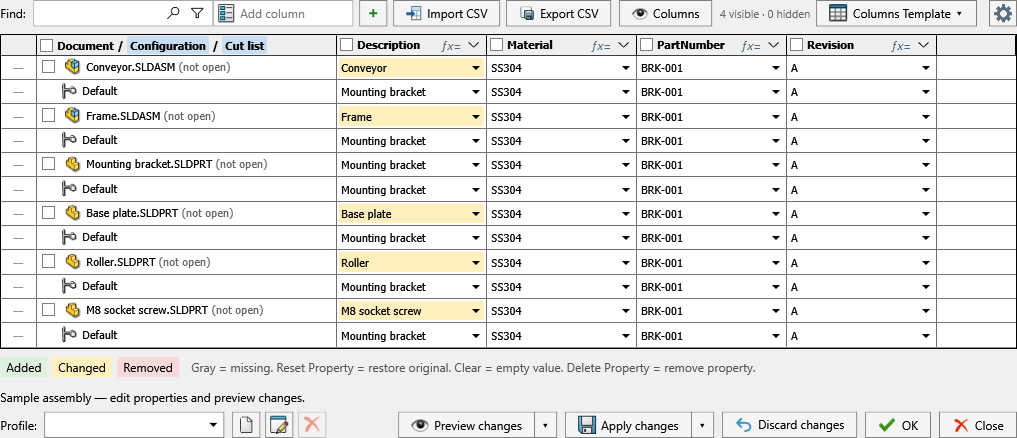
Use it to:
- Add, edit, clear, reset, or delete custom and configuration-specific properties.
- Search, filter, find and replace, and fill values across visible rows.
- Use document values, linked values, formulas, PDM information, and configured external sources.
- Add and organize property columns or load a reusable column template.
- Import property values from CSV and export the current grid to CSV.
- Preview a Property Doctor profile before applying its ordered property actions.
- Check PDM files in or out, get latest, resolve references, and open unloaded documents when permitted.
Pending changes remain in the grid until Apply changes is selected. Discard changes restores the values that were loaded when the window opened.
Clone Tree
Clone Tree creates a copy plan for an active document and its references. Every included file can have its own output name and destination while SOLIDWORKS references are updated to the copied files.
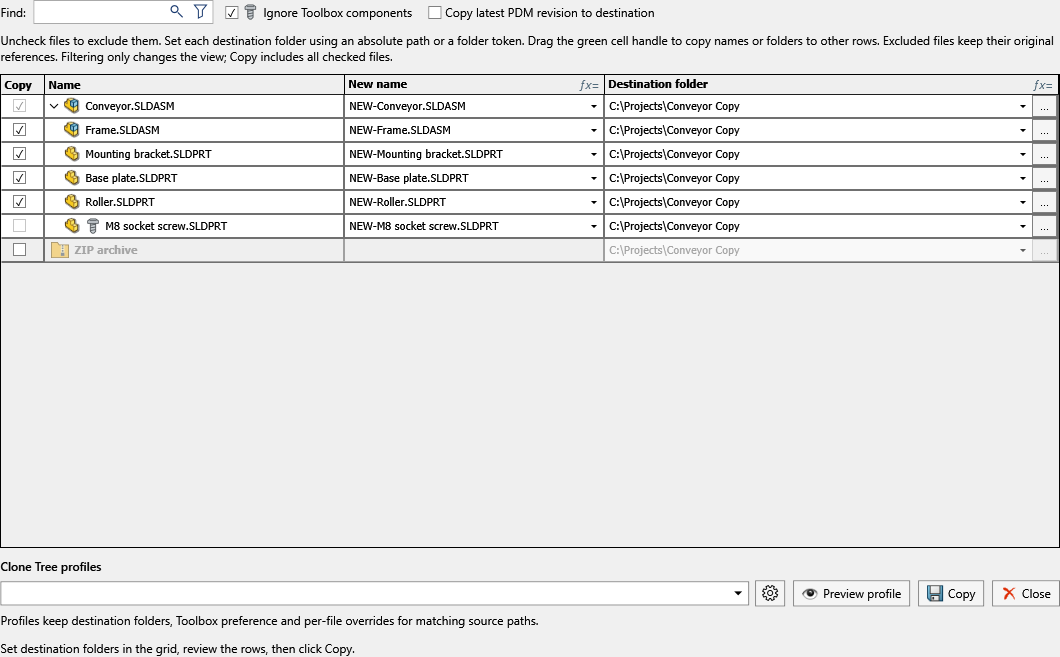
Use it to:
- Include or exclude individual models and drawings from the package.
- Build per-file names and destinations from properties, folders, PDM variables, serial numbers, and formulas.
- Ignore Toolbox components when they should continue to reference their original locations.
- Include same-named STEP, PDF, or DXF companion files.
- Copy the latest assigned PDM revision directly to the destination without changing the local vault cache.
- Save supported documents in the current SOLIDWORKS release or a supported earlier release.
- Create a ZIP archive after the document set is copied.
- Apply ordered profile rules and optionally run a Property Doctor profile on copied files.
Clone Tree can safely replace existing destination files and ZIP archives by backing them up during the copy and restoring them if the operation fails. It still blocks source overwrites, duplicate destinations, open or read-only destination files, changed SOLIDWORKS extensions, and unresolved destination or revision information.
BOM Manager
BOM Manager defines the default column template, SOLIDWORKS BOM display type, row-grouping expression, and condition-based component exclusions used by BOM workflows.
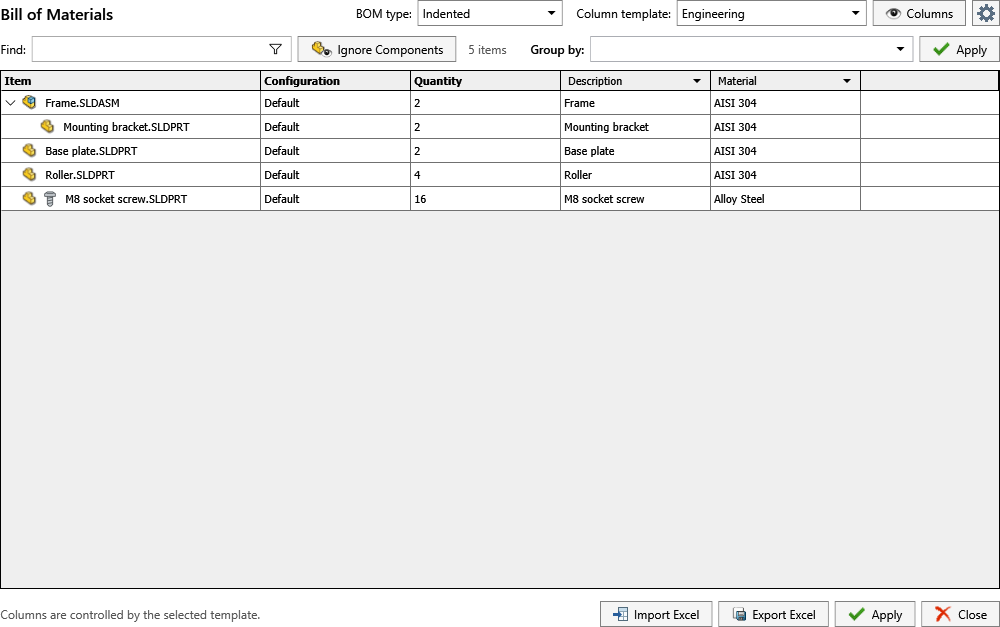
The BOM Manager window displays the assembly hierarchy, configuration, quantity, and selected property columns. It can find and filter rows, change the BOM type or column template, group entries, ignore components, import or export Excel data, and apply supported changes.
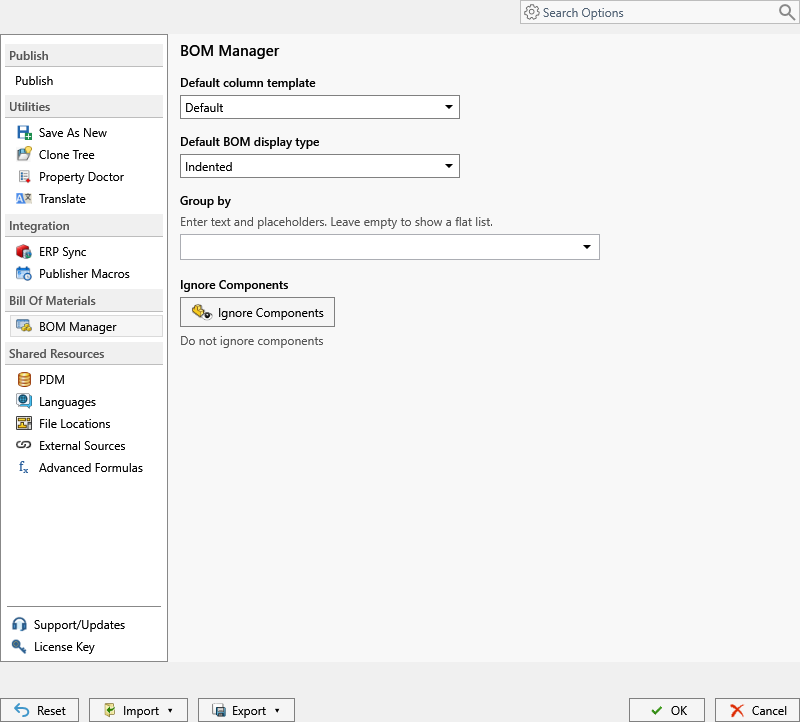
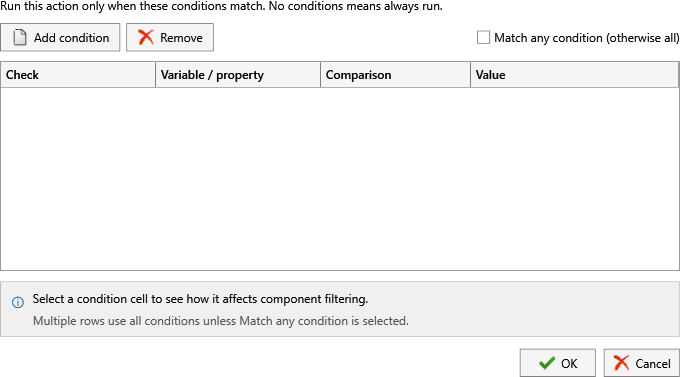
Select Ignore Components to build conditions that remove matching components from the BOM without suppressing or deleting them in the SOLIDWORKS assembly.
Publishing
The Publish command opens publishing for the active document. A Publish profile combines the output settings, annotations, and conditions needed for a repeatable export.
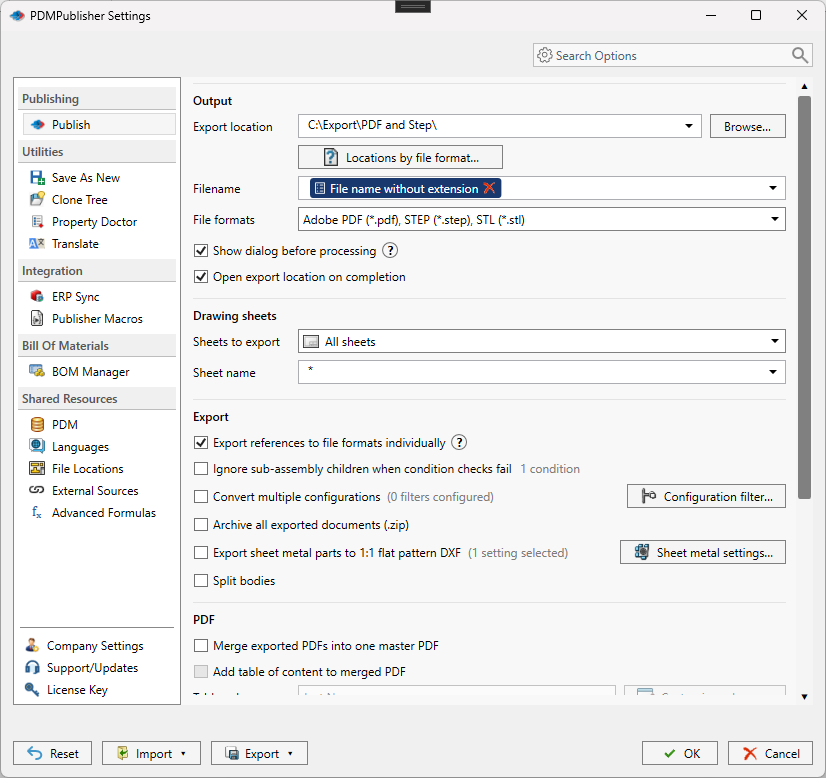
Publishing can:
- Export parts, assemblies, drawings, and references to supported PDF, DXF, DWG, STEP, eDrawings, and other formats.
- Build output paths and filenames from placeholders and document or PDM values.
- Process references individually, convert configurations, and filter configurations.
- Select drawing sheets, match sheet names, merge PDFs, add a table of contents, and create bookmarks.
- Export sheet-metal flat patterns and split bodies.
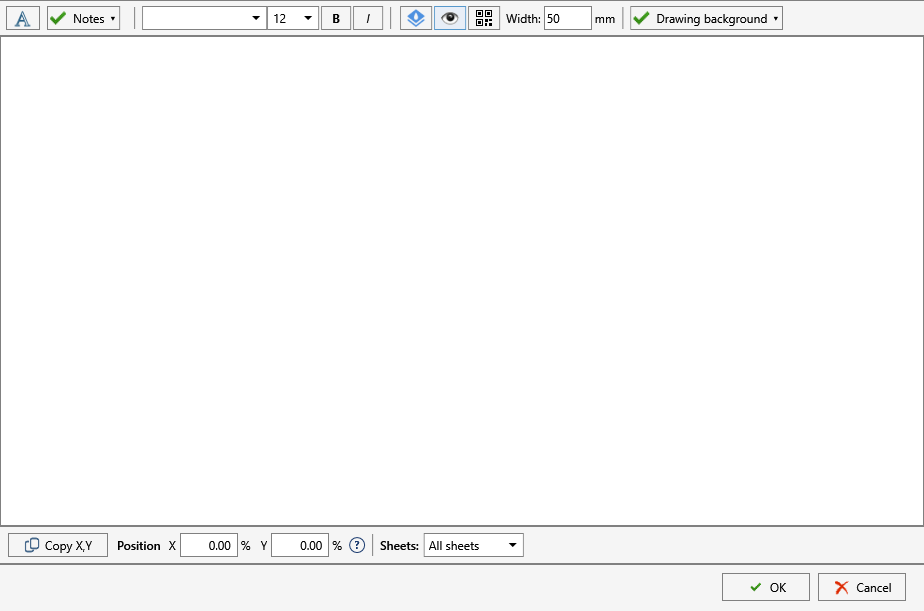
- Add text, property values, watermarks, and QR codes through Annotations.
- Include or exclude documents and references through Conditions.
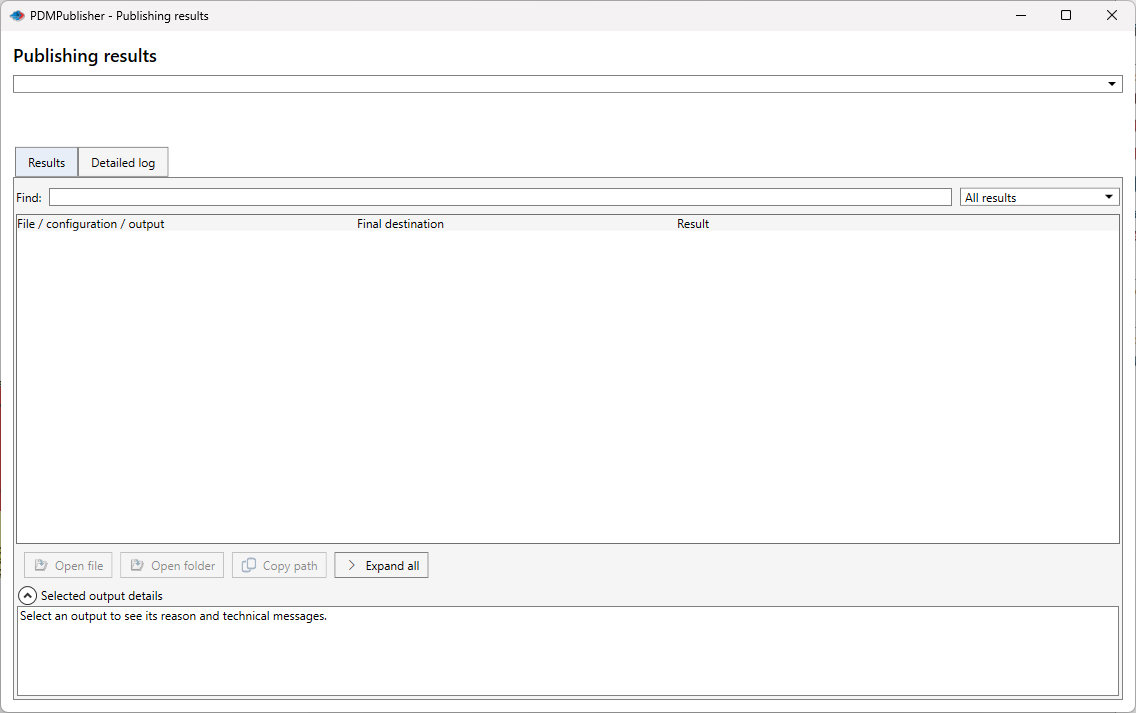
- Record processing details, warnings, and errors in Logs.
See Publish Settings for the complete publishing option reference.
Annotations
Annotations place formatted text, SOLIDWORKS properties, watermarks, and other marks on published PDF pages. Each annotation can have its own position and sheet selection.
Conditions
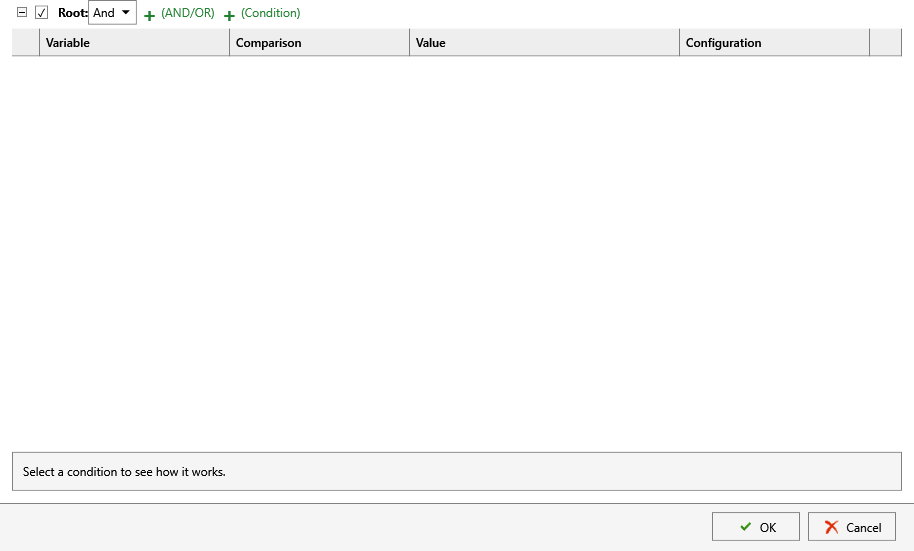
Conditions use nested rules to include or exclude documents and references before export. The publishing review shows the result before files are written.
Logs and publish review
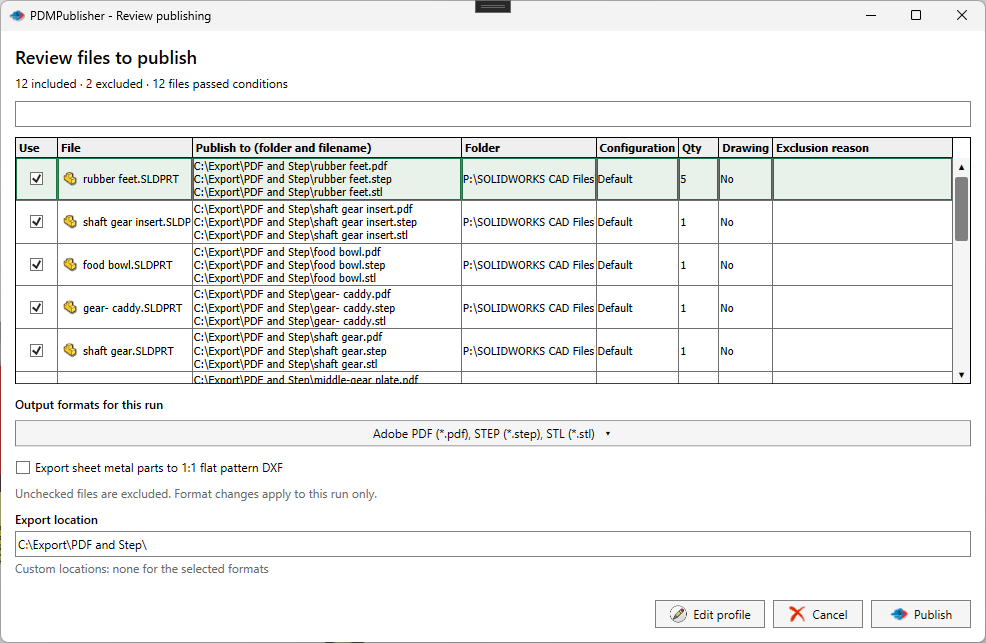
Logs record output files, warnings, skipped items, and errors. When Show dialog before processing is enabled, the review window lists the files and configurations that will be processed.
Settings and Profiles
The Settings command opens one searchable dialog for all add-in configuration.
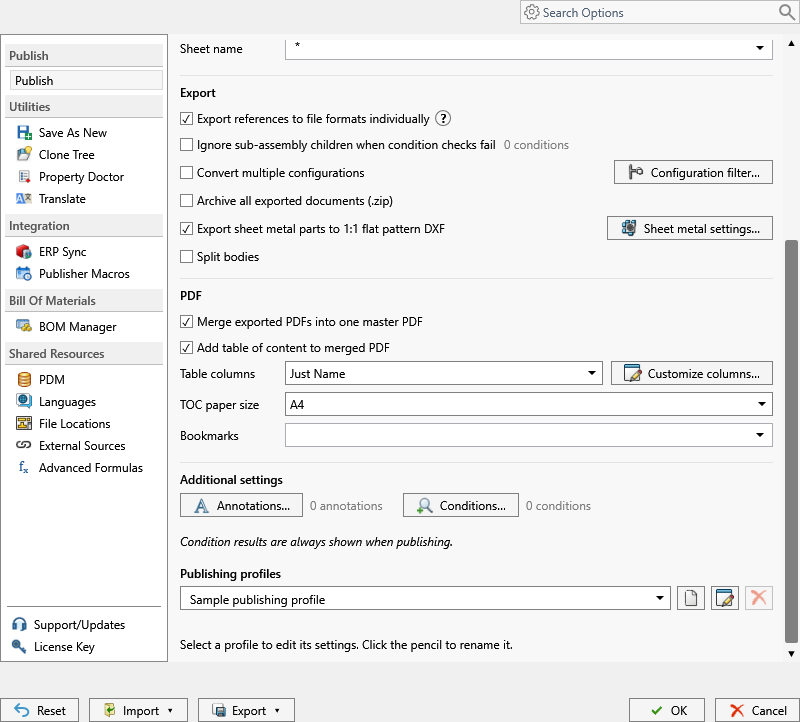
The dialog contains:
- Utility settings and profiles for Save As New, Property Doctor, and Clone Tree.
- BOM Manager defaults for columns, display type, grouping, and ignored components.
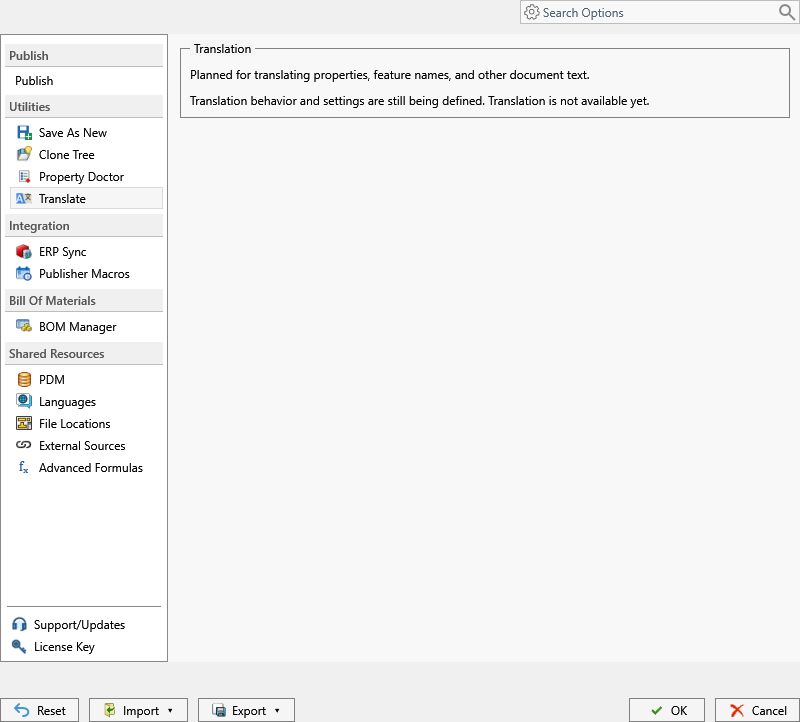
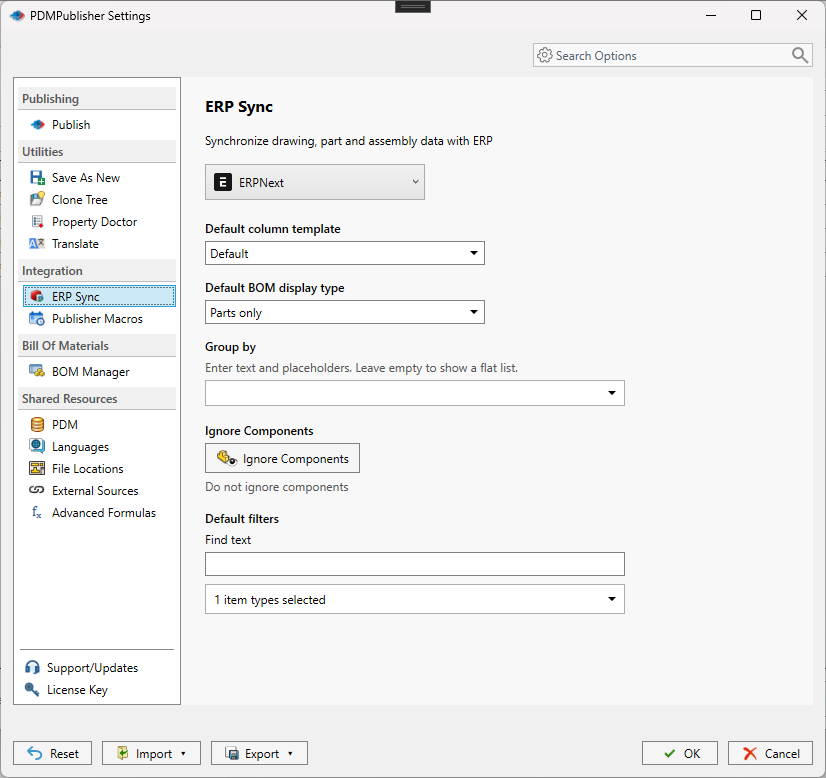
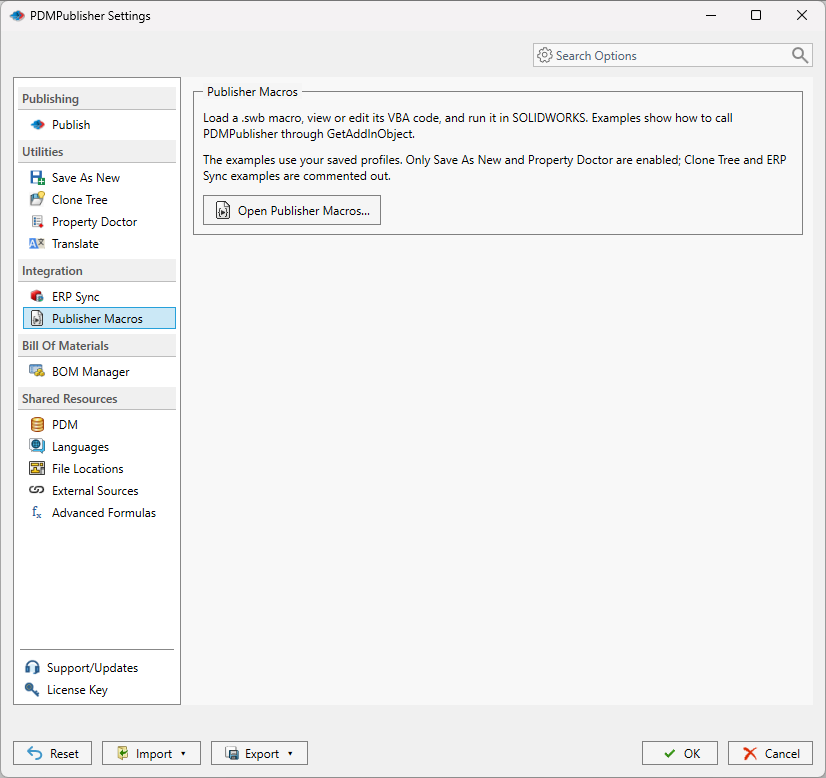
- ERP Sync defaults for the active connector, BOM view, grouping, component exclusions, and filters, plus access to the Publisher Macros VBA editor. Translate remains planned.
- Complete Publish profiles, including publishing options, annotations, and conditions.
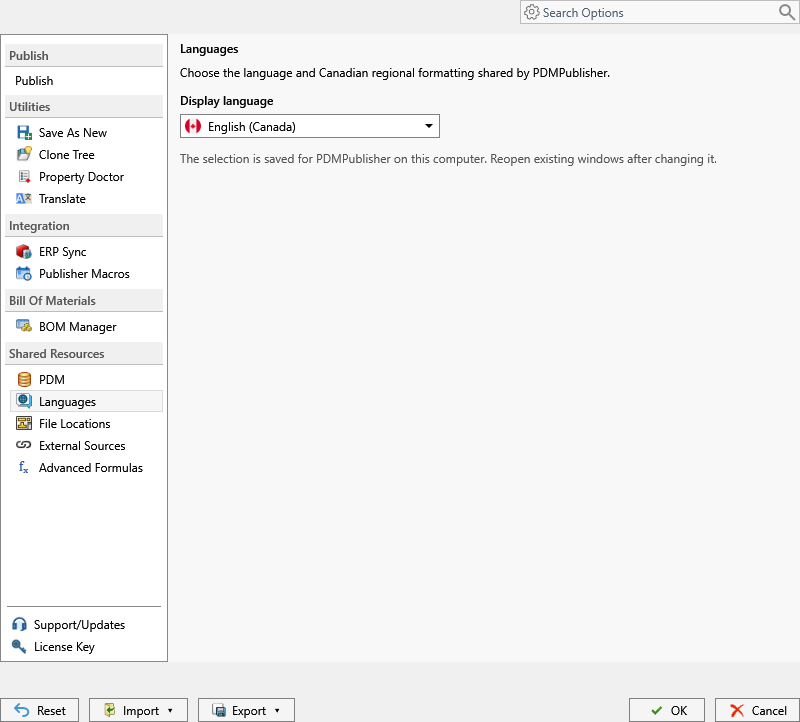
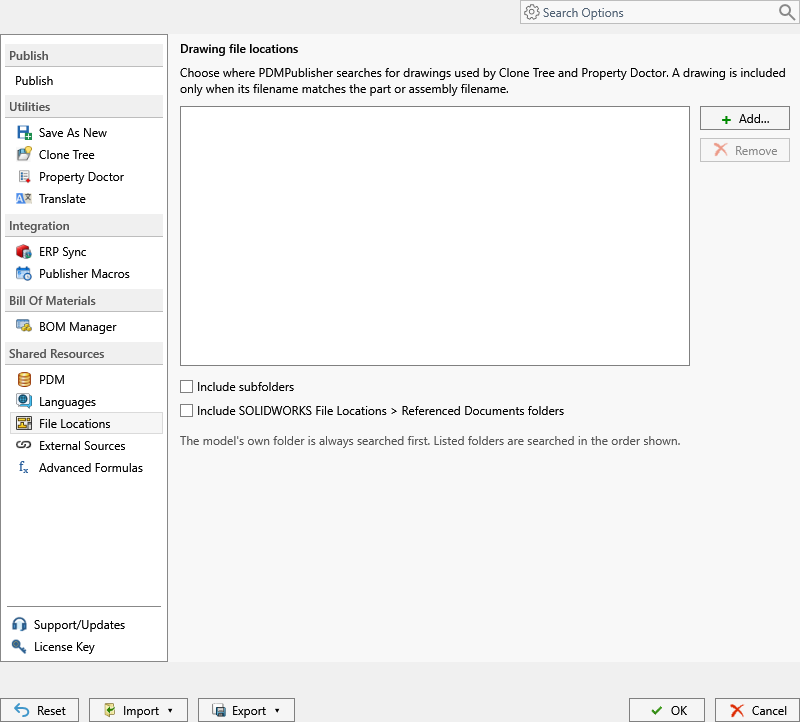
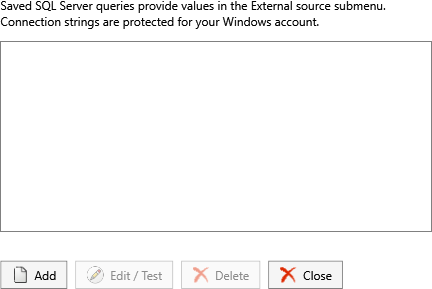
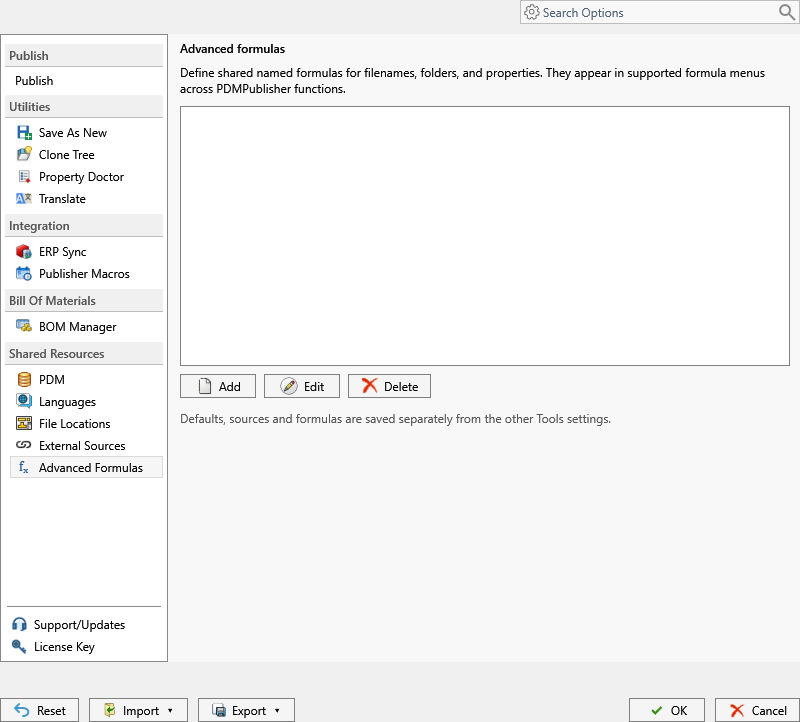
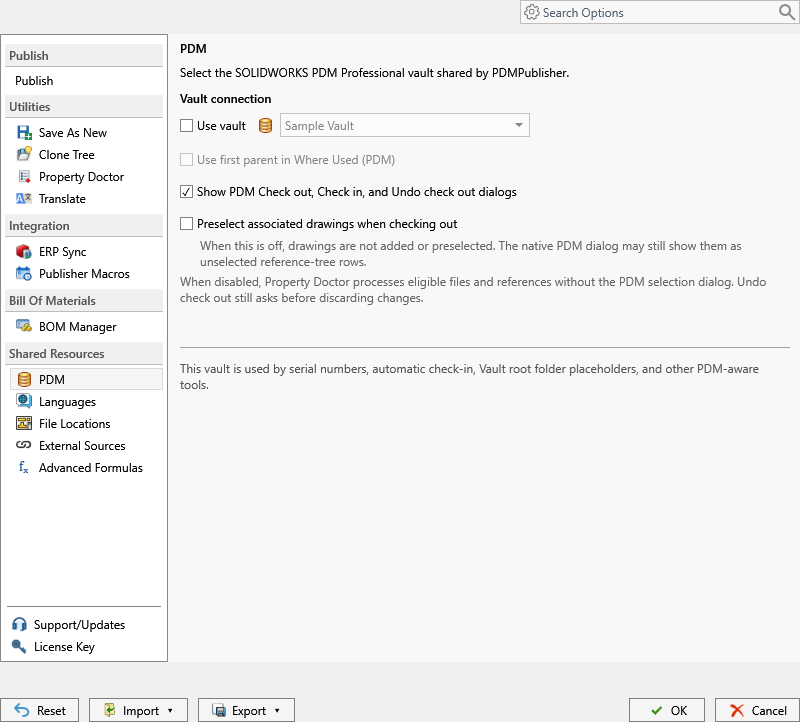
- Shared PDM selection, languages, drawing search folders, external sources, and advanced formulas.
- Support, update, version, legal, and license information.
Profiles belong to the command that uses them. For example, a Property Doctor profile stores property actions, while a Publish profile stores export behavior. Selecting the arrow below a CommandManager command lists the profiles available to that command.
The Settings Import and Export menus can transfer the complete configuration through a file or six-digit PIN. Complete transfer includes every profile family and the shared resources. SQL Server credentials are intentionally excluded and must be entered on the destination computer.
Shared resources
Shared resources provide reusable configuration to supported utilities and publishing profiles.
- Languages selects the add-in display language and regional formatting.
- File Locations defines additional folders used to locate associated drawings.
- External Sources defines reusable SQL Server connections and queries.
- Advanced Formulas defines named expressions for filenames, folders, and properties.
Integrations and Planned Features
ERP Sync is available for production use with an installed connector. It can push checked items, mapped properties, ERP-created part numbers, and selected BOM relationships, and pull mapped ERP properties through a required review diff. Publisher Macros is also available for editing and running VBA automation examples. Translate remains planned.
Help Task Pane
The PDMPublisher task pane displays the compact documentation welcome page at https://pdmpublisher.com/help/addinwelcome.html. It does not host or control the native PDMPublisher commands.
The embedded page requires Microsoft Edge WebView2 Runtime. If the page cannot load, all CommandManager commands remain available. See Help Task Pane for requirements and troubleshooting.
SOLIDWORKS PDM Professional Integration
When the computer has a local PDM vault view, PDMPublisher can use the active PDM session to resolve vault folders and variables, reserve serial numbers, check files in or out, get revisions, and validate vault destinations. The available actions still follow the signed-in user's vault permissions and workflow state.
The SOLIDWORKS add-in does not include PDM task scheduling, task-launch prompts, execution-method configuration, or task-host SOLIDWORKS selection. Those belong to PDMPublisher for PDM Professional.
Install and Enable the Add-In
Close SOLIDWORKS before running the MSI installer. After installation, open Tools > Add-Ins, locate PDMPublisher (SOLIDWORKS) under Partner Solution Add-Ins, and select both the current-session and startup checkboxes.
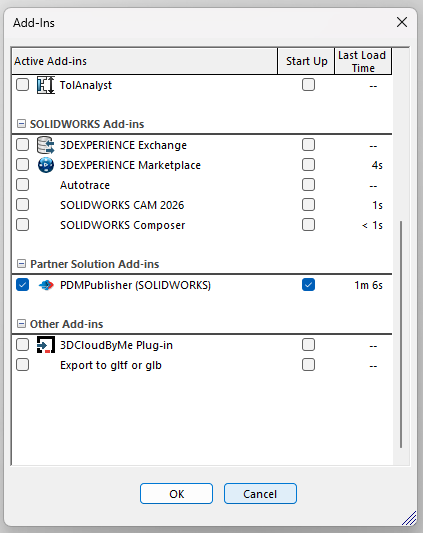
See Install and Enable the Add-in for the full procedure and troubleshooting.
Download and Licensing
- Installation guide
- Download PDMPublisher for SOLIDWORKS
- Purchase a PDMPublisher for SOLIDWORKS license
- License management
PDMPublisher for SOLIDWORKS can run as the Community Edition without a paid or trial key. The separate 7-day trial offered elsewhere on this help site is for the PDM Professional Task version.
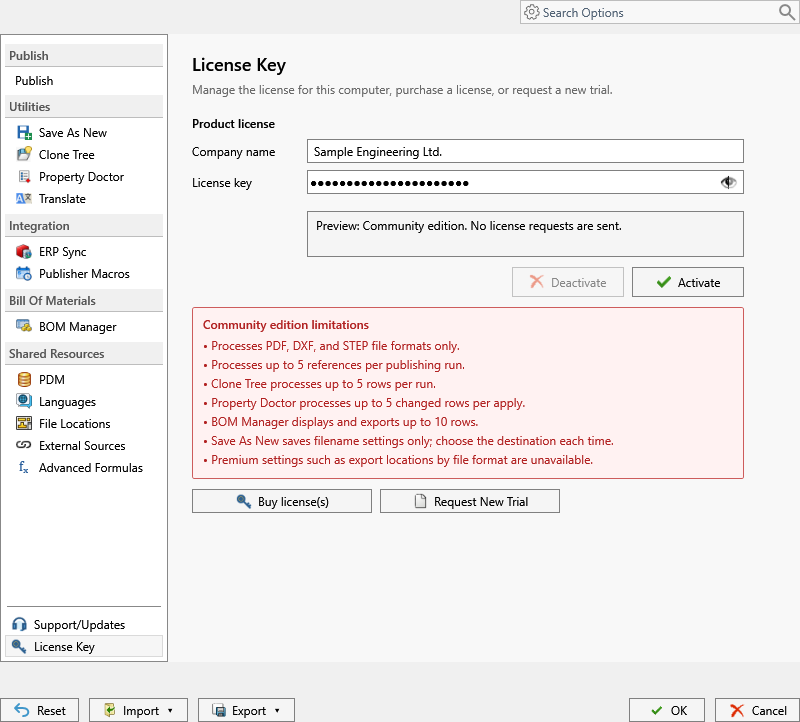
Updates and About
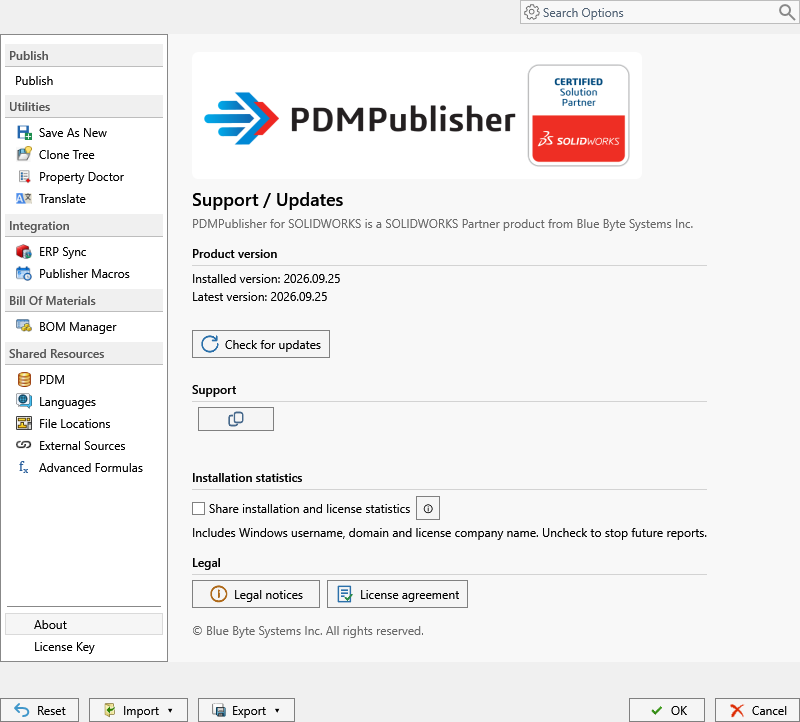
Version and Updates reports the installed and available versions and provides the update command. See the PDMPublisher Change Log for release notes. About provides product, support, documentation, and legal information.
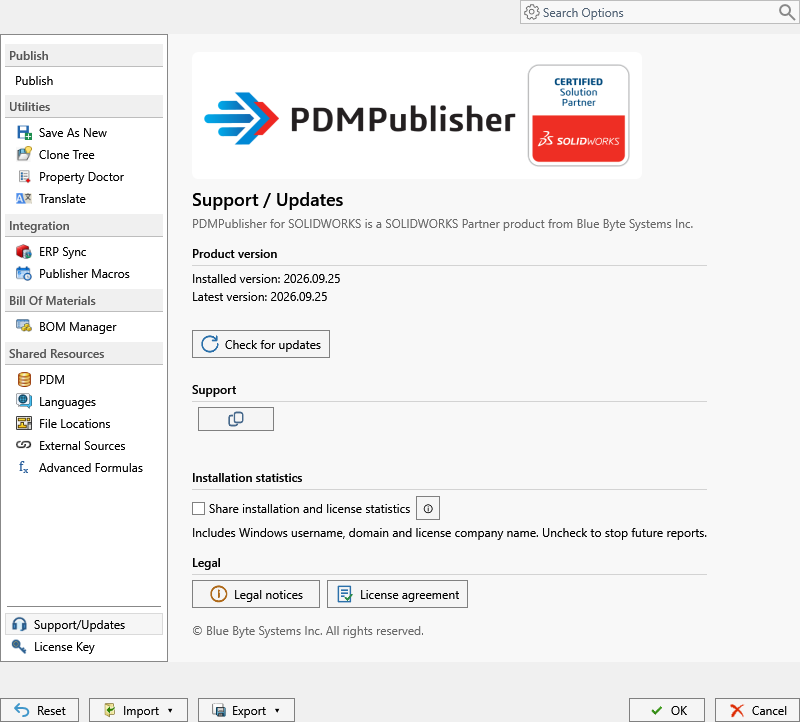
For support, contact support@bluebytesystemsinc.zohodesk.com.