
Version and Updates
Use the Updates CommandManager group or open PDMPublisher > Settings > Support and Updates to display the installed version and check whether a newer release is available.
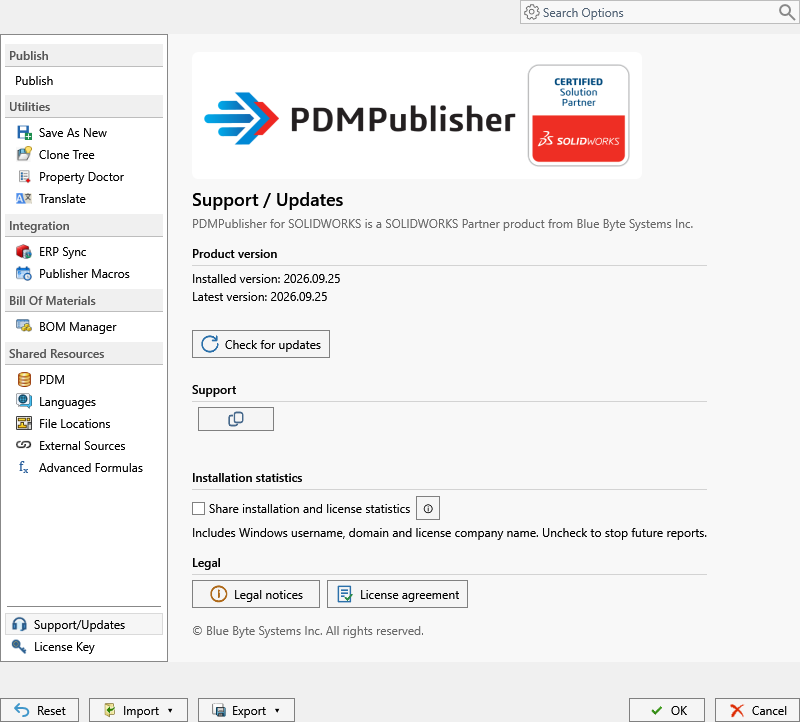
- Installed version is the version loaded in the current SOLIDWORKS session.
- Latest version is the release reported by the update service.
- You are using the latest version means the installed version matches the available release.
- A new version is available identifies the newer release.
- Could not check for updates means the online version check could not be completed.
Select Check for updates to refresh the version information. An installed preview or newer build can have a higher version than the release currently reported by the update service; read both values together with the status message.
Download an Update
When an update is available, use the displayed download action to open the installer download in your browser.
Close SOLIDWORKS before running the installer. Save open documents first, and unblock the downloaded installer from its Windows file properties if required by your environment.
For installation guidance, see Install PDMPublisher for SOLIDWORKS.
The same page also provides Support, Legal notices, and License agreement links.