
The Conditions window decides which files a publish job touches: every reference of an assembly runs through the tree you build, and only the files that pass are exported. This page walks the editor itself; for the strategy and recipes, read Conditional assembly processing.
In short
- A tree of groups (And / Or) and rows (Variable, Comparison, Value, optional Configuration). A file passes when the root group is satisfied.
- Variables are custom properties, PDM variables and built-in values such as
(s) State,FileNameorSheetMetal; Text equal accepts*as a wildcard and is not case-sensitive. - The review dialog shows which files passed and why the others did not, before anything is written.
The editor, row by row
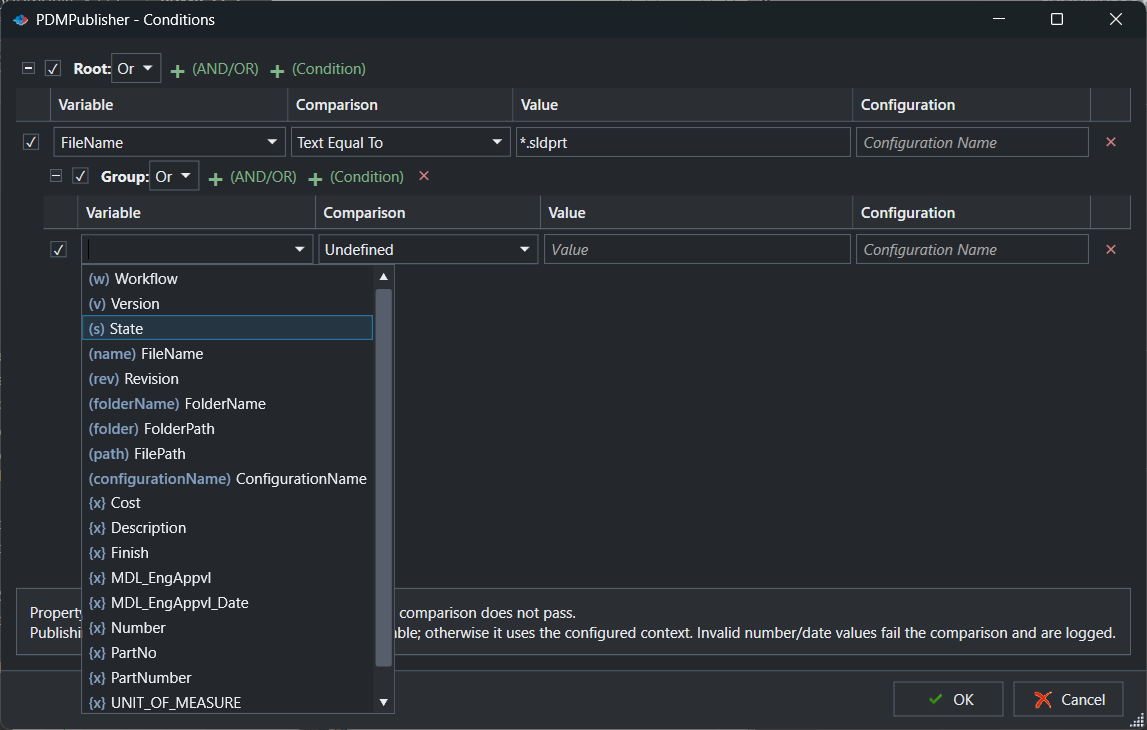
- The root row sets the top-level logic, And or Or. The + buttons add a condition row or a nested group; checkboxes disable rows without deleting them.
- A condition row: pick the Variable (the dropdown lists what exists in the current context), the Comparison (Text equal, contains, not equal, Number greater than, Date before, Yes/No and so on), the Value, and optionally the Configuration to read it from.
- A row stays Undefined until a comparison is chosen; an Undefined row never matches.
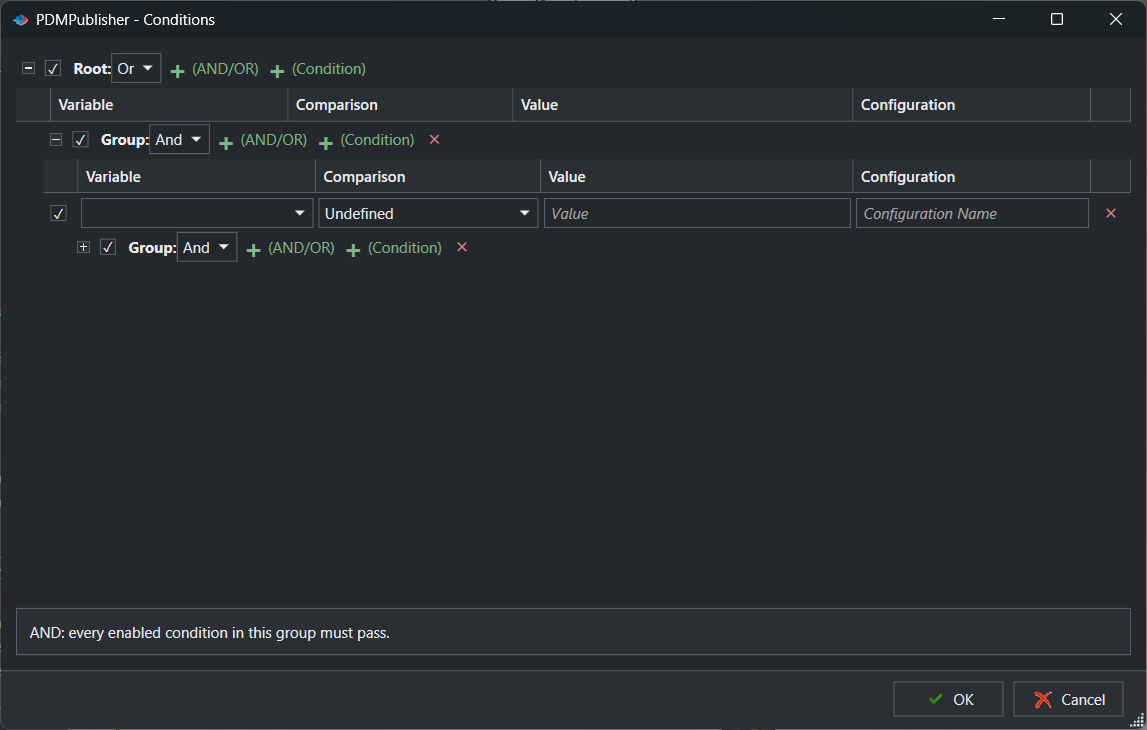
- Nested groups let you combine logic: a root And with an Or group inside it for alternative spellings or configurations.
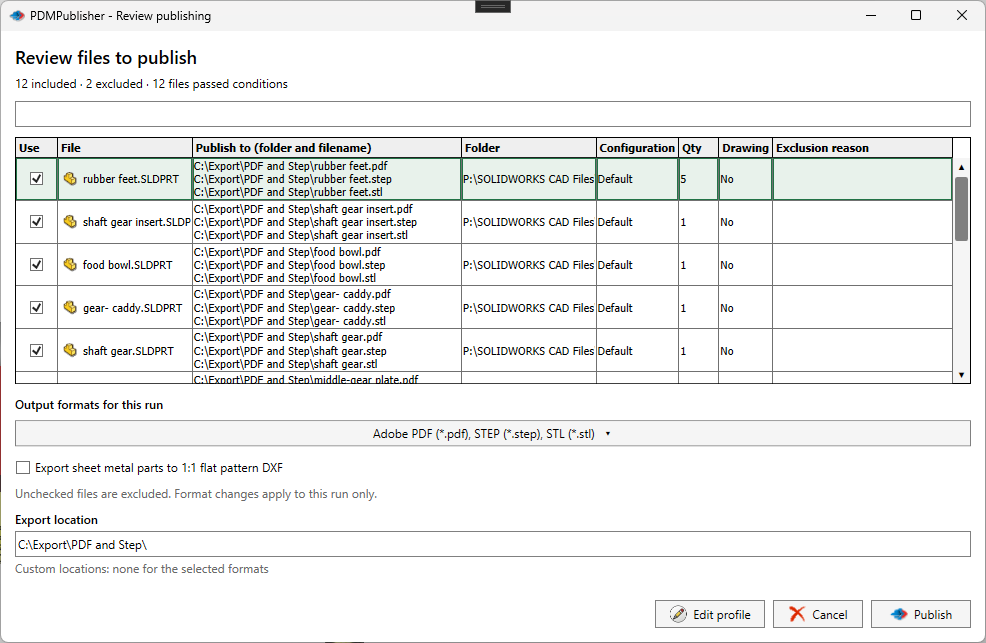
- Select Preview or run the job: the review dialog lists every file with its exclusion reason; the Use checkbox there is a one-off override and does not change the tree.
Settings that matter
| Setting | What to put | Why |
|---|---|---|
| Root logic | And for “all of these”, Or for “any of these” | Most release rules are a root And. |
| Comparison | Text equal with *, Text contains, not equal, numeric and date comparisons | Pick the type that matches the property; text in a number property fails that file. |
| Configuration | Leave empty, or name the configuration to read | Configuration-specific properties are read from the right place. |
| Ignore sub-assembly children when condition checks fail | On to drop a rejected sub-assembly’s parts too | Off by default; children are still evaluated on their own. |
If something looks wrong
- Everything is skipped: a root And with one impossible row rejects every file. Disable rows one at a time and rerun with the review dialog.
- A row never matches: the comparison is Undefined, the wildcard is used outside Text equal, or the property does not exist on those files (missing evaluates as empty).
- A number or date row fails unexpectedly: one file holds unparseable text in that property; search the Detailed log for the filename.
- Unticking a file in the review dialog did not stick: that is a one-off override; change the tree to make it permanent.
Availability
The Conditions editor is shared by PDMPublisher for SOLIDWORKS and the PDM Professional task. The add-in evaluates values from the open assembly; the task evaluates PDM variables and properties from the vault files.
Keep going
Documentation
Frequently asked questions
What do (s), (name) and {x} mean in the PDMPublisher Conditions variable list?
Bracketed short names mark built-in values: (w) Workflow, (v) Version, (s) State, (name) FileName, (rev) Revision, (folderName) FolderName, (folder) FolderPath, (path) FilePath, (configurationName) ConfigurationName. {x} marks SOLIDWORKS custom properties or PDM variables found in the current context.
Why does my condition row say Undefined?
A new row has no comparison yet. Pick a Text, Number, Date or Yes/No comparison in the Comparison cell; until then the row is not evaluated.
Can I use wildcards in PDMPublisher conditions?
Yes. Text Equal To accepts * as a wildcard, for example FileName Text Equal To *.sldprt. Text comparisons are not case sensitive.
What happens when a number or date property contains text?
The comparison fails for that file and the reason is written to the log. The file is skipped if the rest of the tree does not let it pass.
Why are my assembly components not being filtered?
Conditions gate references, so Export references to file formats individually must be enabled. Without it only the launched document is processed.
Does unticking a file in the review dialog change my conditions?
No. The review dialog’s Use checkbox and format overrides apply to that run only; the saved condition tree and profile are unchanged.