
Exporting one STEP per part from a SOLIDWORKS assembly is what a machine shop quoting the made parts needs. Not one big assembly STEP, but Bracket-B.step, Shaft-A.step and so on, purchased hardware left out. PDMPublisher does it with Export references to file formats individually plus conditions that filter the reference list. It runs from the add-in or as a SOLIDWORKS PDM Professional task on the release transition.
What you get
One .step per referenced part and sub-assembly, named by your pattern, in one folder. The assembly STEP is written too unless the task’s Export affected document is off. Repeated components are exported once.
Conditions decide which references go out: rules on custom properties, PDM variables or built-in values like FileName and ConfigurationName. A rule like Source not equal Purchased keeps fasteners and motors out. Ignore sub-assembly children when condition checks fail drops a rejected sub-assembly’s parts too. SOLIDWORKS’ current STEP export options apply.
The manual way, and why it doesn’t scale
Open the assembly, open each made part, File > Save As, pick STEP AP214, name it with the revision, save. Skip the purchased items by eye. Repeat for every part in the tree.
Works for ten parts. For a 200-component machine the STEP set never quite matches the BOM, a purchased bearing gets quoted as a machined part, and the set is redone after every ECO.
Export one STEP per part with the add-in
- Open the top-level assembly in SOLIDWORKS with all references resolved (Get Latest first).
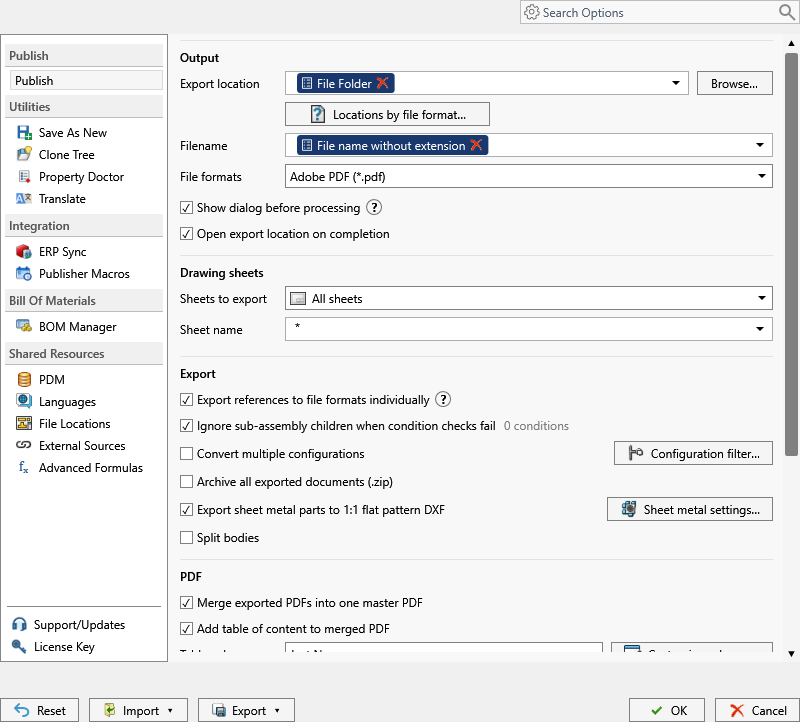
- On the PDMPublisher tab, select Settings, then Publish. Set Export location, say
(TopAssemblyFolder)\STEP\(Revision), and Filename, say(FileNameWithoutExtension)-(Revision). - Under File formats, tick STEP (
step). - Tick Export references to file formats individually. The add-in reads the resolved references; no BOM template needed.
- On the Conditions page, add a group and a rule: variable Source, condition type Text not equal, value
Purchased. Text equal accepts*as a wildcard. Only references that pass are exported. - Tick Ignore sub-assembly children when condition checks fail if a rejected purchased sub-assembly should take its parts with it; leave it off if those parts must still go out.
- Optionally tick Convert multiple configurations with
(ConfigurationName)in the filename, exclude*Flat*in the Configuration Filter, and tick Archive all exported documents (.zip) for a one-file package. - Select
PDMPublisher > Publish. The review dialog lists the references that passed; Publishing results then shows each STEP and the skipped references.
STEP is a Community Edition format, but the free edition stops at 5 references per run. The parts of a real assembly need Premium; the PDM task is licensed per vault with no such limit.
Automate it as a PDM task
PDMPublisher for PDM Professional runs the same export as a task, so the STEP set is regenerated at release without anyone opening SOLIDWORKS.
- In PDM Administration, right-click Tasks, select New Task, choose PDMPublisher and name it, say STEP per part.
- On the Options page, set Export Location (
(VaultRootFolder)\Supplier Packages\($ProjectNumber)\STEP, no trailing backslash) and Filename. PDM variables such as($PartNumber)work here. - Under File Formats, tick STEP. Turn off Export affected document if the task should write the parts but not the assembly STEP.
- Set Template to a PDM BOM layout with name, configuration and quantity columns; without it the task exports missing or wrong references. Calculation Method As built uses references as checked in, Latest the latest in PDM.
- Enable Export references to file formats individually.
- Add Conditions on PDM variables to skip purchased parts, and enable Ignore sub-assembly children when condition checks fail where needed.
- Pick Use this version of SOLIDWORKS and, for a release workflow, Get latest revision only so the references match the revised version.
- Attach the task to the release transition, leave it in the right-click menu, or run it from Scheduled Items.
The task’s reference list comes from the PDM BOM: suppressed, virtual, envelope and excluded-from-BOM components are ignored.
Settings that matter for one STEP per part
| Setting | What it does | Tip |
|---|---|---|
| File formats | Tick STEP (step); invalid formats are dropped. | Several formats per job. |
| Export references to file formats individually | One file per part and sub-assembly, beside the top-level export. | Task: needs a BOM Template. |
| Template (task) | PDM BOM layout that calculates references, configurations and quantities. | Must include <Name>, <Configuration> and <RefCount>. |
| Export affected document (task) | Exports the top-level file that launched the task. | Turn off to process the references but not the assembly. |
| Conditions | Rules on custom properties, PDM variables or built-in values that pick which references are exported. | Text not equal Purchased on a Source property skips bought parts. |
| Ignore sub-assembly children when condition checks fail | Skips the children of a sub-assembly that conditions rejected. | Leave off when those children must still be exported. |
Naming and folders
Placeholders name and file every part’s STEP the same way:
(FileNameWithoutExtension)-(Revision)in(TopAssemblyFolder)\STEP\(Revision):Bracket-B.step,Shaft-A.stepin a folder per assembly revision.($PartNumber)_($Revision)in the task: PDM part numbers when the supplier quotes by part number.(VaultRootFolder)\Supplier Packages\($Supplier)\(TargetExtension): astepfolder per supplier, withpdfdrawings beside it when PDF is ticked too.
Customize Location (Premium in the add-in, standard in the task) gives
stepits own folder while the drawing PDFs from the same job go elsewhere.
Tips and troubleshooting
- Only 5 references exported? That’s the Community Edition limit. Activate Premium under
PDMPublisher > License Key, or run it as a PDM task. - Missing references? The job needs local copies of every reference. Get Latest first.
- Task missing or wrong references? Check the BOM Template columns. Suppressed, virtual, envelope and excluded-from-BOM components are ignored.
- A purchased part still came through? Text comparisons aren’t case sensitive; check the property name and the configuration the value is read from (leave Configuration empty for the referenced one).
- Add Adobe PDF to the same job and each part’s same-name drawing lands beside its STEP.
Availability
Available in PDMPublisher for SOLIDWORKS (the add-in) and PDMPublisher for PDM Professional (the task).
Documentation and related features
- Run a Publish Job (PDMPublisher for SOLIDWORKS)
- Export References to File Formats Individually
- Conditional assembly processing
- SOLIDWORKS assembly documents
- SOLIDWORKS part documents
- Run as a SOLIDWORKS PDM task
- Extension-specific export locations
- Convert SLDASM to STEP
- Convert SLDPRT to STEP
- Convert an assembly to a PDF drawing package
Frequently asked questions
How do I export each part of a SOLIDWORKS assembly as a separate STEP file?
Tick STEP and enable Export references to file formats individually. Every part and sub-assembly becomes its own STEP in one Publish; a PDM task does the same with a BOM Template.
Can I skip purchased parts when exporting STEP files from an assembly?
Yes. Add a condition, say Source not equal Purchased. Only references that pass are exported; Ignore sub-assembly children when condition checks fail drops a rejected sub-assembly’s parts too.
Why does PDMPublisher export only 5 parts of my assembly?
The free Community Edition stops at 5 references per run. Premium removes the limit; the PDM task is licensed per vault with no limit.
Does the PDM task need a BOM template to export the parts?
Yes. Pick a BOM Template with name, configuration and quantity columns, then enable Export references to file formats individually. The add-in needs no template.