
A SOLIDWORKS drawing exported to PDF with a watermark or stamp tells the reader what they’re holding: PRELIMINARY, RELEASED Rev B, printed for a named supplier. PDMPublisher draws text, property values, a rotated watermark or a QR code on the exported PDF without touching the drawing. It works from the add-in or as a SOLIDWORKS PDM Professional task.
What you get
A normal .pdf of the drawing with annotations drawn on it at export time. Think a stamp like Rev (Revision) - (State), a diagonal PRELIMINARY watermark, a customer name from a custom property, or a QR code with the part number. The SLDDRW itself isn’t modified.
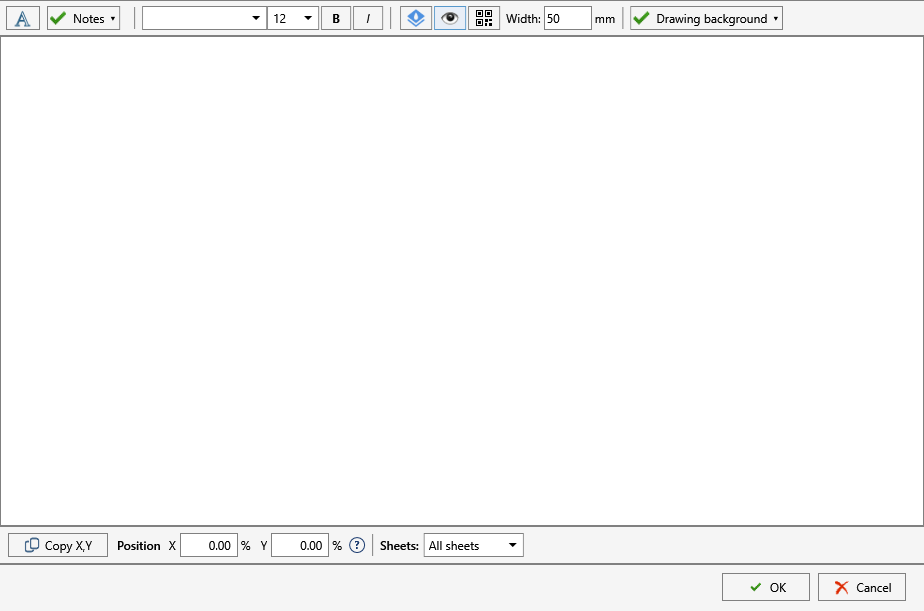
Each annotation has its own text, font, size, bold and italic, Watermark toggle, QR code toggle with Width (mm), Position X / Y (%) and Sheets rule. So one stamp goes on every sheet, another only on the cover. The add-in keeps them in the Publish profile, the task on its Annotations page.
The manual way, and why it doesn’t scale
Add a note to the drawing, type PRELIMINARY, save as PDF, delete the note before check-in. Or stamp each PDF afterwards in a PDF editor.
Either way the drawing carries a note that must never ship, or the stamp says whatever the last person typed. And at Released, every PDF needs a new one.
SOLIDWORKS drawing to PDF with a watermark from the add-in
- Open the drawing in SOLIDWORKS, saved, references resolved (Get Latest first in a vault).
- On the PDMPublisher tab, select Settings, then Publish.
- Set Export location, such as
(TopAssemblyFolder)\Exports\(Revision), and the Filename pattern, such as(FileNameWithoutExtension)-(Revision);.pdfis added for you. - Under File formats, tick Adobe PDF (
pdf). - Under Sheets to export, keep All sheets, or pick Sheets matching name with a wildcard such as
Sheet*or(ConfigurationName)*to leave internal sheets out. - Select
PDMPublisher > Annotations(the command arrow picks a named profile) and click Add annotation. - Enter the text with placeholders such as
(Revision) - (State)or a custom property, and set font, size, bold or italic. - Tick Watermark for a rotated, semi-transparent label such as PRELIMINARY, or QR code with a Width (mm) to encode the evaluated value.
- Drag the annotation on the sheet preview or enter Position X / Y (%); Copy X,Y takes the position of a selected SOLIDWORKS note. Choose the Sheets that get it, then OK.
- Select
PDMPublisher > Publish, confirm the review dialog, and check Publishing results afterwards.
Annotations and PDF are both in the Community Edition of the add-in, so a stamped single drawing costs nothing.
Automate it as a PDM task
PDMPublisher for PDM Professional stamps the PDF as a task on a state change, so the watermark always reflects the vault’s revision and state, not what someone typed.
- In PDM Administration, right-click Tasks, select New Task, choose PDMPublisher and name it. Tick the task hosts under Execution Method.
- On the Options page, set Export Location (
(VaultRootFolder)\Exports\Stamped PDFs, no trailing backslash) and Filename; PDM variables such as($PartNumber)are in the>...menu. - Under File Formats, tick Adobe PDF. Keep Export affected document on.
- Set Sheets to export and the Sheet name pattern as in the add-in.
- On the Annotations page, add the annotations: text with PDM variables such as
($Revision)or($Customer), formatting, Watermark or QR, position and sheets. Active keeps a stamp defined but switched off. - Add a second task, or a condition-driven workflow, when the stamp differs by state: PRELIMINARY on the review transition, RELEASED on release.
- Pick Use this version of SOLIDWORKS (a year on the task host, or Latest). For release workflows, enable Get latest revision only so the version tied to the newest revision is exported.
- Attach the task to a workflow transition, leave it in the right-click menu, or run it from Scheduled Items.
Settings that matter for a watermark
| Setting | What it does | Tip |
|---|---|---|
| Annotation text | Literal text plus placeholders: custom properties, PDM variables, revision, state, part number. | SQL Query Placeholders can pull text from a database. |
| Watermark | Rotates the annotation and makes it semi-transparent. | Review copies, preliminary, internal use, release status. |
| QR code | Renders the evaluated value as a QR code of the given Width (mm). | Part number or document link. |
| Position X / Y (%) | Percentage of sheet width and height. | Same place every time. |
| Sheets | Which sheets get the annotation; named sheets comma-separated. | One stamp on every sheet, another on the cover only. |
| Show annotation / Active | Includes the annotation in the export; clear it to keep the definition unpublished. | Toggle instead of deleting. |
Naming and folders
Placeholders resolve when the job starts, so every stamped PDF is named and filed the same way:
(FileNameWithoutExtension)-(Revision)-PRELIMwith a PRELIMINARY watermark:Bracket-B-PRELIM.pdfin(TopAssemblyFolder)\Review.Rev (Revision) - (State) - (Date)as annotation text:Rev B - Released - 8-13-2026on every sheet.(VaultRootFolder)\Released PDFs\(State): preliminary and released PDFs in separate folders from two transitions.
Customize Location (Premium in the add-in, standard in the task) gives the
Tips and troubleshooting
- The preview area is only for positioning. Moving an item there doesn’t add a SOLIDWORKS note to the drawing.
- Show placeholders swaps evaluated values for placeholder names in the preview while you position.
- Placeholder values come from the active document in the add-in and the vault task context in the task. An empty PDM variable gives empty text.
- Share the stamp: export the annotations and import them on a colleague’s computer, or publish them with Company Settings.
- Community Edition of the add-in does PDF, DXF and STEP only, up to 5 references per run: fine for single drawings, not an assembly’s drawing set. The PDM task is licensed per vault with no such limit.
Availability
Available in PDMPublisher for SOLIDWORKS (the add-in) and PDMPublisher for PDM Professional (the task).
Documentation and related features
- Run a Publish Job (PDMPublisher for SOLIDWORKS)
- Annotations: Watermark
- Watermark your PDFs
- SOLIDWORKS drawing documents
- Publishing profiles and company settings
- Run as a SOLIDWORKS PDM task
- Convert SLDDRW to PDF
- SOLIDWORKS drawing to PDF with bookmarks
- Batch convert SOLIDWORKS drawings to PDF
Frequently asked questions
How do I add a watermark to a SOLIDWORKS drawing PDF?
Open Annotations, add one with the text, tick Watermark, position it and choose the sheets. Publish with Adobe PDF ticked; the watermark lands on the PDF only.
Can the stamp show the PDM revision and state automatically?
Yes. Build the text from placeholders such as (Revision) and (State), or PDM variables in the task; they’re evaluated when the job runs.
Does the watermark change my SLDDRW file?
No. Annotations are drawn on the exported PDF at publish time. The drawing isn’t touched.
Can I put a QR code on the drawing PDF?
Yes. Tick QR code on the annotation and set its Width (mm). The evaluated value is encoded.