
Engineering releases a design; someone then re-types part numbers, descriptions, materials and the BOM structure into the ERP system, and a few weeks later the ERP description is the one that is right and the SOLIDWORKS property is stale. ERP Sync in PDMPublisher for SOLIDWORKS removes the retyping in both directions: Push creates or updates ERP items, mapped fields, attachments and BOM relationships from checked SOLIDWORKS rows, and Pull previews mapped ERP values as a diff before writing them into SOLIDWORKS custom properties. Official connectors exist for Odoo, ERPNext and Microsoft Dynamics 365 Business Central, and a C# contract lets you build your own.
What ERP Sync does
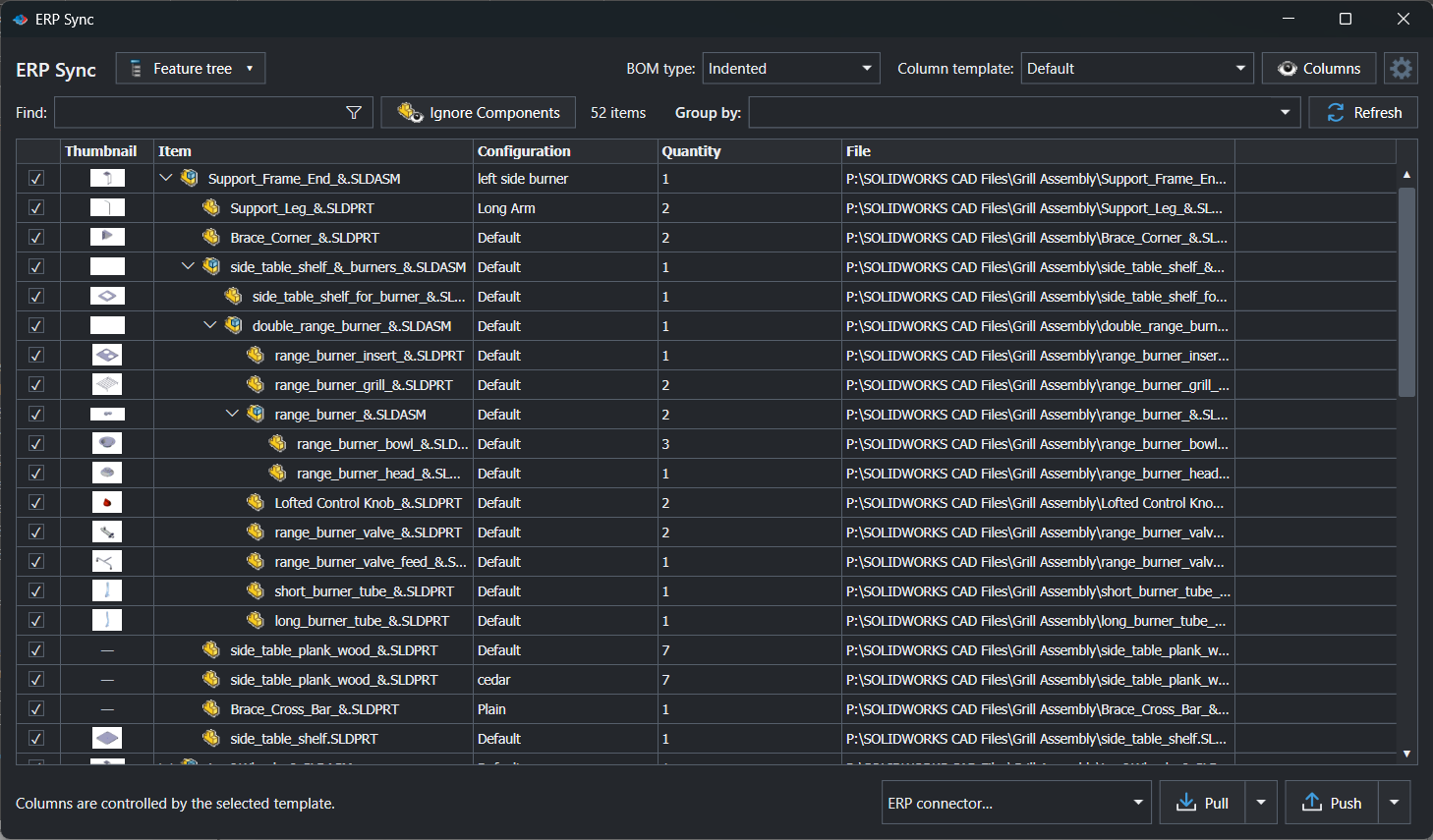
ERP Sync exchanges selected SOLIDWORKS data with an ERP system through an installed connector DLL. You choose a source (the feature tree, a SOLIDWORKS BOM table, or a CSV file), check the rows to include, select the connector and run one of two operations. Push sends items, properties, files and supported parent-child BOM relationships to ERP. Pull reads the ERP fields named in the connector’s property mappings and shows what would change locally before anything is written.
Nothing is written blind. Official connectors preview a Push plan and ask you to Commit changes; Pull always goes through Review ERP pull and Apply to SOLIDWORKS. Both directions revalidate the ERP snapshot before writing, and a stale plan stops rather than overwriting.
Why it matters
ERP item masters and SOLIDWORKS custom properties describe the same parts, and every manual transfer between them is a chance for a typo, a missed revision or an item created twice under slightly different numbers. ERP Sync keys everything on one Item code column (by default PartNumber) and maps named SOLIDWORKS properties to named ERP fields, so the mapping is decided once and applied identically by everyone.
Because the source can also be a drawing BOM table or a CSV, purchasing can push a list that was corrected in Excel, and because Pull writes back through a diff, engineering can adopt the ERP’s approved descriptions or a part number generated by ERPNext without re-keying. Attachments close the loop: STEP, DXF and PDF files published by PDMPublisher are uploaded to the ERP item where the buyer looks for them.
How it works, step by step
- Install and configure a connector under Settings > ERP Sync > ERP connector settings, test it and Save it as the active connector.
- Open or activate a saved part, assembly or drawing and select PDMPublisher > ERP Sync.
- Use the source selector at the upper left to choose Feature tree, a specific SOLIDWORKS BOM table and configuration, or CSV file…. The choice is remembered for the saved document.
- Shape the view with BOM type, Column template, Group by, Ignore Components, Find and the item filters. Select Refresh after changing the model.
- Check the rows to include. Only checked, currently displayed rows are sent; expand collapsed branches before pushing an indented BOM.
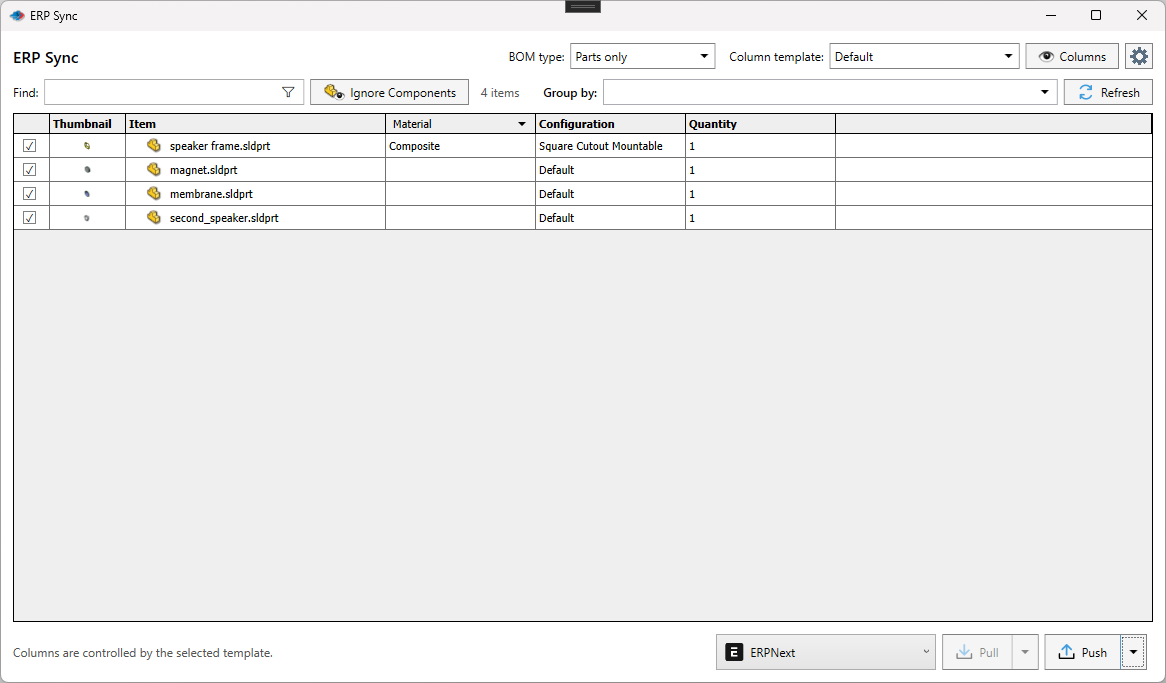
- Select the connector at the bottom of the window.
- For Push, open the arrow beside Push, select the operations, select Push, review the preview and commit. For Pull, select Pull, review the diff and Apply to SOLIDWORKS.
- Read the ERP Sync report, correct any failed item, and save modified SOLIDWORKS documents.
Settings page: every default
Open PDMPublisher > Settings > ERP Sync under Integration. These defaults are independent from BOM Manager’s settings even though they share the column templates.
| Setting | What it does | Notes |
|---|---|---|
| ERP connector | Selects the connector used by ERP Sync; the adjacent command opens ERP connector settings. | The active connector is the one last saved in the connector dialog. |
| Default column template | BOM Manager column template used when the ERP Sync window opens. | The selected columns are also the values a connector can map. |
| Default BOM display type | Initial Parts only, Top-level only or indented view. | A BOM Push requires Indented. |
| Group by | Groups displayed rows by text, a property or a supported placeholder. | Leave empty for a flat list; BOM Push requires no grouping. |
| Ignore Components | Conditions that exclude matching components from the ERP Sync view. | Same editor as BOM Manager, separate definition. |
| Find text | Default text filter for the rows. | |
| Item types | Limits the kinds of rows included in the view. | Feature-tree rows can include resolved components, cut-list items and phantom rows. |
ERP connector settings dialog
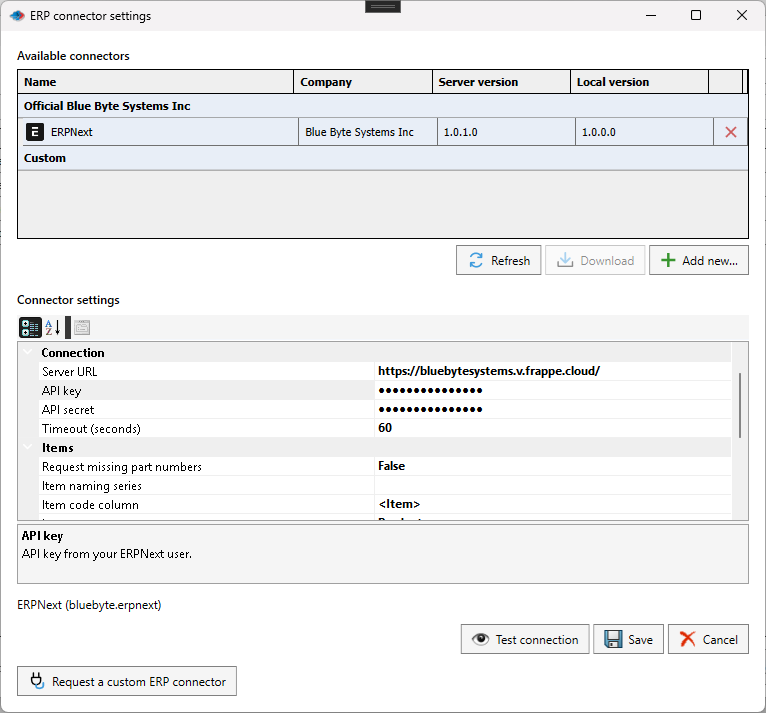
The dialog lists Available connectors in two groups, Official Blue Byte Systems Inc and Custom, with company, server version and local version. Select a row to edit its settings in the property grid below. Connector settings are saved separately per connector and encrypted for the current Windows user; they are never included in settings export or PIN sharing.
| Control | What it does | Notes |
|---|---|---|
| Refresh | Reloads the connector catalog from the server. | Shows when a newer server version exists. |
| Download | Installs or updates the selected official connector. | Enabled when not installed or when the server offers a newer version. |
| Add new… | Browses to a custom connector DLL and lists it under Custom. | Keep the .connector.json beside the DLL for its icon. Restart SOLIDWORKS before replacing a loaded DLL. |
| Delete (red X) | Removes the installed connector. | |
| Connector settings grid | Connector-specific values grouped by category (Connection, Items, BOM, Upload). | Password fields are masked. |
| Test connection | Validates URL, credentials, field metadata and read access without writing. | Read-only; write permissions are enforced at Push time. |
| Save | Stores the settings and makes that connector active. | |
| Cancel | Discards edits. | |
| Request a custom ERP connector | Opens the request for a connector built by Blue Byte Systems. |
Per-connector requirements
Connector capabilities differ. ERPNext and Odoo support BOM synchronization; the current Business Central connector supports item and mapped-property Push and Pull only, because the standard Business Central API v2.0 does not expose BOM-definition endpoints. Test every connector against a non-production database or sandbox company first.
| Connector | Connection settings | Item, BOM and upload settings | Capabilities and limits |
|---|---|---|---|
| Odoo (Odoo 19+ or Odoo Online with JSON-2 API) | Server URL (HTTPS root, no API path), API key of a dedicated integration user created with the rpc scope (no password), optional Database (X-Odoo-Database header for multi-database servers), Timeout (seconds) 1–300, default 60. | Item code column matched exactly to product default_code (default PartNumber); Skip empty values; Property mappings to scalar product fields such as name, description, weight, barcode and writable x_* fields (default Description to name); Company ID (0 = API user’s company); Upload thumbnail to image_1920; Upload exported files as ir.attachment; Export folder; File extensions default step,stp,dxf,pdf. | Reviewed Push with Commit changes, Pull with preview, manufacturing BOM sync with additions, removals and quantity changes. No inventory sync, no custom field creation, no missing Internal Reference generation. 20 MB per file, 64 MB per product. |
| ERPNext | Server URL (HTTPS root without /api), API key and API secret of an integration user, Timeout (seconds) default 60. | Item code column as item_code (default PartNumber, no filename fallback); Item group (default Products); Stock unit of measure (default Nos); Skip empty values; Request missing part numbers plus Item naming series; Property mappings to item_name, description, is_stock_item, is_sales_item, is_purchase_item and scalar custom_* fields; Maintain stock, Allow sales, Allow purchase defaults; BOM company; Upload thumbnail; Upload exported files; File extensions; Export folder. | Push, Pull with preview, ERP-generated item codes written back to SOLIDWORKS, private attachments, managed draft BOM per source file, configuration and company (never submitted or set as default). Stops on first API error, no automatic retry. |
| Microsoft Dynamics 365 Business Central (Online, API v2.0) | Tenant ID, Environment (e.g. Production, Sandbox), Client ID and Client secret value of a Microsoft Entra application with API.ReadWrite.All, Company name or API GUID, Timeout (seconds) default 60. | Item code column matched to the item number (trimmed, uppercase, 20 characters max); Skip empty values; Property mappings to displayName, displayName2, type, itemCategoryCode, blocked, gtin, unitPrice, unitCost, priceIncludesTax, taxGroupCode, baseUnitOfMeasureCode and posting-group codes (default Description to displayName). | Item creation, mapped-property Push with ETag If-Match revalidation, Pull with preview. No BOM sync, no attachments or thumbnails, no number generation, no on-premises or delegated sign-in. |
| Custom connector (your C# DLL) | Whatever your settings class declares: public properties with DisplayName, Category, Description and PasswordPropertyText attributes become the grid. | [ErpSourceColumn] marks the item code column; [ErpPropertyMappings] on a List<PropertyMapping> enables the mapping editor. | Class Library (.NET Framework) 4.7.2, Any CPU or x64, C# 7.3; one public connector class derived from ErpConnector<TSettings> referencing PDMPublisher.ERPExtension.dll with Copy Local false. Advertise only implemented ErpCapabilities: SelectiveSync, SyncPreview, PullPreview, BomSync, FieldDiscovery, PartNumberGeneration. |
Sources: feature tree, BOM table or CSV
CSV headers ERP Sync recognises: item code as Item code, item_code, PartNumber, Part Number or Item; quantity as Quantity or Qty; parent as Parent, Parent item or parent_item; plus Description and Material. BOM Push from CSV needs item-code and parent columns, each item code once, every parent present, no cycles and at least one parent with children.
| Source | What ERP Sync uses | Important behaviour |
|---|---|---|
| Feature tree | The active document and its resolved component tree. | Default. BOM type, column templates, grouping, component filters, cut-list items and phantom rows are available. BOM Push requires the Indented view with no grouping. |
| SOLIDWORKS BOM table | A BOM table in an assembly or drawing, with its selected configuration. | Visible rows, visible columns and displayed quantities are used; hidden ones are omitted. Column titles become mappable source properties. Quantities must be numeric. BOM Push needs an indented table with numeric item numbers such as 1, 1.1, 1.2, visible parent rows and an unambiguous hierarchy. |
| CSV file… | A UTF-8 CSV from disk, independent of the model. | Max 20 MB and 50,000 non-blank rows; unique, non-empty headers; the same field count in every row; positive whole-number quantities (missing quantity column = 1). Every column becomes a source property. Pull cannot write to a CSV source. |
Push operations
The snapshot is plain data: root custom properties merged with active-configuration properties (configuration values win), mass in kilograms, an optional PNG thumbnail, item number, level, configuration and integer quantity per row. A connector never receives SOLIDWORKS COM objects. Duplicate rows with identical values are sent once; conflicting values for the same item code stop the batch before writing. During the run the review window is locked and a progress view is shown; keep SOLIDWORKS open. The ERP Sync report then lists one row per item as Success, No sync needed or Failure, with created, updated, unchanged, uploaded, skipped and BOM counts, a search box, Copy report and Save report….
| Operation | Result | Notes |
|---|---|---|
| Properties | Updates mapped properties for existing ERP items. | Every checked item must already exist. |
| Create items + properties | Creates missing ERP items and sends their mapped properties. | Existing items keep their identity, group, UOM and unrelated fields. |
| BOM | Sends the explicitly selected parent-and-direct-child relationships. | Connector must advertise BOM support; Indented view, no grouping; check the parent and its children. Not available for Business Central. |
| Include cut-list items | Adds supported cut-list rows to the snapshot. | Weldment bodies become items. |
Pull: ERP values into SOLIDWORKS with a diff
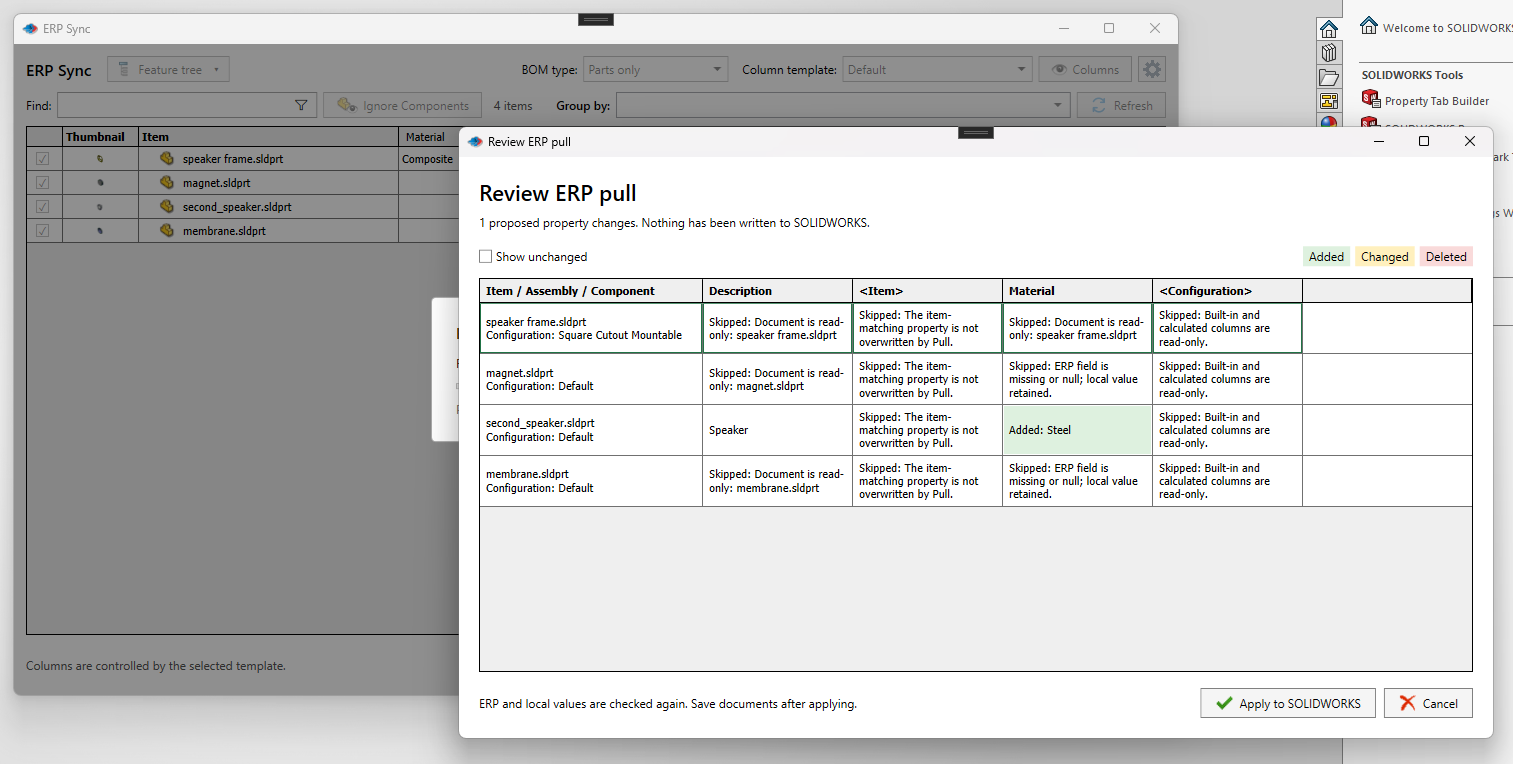
Pull uses the property mappings in reverse: the ERP field is the source, the mapped SOLIDWORKS custom property the destination. Built-in and calculated columns, the item-matching property, read-only documents, missing or null ERP fields and unsupported targets are never overwritten. Before applying, the connector validates the same ERP snapshot again and PDMPublisher rechecks local identity and values; if either changed, the apply stops and you preview again. Pull changes properties only. It does not alter assembly or BOM structure, download attachments, create ERP items or save documents.
- Select a feature-tree or BOM-table source and check the rows to compare.
- Select a connector that supports Pull with preview and select Pull.
- In Review ERP pull, read every proposed or skipped value. Green is Added, yellow Changed, red Deleted; each skipped cell states its reason. Enable Show unchanged to include matching values.
- Select Apply to SOLIDWORKS to revalidate and write, or Cancel to write nothing.
- Save the modified documents.
Set it up in the SOLIDWORKS add-in
- Prepare the ERP side: a dedicated integration user with an API key (Odoo,
rpcscope), API key and secret (ERPNext) or a Microsoft Entra application with a client secret and Business Central permissions; the item group, UOM, categories or naming series that new items will need; and unique item codes. - In SOLIDWORKS open PDMPublisher > Settings > ERP Sync and select ERP connector settings.
- Select Refresh, pick the connector under Official Blue Byte Systems Inc and select Download, or Add new… for a custom DLL.
- Select the installed row and fill the Connection settings (URL, credentials, timeout). Set Item code column to the property that holds your part number.
- Open Property mappings > …, select Load ERP fields and map SOLIDWORKS properties or ERP Sync columns to ERP field names (API names, not labels). Decide on Skip empty values.
- Configure uploads (thumbnail, exported files, export folder, extensions) and BOM company or Company ID where the connector offers them.
- Select Test connection, fix any authentication, URL or mapping problem, then Save.
- Back on the ERP Sync page, set the Default column template, Default BOM display type, grouping, exclusions and filters, then OK.
- Open a small non-production document, run a Push preview and Cancel, confirm nothing changed, then commit a real test in a sandbox company.
Recipes
| Scenario | Settings | Result |
|---|---|---|
| Create Odoo products with previews and STEP files | Odoo connector; mappings Description to name, Material to x_material; Upload thumbnail; Upload exported files with step,pdf; Push Create items + properties on a Parts only view. | Products appear in Odoo Inventory with image, description and attachments after Commit changes. |
| Let ERPNext assign part numbers | ERPNext connector; Request missing part numbers; Item code column = writable PartNumber; Item naming series set; Push Create items + properties. | Empty PartNumber properties receive the confirmed ERPNext item code; save the documents to keep them. |
| Sync a manufacturing BOM | Odoo or ERPNext; Indented view, no grouping; check the parent assembly and its direct children; Push BOM (plus Create items + properties for new parts). | Odoo manufacturing BOM or ERPNext managed draft BOM updated with the checked children and quantities. |
| Adopt ERP descriptions in SOLIDWORKS | Any connector; check rows; Pull; review; Apply to SOLIDWORKS; save. | Mapped properties updated from ERP, item codes and built-in columns protected. |
Tips, limits and troubleshooting
- Community vs Premium. Community Edition reviews and synchronizes up to 10 rows; Premium has no row limit. Limits apply per operation and never expire.
- Command is unavailable. ERP Sync requires a saved document and an active connector saved in ERP connector settings.
- BOM operation disabled. Switch to Indented, clear Group by, expand branches and check the parent and its direct children; for a BOM table use detailed numeric item numbers and visible parents; for CSV provide item-code and parent columns. Business Central never offers BOM.
- Commit reports a stale plan. ERP data changed after preview, the connector instance changed or the plan was already used. Preview again; plans are single-use.
- Partial failure. Connectors stop on the first API error and do not retry or roll back. A timed-out write may still have reached the ERP: inspect the reported item, attachment or BOM in the ERP before retrying.
- Pull skipped a property. Read the reason: identity property, built-in or calculated column, read-only document, missing or null ERP field, aggregate or phantom row.
- Duplicate or archived items. Resolve duplicate Internal References or item codes and archived products in the ERP first; blank or duplicate codes stop the preview.
- Attachments skipped. Exported files must exist with the same base filename as the model (
Bracket.SLDPRTandBracket.step) in the export folder or the model folder; subfolders are not searched. Publish first. - Settings did not travel with the PIN. ERP Sync view defaults are in the bundle; connector credentials and other saved connector values are encrypted per Windows user and must be re-entered.
- Security. A connector runs inside the SOLIDWORKS process; install connectors only from a trusted source, use least-privilege ERP accounts, rotate API keys and never put keys in screenshots or shared files.
- Automation.
publisher.ERPSync connectorName, direction, sourceType, sourcePath, ...in Publisher Macros runs ERP Sync; non-silent mode still lets you review and uncheck rows. - Logs. Save the ERP Sync report and the session log from PDMPublisher > Logs immediately after a failed run and include both when contacting support.
Availability
Available in PDMPublisher for SOLIDWORKS, the add-in that runs inside SOLIDWORKS. Not part of the PDM Professional task. ERP Sync is an Integration command of the PDMPublisher for SOLIDWORKS add-in. It needs a saved document and an installed, active connector; it is not part of the PDM Professional task.
Documentation and related features
- ERP Sync
- BOM Manager
- Property Doctor
- Publisher Macros
- SOLIDWORKS assembly documents
- Conditional assembly processing
- Publishing profiles and Company Settings
Frequently asked questions
Which ERP systems does PDMPublisher ERP Sync support?
Official connectors are available for Odoo (19+ and Odoo Online, JSON-2 API), ERPNext, and Microsoft Dynamics 365 Business Central Online (API v2.0). A C# contract in PDMPublisher.ERPExtension.dll lets you build a custom connector for any other system.
Can ERP Sync push the assembly BOM to ERP?
Yes with Odoo (manufacturing BOMs) and ERPNext (managed draft BOMs). Use the Indented view without grouping and check the parent and its direct children. The Business Central connector does not support BOM sync because the standard API v2.0 exposes no BOM-definition endpoints.
Does Pull overwrite my SOLIDWORKS properties without asking?
No. Pull opens Review ERP pull, a diff of added, changed and deleted values with skip reasons. Nothing is written until you select Apply to SOLIDWORKS, and the plan is revalidated first.
Can ERP Sync upload STEP, DXF and PDF files to the ERP item?
Odoo and ERPNext connectors upload existing exported files whose base filename matches the model, plus the SOLIDWORKS thumbnail. Business Central does not support attachments. ERP Sync does not generate exports; publish them first.
How are items matched between SOLIDWORKS and ERP?
Through the Item code column, by default the PartNumber property, compared exactly to the ERP item code, Internal Reference or item number. ERPNext can also generate a missing number and write it back.
How many rows can the free Community Edition synchronize?
Community reviews and synchronizes up to 10 rows per operation. Premium removes the limit.