

Engineering finishes an assembly in SOLIDWORKS. Someone then opens Odoo and types the parts and the bill of materials in by hand, or exports a spreadsheet and massages it into Odoo’s import template. Both work, both take an afternoon, and both go wrong on the day the part number changes. This post looks at the ways to connect SOLIDWORKS to Odoo, what each one asks of you, and how ERP Sync in PDMPublisher handles it.
What a SOLIDWORKS to Odoo integration has to move
Odoo needs three things from CAD, and they arrive in this order.
- Products. One Odoo product per part and sub-assembly, identified by a stable Internal Reference. Without that key, every later sync creates duplicates.
- Product data. Name, description, weight, sales and purchase flags, a barcode, maybe a few custom fields. In SOLIDWORKS these are custom properties; in Odoo they’re fields on
product.product. - The manufacturing BOM. Which components go into which assembly, and how many. Odoo stores this as a BoM set to Manufacture this product with one line per component.
Four ways to do it
| Approach | What it takes | Where it hurts |
|---|---|---|
| Type it in | Nothing to set up. | Slow, error-prone, and nobody re-does it when the design changes. |
| Export a BOM to Excel, import into Odoo | A SOLIDWORKS BOM table, some column renaming, Odoo’s import wizard. | The spreadsheet needs fixing every time; BOM structure imports are fiddly; no way to see what changed before it lands. |
| Custom script against Odoo’s API | A developer, the Odoo JSON-2 API, error handling, a place to run it. | Works until the developer leaves. Usually no preview, no pull-back, no multi-company handling. |
| PDMPublisher ERP Sync with the Odoo connector | An Odoo API key, an item code, a few property mappings. | Built for exactly this: reviewed diff before every write, re-check before commit, pull values back into SOLIDWORKS. Odoo 19+ or Odoo Online. |
How ERP Sync talks to Odoo
Two minutes of the connector doing exactly this.
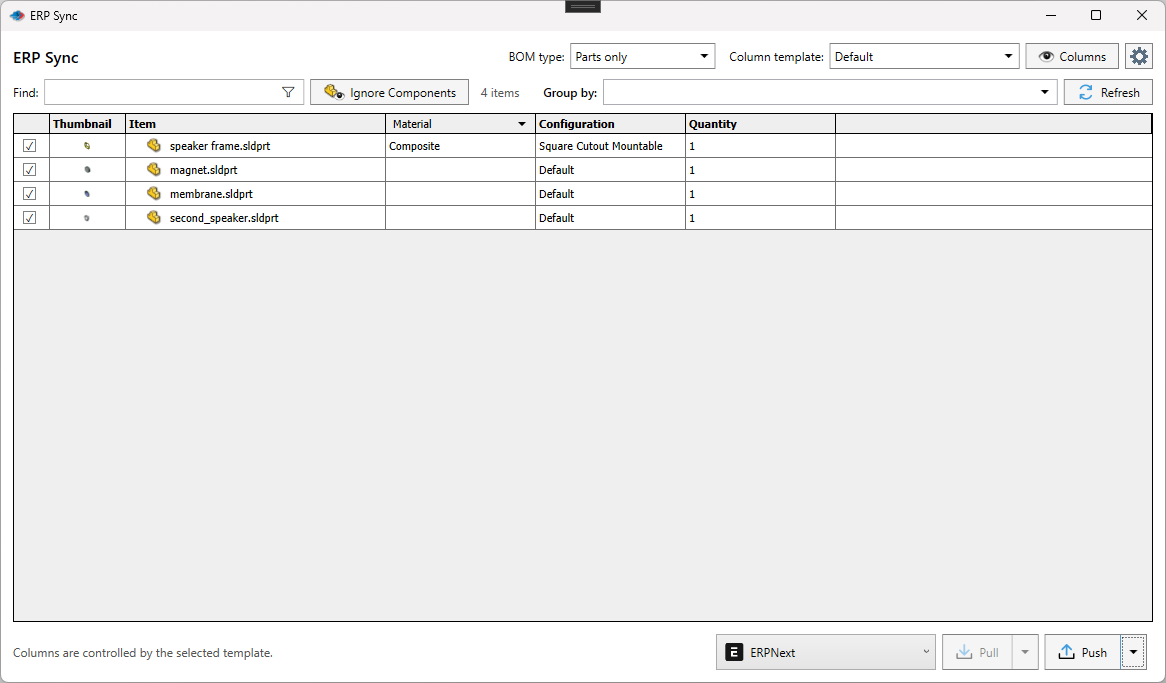
ERP Sync lives inside SOLIDWORKS. It reads the open assembly as an indented BOM, with thumbnails, configurations and quantities, and shows it in a grid you can filter, group and trim before anything leaves the machine. At the bottom of the window you pick a connector; Odoo is one of the official ones, next to ERPNext and Microsoft Dynamics 365 Business Central.
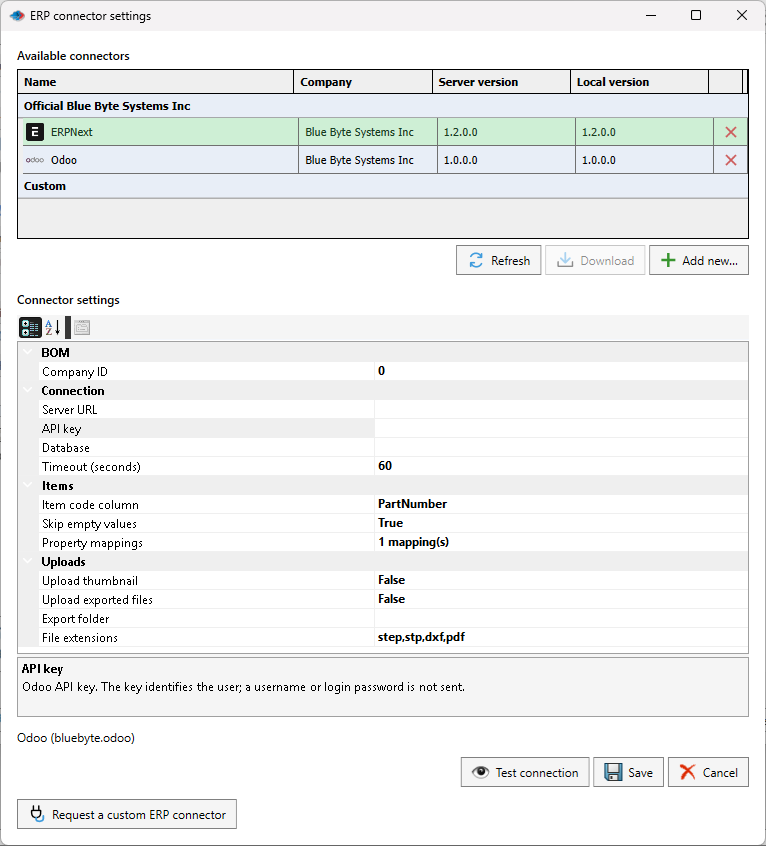
The Odoo connector authenticates with an API key created for a dedicated integration user. No username or password is sent, and the key is stored encrypted for the Windows user. It talks to Odoo’s JSON-2 external API, so it needs Odoo 19 or Odoo Online.
Matching is done on one value: the Item code column you choose in SOLIDWORKS (a PartNumber property, or the file name) against Odoo’s Internal Reference. Get that right and every later push updates the same products instead of creating new ones.
Mapping properties without surprises
Property mappings are where most integrations rot: a field gets renamed, a label is translated, a boolean arrives as the word “yes”. ERP Sync asks Odoo which product fields the integration user can write (Load ERP fields) and lets you map a SOLIDWORKS property to each one: Description to namea weight property to weight, sales text to description_sale, your own x_ custom fields.
Two rules keep it clean. Map each Odoo field once, using the stored API name rather than the label. And leave Skip empty values on, so a blank property in SOLIDWORKS never erases something a buyer typed into Odoo.
Review, then commit
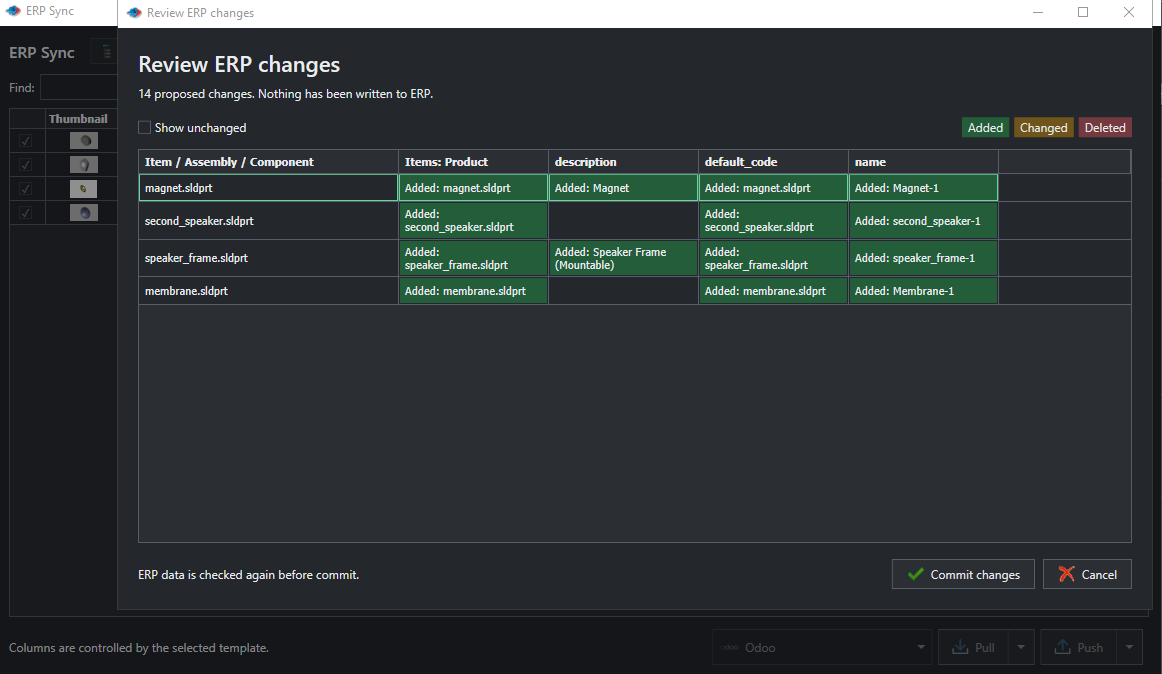
Nothing is written when you select Push. You get a Review ERP changes window with every product, field and BOM line marked Added, Changed or Deleted. On a first push of a small assembly that’s a short list of additions; on a re-push after a design change it’s exactly the handful of quantities that moved.
When you select Commit changes, PDMPublisher re-reads Odoo first. If someone edited a product between your preview and your commit, the commit stops and you preview again. That one check is the difference between an integration people trust and one they switch off.
The BOM, and the cases the connector refuses
With BOM ticked in the push operations, ERP Sync creates or updates the Odoo manufacturing BOM for each checked assembly: component additions, removals and quantity changes, with existing line IDs and the BOM’s base quantity kept when only a quantity moves. Cut-list rows for weldments and sheet metal can go in as separate lines.
It also refuses the cases that would silently corrupt a BOM: several matching BOMs, duplicate lines, a cycle, unit mismatches, operations and by-products on the target, variant-specific lines, writes to multi-variant products. You tidy those in Odoo first, which is the right order.
Pulling data back
Integrations are rarely one-way. A buyer fixes a description in Odoo; engineering wants it on the drawing. Pull reads the matching Odoo products, reverses the mappings and shows the proposed SOLIDWORKS property changes in a review before applying them. It never touches the assembly structure, and with Skip empty values on, an empty Odoo field can’t blank a SOLIDWORKS property.
A sensible rollout
- Create the Odoo API key for a dedicated integration user with only the rights it needs, and point the connector at a test database or test company.
- Pick an item code that never changes. If your files are named by part number, the file name without extension is a good choice.
- Map three or four fields, no more. Push with Create items + properties only, and check the products in Odoo Inventory.
- Add BOM and push again. Open Inventory > Bills of Materials and compare with the SOLIDWORKS tree.
- Use Ignore Components for hardware and purchased parts that shouldn’t become Odoo products, and turn on thumbnail and file uploads once the data is right.
The full click-by-click version, with the API key screens and every connector setting, is in Sync a SOLIDWORKS BOM to Odoo: step by step.
What it doesn’t do
- No inventory or stock levels; that stays in Odoo.
- No creation of custom fields or missing Internal References; the connector maps to what exists.
- No BOM import from Odoo into SOLIDWORKS; Pull changes properties only.
- Odoo versions before 19 aren’t supported by the JSON-2 connector.
Availability
Available in PDMPublisher for SOLIDWORKS, the add-in that runs inside SOLIDWORKS. Not part of the PDM Professional task. The Odoo connector ships with the add-in. Community Edition handles up to 10 rows per run; Premium removes the limit.
Documentation and related features
- Odoo connector documentation
- Sync a SOLIDWORKS BOM to Odoo: step by step
- ERP Sync
- BOM Manager
- Property Doctor
- How to sync SOLIDWORKS BOMs to Odoo (Blue Byte blog)
Frequently asked questions
Does SOLIDWORKS integrate with Odoo natively?
No. SOLIDWORKS has no built-in Odoo connection. You need an add-in such as PDMPublisher ERP Sync, a custom script against Odoo’s API, or a spreadsheet import.
Do I need SOLIDWORKS PDM to sync a BOM to Odoo?
No. ERP Sync runs inside SOLIDWORKS on the open assembly. PDM is optional.
Which Odoo editions and versions work?
Odoo 19 and later, and Odoo Online, through the JSON-2 external API.
Can it update an existing Odoo BOM when the design changes?
Yes. Push again and the review shows the component and quantity differences; existing BOM lines and the base quantity are kept where only a quantity changed.
Is the Odoo connector free?
It ships with PDMPublisher for SOLIDWORKS. The Community Edition handles up to 10 rows per run; Premium removes the limit.
