
Thirty parts and no drawings is a week of New Drawing, insert views, save. PDMPublisher for SOLIDWORKS creates a SLDDRW for the assembly and every referenced part from one template in one run, skips the ones that already exist, and checks them into the vault. Add-in only; the PDM task does not create drawings.
Quick answer
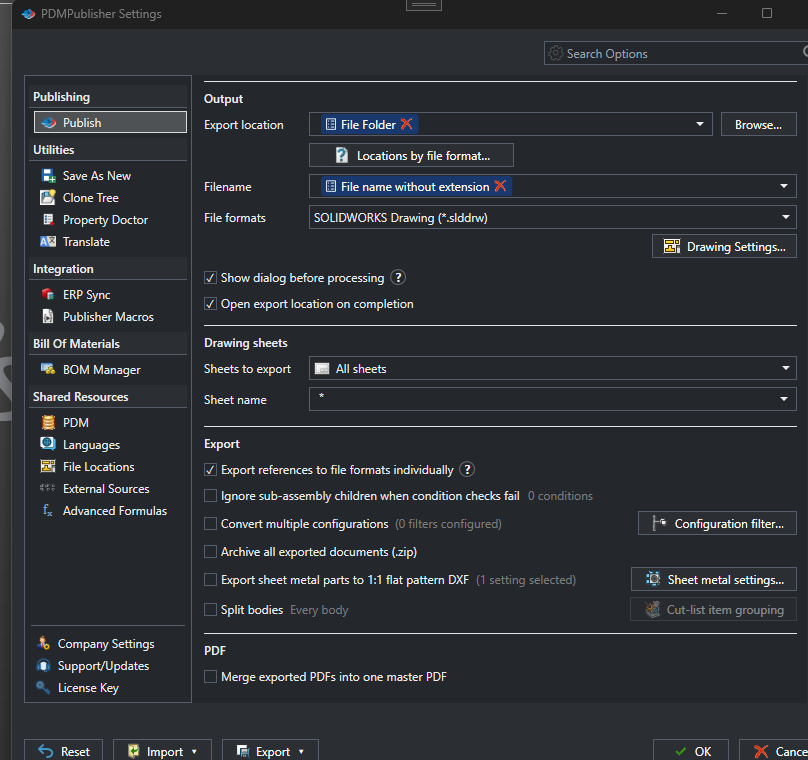
- Open the assembly, tick SOLIDWORKS Drawing (*.slddrw) and Export references to file formats individually, pick the template and views in Drawing Settings, select Publish.
- Models that already have a drawing are skipped, so a re-run after adding two parts creates two drawings.
- Add a condition to keep purchased and library parts out.
Create the drawings: step by step
- Open the top-level assembly with its references resolved.
- On the PDMPublisher tab, select Settings > Publish and tick SOLIDWORKS Drawing (*.slddrw); select the Drawing Settings button that appears.
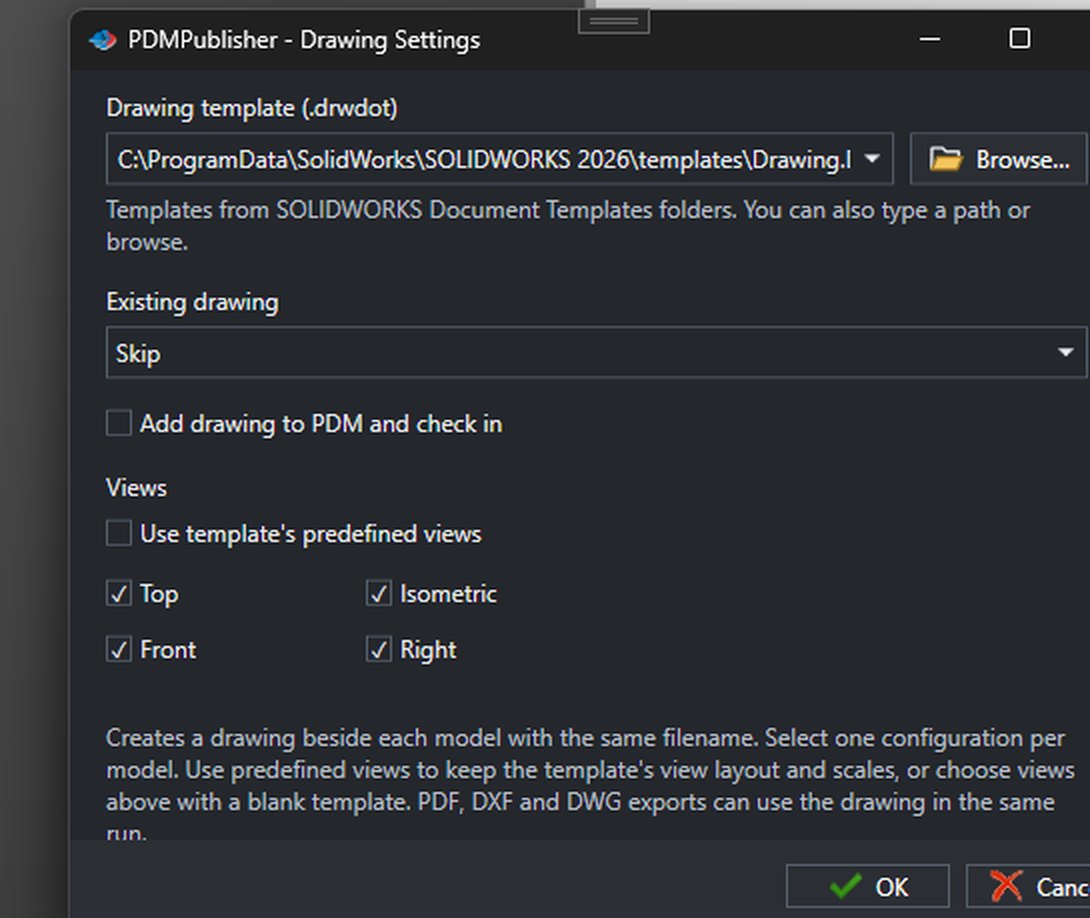
- Pick the Drawing template (.drwdot) and the views: Use template’s predefined views, or Top, Front, Isometric and Right.
- Set Existing drawing to Skip, tick Add drawing to PDM and check in if the assembly lives in a vault, select OK.
- Under Export, tick Export references to file formats individually so every part gets a drawing, not only the assembly.
- On the Conditions page, exclude purchased parts, for example a property not equal Purchased, then select PDMPublisher > Publish.
Settings that matter
| Setting | What to put | Why |
|---|---|---|
| Export references individually | On | Every referenced part gets a drawing. |
| Existing drawing | Skip | Re-runs only create what is missing. |
| Conditions | Property not equal Purchased | No drawings for hardware and library parts. |
| Drawing template | A company .drwdot with predefined views | The same layout on every sheet. |
Naming examples
Frame.SLDASMgetsFrame.SLDDRW,Leg.SLDPRTgetsLeg.SLDDRW, each beside its model.- With Adobe PDF ticked in the same run, every new drawing is also exported as
Leg-A.pdfand so on. - The Export location applies to the exported formats; the SLDDRW files always land in their model’s folder.
If something looks wrong
- Only the assembly got a drawing: Export references to file formats individually is off.
- Purchased parts got drawings: add a condition on a property or vault folder, and tick Ignore sub-assembly children when condition checks fail.
- Layouts differ between parts: the template’s predefined views are not used; tick Use template’s predefined views.
- The Community Edition stopped at 5 references: a larger assembly needs Premium.
Keep going
Documentation
Frequently asked questions
Can PDMPublisher create drawings for every part in an assembly?
Yes. Tick SOLIDWORKS Drawing (*.slddrw) under File formats, set a template and views in Drawing Settings, tick Export references to file formats individually and Publish. Each model gets a drawing beside it.
Will it overwrite drawings that already exist?
Not with Existing drawing set to Skip, which is the default; models that already have a drawing are left alone. Set it to Overwrite to replace them.
Can I skip purchased parts?
Yes. Use a condition on a vault variable or folder, and tick Ignore sub-assembly children when condition checks fail so their children are skipped too.
Can I get a PDF of each new drawing in the same run?
Yes. Select PDF under File formats together with SOLIDWORKS Drawing; the PDF, DXF or DWG export uses the new drawings in the same run.
Does every drawing use the same template?
Yes. Drawing Settings apply to the whole run: one template, the same views and the same rule for existing drawings on every model.