
Ten years of SOLIDWORKS files leave a trail of custom properties nobody uses. Full_Grill_Assembly.SLDASM in project P-24017 still carries OldPartNoDrawnBy and CheckedBy from a retired template, and half the parts have no ProjectNumber. Fixing that file by file through File > Properties takes days. This article builds a Property Doctor cleanup for one assembly, saves it as a profile, and shows where that profile runs again.
What you’ll end up with
OldPartNoDrawnByandCheckedByremoved from every file underFull_Grill_Assembly.SLDASMin one Apply.- A
ProjectNumberproperty set toP-24017on every file that was missing it. - A CSV export of the grid for review, and a reviewed import of the edits.
- A saved Property Doctor profile named
Grill cleanupthat previews and applies the same actions on the next assembly. - That profile wired into a Clone Tree profile, so a copied product variant is cleaned as it’s copied.
Before you start
- PDMPublisher for SOLIDWORKS loaded under
Tools > Add-Ins. Community Edition applies changes to up to 5 rows at a time; Premium removes the limit. - The assembly saved, with local copies of its references. Property Doctor waits while SOLIDWORKS loads references; switching documents during that wait cancels it.
- Files checked out if they live in PDM. The grid’s document menu can check files in or out and get latest, depending on document state and PDM access.
- For the Clone Tree step: a vault selected under
PDMPublisher > Settings > PDMwith Use vault on. - Optional: Hide thumbnail column (faster loading) under
Settings > Property Doctorfor big assemblies.
Step 1: open the grid and delete the stale properties
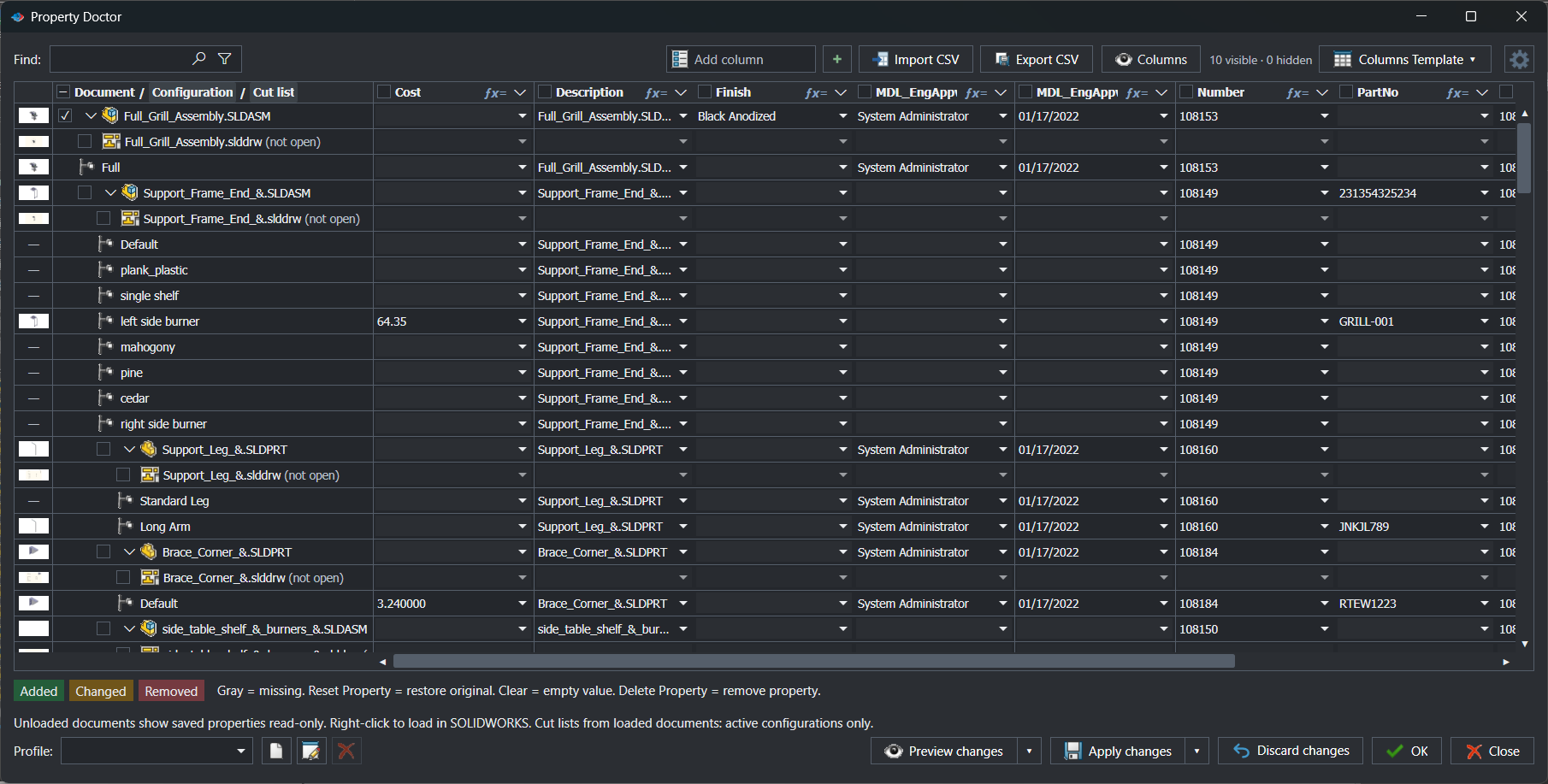
Property Doctor shows the active document, its configurations, cut lists, drawings and references in one editable grid. Gray cells are properties the file doesn’t have.
- Open
Full_Grill_Assembly.SLDASMand select PDMPublisher > Property Doctor. - Use Columns to show
OldPartNoDrawnByandCheckedBy. A stale property hides until you add its column. - Tick the checkbox in each of the three column headers.
- Right-click a selected header, or open its column-options menu, and select Mark selected properties for deletion (visible rows). All three columns are marked in every editable visible row. For one property use Mark property for deletion (visible rows).
- Check the
Removedindicator. Filtered-out and read-only rows aren’t touched, so clear any filter first. - To undo, select the checked command again, or use a header’s delete icon to undo only that column.
Running the command from an unselected column affects only that column. Multi-column marking was fixed in version 2026.10.02; on an older build, mark one column at a time. Since 2026.10.01 a deletion also marks the document as modified, so it survives the save.
Step 2: add what’s missing and fill it down
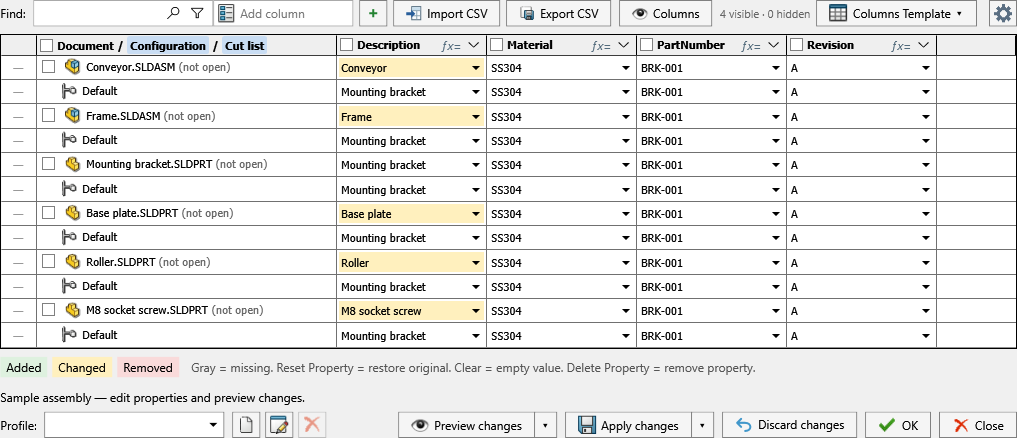
- Select Add property column and name it
ProjectNumber. Every row shows it gray; no file has it yet. - Type
P-24017in the top-level assembly’sProjectNumbercell. - Drag the green cell handle down the column. A vertical drag fills rows; a horizontal drag copies into visible columns instead, so keep it straight.
- Use the Filter toggle to show only empty values when you want to fill just the gaps.
- For
Descriptionuse the cell’s value menu or an advanced formula when the value should come from another property. Formula cells are evaluated for the row they’re applied to. - For a bulk text fix such as
SS 304toSS304open Find and Replace (Ctrl+F / Ctrl+H). It supports plain-text, case-sensitive and regular-expression replacements.
Clear keeps the property name and writes an empty value. Delete Property removes the property. For retired template properties you want Delete, or the empty names keep showing on the data card.
Step 3: round-trip the grid through CSV
The person who knows the right values often isn’t the one at SOLIDWORKS. Property Doctor exports the visible rows and property columns to a CSV with document identifiers, so the file can be imported again.
- Filter the grid to the rows and columns to review, then select Export CSV.
- Let the reviewer edit the values. Leave the identifier columns alone.
- Select Import CSV. The values land in the visible editable cells as pending changes.
- Review them, then select Apply changes. Import on its own writes nothing.
Step 4: save it as a profile
Editing the grid fixes one assembly. A profile is an ordered set of property actions you can preview and apply on any document. Saving it stores the automation; nothing changes until you preview and apply.
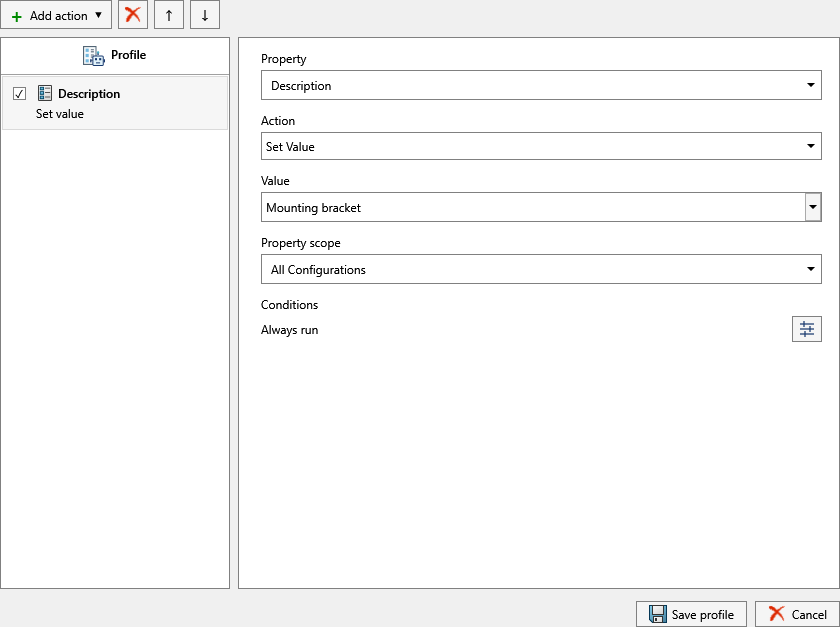
- Select Add profile beside the Profile selector, or manage profiles under
Settings > Property Doctor. Name itGrill cleanup. - Select Add action and set Action to
Delete Property. Choose Select specific properties and tick the three stale names, or Match property names using * with a pattern such asOld*. - Add a second action: Property
ProjectNumberActionSet ValueValueP-24017Property scopeAll Configurations. - Leave Conditions at
Always runor select Edit conditions to limit the action to, say, one folder. Multiple rows must all match unless Match any condition (otherwise all) is ticked. - Keep the delete above the set-value action. Actions run top to bottom and a later match replaces an earlier value.
- Select Save profile. In the grid, pick
Grill cleanupin the Profile selector and select Preview changes. Inspect the cells and select Apply changes.
Settings used
| Setting | Value | Why |
|---|---|---|
| Columns shown | PartNumberDescriptionMaterialRevisionProjectNumberOldPartNoDrawnByCheckedBy | Stale properties must be visible to be marked |
| Column selection | Header checkboxes on the three stale columns | Enables Mark selected properties for deletion (visible rows) |
| Profile action 1 | Delete Property · Select specific properties | Removes the retired template properties |
| Profile action 2 | ProjectNumber · Set Value · P-24017 | Adds the missing project number |
| Property scope | All Configurations | Configuration-specific tabs get the value too |
| Conditions | Always run | Whole tree, no filtering |
| Hide thumbnail column (faster loading) | On | Faster open on large assemblies |
| Default column template | Saved with Save default | The cleanup columns appear every time |
Run it and check the result
The check is the grid. After Preview changes, every pending cell carries an AddedChanged or Removed indicator. Discard changes restores the originals before anything is written.
Apply changes writes the pending changes; save and check in afterward. Open File > Properties on Support_Leg_&.SLDPRT to confirm: OldPartNo is gone and ProjectNumber reads P-24017.
In Community Edition the apply stops at 5 rows; activate Premium for more.
Run the profile again from Clone Tree
A Clone Tree profile can run a Property Doctor profile after copying. Under Settings > Clone Treeedit the profile, tick Run Property Doctor profile after copying and pick Grill cleanup. The processing applies to the copied files and needs files compatible with the current SOLIDWORKS version.
Save As New shows a Clean up properties option under Property Management. It’s greyed out until a Property Doctor profile exists; the docs still list it as not enabled, so if it stays greyed after you create a profile, use Clone Tree’s Run Property Doctor profile after copying instead, or open the copy and run Grill cleanup from the arrow beside Property Doctor in the CommandManager.
Variations
- Material from a code. Add a
Set Material From Propertyaction, pick the source property and part-configuration scopes, select the.sldmatlibraries, and add mappings such asSS*. Empty, linked, unresolved or ambiguous values are skipped with the reason in the preview. Cut-list bodies aren’t assigned. - Drawings too. The grid lists drawings, so a title-block property on the drawing is cleaned in the same pass.
- Share the profile.
Export > Export all settings to File...orShare complete settings using PIN...bundles Property Doctor profiles with the rest. SQL credentials are never included. - Automate it. Publisher Macros can call a saved Property Doctor profile from VBA. Save the documents afterward.
Where it goes wrong
| Symptom | Cause | Fix |
|---|---|---|
| Only one column was marked | Command run from an unselected column, or build older than 2026.10.02 | Tick the header checkboxes first; update the add-in |
| Some parts still have the property | Rows filtered out or read-only when marked | Clear the filter, check files out, mark again |
| Deleted property came back | Build older than 2026.10.01 didn’t mark the document modified | Update the add-in |
| Apply stopped after 5 rows | Community Edition limit | Activate Premium |
| Property Doctor closed while loading | Active document changed during reference loading | Reopen and wait for the grid |
| Drag filled the wrong cells | Horizontal drag copies into columns; vertical fills rows | Discard changes and drag straight down |
| Later action undid an earlier one | Actions run top to bottom | Reorder with the arrows; preview first |
| Profile applied nothing | Saving a profile doesn’t change documents | Preview changes, then Apply changes |
| Clean up properties greyed out in Save As New | No Property Doctor profile exists yet, or the option isn’t enabled in this build | Create a profile; if it stays greyed, run the profile from Property Doctor or Clone Tree |
Verified against
- pdmpublishersolidworks_property-doctor.md
- pdmpublishersolidworks_profiles.md
- pdmpublishersolidworks_save-as-new.md
- pdmpublishersolidworks_smart-pack.md
- pdmpublishersolidworks_settings.md
- pdmpublishersolidworks_commands.md
- pdmpublishersolidworks_pdm-settings.md
- pdmpublishersolidworks_publisher-macros.md
- changeslog.md (2026.09.31, 2026.10.01, 2026.10.02)
- pdmpublishersolidworks_comparison.md
- pdmpublisher-product-differences.md
- pdmpublisherspecialvariable.md
- pdmpublisherfaq.md
- ui-preview/PropertyDoctor control captures (profile editor, Select properties and Conditions dialogs)
Availability
Available in PDMPublisher for SOLIDWORKS, the add-in that runs inside SOLIDWORKS. Not part of the PDM Professional task. Property Doctor is a command in the PDMPublisher for SOLIDWORKS add-in; the PDM Professional task doesn’t have it. Community Edition applies changes to up to 5 rows at a time.
Documentation and related features
- Property Doctor documentation
- Property Doctor
- Clone Tree
- Save As New
- Upgrade legacy custom properties for a whole assembly
- Clone a product variant with Clone Tree
- Publisher Macros
Frequently asked questions
How do I delete a custom property from every part in a SOLIDWORKS assembly?
Open the assembly in Property Doctor, show the property’s column, and select Mark property for deletion (visible rows) from the column header. Then select Apply changes and save the files.
Can Property Doctor delete several properties at once?
Yes. Tick the header checkbox on each column and use Mark selected properties for deletion (visible rows). This works on add-in version 2026.10.02 and later.
Does saving a Property Doctor profile change my files?
No. A profile only stores the actions. Files change when you preview the profile and select Apply changes.
Can Save As New run a Property Doctor profile on the new copy?
The Clean up properties option is greyed out until a Property Doctor profile exists, and may stay greyed in the current build. Clone Tree can run a Property Doctor profile after copying.