
Sales wants a propane version of the grill. The quick route is Pack and Go on Full_Grill_Assembly.SLDASMa prefix on every name and a folder outside the vault. Then the names collide with the serial-number scheme, the shared hardware is duplicated and the references point at the wrong files. This article clones the assembly with Clone Tree. The parts that change get new PDM serial numbers, shared parts stay where they are, and everything lands in the new project folder with a ZIP for the supplier.
What you’ll end up with
- A new assembly and copied parts under
C:\PDMVault\Projects\P-24031with the copied references repointed to each other. - Part numbers for the copies taken from the vault’s serial-number generator, so
Support_Leg_&.SLDPRTbecomes, say,11346.SLDPRTand never collides with an existing file. - Toolbox hardware and shared purchased parts excluded, still referenced from their original location.
- Existing same-named STEP and PDF files copied beside their models, and one ZIP of the whole set.
- A saved Clone Tree profile named
Grill variantthat repeats the plan on the next variant.
Before you start
- PDMPublisher for SOLIDWORKS loaded under
Tools > Add-Ins. Premium for more than 5 rows per run. - A local vault view of
C:\PDMVaultlogged in at least once through PDM File Explorer. UnderPDMPublisher > Settings > PDMtick Use vault and select the vault. This doesn’t log you in or grant permissions. - A PDM serial-number generator for part numbers. Under
Settings > Clone Treetick Use this serial number and pick it. That adds a Serial number entry to the New name and Folder menus in the grid. - The source assembly saved with its references resolved locally. If references change while the window is open, review the grid again.
- The folder
C:\PDMVault\Projects\P-24031existing in the vault view, with rights to add files there.
Step 1: build the copy plan
- Open
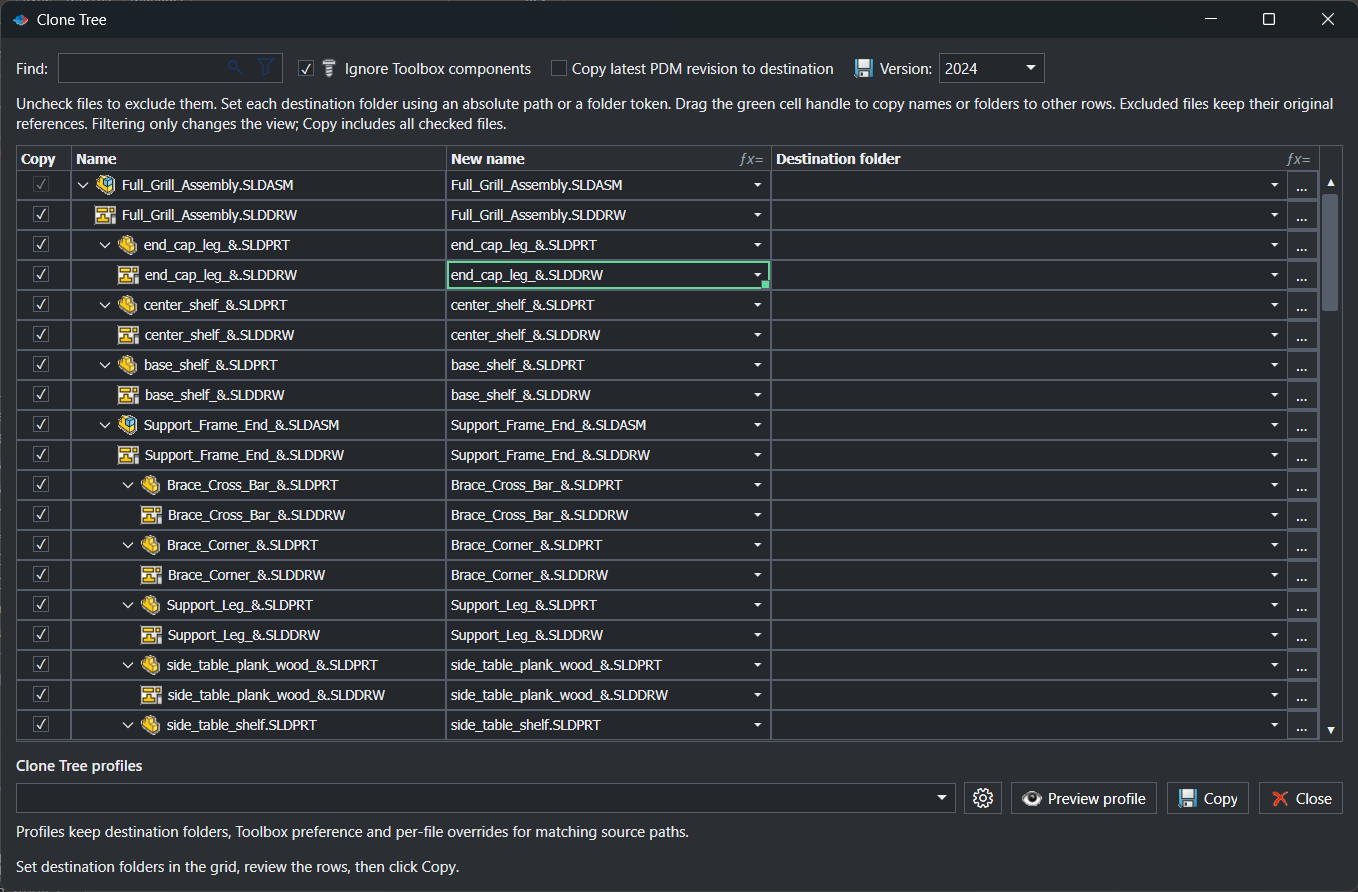
Full_Grill_Assembly.SLDASMand select PDMPublisher > Clone Tree. The grid lists the assembly and every reference withCopyNew nameandDestination foldercolumns. - Tick Ignore Toolbox components so bolts and nuts stay out of the copied set.
- Uncheck the shared purchased parts, such as the burner. An excluded file keeps its original reference, so the new assembly still uses the same burner file.
- In the top assembly’s
New namecell, open the cell menu and insert the serial number. Each included row that asks for one gets its own reserved number, and filenames keep their extension. - Drag the green cell handle down the
New namecolumn so every checked part gets the token.Brace_Corner_&.SLDPRTandSupport_Leg_&.SLDPRTeach get their own number at copy time. - In the top
Destination foldercell, typeC:\PDMVault\Projects\P-24031or build it from the Vault root folder token in the cell menu. Drag it down the column. - Switch on Evaluate new filenames and Evaluate destination folders to see resolved values; switch them off to see the tokens.
Search and type filters change only the visible rows. Every checked file stays in the plan, so filter freely but check the full list before you copy.
Step 2: companion files, revision and ZIP
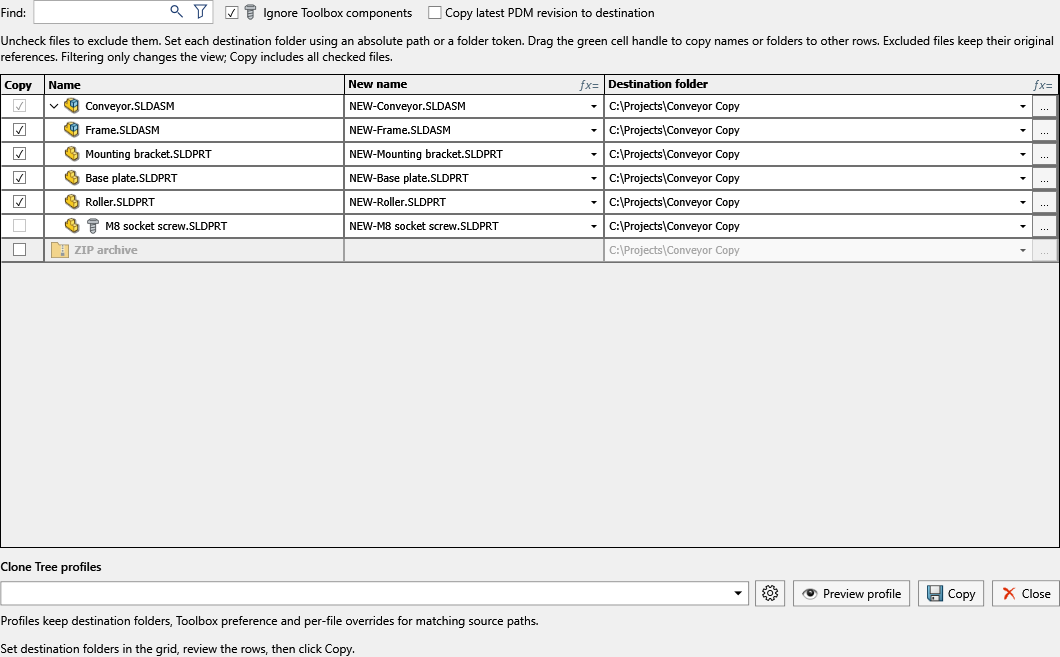
- Decide on Copy latest PDM revision to destination. On, it copies the latest assigned revision of each file straight to the destination without updating the local vault cache or reloading SOLIDWORKS. A vault file with no assigned revision can’t use it. Leave it off to start from the version open now.
- Tick Create ZIP archive after copying on the ZIP row and set its destination. The ZIP is built after the copies complete and has its own filename and destination.
- SOLIDWORKS 2024 or newer:
Versionsaves the copies in the current release or either of the two previous ones. - Companion files are set in the profile, not in the grid. You tick
STEP / STPandPDFunder Included companion formats in Step 3. Clone Tree includes existing same-named STEP, PDF or DXF files found for a document; it doesn’t generate them.
Step 3: save it as a profile
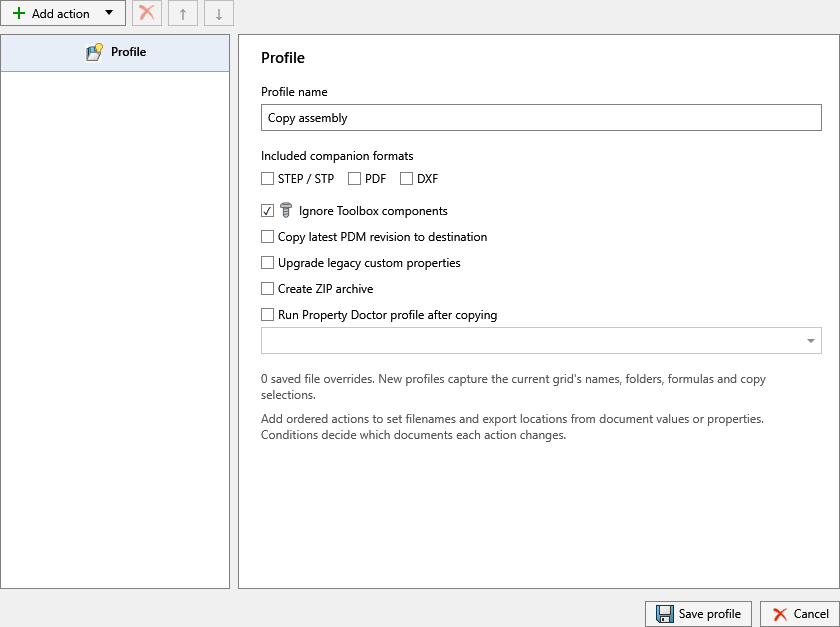
A Clone Tree profile keeps the destinations, the Toolbox preference, companion formats, latest-revision behavior, ZIP settings, per-file overrides and an ordered list of rules. Rules set a filename or export location when their conditions match; later rules replace earlier values.
- Select the gear in the Clone Tree window, or open
Settings > Clone Treeand add a profile namedGrill variant. - Tick
STEP / STPandPDFIgnore Toolbox components and Create ZIP archive. - Select Add action for an export-location rule that sends every file to
C:\PDMVault\Projects\P-24031and a filename rule that uses the serial number. Conditions decide which documents each action changes. - Optionally tick Run Property Doctor profile after copying and pick
Variant cleanupa Property Doctor profile that setsProjectNumbertoP-24031. It applies to the copied files and needs files compatible with the current SOLIDWORKS version. - Select Save profile. Back in the Clone Tree window, pick
Grill variantin the Clone Tree profiles selector before you select Copy; Preview profile shows its effect on the grid. Next time, the arrow beside Clone Tree in the CommandManager opens the profile directly.
Settings used
| Setting | Value | Why |
|---|---|---|
| Settings > PDM > Use vault | On, C:\PDMVault | Serial numbers and vault placeholders need a vault |
| Settings > Clone Tree > Use this serial number | The vault’s part-number generator | Adds Serial number to the name and folder menus |
| New name | Serial number token on each copied row | One reserved number per included row |
| Destination folder | C:\PDMVault\Projects\P-24031 | New project folder inside the vault view |
| Ignore Toolbox components | On | Hardware isn’t duplicated |
| Shared purchased parts | Unchecked | Keep their original reference |
| Copy latest PDM revision to destination | Off | Start from the open version |
| Included companion formats | STEP / STPPDF | Existing same-named exports travel with the models |
| Create ZIP archive | On | One archive for the supplier |
| Run Property Doctor profile after copying | Variant cleanup | Project number set on the copies |
Run it and check the result
Select Copy. Serial numbers are generated now, not when you insert the token. A row uses the same number for its name and folder when both ask for one, and a retry while the dialog stays open reuses the number.
Before writing, Clone Tree validates the plan. It rejects duplicate targets, source overwrites, changed SOLIDWORKS extensions, existing targets, unresolved destination expressions and unavailable PDM revision data. Fix the row it names and select Copy again.
There’s no Publishing results tab for Clone Tree; that’s for Publish jobs. Check the vault view instead: open C:\PDMVault\Projects\P-24031confirm the new assembly opens with its copied parts and that the burner still resolves to its original path. Then add and check the files in from PDM File Explorer; Clone Tree doesn’t do that for you.
Whether associated drawings join the copy plan isn’t covered here; clone one part first and look. For a single part with its drawing, use Save As New with Bring associated drawing.
Variations
- Number-range folders. A vault that files parts by thousands can try a destination such as
(VaultRootFolder)\Parts\(FileNameNumberRange)which turns11345.SLDPRTintoC:\PDMVault\Parts\11000-11999. Confirm on one part whether the range follows the source name or the new serial number. Why it matters is in serial numbers and folder number ranges. - Same names, new folder. Leave
New namealone and set only the destination. The target folder must not already hold those names. - Named formula. Define
Variant filenameunderSettings > Advanced Formulasand pick it from the cell menu, so Save As New and Clone Tree share one naming rule. - Supplier-only package. Uncheck everything but the made parts, tick
STEP / STPandDXFas companions, and send the ZIP.
Where it goes wrong
| Symptom | Cause | Fix |
|---|---|---|
| Serial number missing from the cell menu | Use this serial number isn’t ticked, or no vault is selected under Settings > PDM | Select the vault and the generator, then reopen Clone Tree |
| Copy rejected: existing target | A file with that name already exists in the destination | Change the name or folder; Clone Tree never overwrites |
| Copy rejected: unresolved destination expression | A token in Destination folder has no value for that row | Switch on Evaluate destination folders and fix the row |
| Copy rejected: unavailable PDM revision data | Copy latest PDM revision is on and a file has no assigned revision | Turn the option off or exclude the file |
| Only 5 files copied | Community Edition row limit per run | Activate Premium or copy in smaller runs |
| Companion STEP not copied | No existing same-named STEP file was found | Publish the STEP first; Clone Tree doesn’t generate it |
| Copied set opens with old parts | Those rows were unchecked | Excluded files keep their original references by design |
| Property Doctor step didn’t run | Copied files aren’t compatible with the current SOLIDWORKS version | Save the copies in the current version first |
Verified against
- pdmpublishersolidworks_smart-pack.md
- pdmpublishersolidworks_pdm-settings.md
- pdmpublishersolidworks_save-as-new.md
- pdmpublishersolidworks_advanced-formulas.md
- pdmpublisherspecialvariable.md
- pdmpublishersolidworks_profiles.md
- pdmpublishersolidworks_settings.md
- pdmpublishersolidworks_commands.md
- pdmpublishersolidworks_property-doctor.md
- pdmpublishersolidworks_comparison.md
- pdmpublisher-product-differences.md
- pdmpublisherfaq.md
- ui-preview/CloneTree and ui-preview/Settings control captures (main window text, profile editor, Clone Tree settings page)
Availability
Available in PDMPublisher for SOLIDWORKS, the add-in that runs inside SOLIDWORKS. Not part of the PDM Professional task. Clone Tree is a command in the PDMPublisher for SOLIDWORKS add-in; the PDM Professional task doesn’t have it. Community Edition processes up to 5 rows per run. Serial numbers and vault placeholders need a vault selected under Settings > PDM.
Documentation and related features
- Clone Tree documentation
- Clone Tree
- Save As New
- Why serial numbers and folder number ranges keep your vault fast
- Clean up custom properties with Property Doctor profiles
- Upgrade legacy custom properties for a whole assembly
- External sources and formulas
Frequently asked questions
How do I copy a SOLIDWORKS assembly with new PDM serial numbers?
Select the generator under Settings > Clone Tree with Use this serial number, then insert the Serial number token in each New name cell. Numbers are reserved when you select Copy, one per included row.
Does Clone Tree overwrite existing files?
No. It rejects existing targets, source overwrites and duplicate targets before copying anything.
Can Clone Tree leave Toolbox hardware and purchased parts out of the copy?
Yes. Tick Ignore Toolbox components and uncheck any other file. Excluded files keep their original references in the copied assembly.
Does Clone Tree create STEP or PDF files for the copies?
No. Companion files are existing same-named STEP, PDF or DXF files found beside a document. Publish them first if you need them generated.