
Purchasing needs quotes for Full_Grill_Assembly.SLDASM. The laser shop gets the sheet metal, the machine shop gets the brackets, and each one should get only its own parts, as PDF and STEP, in one ZIP. Today an engineer exports everything and sorts files into folders by hand, and the laser shop ends up with a machined bracket in its package. This article builds one PDMPublisher Publish profile per vendor that filters by a Vendor property and archives the result to a ZIP.
What you’ll end up with
- A profile
Supplier – Acme Laserthat exports only parts whoseVendorproperty isAcme Laseras PDF, STEP and flat-pattern DXF, intoC:\Export\Suppliers\Acme Laser\Full_Grill_Assembly. - A profile
Supplier – Bay Machiningthat does the same forBay Machiningparts, PDF and STEP only. - In each folder, files named like
Support_Leg_&_RevB.pdfandSupport_Leg_&_RevB.stepplus a ZIP of the exported documents. - A review dialog before each run so the buyer can see which parts go to which vendor, and a results list afterwards with the ZIP’s path.
Before you start
- A custom property or PDM variable that names the supplier on each part. This article calls it
Vendor. The condition dropdown only lists values present in the current document context, so the property must exist on the parts. - The assembly open and saved in SOLIDWORKS, with references resolved. Unresolved references can’t be processed reliably.
- If the filename uses
(Revision)a vault selected under PDMPublisher > Settings > PDM with Use vault on. Otherwise use a custom property for the revision, or leave it out. - Edition check: Community Edition exports PDF, DXF and STEP and up to 5 references per run, which may be enough for one vendor. Export locations by file format need Premium.
Build the first vendor profile
- Open PDMPublisher > Settings > Publish. Select New > New… and name the profile
Supplier – Acme Laser. - In Export location, enter
C:\Export\Suppliers\Acme Laser\(TopAssemblyName). No trailing backslash.(TopAssemblyName)is the open assembly’s name without extension. - In Filename, enter
(FileNameWithoutExtension)_Rev(Revision). - In File formats, select
Adobe PDF (pdf)andSTEP (step). For a part, PDF exports the same-name drawing found in the part’s folder. - Turn on Export references to file formats individually. Without it the job only processes the assembly itself.
- Turn on Export sheet metal parts to 1:1 flat pattern DXF. Open Sheet metal settings, keep Export flat-pattern geometry and add Export bend lines.
- Turn on Archive all exported documents (.zip).
- Keep Show dialog before processing on so the buyer reviews the list each time.
- Click OK.
Export affected document is a task-only option. In the add-in the top assembly is the active document and appears in the review dialog; clear its Use box there when the vendor shouldn’t get the assembly STEP.
Add the vendor condition
- Select PDMPublisher > Conditions for the
Supplier – Acme Laserprofile. - Leave the root at
Andand click + (Condition). - In Variable, pick
Vendor. In Comparison, pickText Equal To. In Value, typeAcme Laser. Text comparisons aren’t case sensitive. - Leave Configuration empty so the value comes from the referenced configuration.
- Click OK.
If a bought-in sub-assembly from this vendor has children drawn in house, leave Ignore sub-assembly children when condition checks fail off so those children are still evaluated on their own.
Clone it for the next vendor
- In Settings > Publish, select the Acme profile, open Export and select Export to File… to save a
.pdmpublisherprofilefile. - Open Load From…, select Load from File… and pick that file. When asked about the name conflict, import it under the name
Supplier – Bay Machining. - Select
Supplier – Bay Machiningin Settings > Publish. Change Export location toC:\Export\Suppliers\Bay Machining\(TopAssemblyName)turn off the flat-pattern DXF option, and click OK. - Open PDMPublisher > Conditions, change the Value to
Bay Machiningand click OK.
To give the profiles to purchasing, export each one to a file or share it with a six-digit PIN, which stays valid for 30 days.
Settings used
| Setting | Value | Why |
|---|---|---|
| Profile name | Supplier – Acme Laser | One profile per vendor |
| Export location | C:\Export\Suppliers\Acme Laser\(TopAssemblyName) | One folder per vendor per assembly |
| Filename | (FileNameWithoutExtension)_Rev(Revision) | Revision travels with the file |
| File formats | Adobe PDF (pdf)STEP (step) | Drawing and 3D model for quoting |
| Export references to file formats individually | On | Parts are exported, not just the assembly |
| Export sheet metal parts to 1:1 flat pattern DXF | On for the laser vendor, off for machining | Flat patterns only where they’re used |
| Archive all exported documents (.zip) | On | One file to attach to the RFQ |
| Show dialog before processing | On | Buyer checks the list first |
| Condition | Vendor · Text Equal To · Acme Laser | Only that vendor’s parts pass |
| Ignore sub-assembly children when condition checks fail | Off | In-house children of a vendor sub-assembly still get checked |
Run it and check the result
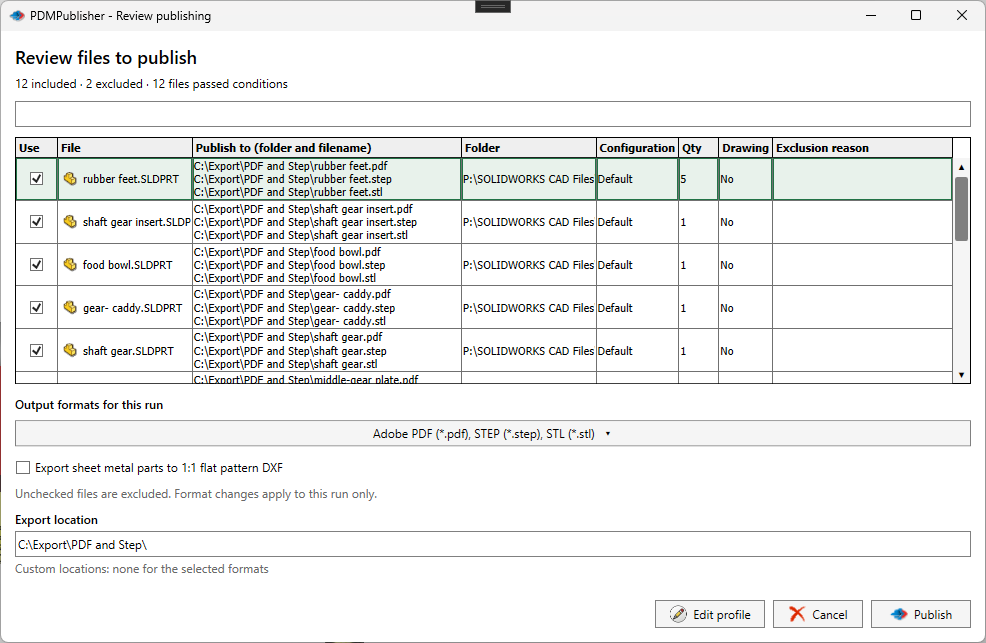
Open Full_Grill_Assembly.SLDASMthen use the arrow beside Publish and pick Profile: Supplier – Acme Laser. The review dialog lists the files that passed with their evaluated destination per format, quantity, and whether a drawing was found. Files that didn’t pass show an Exclusion reason. Clear Use on anything that shouldn’t go, then click Publish.
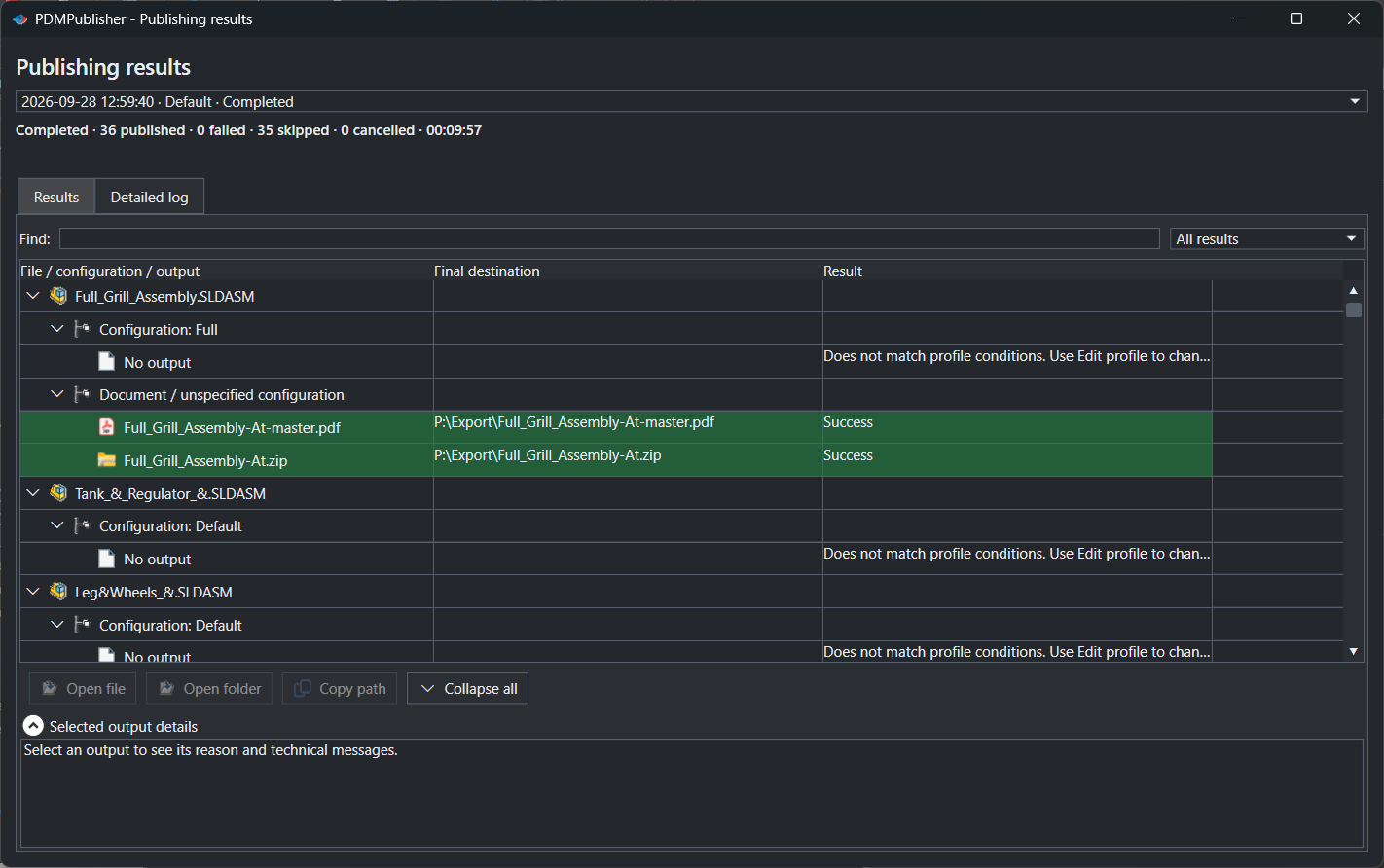
When it finishes, Publishing results groups each source file, configuration and output. The summary counts published, failed, skipped and cancelled. Parts that belong to another vendor show up as skipped with the reason that they don’t match the profile conditions. Select the ZIP row and use Open folder or Copy path to grab it for the email.
Run the second profile for the next vendor. The arrow menu lists every saved profile as Profile: name.
In the results screenshot below the ZIP sits in the export folder and is named after the top assembly and configuration. Check the Final destination column on your first run.
Variations
- DXFs straight to the laser share. With Premium, open Locations by file format (the task page calls the same feature Customize Location), enable the DXF row and point it at
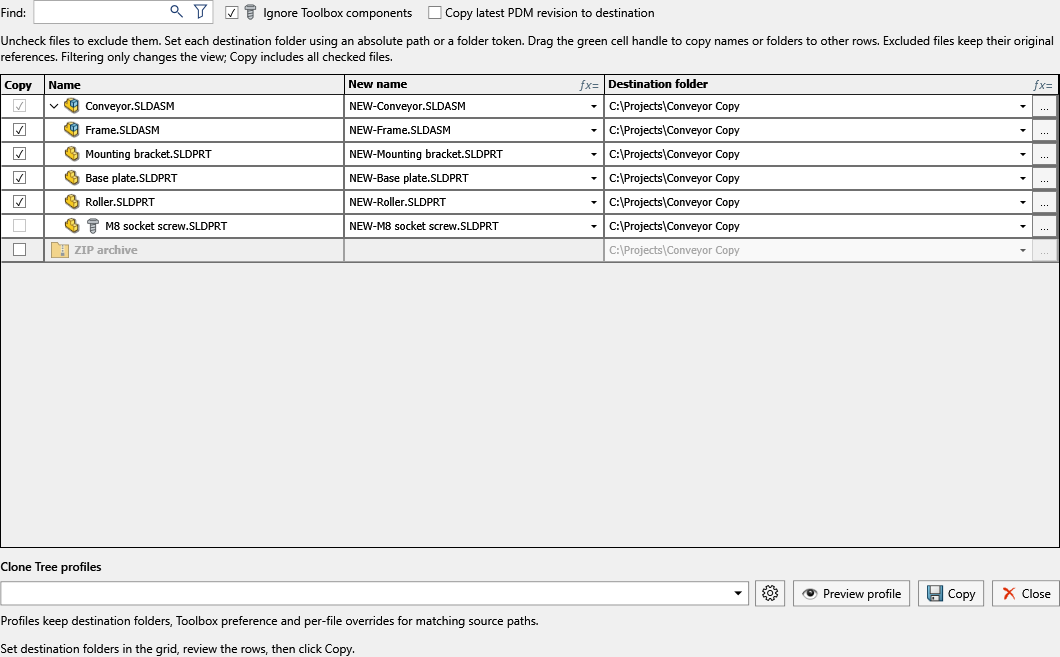
\\server\laser\DXF. PDF and STEP keep the main location. - Native SOLIDWORKS files instead of STEP. Use PDMPublisher > Clone Tree. Check the files and set New name and Destination folder per row. Turn on Ignore Toolbox components and include companion STEP, PDF or DXF files. Configure the ZIP archive with its own name and destination, then click Copy. Copy latest PDM revision to destination sends the latest assigned revision rather than the local copy. See Clone a product variant with Clone Tree.
- Same thing on the PDM task. Create one task per vendor, name it
Supplier package – Acme Laseruse the same options and condition, and run it from the Tasks right-click menu. The task needs the BOM Template to find references. - Several vendors. Keep a fixed per-vendor Export location in each profile and run the profiles one after another. A run produces one archive of the exported documents, so a single run can’t give you a ZIP per vendor.
Where it goes wrong
| Symptom | Cause | Fix |
|---|---|---|
| A machined bracket in the laser package | Its Vendor value is wrong or spelled differently | Fix the property; the comparison ignores case but not spelling |
| Every part skipped | Export references individually is off, or no part has a matching Vendor value | Turn it on; check the values in the review dialog’s Exclusion reason |
| Only 5 parts exported | Community Edition limit per run | Activate Premium or split the run |
| Part has a STEP but no PDF | No same-name drawing in the part’s folder | Keep drawings beside models; the add-in has no PDM search option |
Rev with no letter in filenames | (Revision) is empty without a vault or a recorded revision | Select the vault under Settings > PDM, or use a custom property |
| DXF folder override ignored | Locations by file format isn’t available in Community Edition | Use Premium, or move the DXFs after the run |
| Second profile overwrote the first | Loaded the profile file under the existing name | Load it again and choose a new name at the conflict prompt |
| Partial package after cancel | Cancelling doesn’t roll back; files completed before the cancel stay in the folder | Inspect the folder and rerun the profile |
Verified against
- pdmpublisher-options/archive-all-exported-documents.md
- pdmpublisher-options/export-references-individually.md
- pdmpublisher-options/template.md
- pdmpublisher-options/file-formats.md
- pdmpublisher-options/export-location.md
- pdmpublisher-options/filename.md
- pdmpublisher-options/export-sheet-metal-flat-pattern-dxf.md
- pdmpublisher-options/ignore-sub-assembly-children-when-condition-checks-fail.md
- pdmpublishersolidworks-publish.md
- pdmpublishersolidworks_workflow.md
- pdmpublishersolidworks_options.md
- pdmpublishersolidworks_profiles.md
- pdmpublishersolidworks_pdm-settings.md
- conditions_solidworks.md
- pdmpublisher-conditions/condition-fields.md
- pdmpublisher-conditions/condition-types.md
- pdmpublisher-conditions/special-variables.md
- pdmpublishersolidworks-condition-output.md
- pdmpublishersolidworks_smart-pack.md
- pdmpublisherspecialvariable.md
- pdmpublisherfaq.md
- pdmpublishersolidworks_comparison.md
- pdmpublisher-product-differences.md
Availability
Available in PDMPublisher for SOLIDWORKS (the add-in) and PDMPublisher for PDM Professional (the task). This article uses the SOLIDWORKS add-in because a buyer runs it by hand from the open assembly. The PDM Professional task has the same options; make one task per vendor with the same conditions and run it from the right-click menu. Native-file packages use Clone Tree, which is add-in only.
Documentation and related features
- Run a publish job in the SOLIDWORKS add-in
- Options task page
- Publish conditions in practice
- Extension-specific export locations
- Clone Tree
- Sheet metal publishing
- Build the complete release package on Approve
- Publishing profiles and company settings
Frequently asked questions
Can PDMPublisher create a ZIP of exported STEP and PDF files?
Yes. Turn on Archive all exported documents (.zip) in the Publish settings or the task Options page. The exported documents are added to a ZIP archive.
How do I export only one supplier’s parts from an assembly?
Add a condition on the property that names the supplier, such as Vendor Text Equal To Acme Laser, and turn on Export references to file formats individually.
Can I make one ZIP per vendor in a single run?
No. Make one profile per vendor, each with its own fixed Export location, and run each. A run produces a single archive of the exported documents.
What if the supplier needs native SOLIDWORKS files?
Use Clone Tree. It copies the files with updated references, can add companion STEP, PDF or DXF files, and can create a ZIP with its own name and destination.