
Converting SLDDRW to DXF is the 2D exchange everybody can open: AutoCAD and every CAM and nesting package read a DXF of the drawing. PDMPublisher writes the DXF in the same job as the PDF, picks the sheets you want, and does the same as a SOLIDWORKS PDM Professional task at release.
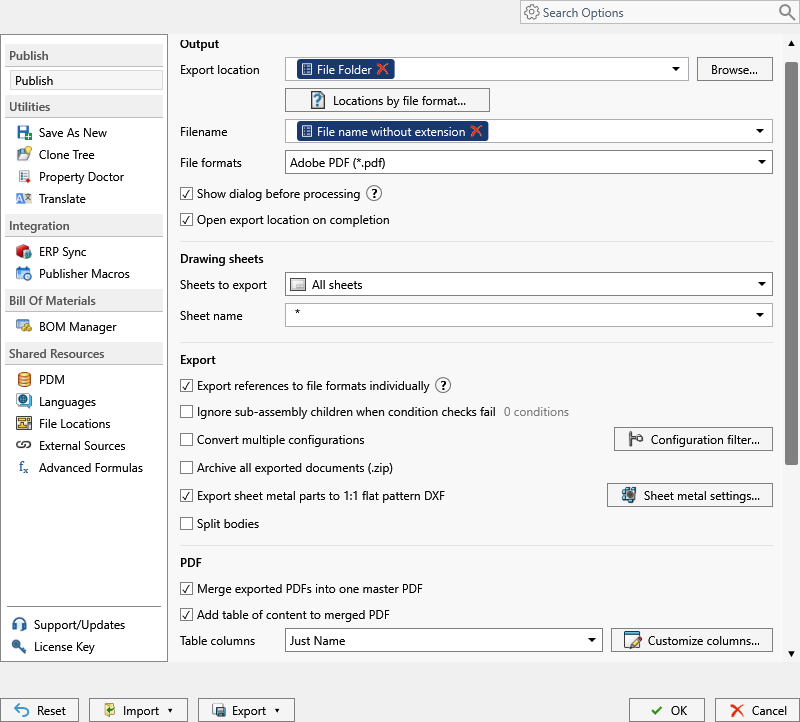
What you get
DXF is the vendor-neutral 2D exchange format. From a SOLIDWORKS drawing it carries sheets, views, dimensions and notes as 2D entities any drafting or CAM tool reads. PDMPublisher writes one .dxf per drawing, named by your pattern, with all sheets or only those matching a name pattern.
One thing to keep straight: DXF (dxf) under File formats converts drawings. It doesn’t flatten a sheet metal part, and the add-in warns you about that when DXF is ticked. 1:1 flat patterns come from the separate Export sheet metal parts to 1:1 flat pattern DXF option, which doesn’t need DXF ticked. SOLIDWORKS’ current DXF export options apply.
The manual way, and why it doesn’t scale
Open the drawing, File > Save As, pick DXF (*.dxf), name it with the revision, save. Next drawing, same again. Internal reference or manufacturing sheets mean deleting sheets first or cleaning up after.
Fine for one drawing. For forty drawings at every revision it’s an afternoon of clicking, and the names depend on who did the saving. And someone always saves a flat pattern from the drawing by hand when the part should have gone to the laser directly.
Convert SLDDRW to DXF with the add-in
- Open the drawing in SOLIDWORKS, saved, references resolved (Get Latest first in a vault).
- On the PDMPublisher tab, select Settings, then Publish.
- Set Export location: a fixed or UNC folder, or placeholders from the
>...menu such as(TopAssemblyFolder)\Exports\(Revision). - Set the Filename pattern, such as
(FileNameWithoutExtension)-(Revision);.dxfis added for you. - Under File formats, tick DXF (
dxf); other ticked formats come out in the same pass. - Under Sheets to export, keep All sheets, or pick Sheets matching name with a wildcard Sheet name such as
Sheet*or(ConfigurationName)*to leave internal sheets out. - Leave Export sheet metal parts to 1:1 flat pattern DXF off here. It’s a model-side option for laser-ready flat patterns, not a drawing export.
- Select
PDMPublisher > Publish, confirm the review dialog, and check Publishing results afterwards.
DXF is a Community Edition format of the add-in (with PDF and STEP), so a single drawing converts free. Community is limited to 5 references per run; Premium adds export locations by file format.
Automate it as a PDM task
PDMPublisher for PDM Professional runs the same engine as a task, so the drawing becomes DXF on a state change, not when somebody remembers.
- In PDM Administration, right-click Tasks, select New Task, choose PDMPublisher and name it. Tick the task hosts under Execution Method.
- On the Options page, set Export Location (
(VaultRootFolder)\Exports\DXF, no trailing backslash) and Filename. PDM variables such as($PartNumber)are in the>...menu. - Under File Formats, tick DXF (
dxf). Keep Export affected document on so the drawing that launched the task is exported. - Set Sheets to export and the Sheet name pattern as in the add-in.
- While validating, enable Vault Activity Logs with Log Folder (Vault Only) at
(VaultRootFolder)\Logs\PDMPublisher; Task Details then lists every file checked in. - Pick Use this version of SOLIDWORKS (a year on the task host, or Latest). For release workflows, enable Get latest revision only; it exports the version tied to the newest revision and its saved references.
- Attach the task to a workflow transition, leave it in the right-click menu, or run it from Scheduled Items.
Settings that matter for DXF
| Setting | What it does | Tip |
|---|---|---|
| Export location | Output folder: vault, relative, UNC or outside. Created if missing. | (TopAssemblyFolder)\Exports\(Revision) works; no trailing backslash. |
| Filename | Static text, placeholders, custom properties or PDM variables. | (Revision) for released files; keep names unique. |
| File formats | Tick DXF (dxf); invalid formats are dropped. | Several formats per job. |
| Sheets to export | All sheets, or Sheets matching name. | A one-sheet drawing always exports its only sheet. |
| Sheet name pattern | * any text, ? one character; (ConfigurationName) evaluated first. | No match on a multi-sheet drawing exports every sheet and logs the fallback (2026.08.09+). |
| Export sheet metal parts to 1:1 flat pattern DXF | Separate option: 1:1 flat pattern DXFs from sheet metal parts. | Not a drawing export; doesn’t need DXF ticked. |
Naming and folders
Placeholders resolve when the job starts, so every DXF is named and filed the same way:
(FileNameWithoutExtension)-(Revision):Plate-A.dxfin(TopAssemblyFolder)\Exports\DXF.\\server\cam\drawings\($ProjectNumber)in the task: drawing DXFs delivered to the CAM share by project number.(VaultRootFolder)\Exports\(TargetExtension)\(State): adxffolder and apdffolder per workflow state from one task.
Customize Location (Premium in the add-in, standard in the task) gives the
dxfrow its own folder, overriding the main Export location for that format only. A typical split:dxfto the laser or CAM share,
Tips and troubleshooting
- Community Edition of the add-in does PDF, DXF and STEP only, up to 5 references per run: fine for single drawings, not an assembly’s drawing set. The PDM task is licensed per vault with no such limit.
- Expecting a flat pattern? Run the job on the sheet metal part with Export sheet metal parts to 1:1 flat pattern DXF and Flat Pattern Settings. The drawing DXF is a different output.
- All sheets exported despite a pattern? A pattern that matches nothing falls back to every sheet and logs it. Check spelling and the evaluated
(ConfigurationName)in the task log or add-in Logs tab. - Can’t see the exported files? You need add and edit permission in the export location. The vault root is usually locked; target a subfolder like
(VaultRootFolder)\Exports. - PDMPublisher has no sub-options for DXF. SOLIDWORKS’ current export options apply, set under
Tools > Options > Exportwhere the job runs.
Availability
Available in PDMPublisher for SOLIDWORKS (the add-in) and PDMPublisher for PDM Professional (the task).
Documentation and related features
- Run a Publish Job (PDMPublisher for SOLIDWORKS)
- File Formats (PDMPublisher options)
- SOLIDWORKS drawing documents
- Sheet metal publishing
- Extension-specific export locations
- Run as a SOLIDWORKS PDM task
- Convert SLDPRT to a DXF flat pattern
- Convert SLDDRW to DWG
- Convert SLDDRW to PDF
Frequently asked questions
How do I convert a SOLIDWORKS drawing to DXF?
Open the drawing, tick DXF (dxf) under File formats, set the export location and filename, and Publish. A PDM Professional task does the same on a state change.
Does SLDDRW to DXF give me a flat pattern?
No. DXF under File formats converts the drawing. Flat patterns come from the separate Export sheet metal parts to 1:1 flat pattern DXF option, run on the sheet metal part.
Can I export only one sheet of the drawing to DXF?
Set Sheets to export to Sheets matching name and enter the sheet name or a wildcard such as DXF*. A one-sheet drawing always exports its only sheet.
Is DXF free in the PDMPublisher add-in?
Yes. DXF is a Community Edition format with PDF and STEP, limited to 5 references per run. The PDM task is licensed per vault.