
Every release, supplier request and ERP attachment starts with the drawing as a PDF. Saving them one at a time works for one drawing; for forty drawings at every revision it is an afternoon of clicking, and the names depend on who did the saving. PDMPublisher writes the PDF with a revision-based name, exports only the sheets you want, and can do the same automatically on a SOLIDWORKS PDM Professional workflow transition.
Quick answer
- Open the drawing, tick Adobe PDF (pdf) under File formats on the PDMPublisher tab, set a filename such as
(FileNameWithoutExtension)-(Revision), select Publish. - A single drawing to PDF is free in the Community Edition, no licence key needed.
- Want every release to produce its own PDF with nobody at the keyboard? Run the same settings as a PDM Professional task.
In SOLIDWORKS: five steps
- Open the drawing (in a vault, Get Latest first so references resolve).
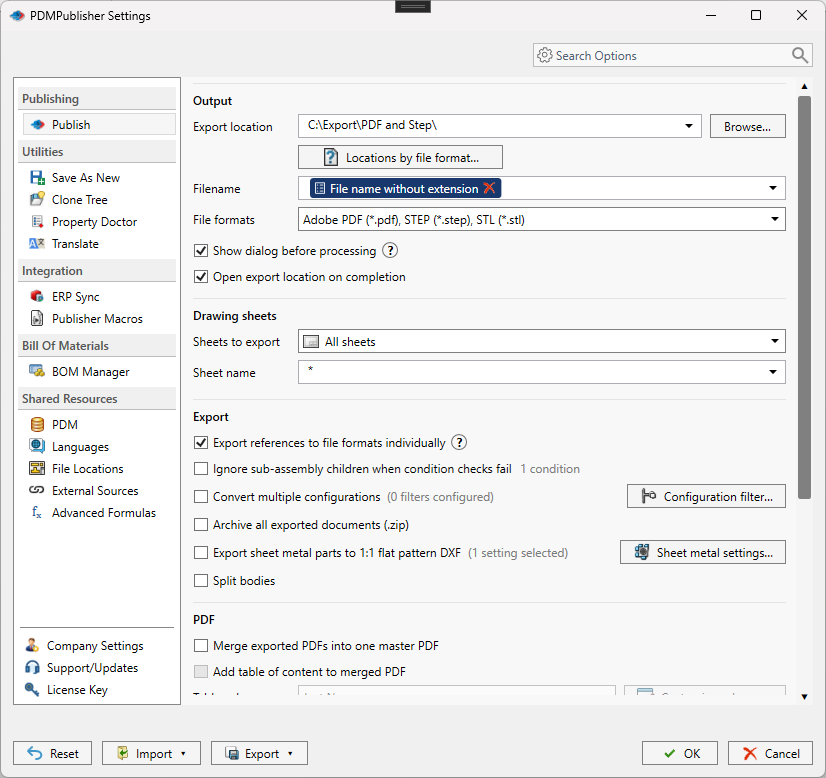
- On the PDMPublisher tab, select Settings > Publish.
- Export location: a folder, or placeholders such as
(TopAssemblyFolder)\Exports\(Revision). Filename:(FileNameWithoutExtension)-(Revision). The.pdfextension is added for you. - Under File formats, tick Adobe PDF (pdf). Under Sheets to export, keep All sheets or choose Sheets matching name with a pattern such as
Sheet*to leave internal sheets out. - Select PDMPublisher > Publish, confirm the review dialog, and check Publishing results.
Tip. Tick PDF on a part or assembly instead and PDMPublisher exports the same-name drawing that sits beside the model.
As a PDM task: PDF on every release
PDMPublisher for PDM Professional runs the same engine as a task, so the PDF is made when the drawing changes state, not when somebody remembers.
- In PDM Administration, right-click Tasks > New Task, choose PDMPublisher, name it and tick the task hosts.
- On the Options page set Export Location, for example
(VaultRootFolder)\Exports\PDF(no trailing backslash), and the Filename. PDM variables such as($PartNumber)are in the >… menu. - Tick Adobe PDF (pdf) under File Formats and set Sheets to export as in the add-in.
- For release workflows, enable Get latest revision only so the PDF comes from the version tied to the newest revision.
- Attach the task to a workflow transition, or leave it in the right-click menu and Scheduled Items.
Three settings that matter
| Setting | What to put | Why |
|---|---|---|
| Filename | (FileNameWithoutExtension)-(Revision) or, in the task, ($PartNumber)_Rev($Revision) | The supplier can tell Bracket-B.pdf from Bracket-C.pdf. Keep names unique. |
| Sheets to export | All sheets, or Sheets matching name with Sheet* or (ConfigurationName)* | Leaves internal and manufacturing-only sheets out of the PDF. A pattern that matches nothing falls back to every sheet and logs it. |
| Export location | A subfolder such as (VaultRootFolder)\Exports\PDF, no trailing backslash | The vault root is usually locked. Created if missing; you need add and edit permission there. |
Naming examples
Placeholders, properties and revision in the filename, shown in the add-in.
(FileNameWithoutExtension)-(Revision)in(TopAssemblyFolder)\Exports\PDFgivesBracket-B.pdfnext to the assembly.($PartNumber)_Rev($Revision)in the task names PDFs by PDM part number instead of filename.(VaultRootFolder)\Released PDFs\($ProjectNumber)\(State)files PDFs by project and workflow state, back inside the vault.
Customize Location (Premium in the add-in, standard in the task) gives the PDF its own folder while DXF or STEP from the same job go elsewhere.
If something looks wrong
- Every sheet came out despite a pattern: the pattern matched nothing. Check the spelling and the evaluated
(ConfigurationName)in the Logs tab or task log. - No PDF in the folder: you need add and edit permission in the export location. Target a subfolder, not the vault root.
- Community Edition limit: PDF, DXF and STEP, up to 5 references per run. Fine for single drawings; an assembly’s whole drawing set needs Premium or the PDM task.
- The model exported but not its drawing: in the task, enable Use PDM search to locate drawings when drawings live in a different folder than their models.
Keep going
Documentation
- Run a publish job in the add-in
- File formats, every option
- Run as a SOLIDWORKS PDM task
- No drawing yet? Create one from the part
Frequently asked questions
How do I convert a SOLIDWORKS drawing to PDF automatically?
Open the drawing, tick Adobe PDF (pdf) under File formats, set the export location and filename pattern, and Publish. A PDM Professional task does the same on a workflow transition.
Can I export only some sheets of a SLDDRW to PDF?
Yes. Set Sheets to export to Sheets matching name and enter a wildcard Sheet name pattern. If nothing matches, every sheet is exported and the fallback is logged.
Is SLDDRW to PDF free in PDMPublisher?
Yes. PDF is a Community Edition format of the add-in, with DXF and STEP, up to 5 references per run. The PDM task is licensed per vault with a 7-day trial.
Can a PDM task make the PDF when the drawing is released?
Yes. Attach a PDMPublisher task with PDF ticked to the release transition, with Get latest revision only on so the revised version is exported.